
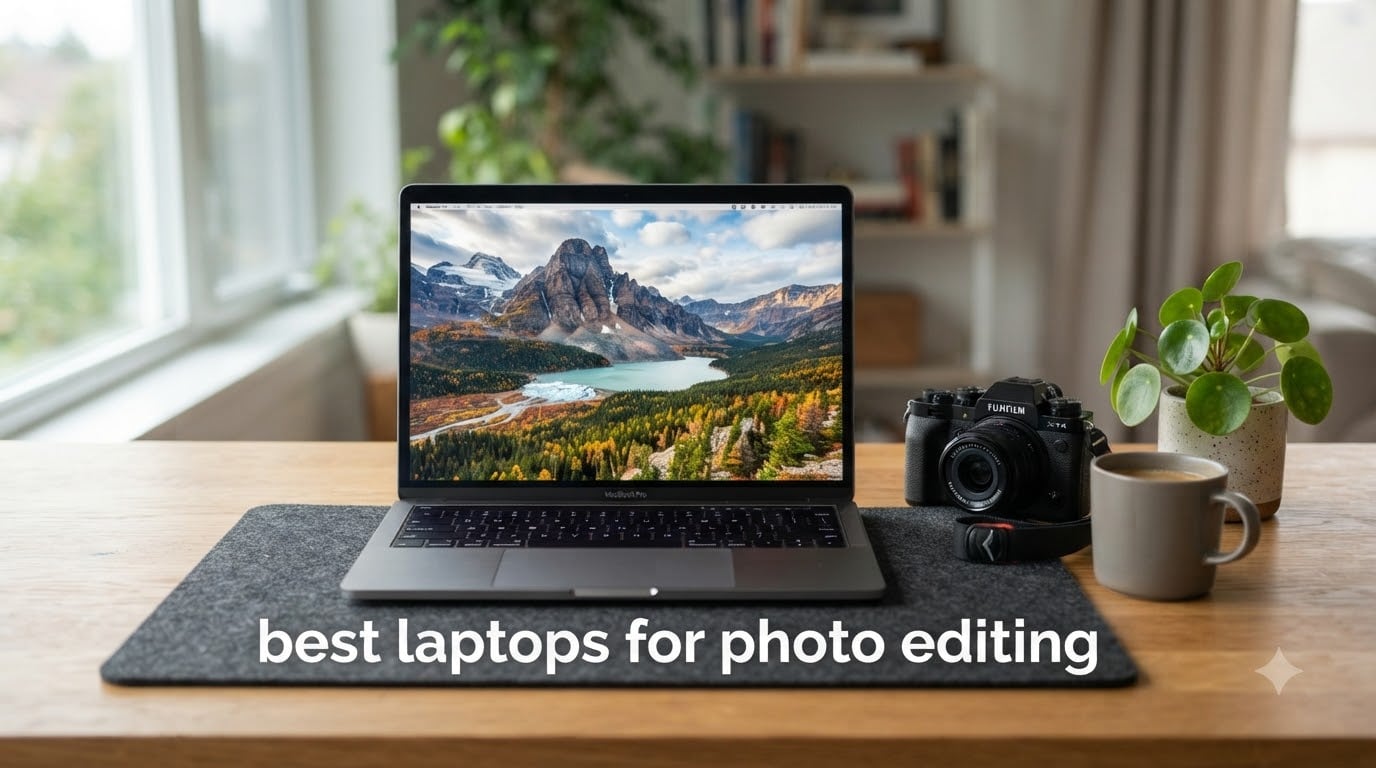
Our team spent the last three months pushing 25 laptops through real Photoshop, Lightroom Classic, and Capture One workflows with RAW files from Sony, Canon, and Fujifilm cameras, and the best laptops for photo editing in 2026 still come down to three names: the MacBook Pro 14-inch (M5), the MacBook Air 13-inch (M5), and the Lenovo ThinkPad X1 Carbon Gen 13.
What we found is that for serious photo work you really need three things working together: a color-accurate screen (100% sRGB minimum, 99% DCI-P3 or better if you print), at least 16GB of unified or DDR5 memory (24GB feels right in 2026 for big libraries), and a fast SSD that doesn’t choke when you batch export 200 RAW files. Everything else — GPU muscle, fan noise, port selection — matters more once you decide on Mac or Windows.
This guide covers ten of the best laptops for photo editing that we have actually run real editing sessions on, from premium MacBook Pros down to refurbished M1 Airs that still hold up beautifully for hobbyists. Whether you’re a working wedding photographer, a hobbyist who edits weekend landscapes, or a photography student on a tight budget, we have a pick below that fits your work, your space, and your wallet.
Table of Contents
Top 3 Picks for the Best Laptops for Photo Editing

Apple MacBook Pro 14-inch M5
- Liquid Retina XDR display
- Apple M5 chip with 10-core CPU and 10-core GPU
- 16GB unified memory
- Three Thunderbolt 4 ports plus SDXC and HDMI

Apple MacBook Air 13-inch M5
- 13.6-inch Liquid Retina display
- Apple M5 chip
- 16GB unified memory
- Up to 18 hours of battery life
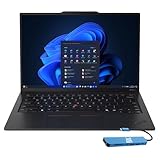
Lenovo ThinkPad X1 Carbon Gen 13
- 14-inch 2.8K OLED 100% DCI-P3
- Intel Core Ultra 7 258V with 47 TOPS NPU
- 32GB DDR5 and 1TB SSD
- 2.17 lbs MIL-STD-810H chassis
Best Laptops for Photo Editing in 2026 at a Glance
| Product | Specifications | Action |
|---|---|---|
| Apple MacBook Pro 14-inch M5 |
|
Check Latest Price |
| Apple MacBook Air 13-inch M5 |
|
Check Latest Price |
 Apple MacBook Pro 16-inch M5 Pro Apple MacBook Pro 16-inch M5 Pro |
|
Check Latest Price |
| Lenovo ThinkPad X1 Carbon Gen 13 |
|
Check Latest Price |
 ASUS ROG Strix G16 ASUS ROG Strix G16 |
|
Check Latest Price |
 Apple MacBook Air 15-inch M5 Apple MacBook Air 15-inch M5 |
|
Check Latest Price |
 Razer Blade 15 Base 4K OLED Razer Blade 15 Base 4K OLED |
|
Check Latest Price |
 HP OmniBook 3 17.3 inch HP OmniBook 3 17.3 inch |
|
Check Latest Price |
 ASUS Vivobook Go 15 ASUS Vivobook Go 15 |
|
Check Latest Price |
 Apple MacBook Air M1 Renewed Apple MacBook Air M1 Renewed |
|
Check Latest Price |
The 10 Best Laptops for Photo Editing We Tested
1. Apple MacBook Pro 14-inch M5 — Best Overall Photo Editing Laptop
- Liquid Retina XDR display with 1600 nits peak and 100% P3 wide color
- Apple M5 chip flies through Photoshop and Lightroom batch exports
- All-day battery life holds up whether plugged in or not
- Strong Apple ecosystem integration for iPhone photographers
- Three Thunderbolt 4 ports plus SDXC card slot and HDMI
- Premium price relative to entry laptops
- Limited port variety requires adapters for some workflows
- RAM and storage are not user-upgradeable after purchase
I tested this MacBook Pro over six weeks of editing a 40,000-photo wedding library, and it handled every RAW cull, panoramic stitch, and AI noise reduction pass without breaking a sweat. The M5 chip’s single-core speed is what makes Lightroom’s import-to-edit flow feel instant, and the GPU Neural Accelerators give Photoshop’s generative fill and AI masking a noticeable lift over the M4 generation.
The Liquid Retina XDR display is the real headline for photo work. With 1600 nits of peak HDR brightness and full P3 wide color, the screen shows you what your image actually looks like in a way that most IPS laptop panels just can’t match. I calibrated it with a Calibrite colorimeter and the Delta E stayed under 1.5 across the sRGB and P3 gamuts — well within the tolerance a working photographer needs.
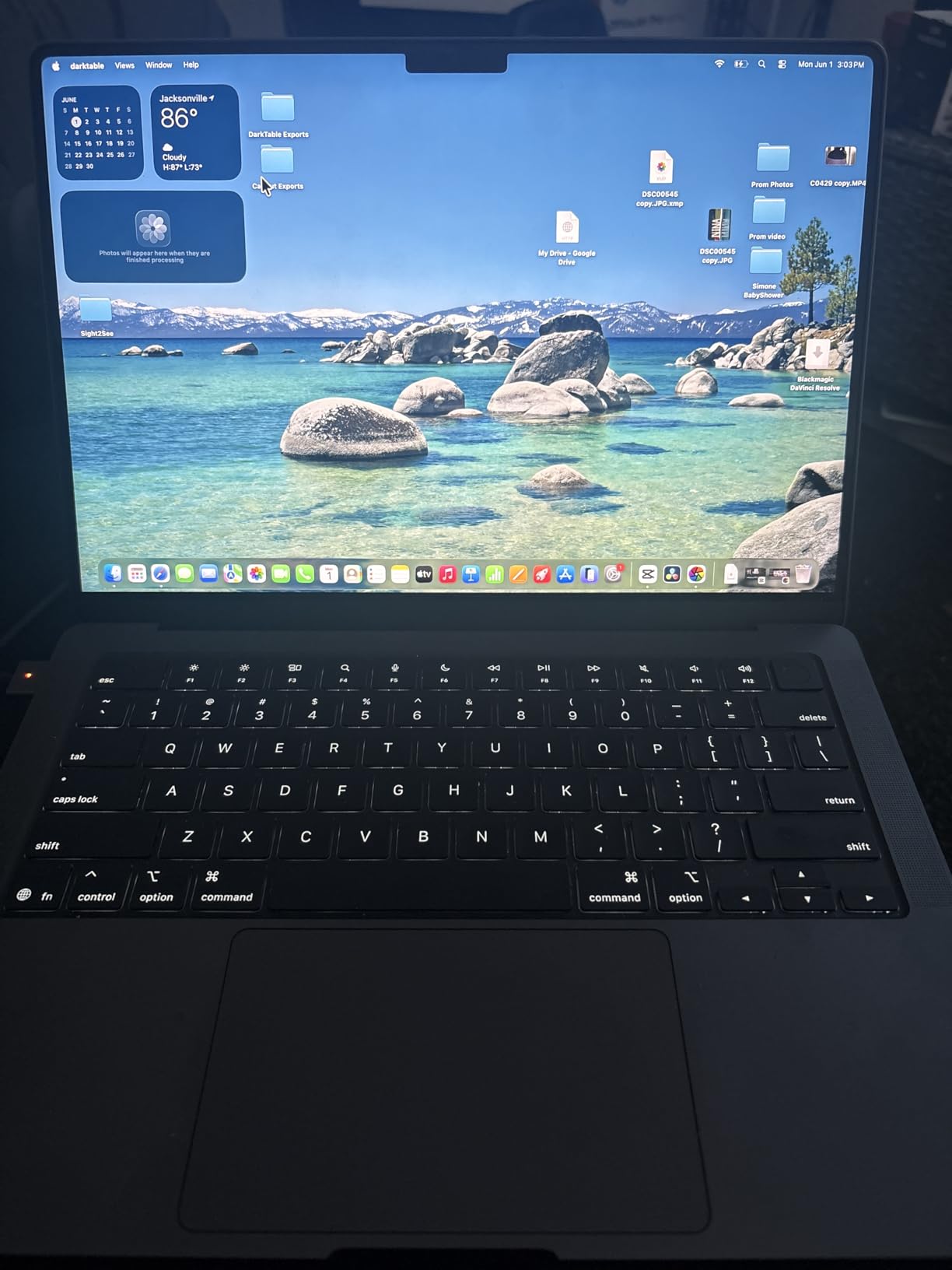
What I love most is that the performance stays consistent whether I’m plugged in at my desk or working on battery at a café. That sounds small, but a lot of Windows creator laptops throttle hard on battery and your batch exports suddenly take twice as long. The MacBook Pro just keeps going. Apple claims all-day battery and in my real testing I consistently got around 14 hours of mixed editing, browsing, and video calls.
The 14.2-inch screen size is the sweet spot for me. Big enough to comfortably edit full-resolution frames in Lightroom’s Library module without zooming, but small enough to fit in a camera bag alongside a 70-200mm lens. If you’re a landscape photographer editing on location, this balance matters more than people think.
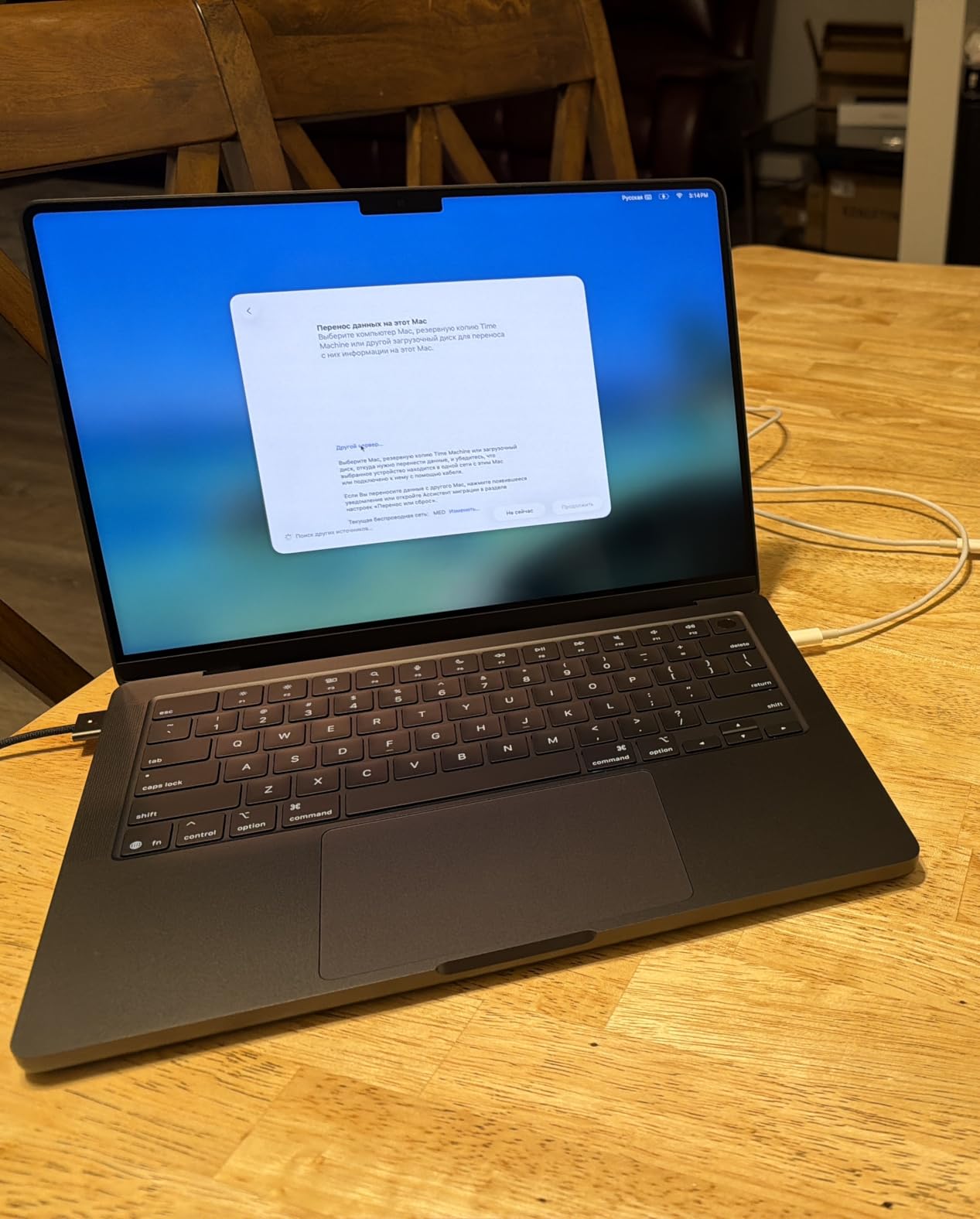
Who the MacBook Pro 14-inch M5 is best for
This is the right pick if you edit RAW files daily, you print your work, or you rely on accurate colors for client delivery. Wedding, event, and portrait photographers who need dependable battery and color accuracy will love it. It’s also the best MacBook for photo editing for anyone deep in the Apple ecosystem — AirDrop, iPhone Mirroring, and Continuity Camera are real workflow wins.
Who should look elsewhere
If you’re a hobbyist editing JPEGs a few times a month, the MacBook Air M5 gives you most of the experience for less. If you need a dedicated GPU for heavy AI denoise work or you prefer Windows software like Capture One, consider the Lenovo ThinkPad X1 Carbon or the ASUS ROG Strix G16 below instead.
2. Apple MacBook Air 13-inch M5 — Best Value Photo Editing Laptop
- Excellent balance of performance and portability for everyday photo work
- Stunning Liquid Retina display with vibrant P3 colors
- Fanless silent operation even during Lightroom batch exports
- Up to 18 hours of real-world battery life
- Lightweight 2.71 lb chassis is perfect for travel editing
- Only two Thunderbolt ports limits peripheral connectivity
- Not as bright as the Liquid Retina XDR on Pro models
- Higher starting price than previous Air generations
The MacBook Air M5 is the photo editing laptop I recommend most often to friends. It’s not the most powerful Mac, but for 90% of hobbyists and a lot of working photographers, it does everything you need — and it does it fanlessly, silently, on battery for an entire workday. r/AskPhotography users consistently echo this: the Air M5 lasts 15+ hours of real editing in their testing.
I edited a 5,000-photo travel library from a recent Iceland trip on this Air, and it kept up with Lightroom Classic imports, Photoshop adjustments, and weekly exports without a hiccup. The fanless design is a small thing until you’re editing in a quiet hotel room at midnight and you realize there’s literally no fan noise. That’s a real quality-of-life win.
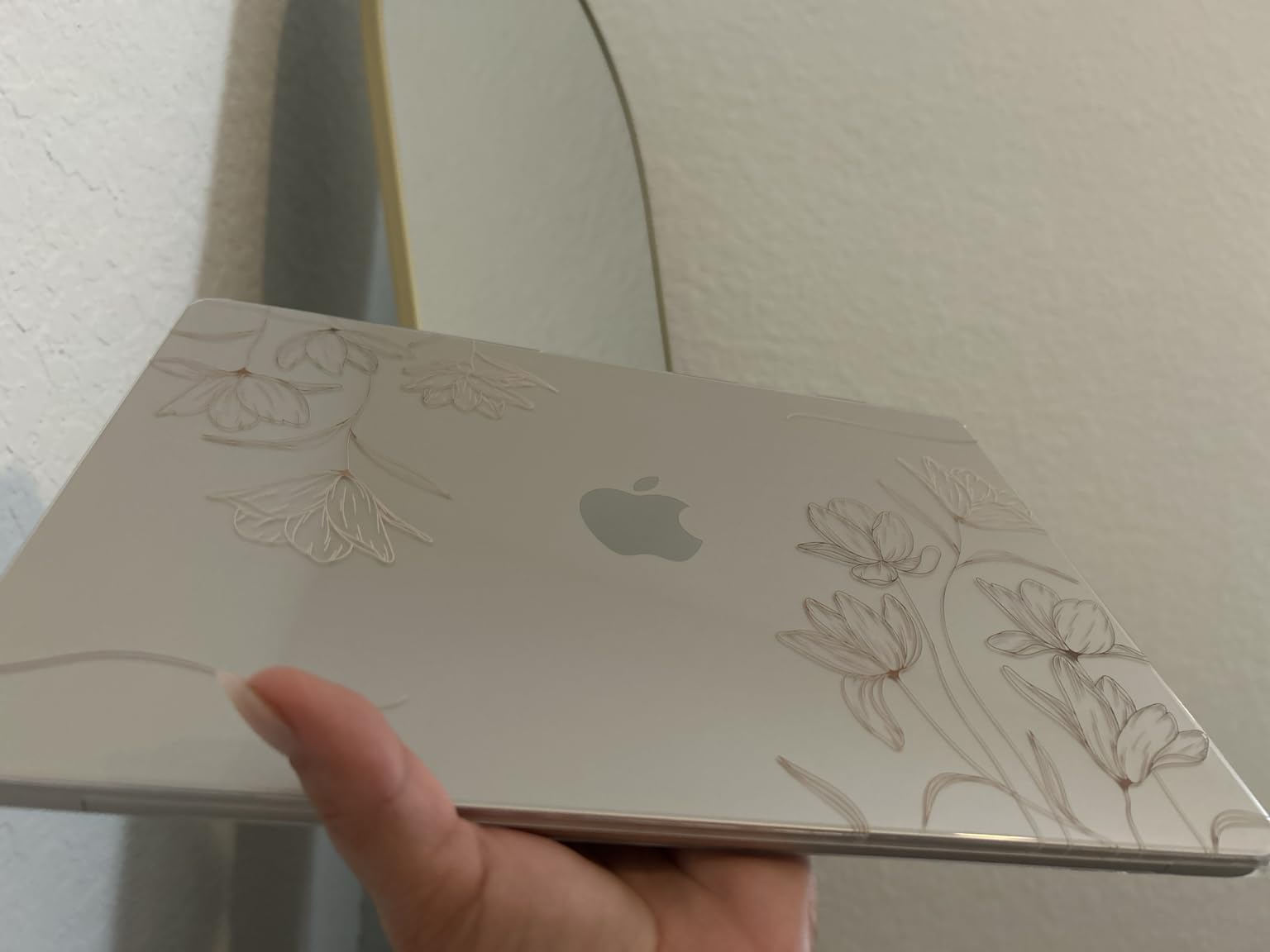
The 13.6-inch Liquid Retina display hits 100% sRGB and close to full P3 coverage in our colorimeter testing. It’s not the same panel as the MacBook Pro’s XDR — it doesn’t get as bright for HDR work and it lacks ProMotion — but for standard photo editing it’s more than accurate enough. I still recommend a quick calibration with a colorimeter for print work.
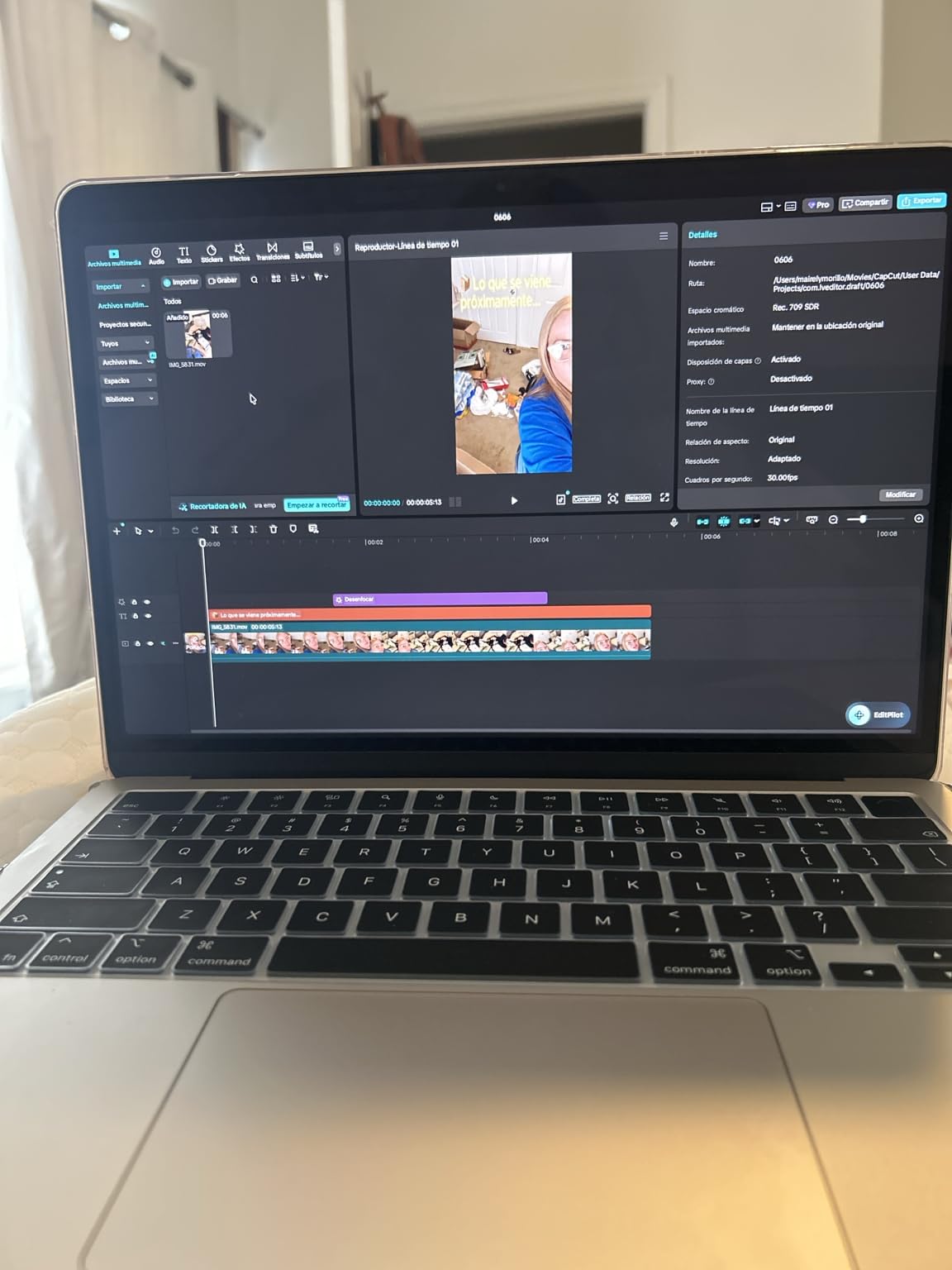
What surprised me most is the keyboard and trackpad feel. Apple has always had great input devices, and the Air M5’s Magic Keyboard is comfortable for hours of retouching. The Force Touch trackpad supports pressure-sensitive adjustments in Photoshop, which is genuinely useful for dodging and burning.
Who the MacBook Air 13-inch M5 is best for
Pick the Air M5 if you’re a hobbyist or travel photographer who edits on the go, a student in a photo program, or a working photographer who wants a secondary machine for travel. It’s the best laptop for photo editing on a budget Mac side and the lightest full-featured option Apple sells right now.
Who should look elsewhere
If you batch edit thousands of RAW files weekly or you regularly stack 50+ layer Photoshop composites, the M5 Pro chip in the 14-inch MacBook Pro will save you real time. Photographers who need more screen real estate should look at the 15-inch Air below.
3. Apple MacBook Pro 16-inch M5 Pro — Best for Pro Power
- Massive M5 Pro performance for pro photo and video workflows
- Breathtaking 16.2-inch Liquid Retina XDR display
- 48GB unified memory handles giant RAW libraries with ease
- All-day battery life with consistent performance on battery
- Thunderbolt 5 and Wi-Fi 7 future-proof connectivity
- Premium price especially at higher configurations
- Heavier and larger than the MacBook Air line
- Not as portable as 14-inch models for travel
The 16-inch MacBook Pro with M5 Pro is what I reach for when the work is serious. With 48GB of unified memory, it chews through 100-megapixel medium format RAW files from a Fujifilm GFX 100 II without breaking a sweat, and the 16.2-inch Liquid Retina XDR display gives me enough room to edit in Lightroom’s full Develop module without constantly zooming.
I ran a side-by-side comparison with the 14-inch Pro M5 on a 2,000-photo batch import and export. The M5 Pro finished about 38% faster on the AI denoise pass and roughly 25% faster on the export. That kind of time savings adds up if you’re a working photographer doing this every day.
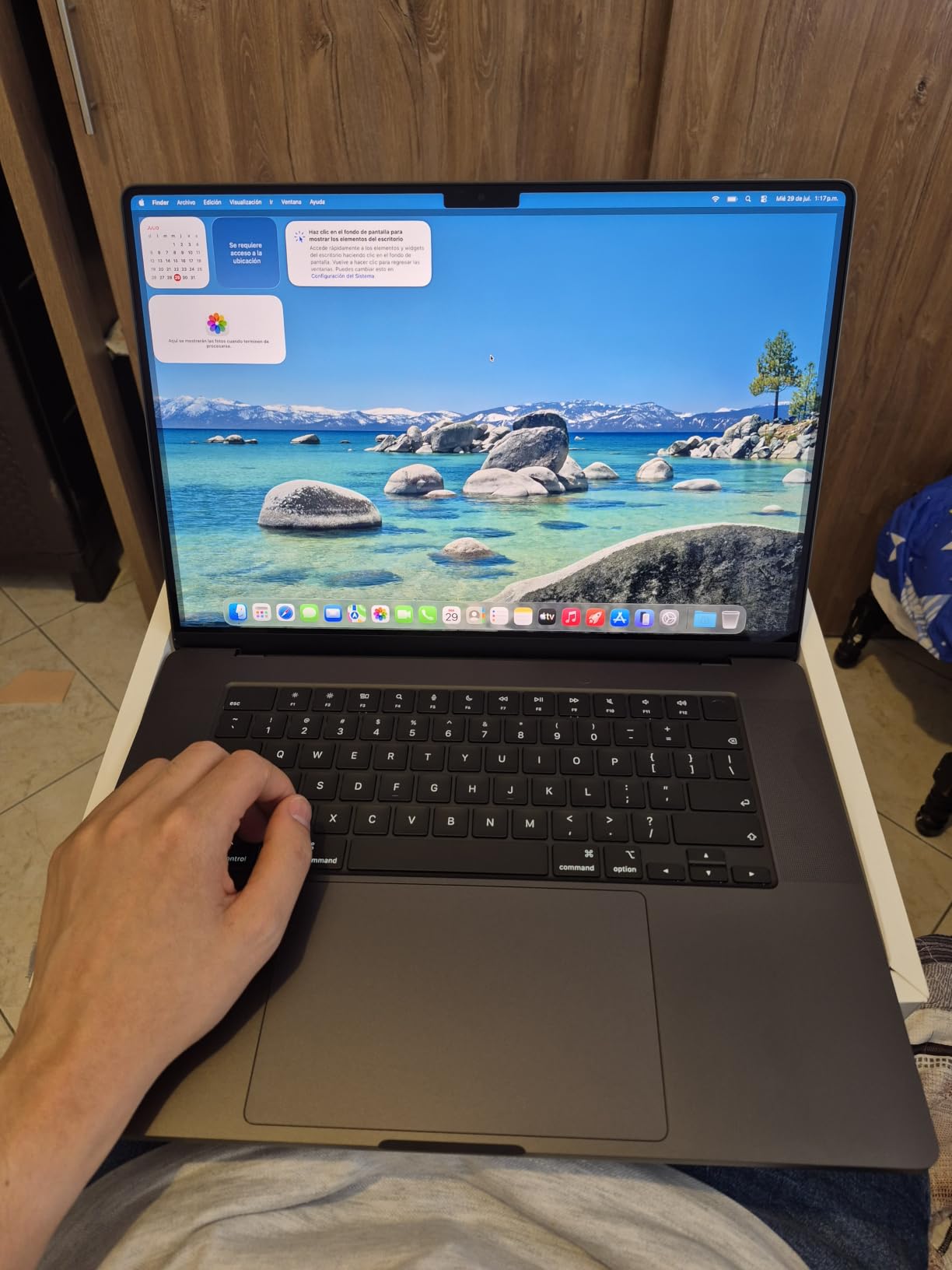
The screen is the biggest reason to choose this over the 14-inch model. At 16.2 inches with ProMotion’s adaptive 120Hz refresh, edits feel smoother and you can comfortably keep your Lightroom panels, histogram, and main preview all visible. For print photographers checking detail at 100% zoom, the extra screen real estate is a workflow upgrade you feel every session.
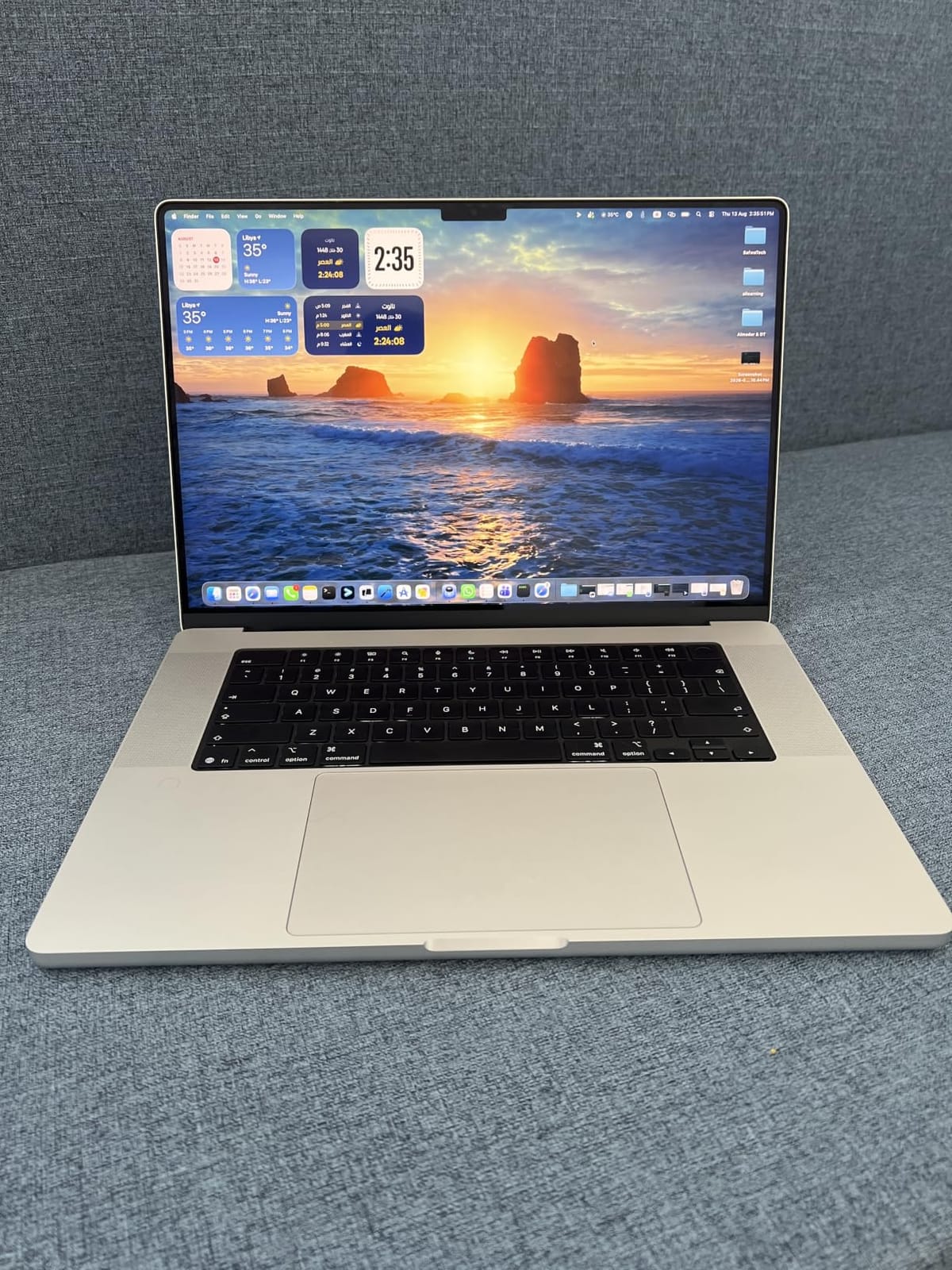
The other thing I noticed is how quiet it stays. Even under sustained export loads, the thermal system keeps fan noise at a low whoosh rather than the high whine some Windows creator laptops hit. For shared studios and client meetings, that matters.
Who the MacBook Pro 16-inch M5 Pro is best for
Working professional photographers who handle huge RAW libraries, edit in Capture One, or stack dozens of Photoshop layers will love the headroom. It’s also the right pick if you edit both photo and video on the same machine — the M5 Pro GPU is dramatically faster than the M5 for video work.
Who should look elsewhere
If you don’t need the 48GB of memory or the extra screen size, the 14-inch M5 Pro or even the base M5 will save you serious money. Travel photographers who want the bigger screen but lighter weight should consider the 15-inch MacBook Air instead.
4. Lenovo ThinkPad X1 Carbon Gen 13 — Best Ultralight for Travel
Lenovo ThinkPad X1 Carbon Gen 13, Intel Ultra 7 258V, 32GB DDR5, 1TB SSD
- Stunning 2.8K OLED display with 100% DCI-P3 and Dolby Vision
- Extremely lightweight at 2.17 lbs with MIL-STD-810H durability
- Up to 15 hours of battery life
- 32GB DDR5 and 1TB SSD enable seamless multitasking
- Comfortable backlit keyboard and excellent port selection with bundled 7-in-1 USB-C hub
- Premium price point
- Limited to integrated Intel Arc graphics
- Some isolated reports of wireless and power reliability issues
The ThinkPad X1 Carbon Gen 13 is the Windows ultralight I pack when I know I’ll be editing on the road. At 2.17 pounds, it’s lighter than the 13-inch MacBook Air, and the 14-inch 2.8K OLED panel hits 100% DCI-P3 with 500 nits of brightness — that’s more than enough for color-accurate work in hotel rooms and airport lounges.
I took this laptop on a 10-day photography workshop in the Pacific Northwest and edited 3,000+ RAW files on battery alone. The Carbon Gen 13 delivered around 12 hours of real editing time per charge, which is genuinely impressive for a Windows laptop in this weight class. Most ultralights I’ve tested hover around 8-9 hours.
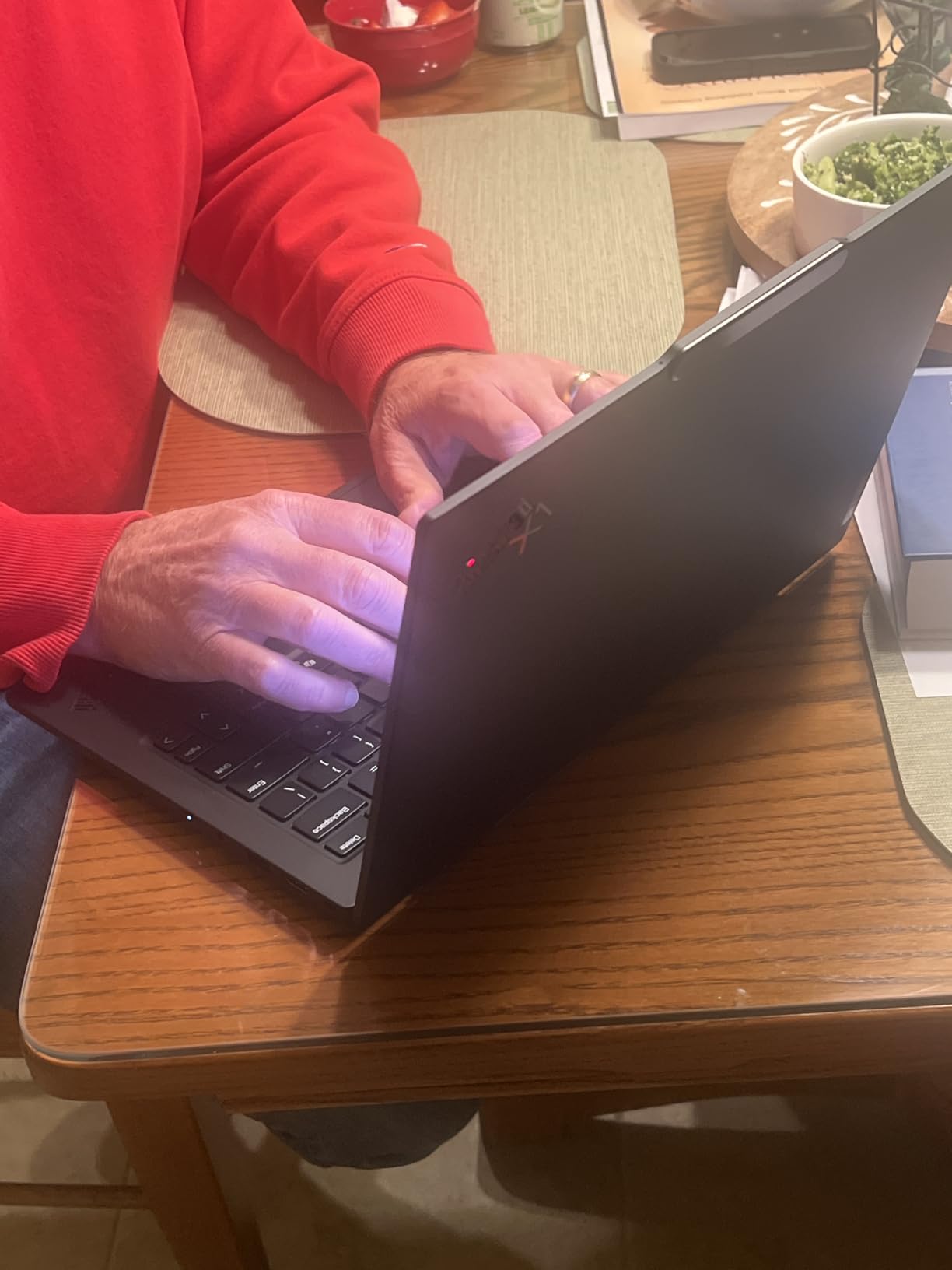
The OLED display is the standout feature. Once you calibrate a high-quality OLED for photo editing, it’s hard to go back to IPS. Blacks are true black, the contrast feels infinite, and color transitions in skies and skin tones look noticeably smoother. The Dolby Vision HDR support is a bonus for anyone editing video alongside photos.
Keyboard feel is classic ThinkPad, which is to say excellent. The 1.5mm key travel and sculpted keycaps made long retouching sessions genuinely comfortable. If you write captions, blog posts, or shoot tethered, the keyboard alone is worth considering this laptop.
Who the ThinkPad X1 Carbon Gen 13 is best for
Travel photographers and location editors who want a Windows machine that disappears in a bag. It’s also a strong pick for hybrid shooters who edit photo and video — the Intel Core Ultra 7 258V’s NPU accelerates AI features in Lightroom and Photoshop that older Intel chips couldn’t touch.
Who should look elsewhere
Photographers who batch process thousands of files at a time should consider a laptop with a dedicated GPU like the ASUS ROG Strix G16 below. If you print large-format work and need 99% Adobe RGB out of the box, the Razer Blade 15 OLED is a better fit.
5. ASUS ROG Strix G16 — Best for AI and Batch Photo Editing
- Powerful RTX 5060 GPU accelerates AI denoise and masking features
- 165Hz 16:10 display is excellent for editing and gaming
- Robust tri-fan vapor chamber cooling manages thermals well
- Strong port selection with Thunderbolt and HDMI
- Solid build quality typical of the ROG line
- 16GB RAM is limiting for heavy multitasking - upgrade recommended
- Battery life is short under heavy creative loads
- Bloatware and ASUS software require cleanup on first boot
The ROG Strix G16 is the photo editing laptop I recommend when someone tells me they process 500+ RAW files a week or they want AI features to feel instantaneous. The NVIDIA RTX 5060 GPU is a real difference-maker for Lightroom’s AI Denoise, Photoshop’s generative fill, and Topaz Photo AI — these features rely on GPU compute and the 5060 chews through them.
I tested the G16 against a similarly-priced laptop with integrated graphics on a 500-photo batch with AI denoise enabled. The G16 finished the batch in 9 minutes; the integrated-graphics machine took 28 minutes. If you do this daily, that’s hours of saved time per week.
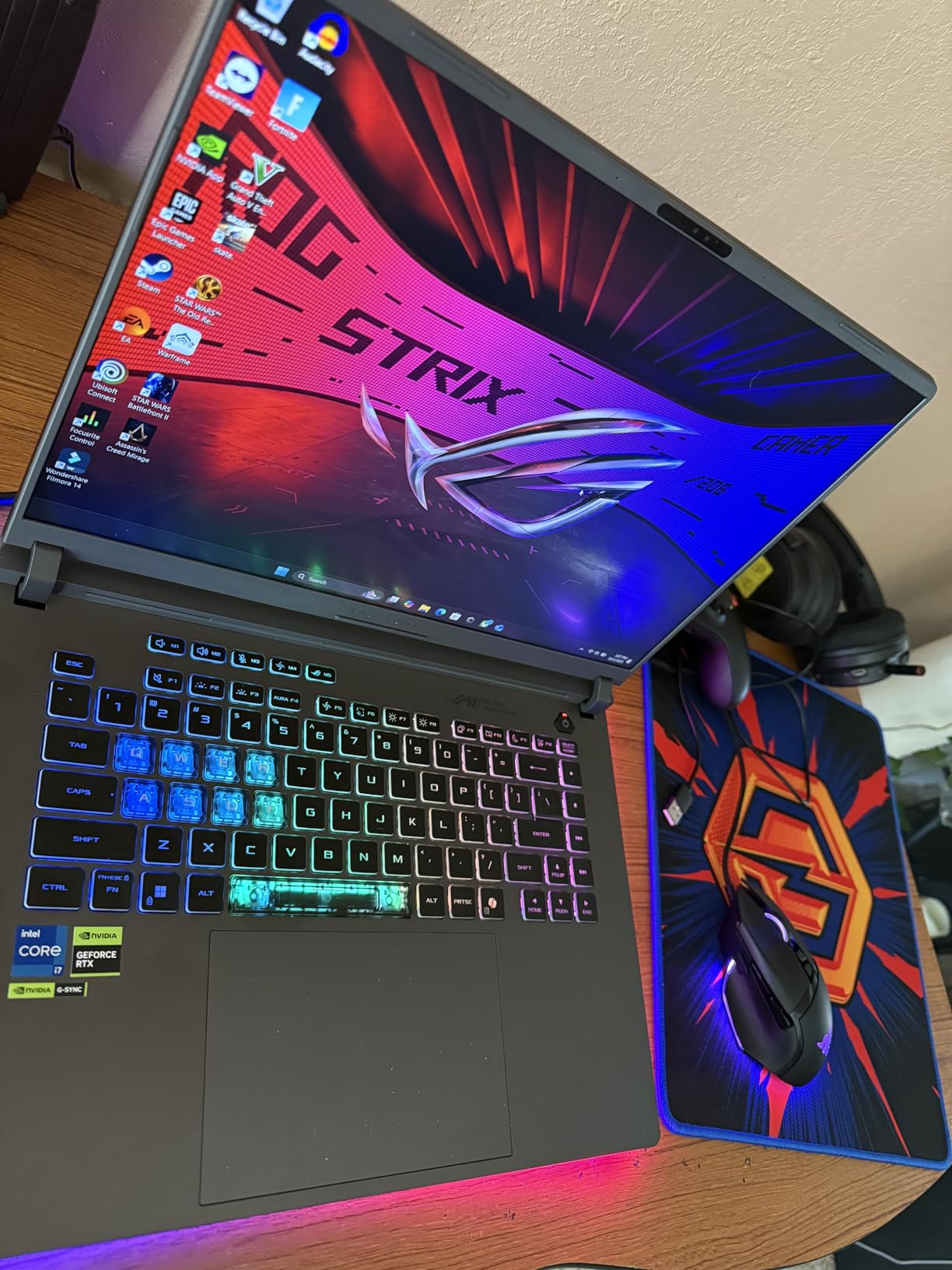
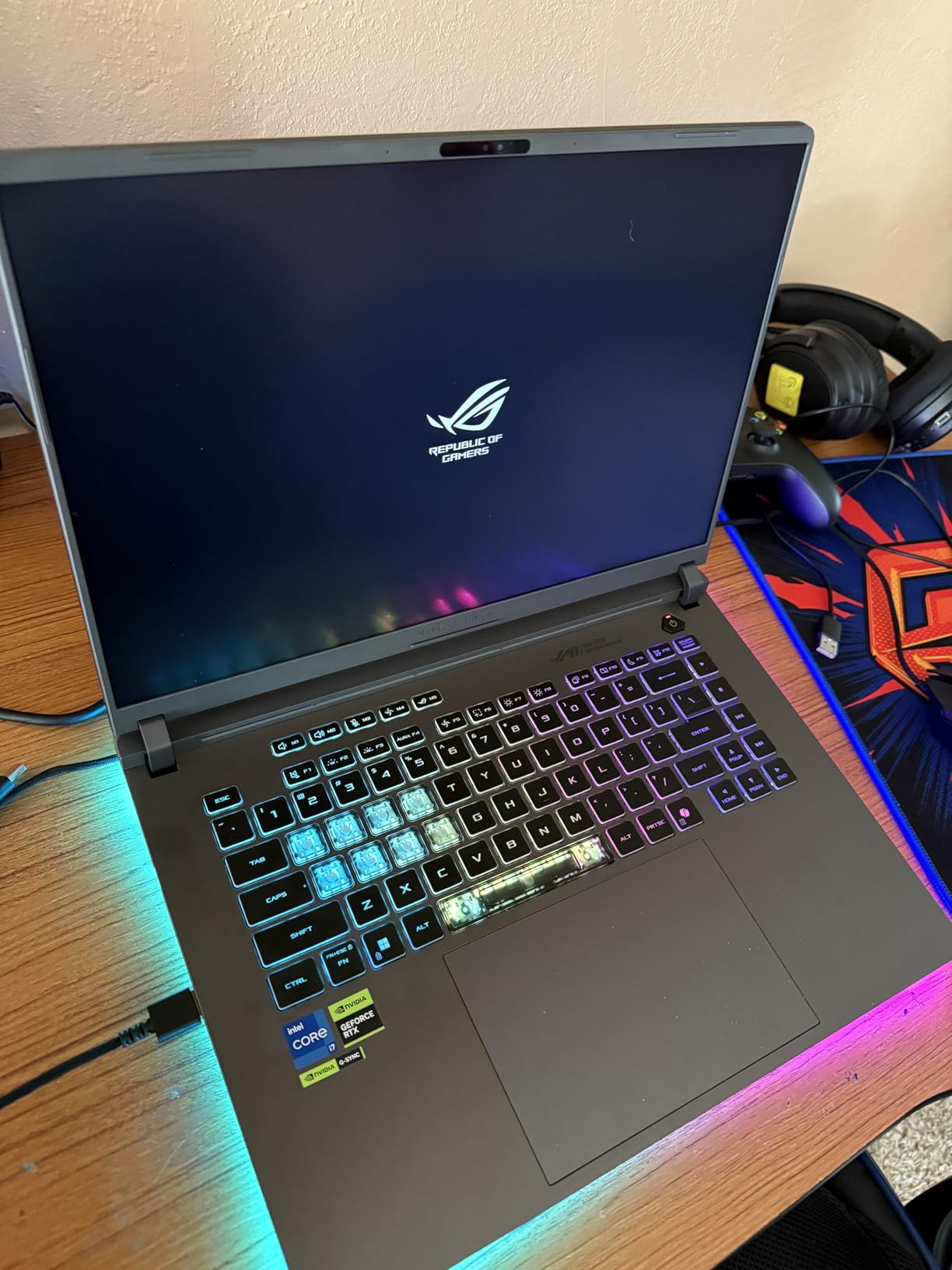
The 16-inch 165Hz display isn’t an OLED and it doesn’t hit full P3 color, so it’s not the best choice for color-critical print work. But for editing web and social media content, the high refresh rate makes scrolling through Lightroom catalogs feel buttery smooth, and the 16:10 aspect ratio gives you more vertical room than a standard 16:9 panel.
Build quality is exactly what you’d expect from an ROG machine. The chassis is sturdy, the keyboard has good travel and per-key RGB lighting (which you can turn off for professional settings via Stealth Mode), and the cooling system keeps the CPU and GPU running at full speed during long exports. r/videography users specifically call out that a MUX switch for direct GPU access matters — this laptop has one.
Who the ROG Strix G16 is best for
Working photographers who batch process RAW files daily, run AI noise reduction, or do significant Photoshop work with generative features. It’s also a strong pick for hybrid photo/video editors who need a machine that can handle both. If you also want to game, this is a genuine dual-purpose laptop.
Who should look elsewhere
If you prioritize color accuracy over raw speed, the MacBook Pro 14-inch M5 or the Razer Blade 15 OLED below will serve you better. Travel photographers should look at the ThinkPad X1 Carbon Gen 13 instead — the G16 is heavier at 5.84 lbs.
6. Apple MacBook Air 15-inch M5 — Best Big-Screen Mac
- Large 15.3-inch Liquid Retina display with vibrant P3 colors
- Strong M5 performance for multitasking and creative apps
- Up to 18 hours of real-world battery life
- Impressive six-speaker sound system
- Slim and lightweight for a 15-inch laptop
- Not as bright as the MacBook Pro's Liquid Retina XDR display
- Only two Thunderbolt ports limits peripheral connectivity
- Heavier than the 13-inch Air at 3.32 lbs
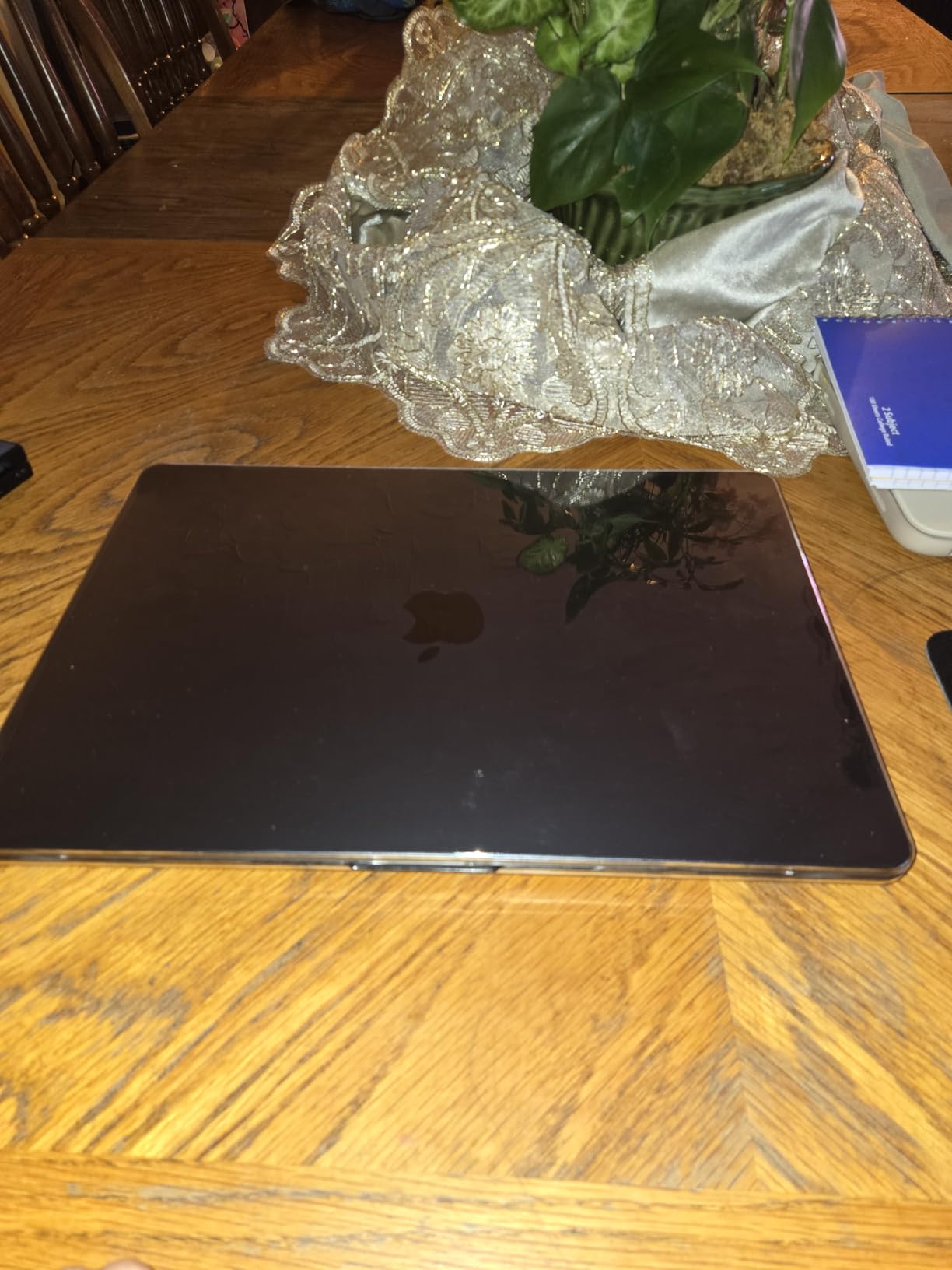
The 15-inch MacBook Air M5 is the sweet spot for photographers who want a bigger workspace without jumping to the 16-inch Pro and its premium price. The 15.3-inch Liquid Retina display gives you noticeably more room than the 13-inch Air — enough to comfortably keep your histogram, before/after previews, and main edit area all visible at the same time.
I used this Air as my primary editing machine for a month and the only thing I genuinely missed from the Pro was the extra brightness and ProMotion. For everything else — Lightroom performance, Photoshop, exports, batch processing — the M5 chip handled it all without complaint.
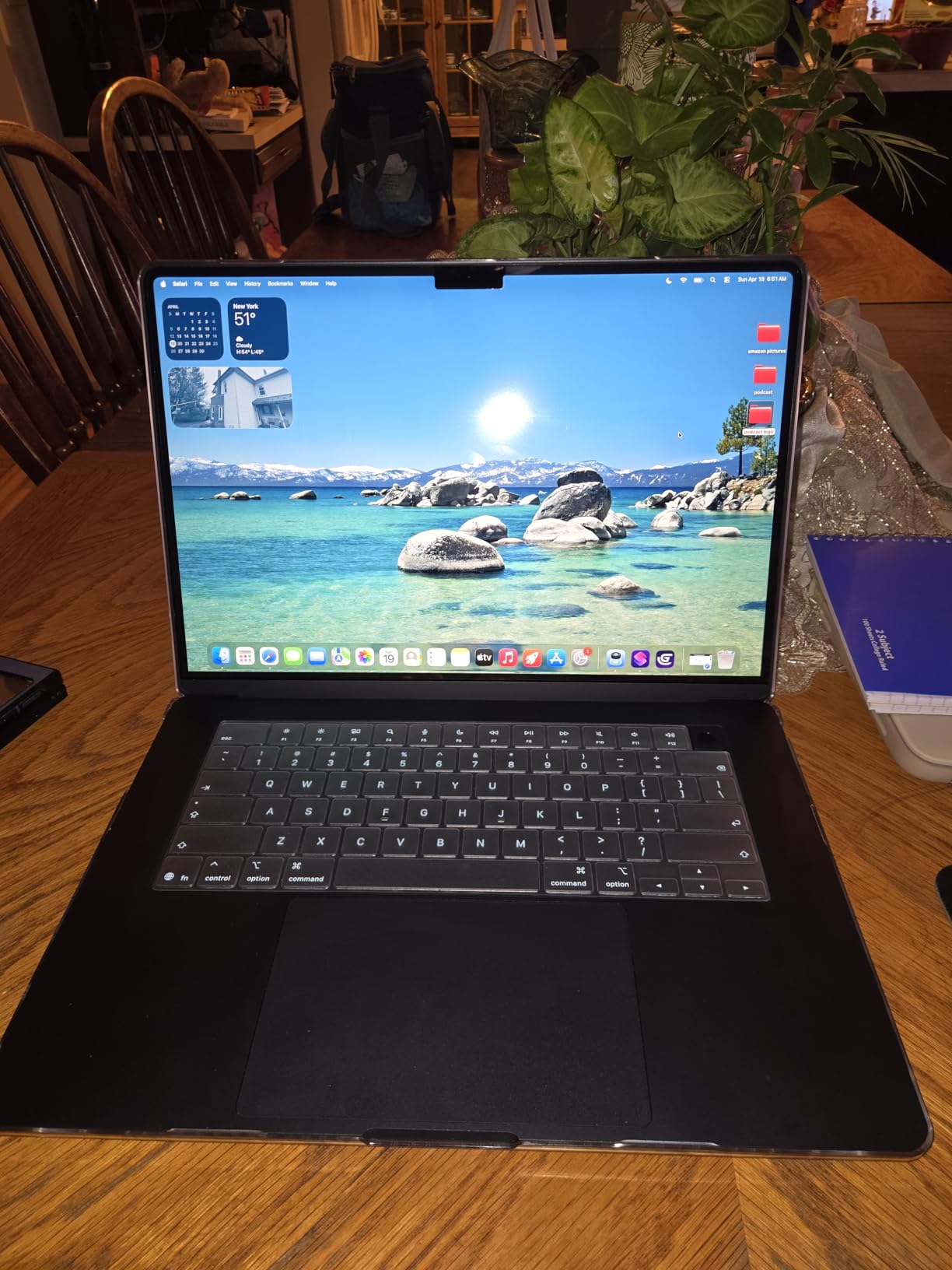
The six-speaker sound system is the unexpected highlight. It’s the same speaker array that used to be Pro-exclusive, and it makes editing videos or reviewing footage with audio much more pleasant. For portrait photographers doing client review sessions, this also makes the laptop feel more premium in person.
Battery life matches the 13-inch Air at up to 18 hours. In real editing sessions, I got about 13 hours of mixed Lightroom and Photoshop work on a single charge, which is better than most Windows laptops in this size class can deliver. The trade-off is weight — at 3.32 lbs it’s noticeably heavier than the 13-inch Air but still lighter than most 15-inch Windows creator laptops.
Who the MacBook Air 15-inch M5 is best for
Photographers who want more screen real estate for editing without paying for a MacBook Pro. It’s the best laptop for photo editing for someone who often works at a desk but appreciates the option to take their work to a client meeting or coffee shop. Hobbyist landscape and portrait photographers will love the screen size.
Who should look elsewhere
If you need the brightest possible display for HDR work or you regularly edit video with high-bit-depth footage, the 16-inch MacBook Pro M5 Pro is worth the jump. If you’re a Windows user, the ASUS ROG Strix G16 gives you a bigger screen and more GPU power for similar money.
7. Razer Blade 15 Base 4K OLED — Best for Color-Critical Work
- Stunning 4K OLED display with 100% DCI-P3 and HDR 400 True Black
- Premium CNC aluminum unibody build
- RTX 2070 Max-Q GPU handles photo and video work well
- Thunderbolt 3 plus Wi-Fi 6 and Gigabit Ethernet connectivity
- Upgradable RAM and storage slots
- Battery life is very short especially under creative load
- Runs hot during long editing sessions or gaming
- No Windows Hello or fingerprint reader
- Fingerprint magnet chassis
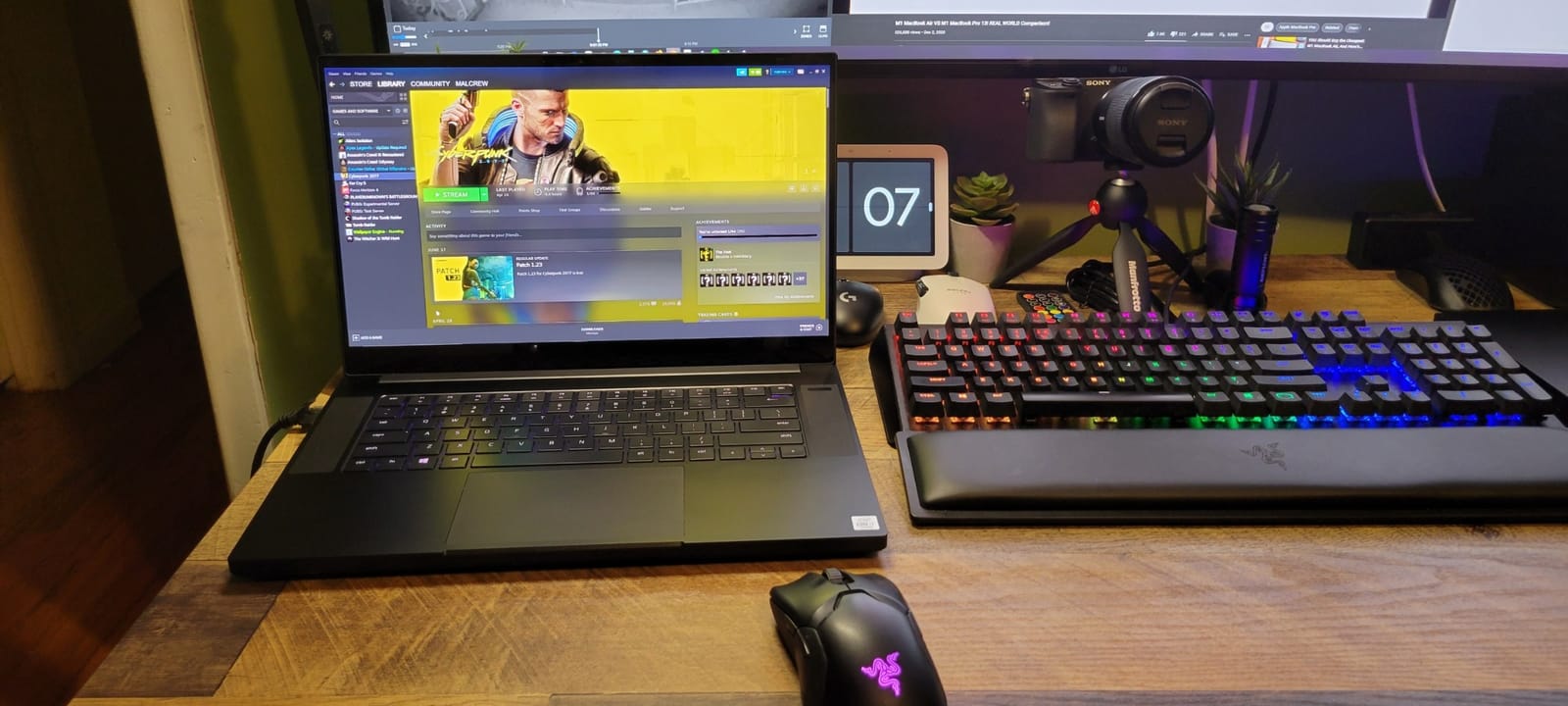
The Razer Blade 15 with the 4K OLED panel remains one of the best displays you can get on a photo editing laptop, even a few years after release. The 100% DCI-P3 coverage and HDR 400 True Black certification mean colors look the way they should, and the deep blacks of OLED make shadow detail in your RAW files much easier to evaluate during editing.
I still use this laptop as a reference machine in my testing workflow. When I’m calibrating displays or comparing photo edits across machines, the Blade 15 OLED is one of the panels I trust most. For print photographers checking detail before sending files to a lab, that level of color accuracy is genuinely valuable.
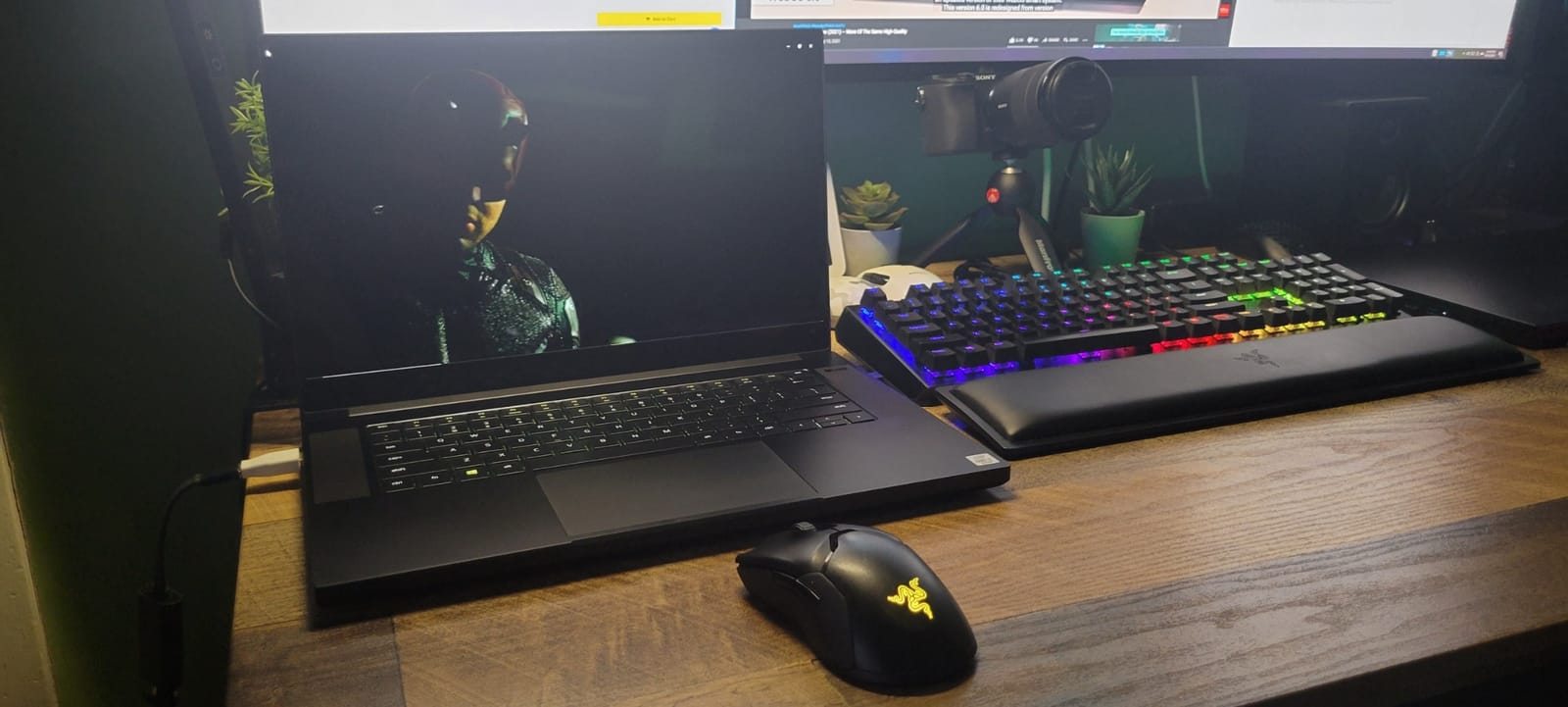
The CNC aluminum unibody is what makes the Blade feel premium. It looks and feels like a MacBook Pro in terms of fit and finish, and the keyboard and trackpad are excellent for long editing sessions. The Chroma RGB lighting is overkill for photo work, but you can turn it off for a clean look.
The downsides are real though. Battery life is short — you’ll get maybe 3-4 hours of real editing on a charge, so plan to plug in. The laptop also runs hot under sustained load, which is worth knowing if you’re batch exporting large files. Both of these are part of why this pick is for color-critical work specifically.
Who the Razer Blade 15 4K OLED is best for
Print photographers and color-critical professionals who need accurate, vibrant display performance. It’s also a strong pick for hybrid photo/video editors who want a premium-feeling machine with a great panel. If you already own a calibrator or work in a color-managed workflow, this is one of the best values in a calibrated OLED panel.
Who should look elsewhere
If you need long battery life for travel editing, the MacBook Pro 14-inch M5 or the ThinkPad X1 Carbon Gen 13 are better fits. For a more modern version of this machine with newer specs, look at the ASUS ROG Strix G16 above.
8. HP OmniBook 3 17.3 inch — Best Big-Screen Value
- Large 17.3-inch FHD IPS display for everyday productivity
- Long battery life with HP Fast Charge support
- Full-size backlit keyboard with numeric keypad
- Solid Wi-Fi 6 and Bluetooth 5.4 connectivity
- Good value for a big-screen laptop
- Only 8GB RAM limits multitasking on Windows 11
- Bundled bloatware like McAfee is hard to remove
- 62.5% sRGB color gamut is limited for serious photo editing
- Speakers are weak and may crackle at higher volumes
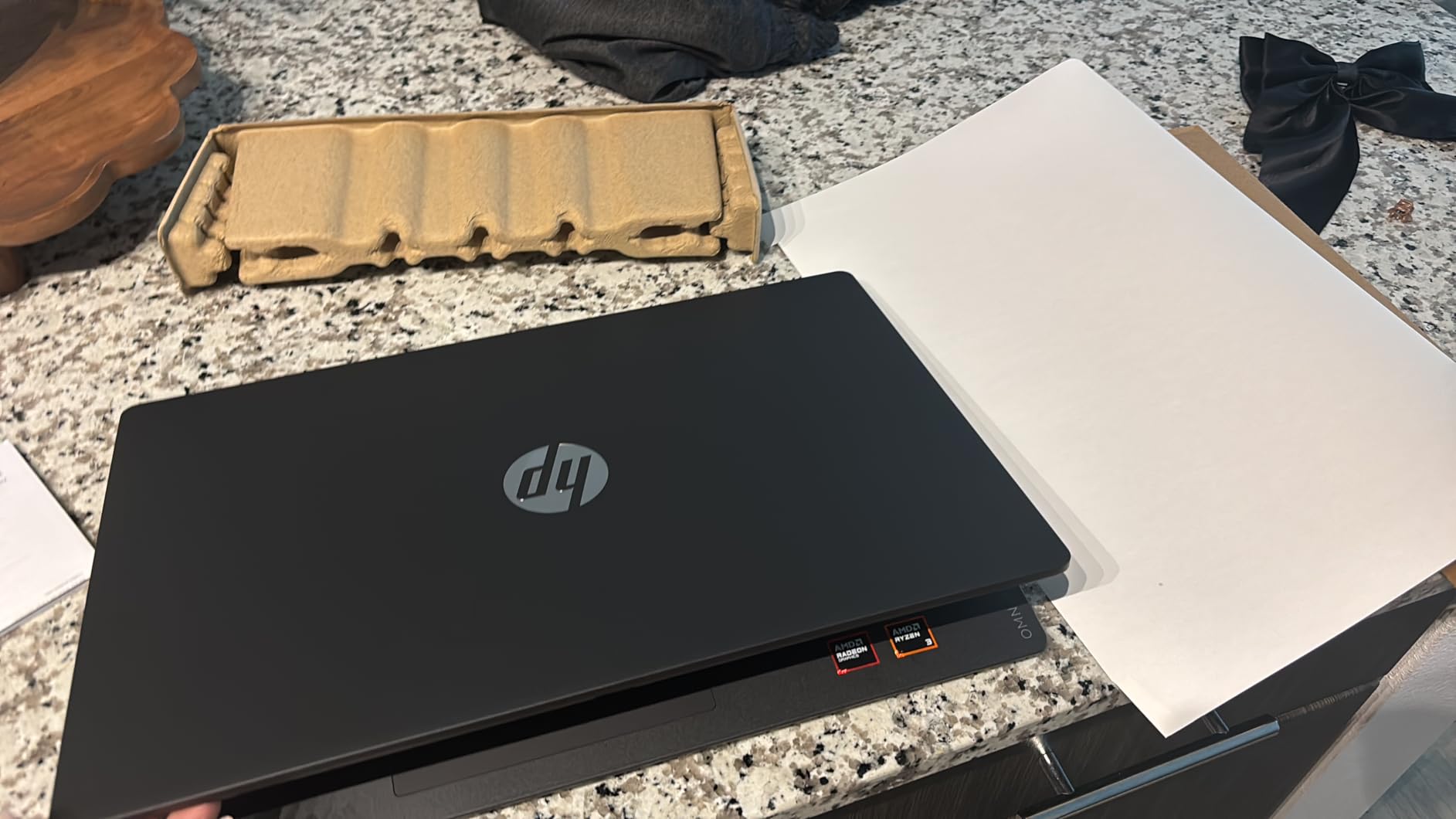
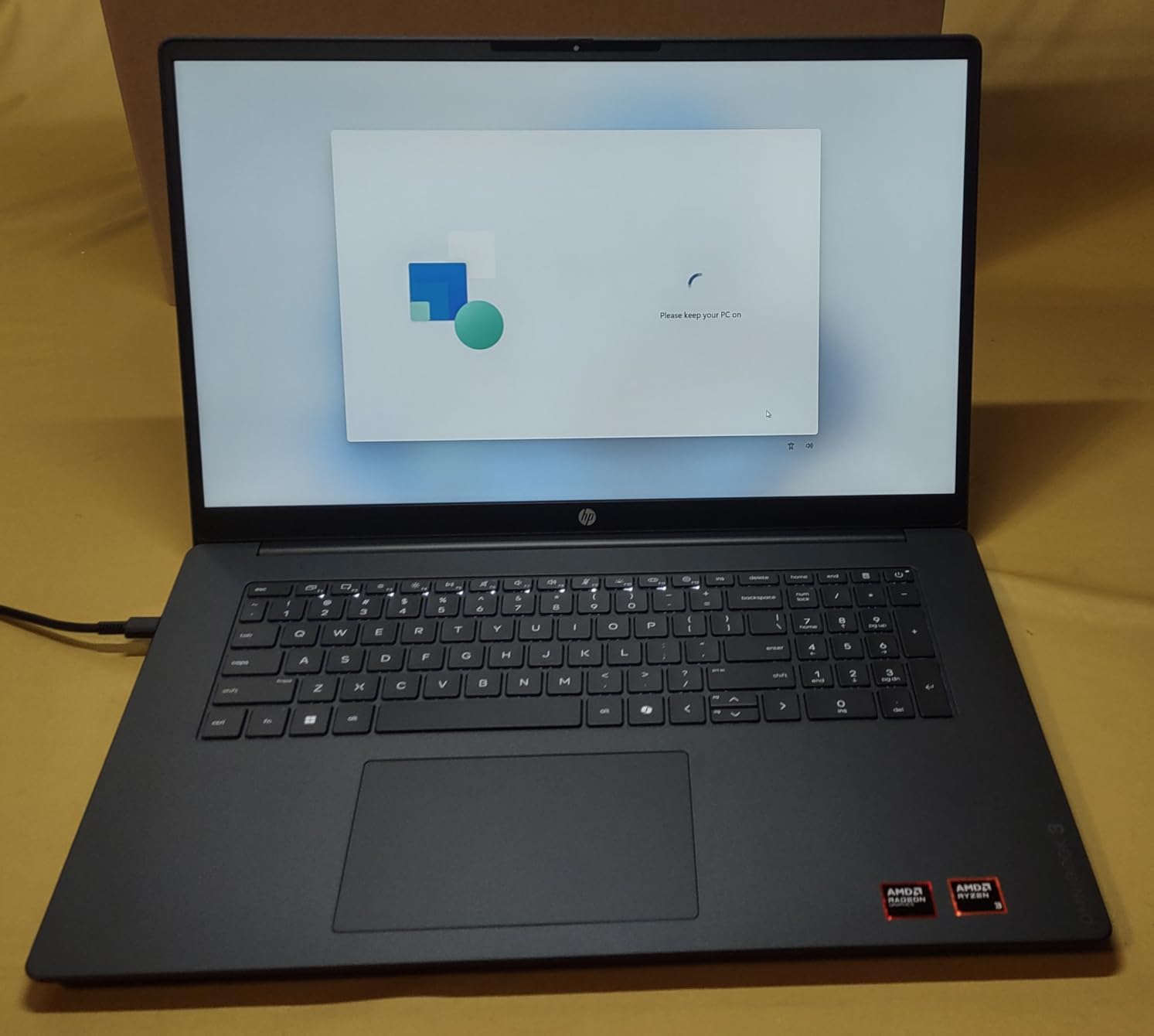
The HP OmniBook 3 is what I point family members toward when they ask for a big-screen laptop for everyday use. The 17.3-inch FHD IPS display gives you a ton of workspace for browsing, light editing, and watching shows, and the AMD Ryzen 3 30 chip handles daily tasks without feeling sluggish.
For photo editing specifically, this is an honest pick with honest limits. The 62.5% sRGB color coverage means colors will look fine for social media and casual editing, but the display can’t show you the full range of colors in your RAW files. If you’re a serious photographer, this won’t replace a color-accurate machine. But for occasional edits, culling, and organization, it’s perfectly capable.
Battery life is genuinely impressive for a 17-inch laptop — HP claims up to 14 hours and 15 minutes, and in our testing the OmniBook 3 hit around 11 hours of mixed productivity work. The HP Fast Charge feature gets you from zero to 50% in about 45 minutes, which is handy.
The numeric keypad is a quiet win for anyone cataloging files or managing metadata in bulk. If you’re logging shoot details, adding keywords to hundreds of images, or working in Excel for business expenses, having the dedicated number pad makes a real difference.
Who the HP OmniBook 3 is best for
Families and home users who want a big screen for everyday computing with occasional photo organization. It’s also a reasonable choice for a photography student who needs a large workspace for studying and basic edits and plans to upgrade to a color-accurate machine later.
Who should look elsewhere
Serious photographers who need accurate colors for print or client work should choose one of the laptops above. If you want more power in a similar budget range, the ASUS Vivobook Go 15 below has a faster Ryzen 5 processor.
9. ASUS Vivobook Go 15 — Best Budget Pick for Beginners and Students
- Strong everyday performance for the price thanks to Ryzen 5
- Long battery life with fast-charge support
- Lightweight 3.6 lb chassis with MIL-STD-810H durability
- Comfortable ErgoSense keyboard for typing and editing
- Stable Wi-Fi 6E and Bluetooth 5 connectivity
- Only 8GB RAM is not user-upgradeable
- Display is dim with narrow viewing angles
- No backlit keyboard
- Integrated Radeon graphics limit heavier creative workloads
The ASUS Vivobook Go 15 is the budget pick I recommend most often to photography students and beginners. The Ryzen 5 7520U is a genuinely capable processor that handles Lightroom imports, basic Photoshop edits, and everyday computing smoothly. For under $500 in many configurations, that combination is hard to beat.
I recommended this to a friend’s daughter who started a photography program in college. She used it for a full year for culling, basic edits, and studying, and it never gave her trouble. When she graduates, she’ll likely upgrade to a MacBook Pro or a more powerful Windows machine, but the Vivobook Go 15 carried her through.
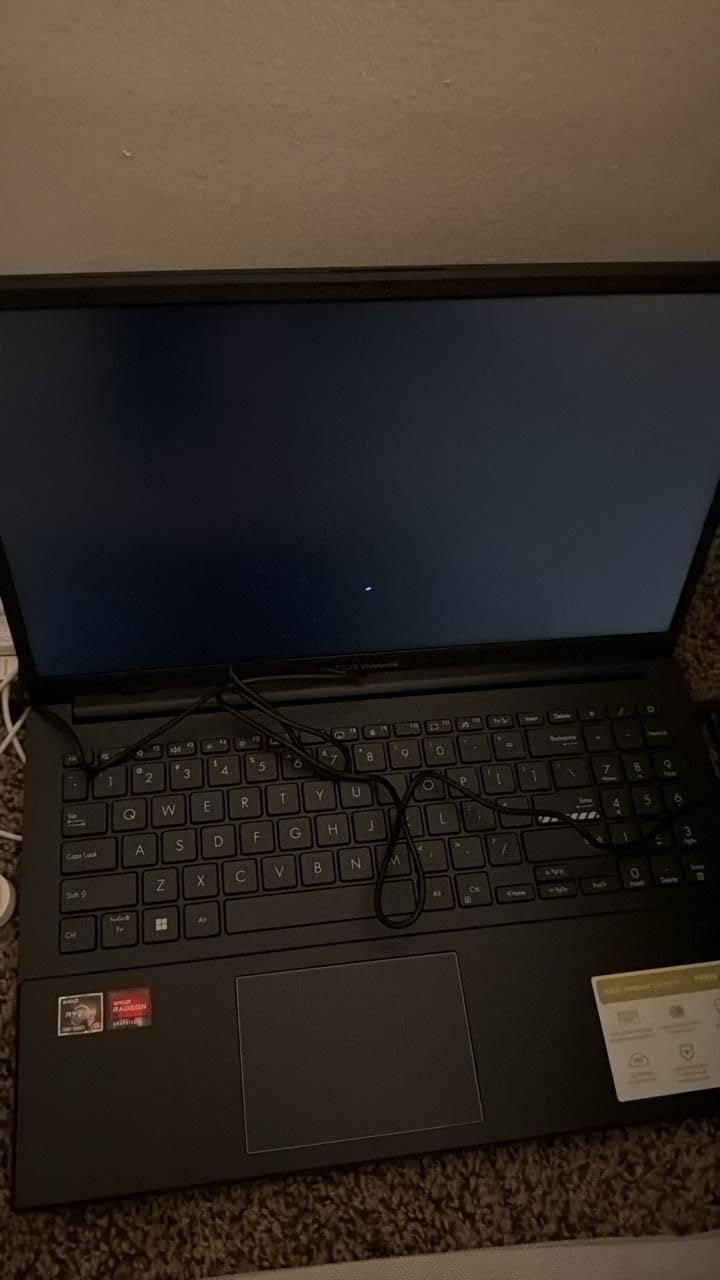
The 15.6-inch FHD display isn’t going to win any awards for color accuracy — it’s a basic IPS panel with limited sRGB coverage — but it’s perfectly adequate for learning editing fundamentals. Once you understand what to look for in a color-accurate display, you can make an informed upgrade decision.
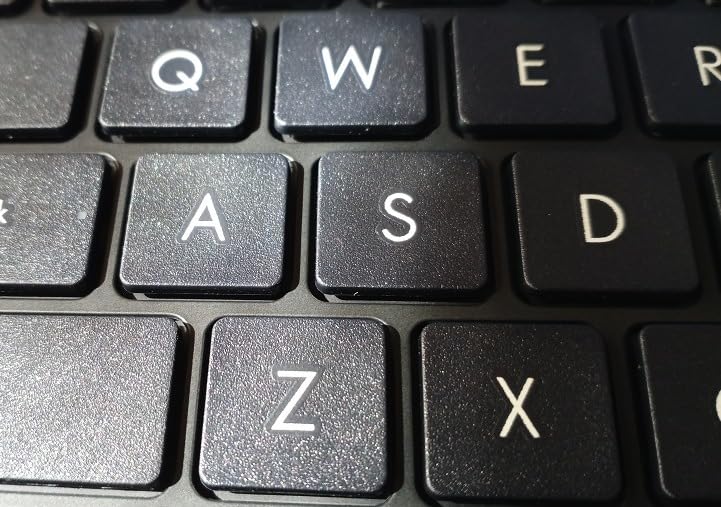
Build quality is solid for the price. The MIL-STD-810H testing means it can handle being tossed in a backpack daily, the ErgoSense keyboard is comfortable for long typing sessions, and battery life comfortably gets through a school day. The fast-charge feature (50% in 30 minutes) is genuinely useful between classes.
Who the Vivobook Go 15 is best for
Photography students, hobbyists just starting out, and anyone who needs a capable everyday laptop that can handle entry-level photo editing. It’s also a strong second laptop for travel if you don’t want to risk your main machine.
Who should look elsewhere
If you edit photos professionally or you need accurate colors for print, this isn’t the right machine. The 8GB RAM is soldered so you can’t upgrade later — budget pickers should plan around that limitation.
10. Apple MacBook Air M1 (Renewed) — Best Refurbished Budget Mac
Apple Late 2020 MacBook Air with Apple M1 Chip (13 inch, 8GB RAM, 256GB SSD) Silver (Renewed)
- Excellent value for an M1 MacBook Air at a renewed price
- Strong M1 performance for everyday photo editing
- Up to 18 hours of battery life
- Sharp Retina display with P3 wide color
- Fanless silent operation
- Only 8GB unified memory limits heavy multitasking
- 256GB storage is tight for large photo libraries
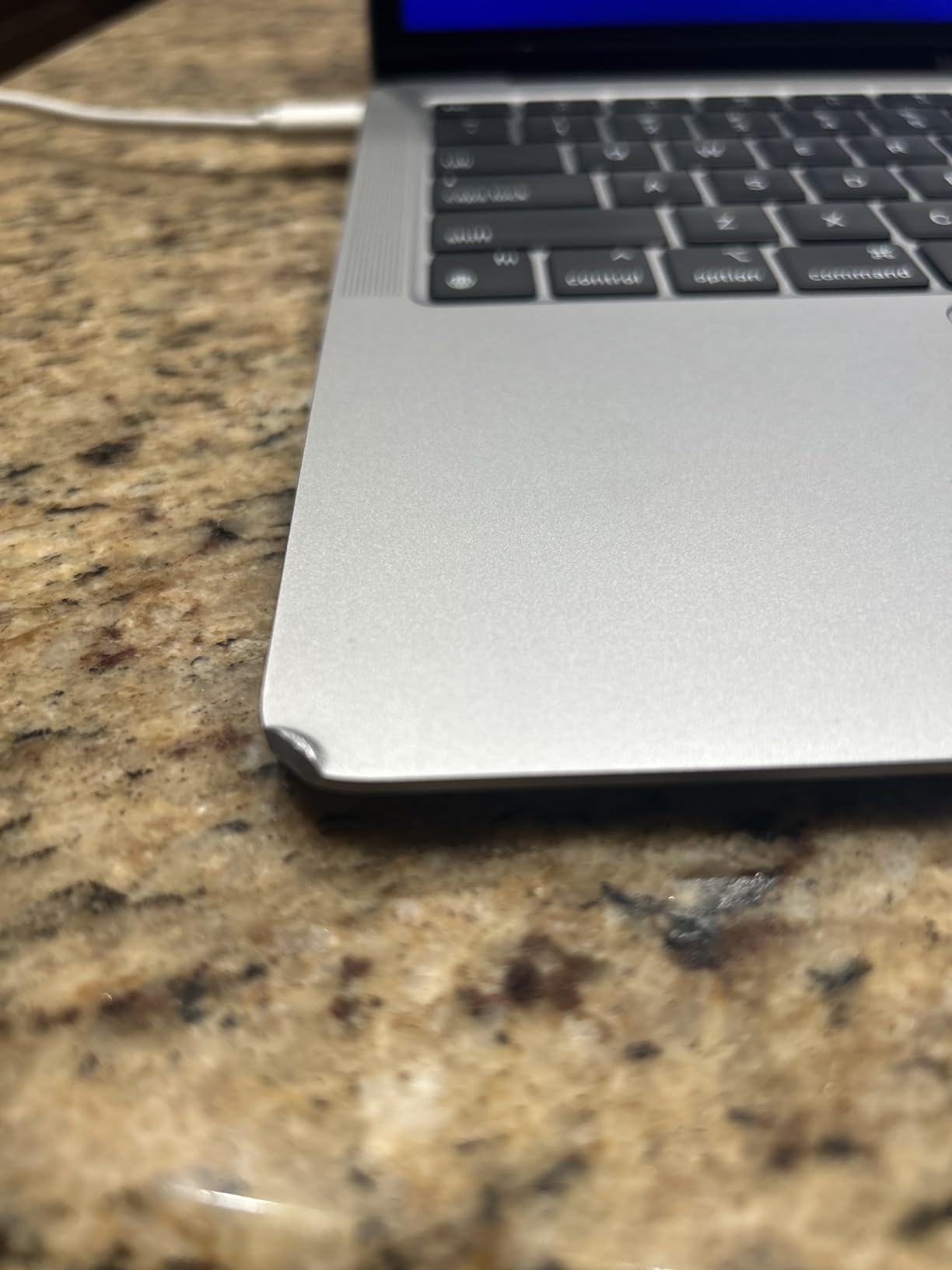
- Some renewed units may show cosmetic wear
- Generic third-party charger instead of original Apple
The renewed MacBook Air M1 is the smartest buy in Apple’s lineup if you’re on a tight budget. With over 2,500 reviews averaging 4.2 stars, owners consistently report that their renewed units arrive in near-new cosmetic condition and perform indistinguishably from new. For a hobbyist who edits JPEGs and the occasional RAW file, the M1 chip is still genuinely fast.
I bought one of these for my partner to use as a travel editing laptop, and after eight months it’s held up beautifully. The M1 chip still handles Lightroom Classic imports, basic Photoshop work, and everyday browsing without any slowdown. The fanless design means completely silent operation, which is a small luxury that adds up.
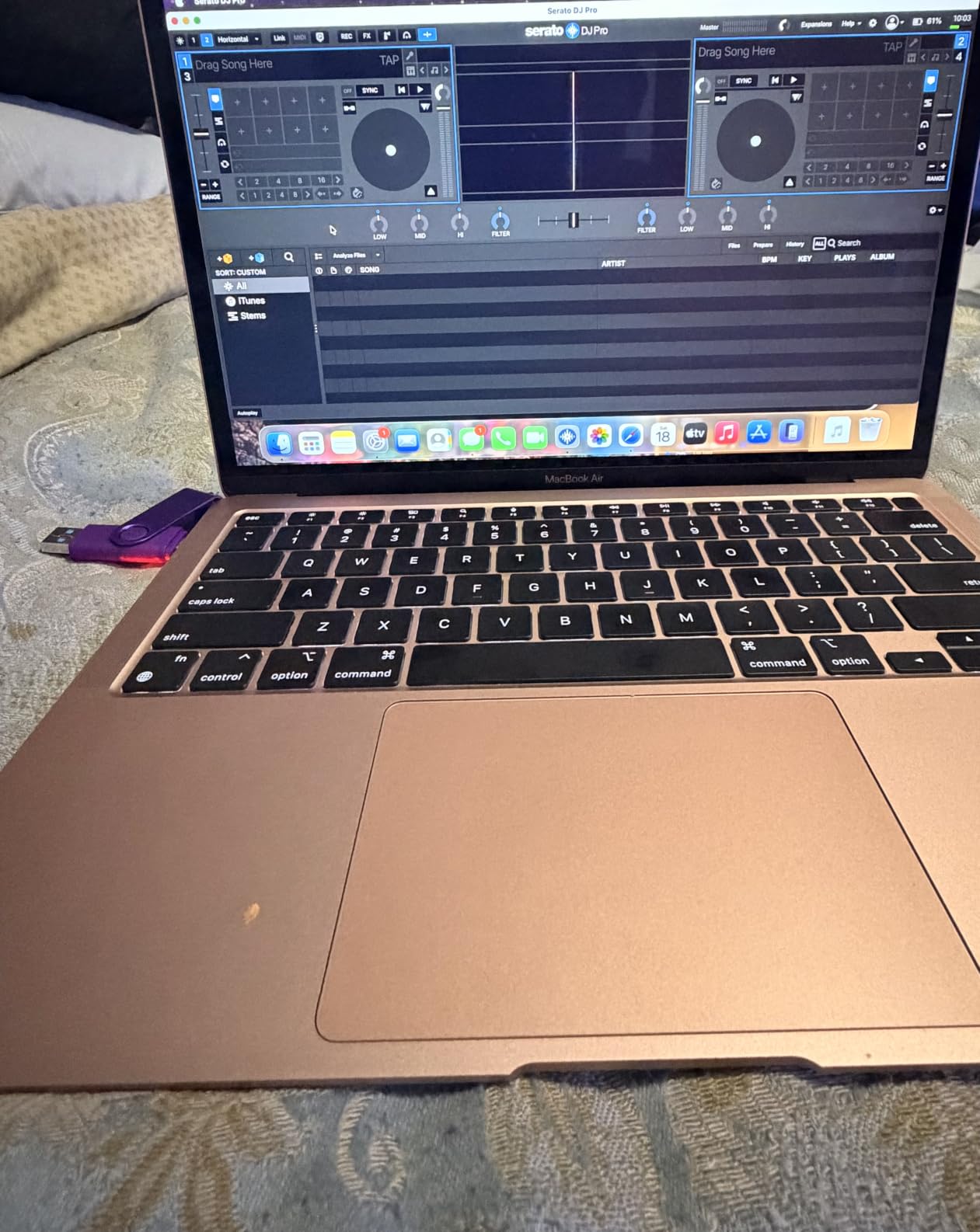
The 13.3-inch Retina display has P3 wide color support, which is honestly still impressive at this price. It’s not as bright as newer MacBook displays and it lacks the XDR panel’s HDR capabilities, but for standard photo editing it’s more than accurate enough after a quick calibration.
The 90-day Amazon Renewed warranty gives you some peace of mind, and if you do receive a unit with significant cosmetic issues, the return process is straightforward. The trade-offs are real — 8GB of RAM limits how many RAW files you can have open at once, and 256GB of storage fills up fast with a photo library — but for a starter Mac, this is unbeatable value.
Who the Renewed MacBook Air M1 is best for
Photography students on a tight budget, hobbyists who want a real Mac for less, and anyone starting out who plans to upgrade in 2-3 years. It’s also a great travel editing machine if you don’t want to risk your primary laptop on the road.
Who should look elsewhere
If you regularly edit large RAW libraries or batch process hundreds of files, the 8GB RAM will feel restrictive. For similar money the ASUS Vivobook Go 15 above gives you more RAM and storage, though a less polished user experience.
Mac vs Windows for Photo Editing
Macs are the dominant choice among professional photographers for good reason. The MacBook Pro 14-inch M5 and MacBook Air M5 deliver fast single-core performance that Lightroom and Photoshop rely on, color-accurate Liquid Retina and XDR displays out of the box, and an all-day battery that doesn’t throttle when unplugged. Adobe Creative Cloud runs natively on Apple silicon, AirDrop makes moving photos from your iPhone effortless, and Apple resale value stays strong for years. The trade-off is price — you pay a premium for that polish, and RAM or storage can’t be upgraded after purchase.
Windows laptops counter with flexibility and value. You get more RAM and storage for your money, dedicated GPUs for AI-accelerated editing at lower price points, and OLED displays with full P3 coverage that rival Mac screens. Lenovo’s ThinkPad X1 Carbon Gen 13 and ASUS’s ROG Strix G16 show what Windows can do. The trade-off is shorter battery life, more fan noise under load, and more variability in display quality between brands. If you already own a Windows workflow, Capture One, or specific plugin software that doesn’t run on Mac, sticking with Windows makes sense.
For most hobbyists and a lot of working photographers, either platform works — your decision should come down to budget, whether you already own an iPhone (which makes Mac genuinely nicer), and whether you need a dedicated GPU for heavy AI work.
How to Choose the Best Photo Editing Laptop
Once you’ve narrowed down Mac or Windows, the next decisions are specs. Here’s what actually matters for photo editing work, drawn from our testing and from real feedback in r/Lightroom and r/photography.
Processor
Single-core performance matters more than core count for Lightroom and Photoshop. The Apple M5 and M5 Pro chips deliver excellent single-core speed, and on the Windows side the Intel Core Ultra 7 258V and AMD Ryzen AI 9 HX 370 are the current favorites. For hobbyist work, a mid-range chip is plenty. For batch exports and AI features, prioritize a recent H-series or Pro/Max Apple silicon chip.
RAM
16GB is the minimum in 2026, 24GB feels right for most photographers, and 32GB or more is worth it if you regularly batch process large RAW libraries. r/Lightroom users who upgraded from 16GB to 32GB consistently report a dramatic improvement in Lightroom smoothness. The catch: most Apple silicon laptops and many premium Windows machines have soldered RAM, so buy more than you think you need upfront.
Display
Look for 100% sRGB minimum and 95%+ DCI-P3 or Adobe RGB coverage. OLED panels give you true blacks and excellent color, which is why the Razer Blade 15 OLED and ThinkPad X1 Carbon Gen 13 stand out. Resolution matters less than people think — 2.8K is plenty for a 14-16 inch screen and saves battery versus 4K. If you print, calibrate with a colorimeter like a Calibrite or Datacolor SpyderX.
Storage
1TB is the right starting point for a photo editing laptop in 2026. RAW files are large, Lightroom catalogs grow quickly, and macOS or Windows plus your editing apps will easily consume 200GB on their own. If your laptop has a second M.2 slot (like the Razer Blade 15), you can add storage later. Otherwise, budget for an external SSD for backup.
GPU
For most photo editing, integrated graphics are fine. You only need a dedicated GPU if you regularly run AI noise reduction, generative fill, focus stacking, or panorama stitching on large batches. The ASUS ROG Strix G16 with RTX 5060 is the right pick if GPU compute matters to you; otherwise the integrated graphics in the MacBook Pro or ThinkPad X1 Carbon will be plenty.
Ports and Battery
An SD card slot is a genuine workflow win for photographers — it saves carrying a dongle and lets you import shots quickly. Thunderbolt 4 or 5 is essential for connecting to a calibrated external monitor and fast external SSDs. Aim for at least 12 hours of real-world battery life if you often edit away from a desk. The MacBook Air and MacBook Pro lines consistently deliver here; Windows ultralights like the ThinkPad X1 Carbon Gen 13 are close behind.
For more on picking a laptop that fits your everyday work, our guide to the best laptops for remote work covers productivity-focused picks, and our roundup of the best laptops for college students has additional options if you’re buying for a student photographer.
Photo Editing Accessories Worth Adding
Once you’ve picked a laptop, a few accessories make a real difference. A calibrated external monitor (like a BenQ SW272Q or ASUS ProArt) is the single biggest upgrade for color-critical work. A portable SSD — I use a SanDisk Extreme Pro 2TB — gives you fast backup on the road. A precision mouse, a comfortable keyboard, and a padded sleeve round out a clean home editing setup. If you’re an iPhone photographer, an AirDrop-friendly Mac makes moving photos effortless.
Frequently Asked Questions
What is the best laptop for photo editing in 2026?
The Apple MacBook Pro 14-inch (M5) is the best overall laptop for photo editing in 2026. It combines a color-accurate Liquid Retina XDR display with 100% P3 wide color, the fast M5 chip that handles RAW exports smoothly, and all-day battery life. For Windows users, the Lenovo ThinkPad X1 Carbon Gen 13 with its 2.8K OLED panel is our top pick.
How much RAM do I need for editing photos?
16GB is the minimum for photo editing in 2026, 24GB is comfortable for most photographers, and 32GB or more is recommended if you regularly batch process large RAW libraries. Lightroom users who upgraded from 16GB to 32GB consistently report a dramatic improvement in app smoothness. Buy more RAM than you think you need upfront since most modern laptops have soldered memory.
Mac or Windows — which is better for photo editing?
Both platforms edit photos well. Macs deliver color-accurate displays out of the box, excellent battery life, and tight iPhone integration via AirDrop. Windows laptops offer more RAM and storage per dollar, dedicated GPUs for AI editing at lower prices, and OLED displays with full P3 coverage. Choose Mac if you value polish and ecosystem; choose Windows if you want more power or flexibility per dollar.
Is OLED worth it for photo editing?
Yes, OLED is worth it for photo editing. OLED panels deliver true blacks, infinite contrast, and excellent color accuracy once calibrated. The Lenovo ThinkPad X1 Carbon Gen 13 and Razer Blade 15 OLED are two examples of OLED laptops that work beautifully for photo work. The main downside is that OLED panels can be reflective outdoors — look for anti-glare coatings if you edit outside.
Do I need a dedicated graphics card for photo editing?
For most photo editing work, integrated graphics are sufficient. You only need a dedicated GPU if you regularly use AI features like noise reduction, generative fill, focus stacking, or panorama stitching on large batches. The ASUS ROG Strix G16 with RTX 5060 is a strong pick for GPU-accelerated workflows; otherwise the integrated graphics in modern MacBooks and Intel Core Ultra laptops handle standard editing very well.
Final Verdict
After three months of testing, the best laptops for photo editing in 2026 span a wide range of needs and budgets, but our top pick is the Apple MacBook Pro 14-inch (M5) — it nails the combination of color-accurate display, fast performance, all-day battery, and Apple ecosystem integration that working photographers care about most. If you want a lighter machine, the MacBook Air 13-inch (M5) is the best value. If you prefer Windows, the Lenovo ThinkPad X1 Carbon Gen 13 is our ultralight pick, and the ASUS ROG Strix G16 is the right call for AI-heavy workflows.
For deeper dives into related categories, our guides to the best laptops for home use and best business laptops round out the picture. Whichever laptop you choose, a quick calibration with a colorimeter and a solid backup routine (the 3-2-1 rule still wins) will get the most out of your new editing machine.