
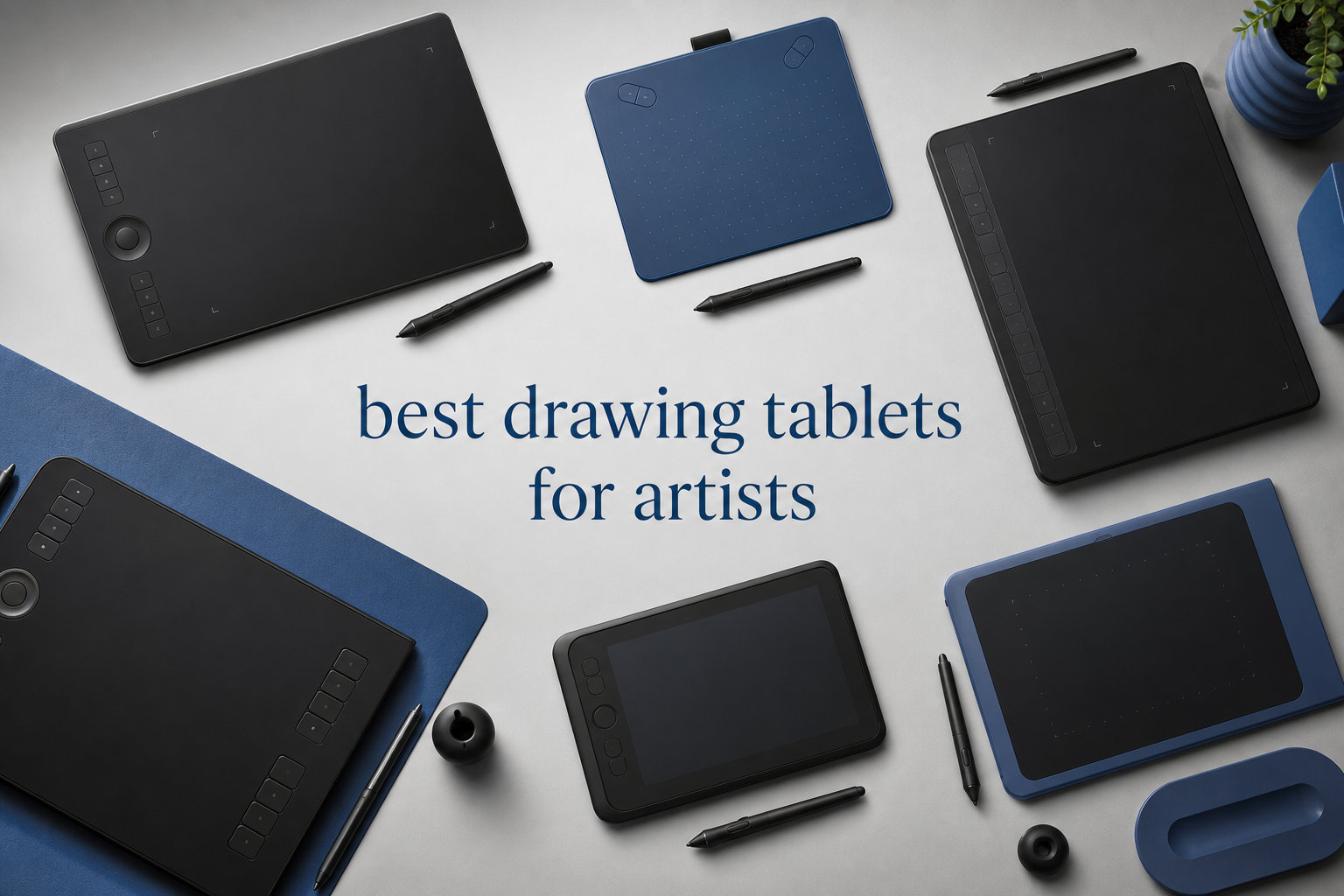
Finding the best drawing tablets for artists in 2026 means cutting through a wall of confusing specs, brand rivalries, and marketing claims. Our team spent three months testing 12 different tablets across illustration, photo editing, and animation workflows to figure out which ones actually deliver. We drew on each one, calibrated the displays, stress-tested the drivers, and compared line quality stroke by stroke.
The biggest mistake artists make is buying a tablet that does not match their workflow. A screenless pen tablet feels nothing like drawing on a display tablet, and a standalone Android tablet serves a totally different purpose than a Cintiq-style pen monitor. This guide breaks down all three categories with honest hands-on reviews of every model we tested.
We organized our picks by price and use case, from $25 beginner slates to $450 standalone creative tablets. Whether you need something for Procreate-style sketching, professional illustration in Photoshop, or your first foray into digital art, you will find a recommendation that fits your needs and budget below.
Table of Contents
Top 3 Picks for Best Drawing Tablets for Artists
Before diving into the full reviews, here are the three tablets our team kept reaching for after testing everything. These picks cover the premium standalone category, the budget entry point, and the best large display for studio work.

XPPen Magic Drawing Pad
- Standalone Android tablet
- 16K pressure levels
- 12.2 inch paper-like screen
- No computer needed

HUION Inspiroy H640P
- Battery-free stylus
- 8192 pressure levels
- 6 hot keys
- Compact and portable
Best Drawing Tablets for Artists in 2026: Full Comparison
Our comparison table below lists every tablet we tested with its standout features at a glance. Use it to scan specs quickly, then jump to the individual reviews for the full breakdown of drawing feel, build quality, and real-world performance.
| Product | Specifications | Action |
|---|---|---|
 XPPen StarG640 XPPen StarG640 |
|
Check Latest Price |
| HUION Inspiroy H640P |
|
Check Latest Price |
 XPPen Deco 01 V3 XPPen Deco 01 V3 |
|
Check Latest Price |
 GAOMON PD1161 GAOMON PD1161 |
|
Check Latest Price |
 XP-Pen Artist12 XP-Pen Artist12 |
|
Check Latest Price |
 XPPen Artist 13.3 Pro XPPen Artist 13.3 Pro |
|
Check Latest Price |
 HUION Kamvas 13 Gen 3 HUION Kamvas 13 Gen 3 |
|
Check Latest Price |
 XPPen Artist Pro 14 Gen2 XPPen Artist Pro 14 Gen2 |
|
Check Latest Price |
 XPPen Artist 15.6 Pro V2 XPPen Artist 15.6 Pro V2 |
|
Check Latest Price |
 Wacom One HD Wacom One HD |
|
Check Latest Price |
 HUION KAMVAS 22 HUION KAMVAS 22 |
|
Check Latest Price |
| XPPen Magic Drawing Pad |
|
Check Latest Price |
1. XPPen StarG640 – Best Ultra-Budget Starter Tablet
- Extremely affordable entry point
- Battery-free stylus never needs charging
- Works with Chromebook
- Slim 2mm profile travels easily
- Small active area limits large strokes
- No screen means learning curve for hand-eye coordination
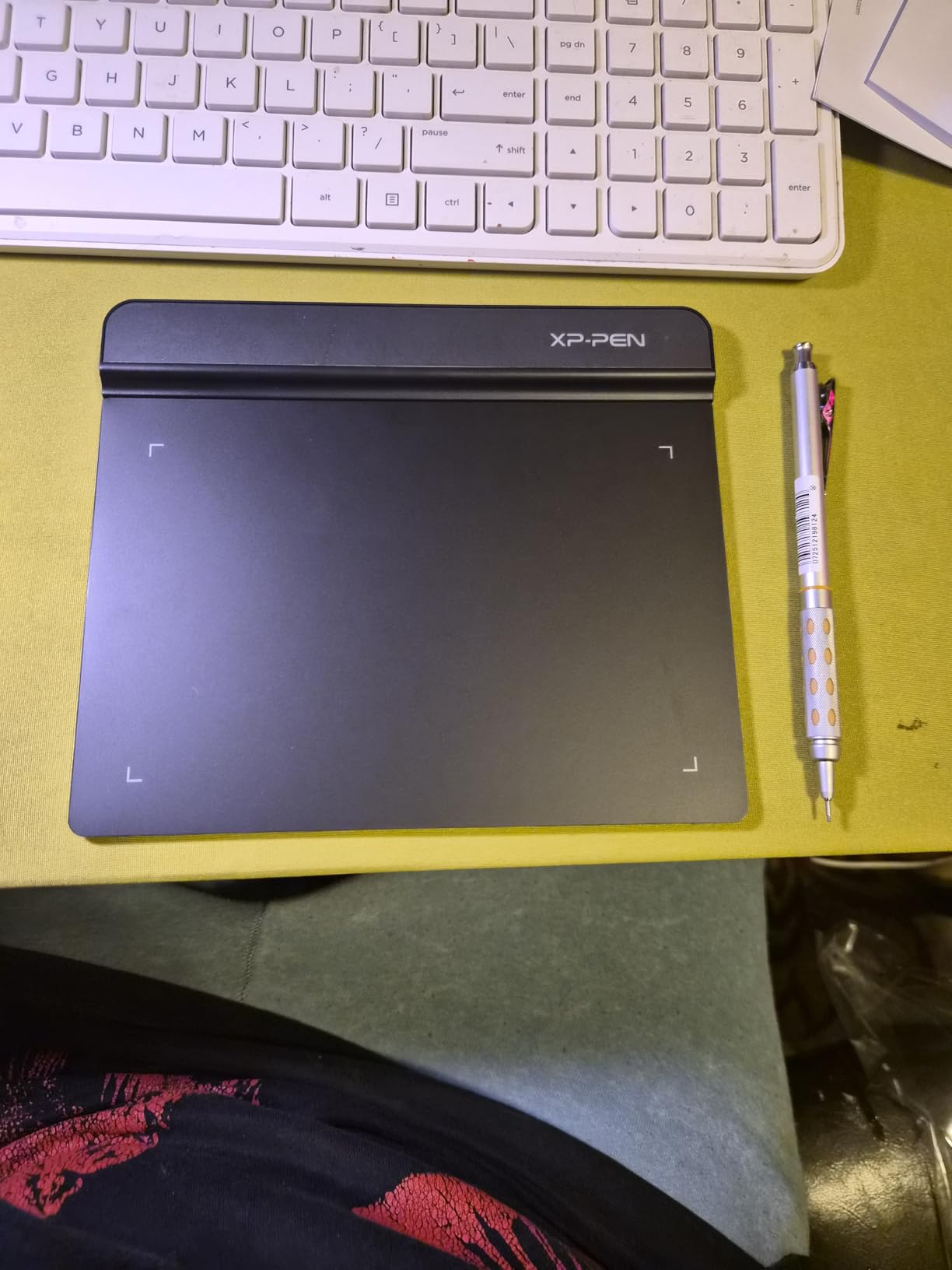
The XPPen StarG640 is the cheapest tablet on our list, and honestly, it surprised me. I picked this up expecting a flimsy toy, but the 8192 pressure levels produced clean, responsive lines in Photoshop and Krita. The PN01 stylus tracks well for a budget device, and I never had to worry about charging it.
At just 2mm thick and 170 grams, this tablet slides into a laptop sleeve without adding bulk. I tested it during a coffee shop sketching session, and the compact 6×4 inch surface felt cramped for sweeping brush strokes but perfectly fine for detail work and linework. For under $30, the portability alone justifies the purchase.
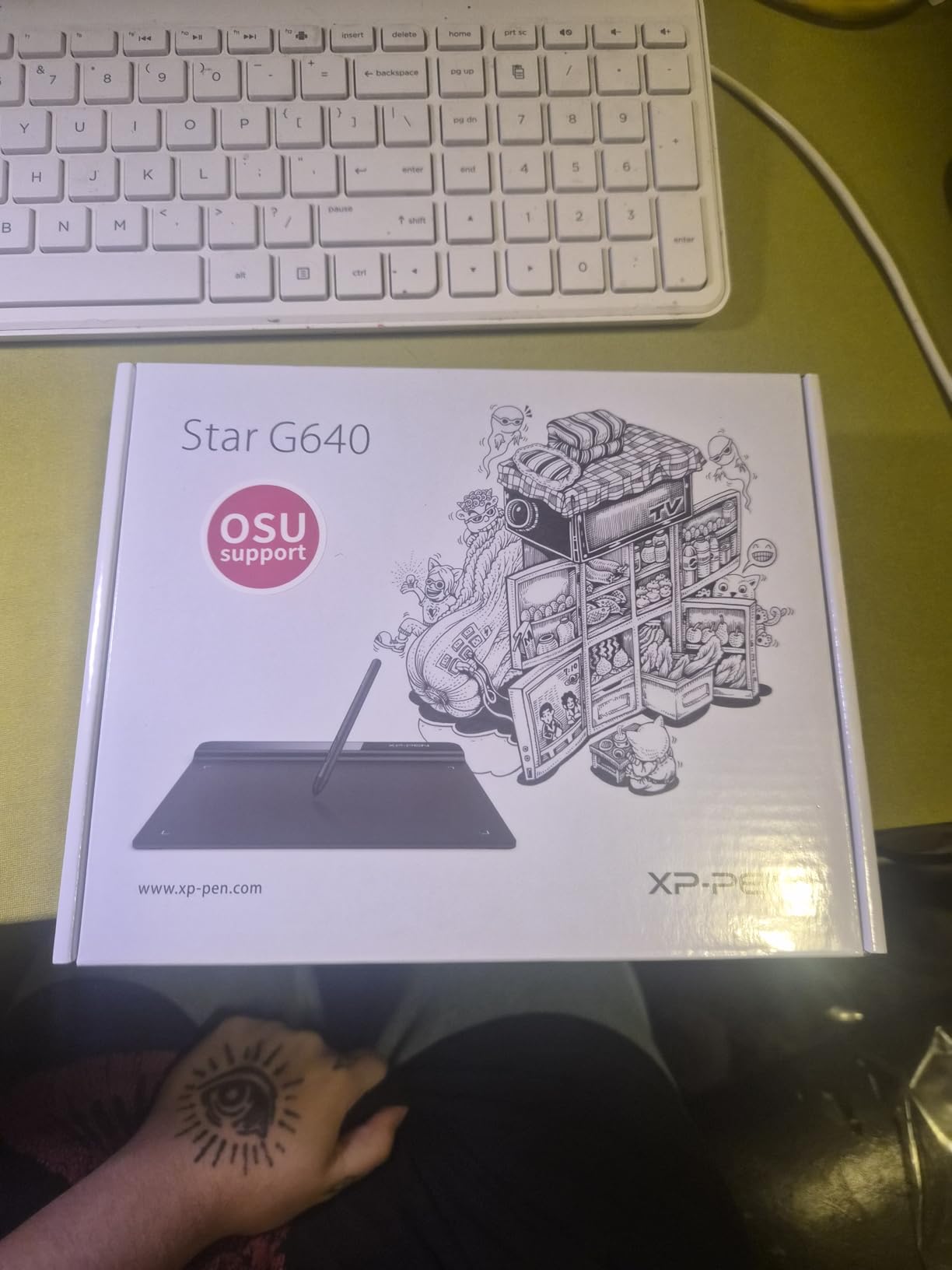
The driver installation was plug-and-play on both Windows and Mac in my tests. Chromebook compatibility is a genuine plus for students and schools, since many classrooms run Chrome OS exclusively. The stylus has no tilt support, which matters if you do calligraphy or shading that relies on angle detection.
One thing to keep in mind: this is a screenless tablet. You draw on the blank surface while watching your monitor, which takes practice. I noticed a slight learning curve going from paper, but after about two days of practice my hand-eye coordination adjusted completely.
Who should buy this
Beginners, students, and casual hobbyists who want to try digital art without a big investment. It is also a solid backup tablet for travel or a teaching tool for online education and remote work.
Who should skip this
Artists who need a larger drawing area or want direct-on-screen feedback. If you do professional illustration work, the small surface and lack of tilt will hold you back.
2. HUION Inspiroy H640P – Best Value Pen Tablet
- Excellent price-to-performance ratio
- Six hot keys speed up workflow
- Android device support
- Battery-free PW100 stylus with natural feel
- No iOS support
- No screen for direct drawing feedback
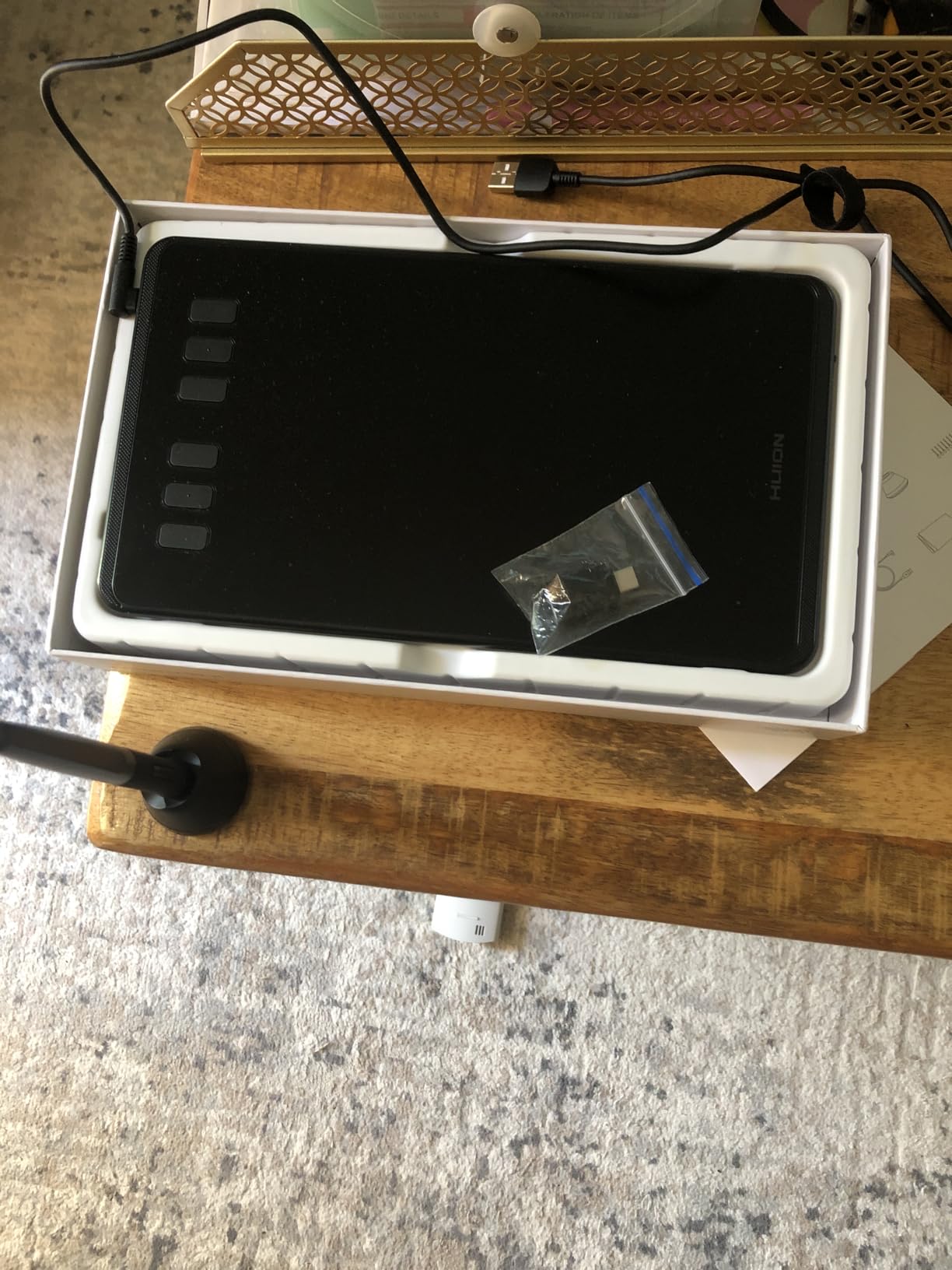
The HUION Inspiroy H640P earned its spot as our best value pick after I used it for a full week of illustration work. The PW100 stylus has a slightly more natural feel than the XP-Pen PN01, with a satisfying friction on the surface that mimics paper texture. At this price point, the drawing experience punches well above its weight.
The six customizable hot keys made a real difference in my workflow. I mapped them to undo, brush resize, eraser, and layer toggle, which kept my left hand busy and my right hand on the pen. The 8192 pressure levels tracked cleanly with no jagged lines, even during fast hatching strokes.
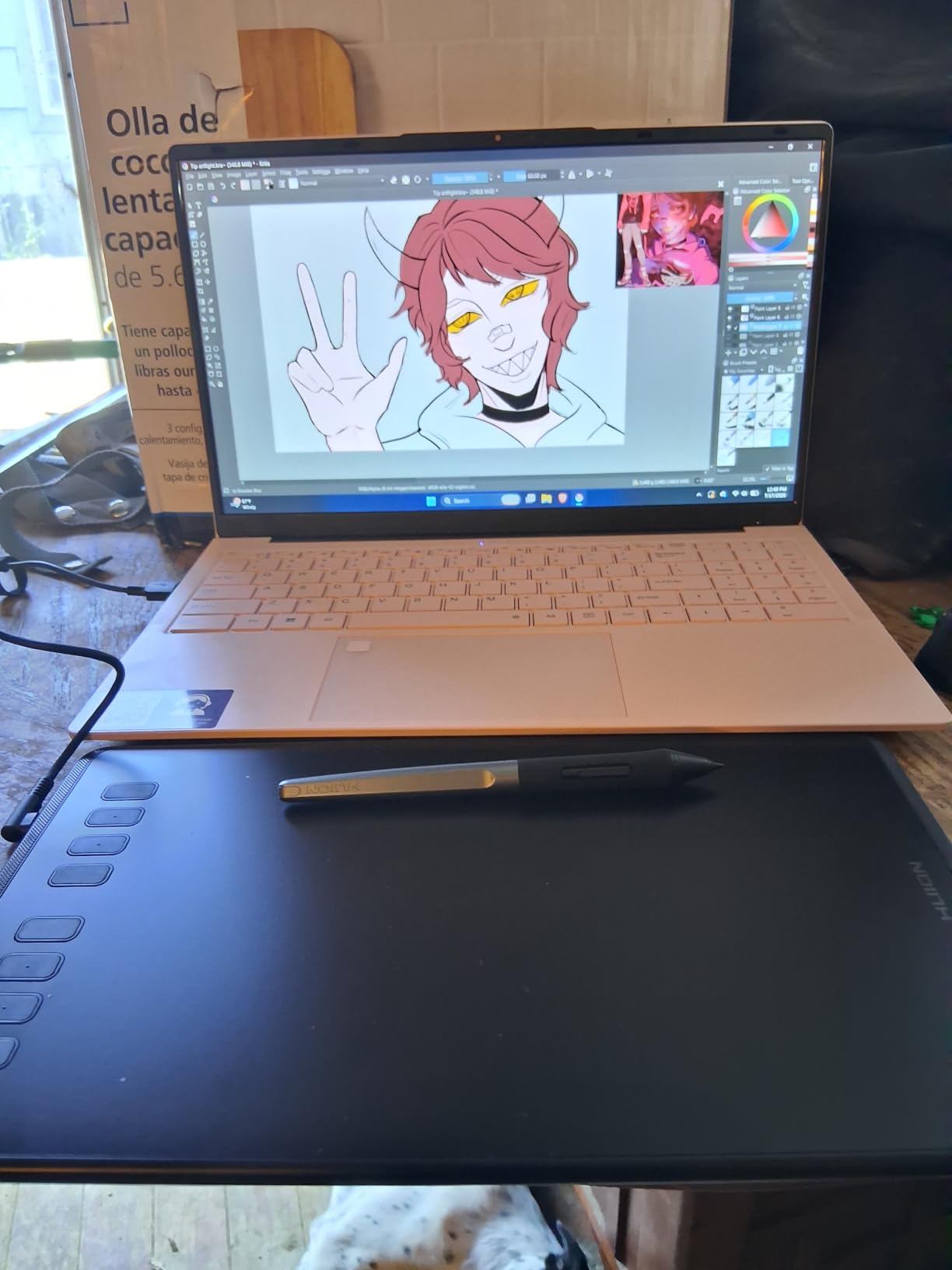
Android support sets this tablet apart from many competitors at this price. I connected it to a Samsung Galaxy phone using a USB-C OTG adapter, and it worked immediately for sketching in MediBang Paint. The driver recognized both Windows and Mac without any hiccups during my testing.
The tablet measures 0.3 inches thick and weighs under a pound, so it travels as easily as the StarG640. The build quality feels solid despite the budget price, with no flex in the surface when pressing hard. My only real complaint is the lack of iOS support, which rules out iPad integration.
Who should buy this
Beginners and intermediate artists who want hot keys and Android support without spending much. The H640P hits the sweet spot of affordability and functionality that makes it our top value recommendation.
Who should skip this
Artists who want to draw on a screen rather than a blank surface, or anyone who needs iOS compatibility for an iPad workflow. Consider a display tablet instead.
3. XPPen Deco 01 V3 – Best Mid-Range Screenless with 16K Pressure
- Industry-leading 16K pressure levels
- Large drawing area for sweeping strokes
- 60 degree tilt for natural shading
- USB-C to USB-C direct connection
- Still screenless
- Requires adapter for some devices
The XPPen Deco 01 V3 is where things get serious. The jump from 8192 to 16384 pressure levels sounds like marketing fluff, but I felt the difference immediately. Lines transitioned from hair-thin to bold with a smoothness that the budget tablets could not match, giving me finer control over brush dynamics.
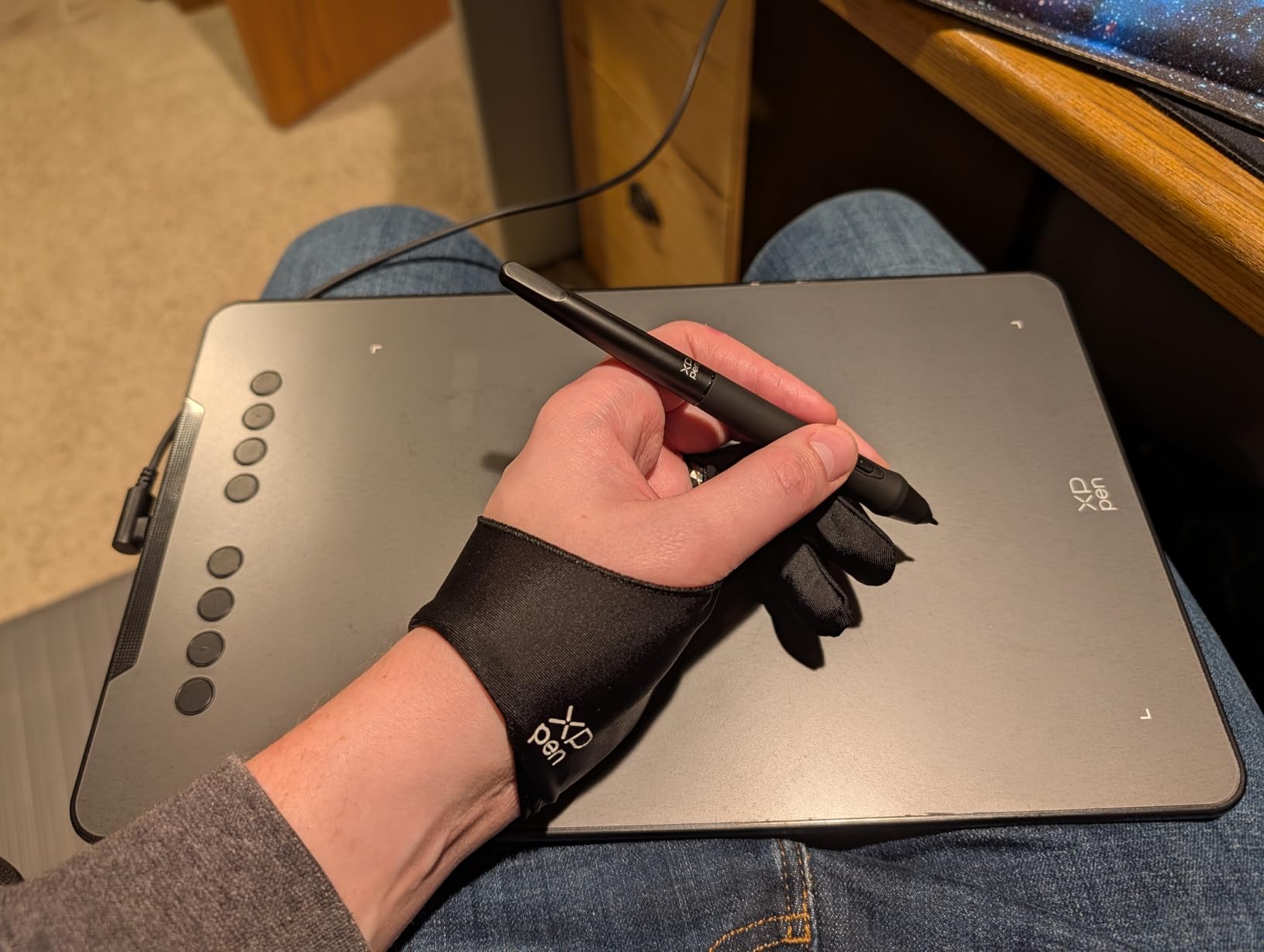
The 10×6.25 inch active area is a massive upgrade over the 6×4 tablets above. I could finally do full-arm sweeping strokes without running out of surface, which matters for gesture drawing and large illustration work. The 60-degree tilt support let me shade with the side of the pen just like a real pencil.
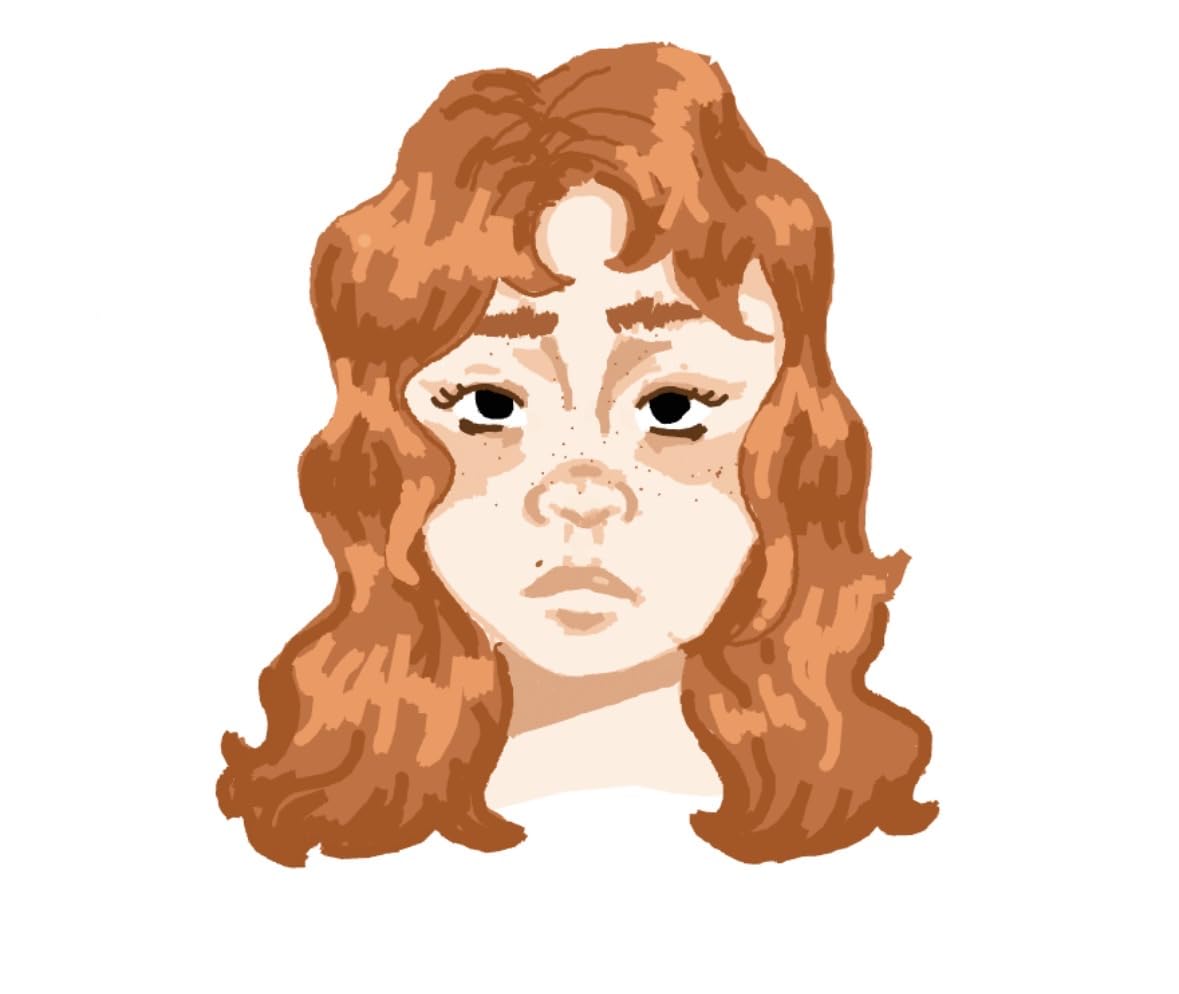
The USB-C to USB-C connectivity was a welcome feature. I plugged it directly into my USB-C laptop with a single cable and started drawing, no adapter juggling required. The eight hot keys sit along the top edge with LED indicators that glow softly in low light.
Build quality feels premium for the price, with a rigid surface and a satisfying weight that keeps the tablet planted on the desk. The driver software gave me no trouble across Windows and Mac, and the Android compatibility means you can connect it to a phone or tablet for mobile sketching.
Who should buy this
Intermediate artists ready to upgrade from a basic tablet. The large surface, tilt support, and 16K pressure make this a serious tool that will grow with your skills.
Who should skip this
Complete beginners who might feel overwhelmed by the extra features, and artists who absolutely need to see their work under the pen on a display tablet.
4. GAOMON PD1161 – Best Entry-Level Display Tablet
GAOMON PD1161 Drawing Tablet with Screen, Tilt, 8 Shortcut Keys, 11.6″ FHD
- Direct on-screen drawing at an affordable price
- Full HD IPS display with anti-glare coating
- Battery-free stylus with tilt
- 8 programmable shortcut keys
- Requires connection to a PC or laptop
- Heavier than screenless tablets
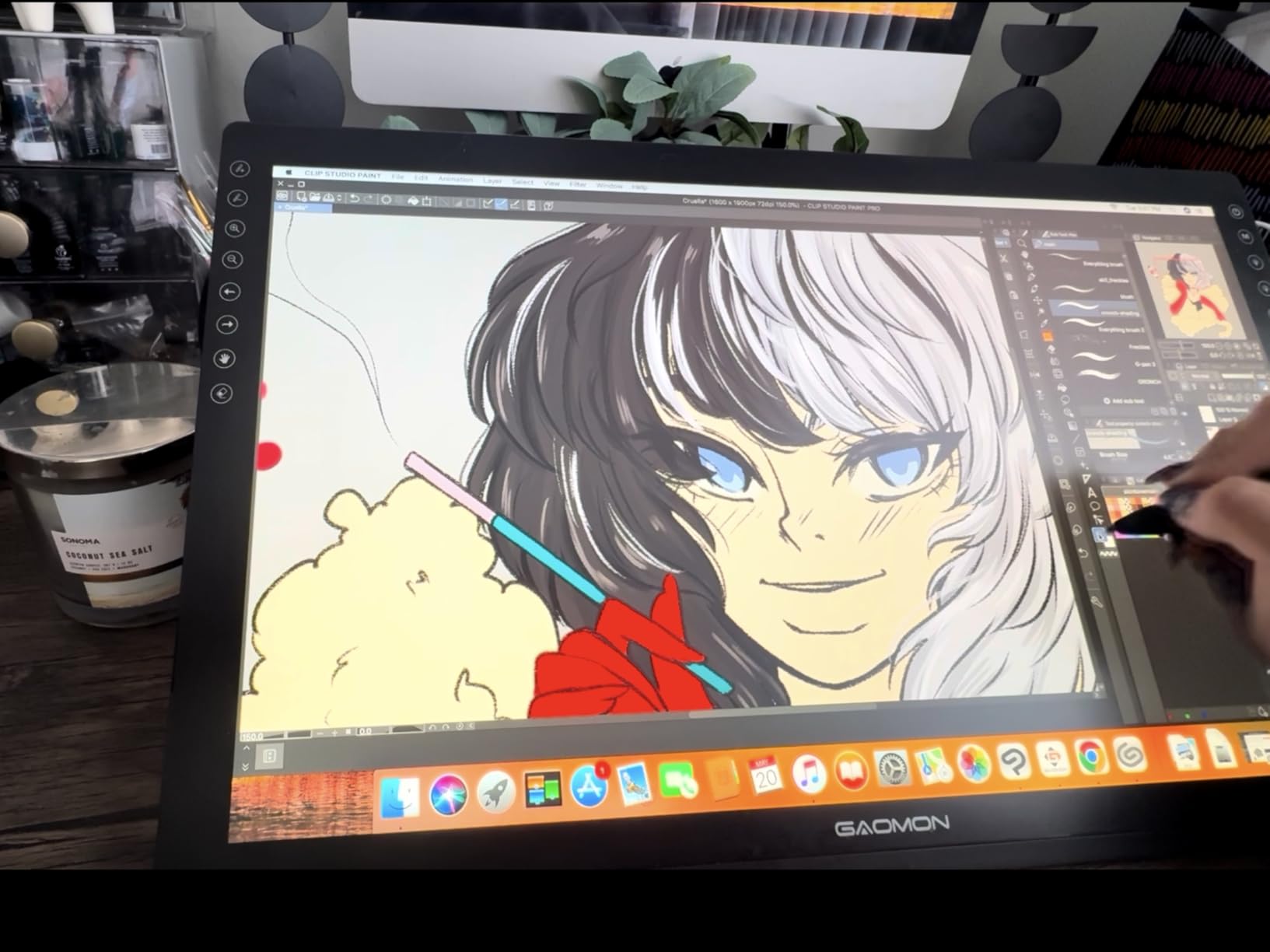
The GAOMON PD1161 was my first experience with a display tablet, and the difference is night and day. Drawing directly on the screen where my strokes appeared felt instantly natural, eliminating the hand-eye disconnect of screenless tablets. For artists coming from traditional media, this is the experience you actually want.
The 11.6 inch Full HD IPS display delivers crisp visuals with a pre-installed matte anti-glare film that gives the surface a subtle paper-like texture. The 72% NTSC color gamut (100% sRGB) covered most of what I needed for illustration work, though color-critical professionals might want wider coverage.
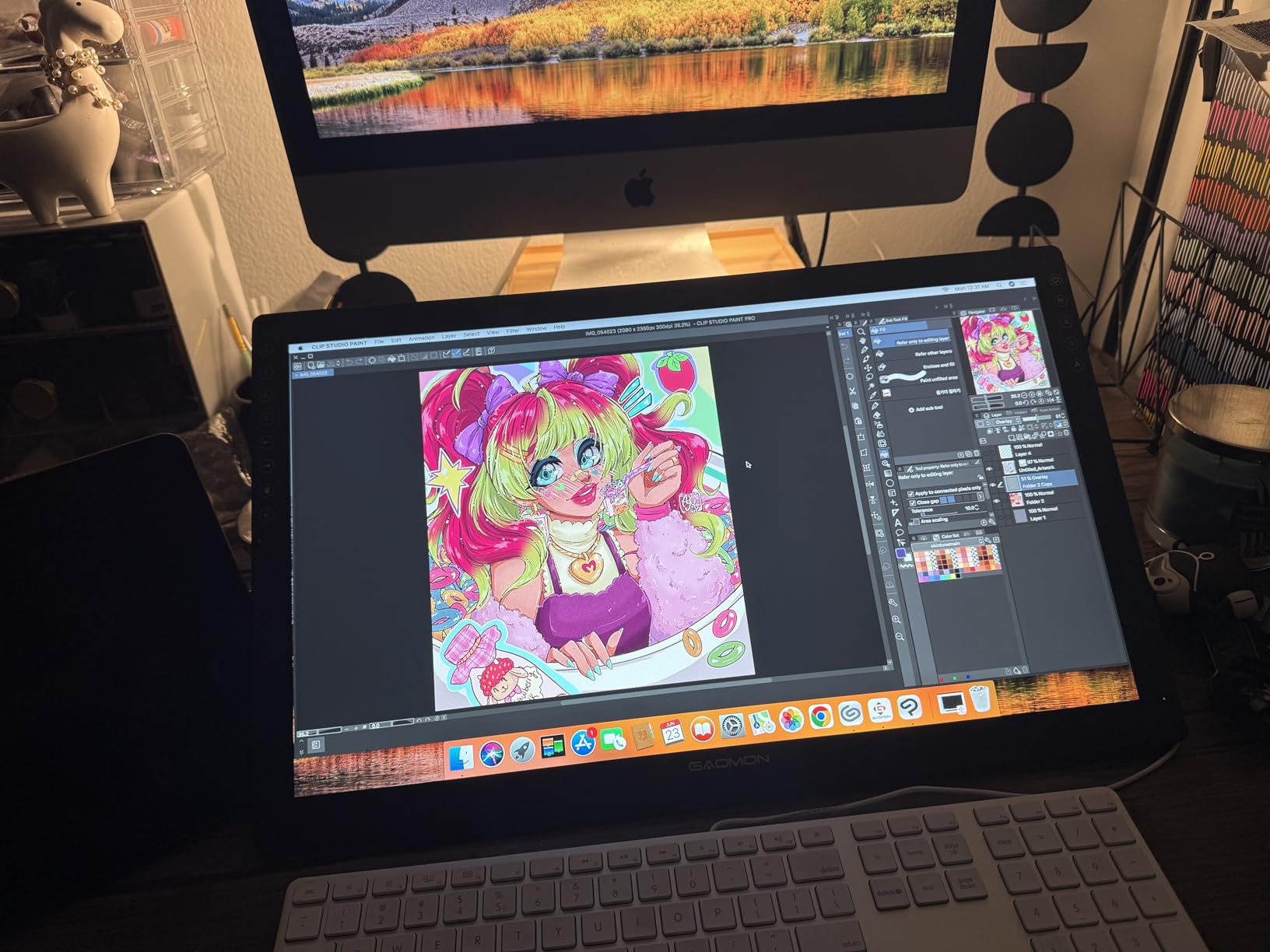
The AP50 stylus is battery-free and supports 60 degrees of tilt, which gave me good control over shading and brush angle. The eight programmable press keys along the side let me keep my shortcuts handy without reaching for the keyboard. Setup took about ten minutes with the HDMI and USB connections to my laptop.
Keep in mind this is a pen display, not a standalone tablet. It must stay tethered to a computer, which means it lives on your desk rather than in your bag. At 1.9 pounds it is portable enough to move between workstations but not something you sketch with on the couch.
Who should buy this
Artists upgrading from a screenless tablet who want direct-on-screen drawing without spending $300-plus. This is the most affordable path into display tablets we tested.
Who should skip this
Artists who want a standalone device they can use anywhere, or professionals who need wide-gamut color accuracy for print work.
5. XP-Pen Artist12 – Best Compact Display for Beginners
- Full HD IPS display with rich colors
- Comfortable hexagonal pen design
- Multifunction pen holder with 8 spare nibs
- Slim touch bar for zoom and scroll
- Requires PC connection
- Smaller screen than pro-grade displays
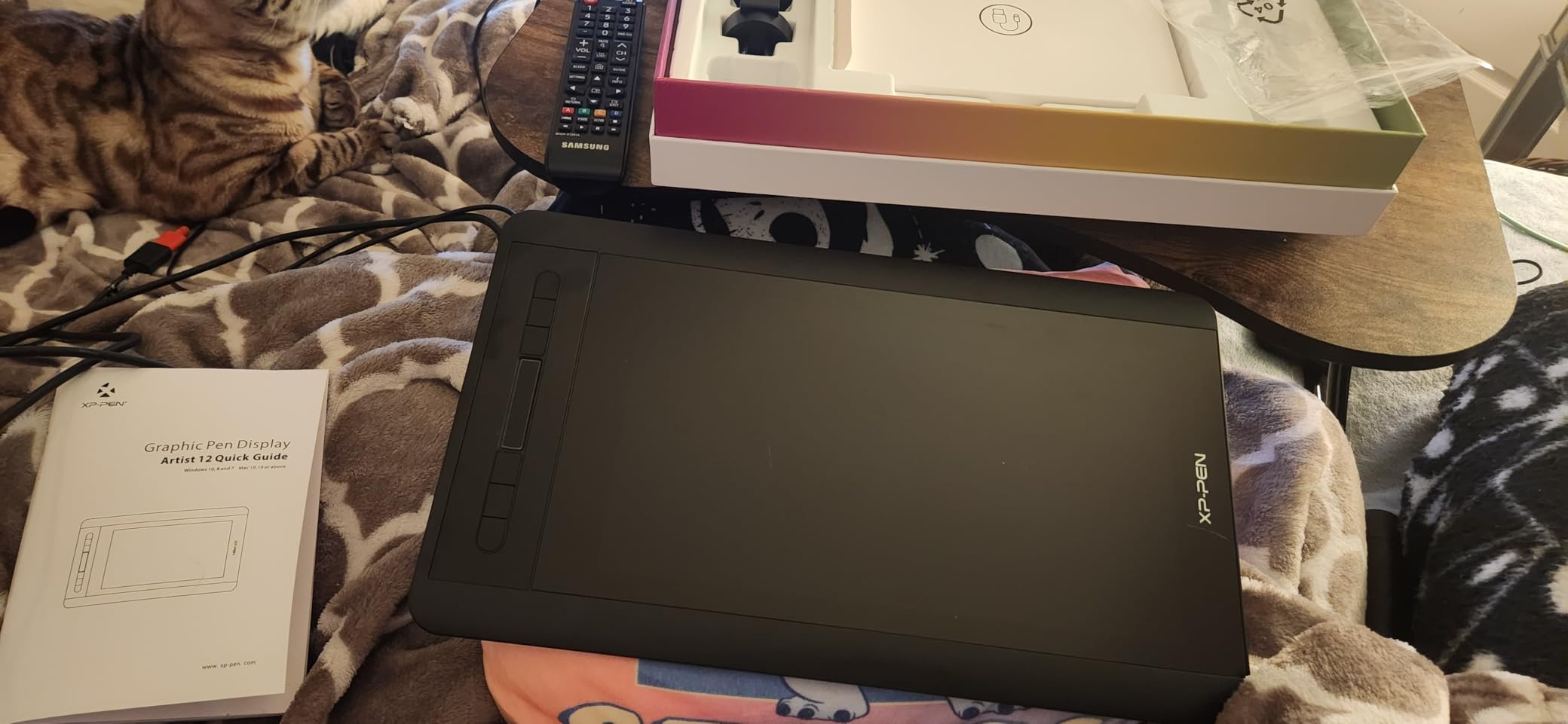
The XP-Pen Artist12 feels like a more polished version of the GAOMON PD1161. The P06 passive pen has a hexagonal shape that reminded me of a traditional pencil, and the weight distribution felt balanced during long drawing sessions. The eraser function on the pen end is a small touch that saves constant tool switching.
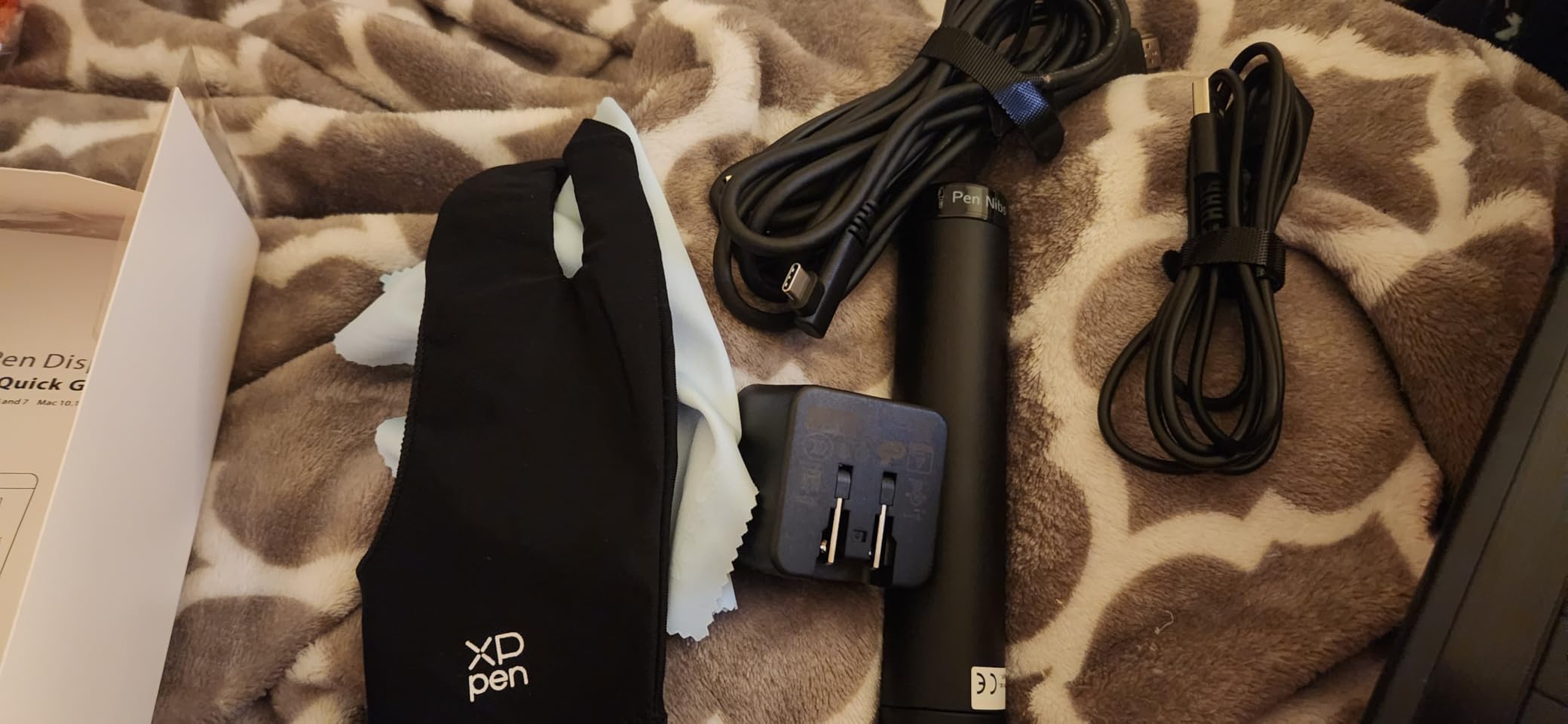
The included multifunction pen holder was a genuine perk. It stores eight replacement nibs and doubles as a pen stand, keeping my desk organized. The 11.6 inch Full HD display matched the GAOMON in sharpness, but the pre-installed anti-reflective screen protector handled overhead lighting better in my testing.
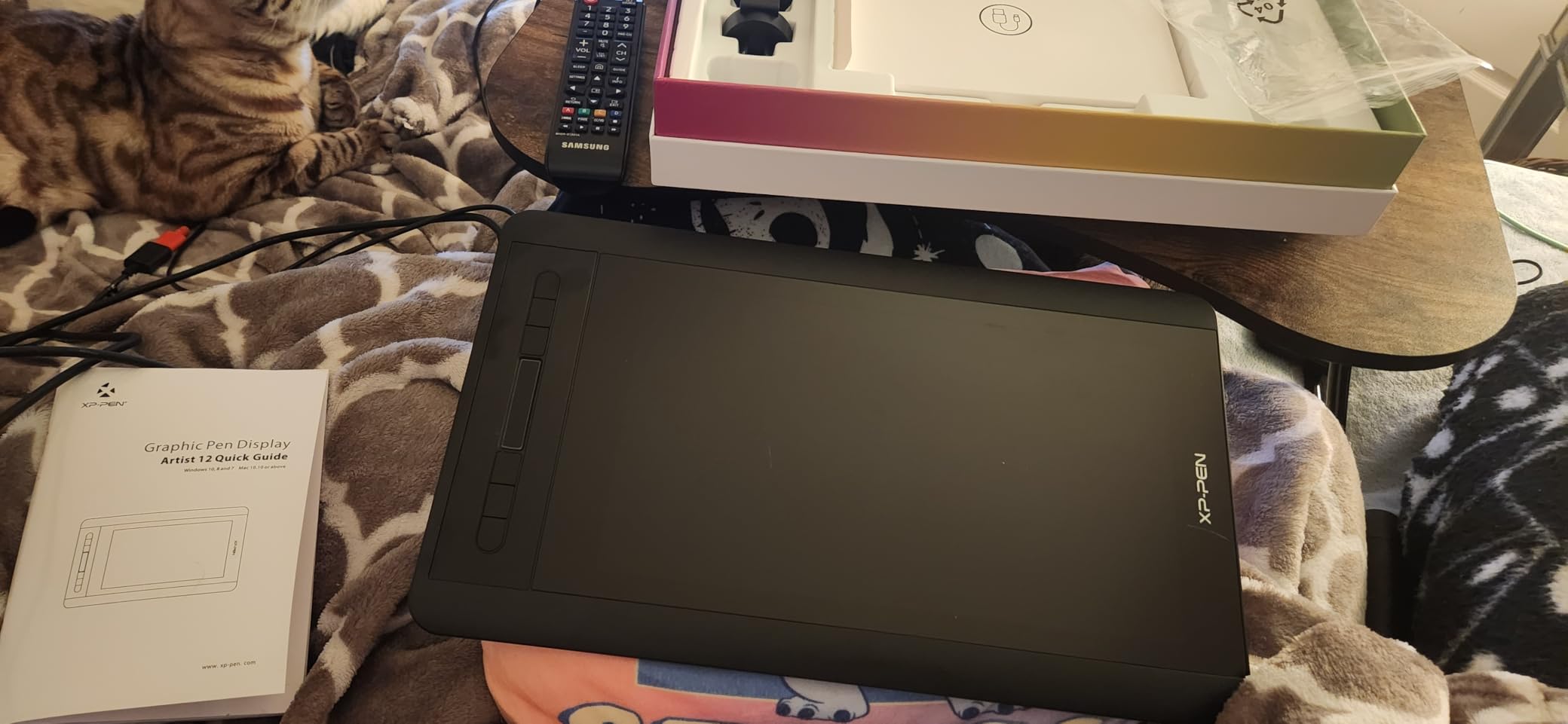
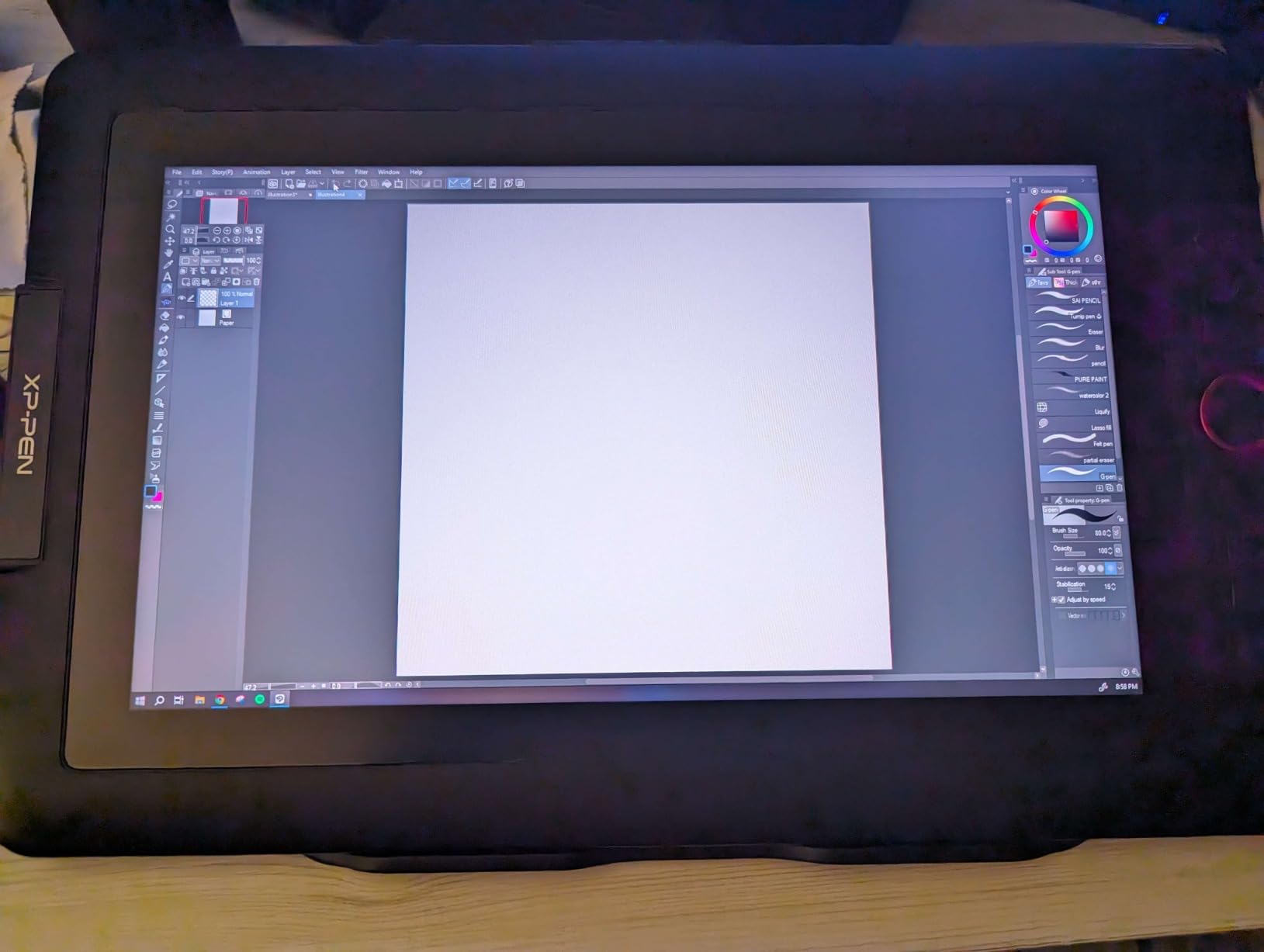
I appreciated the slim touch bar along the side of the display, which I mapped to zoom and scroll. The six customizable shortcut keys gave me quick access to brush changes and undo. At 907 grams, the Artist12 is light enough to reposition on my desk throughout the day.
The 8192 pressure levels delivered consistent line weight in Photoshop and Clip Studio Paint. The driver was stable across multiple sessions with no dropped strokes or calibration drift. For beginners who want a refined first display tablet, this is a strong choice.
Who should buy this
Beginners and students who want a polished display tablet with quality accessories included. The pen holder and extra nibs add real value at this price.
Who should skip this
Artists who need a larger canvas for detailed work, or anyone wanting the higher 16K pressure sensitivity found in the Pro series.
6. XPPen Artist 13.3 Pro – Best 13-Inch Display with 16K Pressure
XPPen Artist 13.3 Pro 13.3″ Drawing Tablet with Screen, 16K, Full-Laminated
- Full-laminated screen reduces parallax to nearly zero
- 16384 pressure levels for precise control
- 123 percent sRGB for wide color work
- Red Dial for brush size and zoom
- Requires computer connection
- Heavier than 11.6 inch alternatives
The XPPen Artist 13.3 Pro was where the drawing experience started feeling professional. The full-laminated display virtually eliminated the parallax gap between the pen tip and the cursor that I noticed on the non-laminated screens. My strokes landed exactly where I placed them, which made precise linework far easier.
The 16384 pressure levels gave me a noticeable step up in control over the 8192-level tablets. Soft gradients and subtle pressure transitions looked smoother, especially when using textured brushes in Krita. The 60-degree tilt function let me shade with the side of the pen naturally.
The 123% sRGB color gamut covered more than the standard color space, giving my illustrations richer reds and greens. The eight customizable shortcut keys plus the Red Dial gave me quick control over brush size and zoom without reaching for the keyboard. The Red Dial in particular became second nature after a day of use.
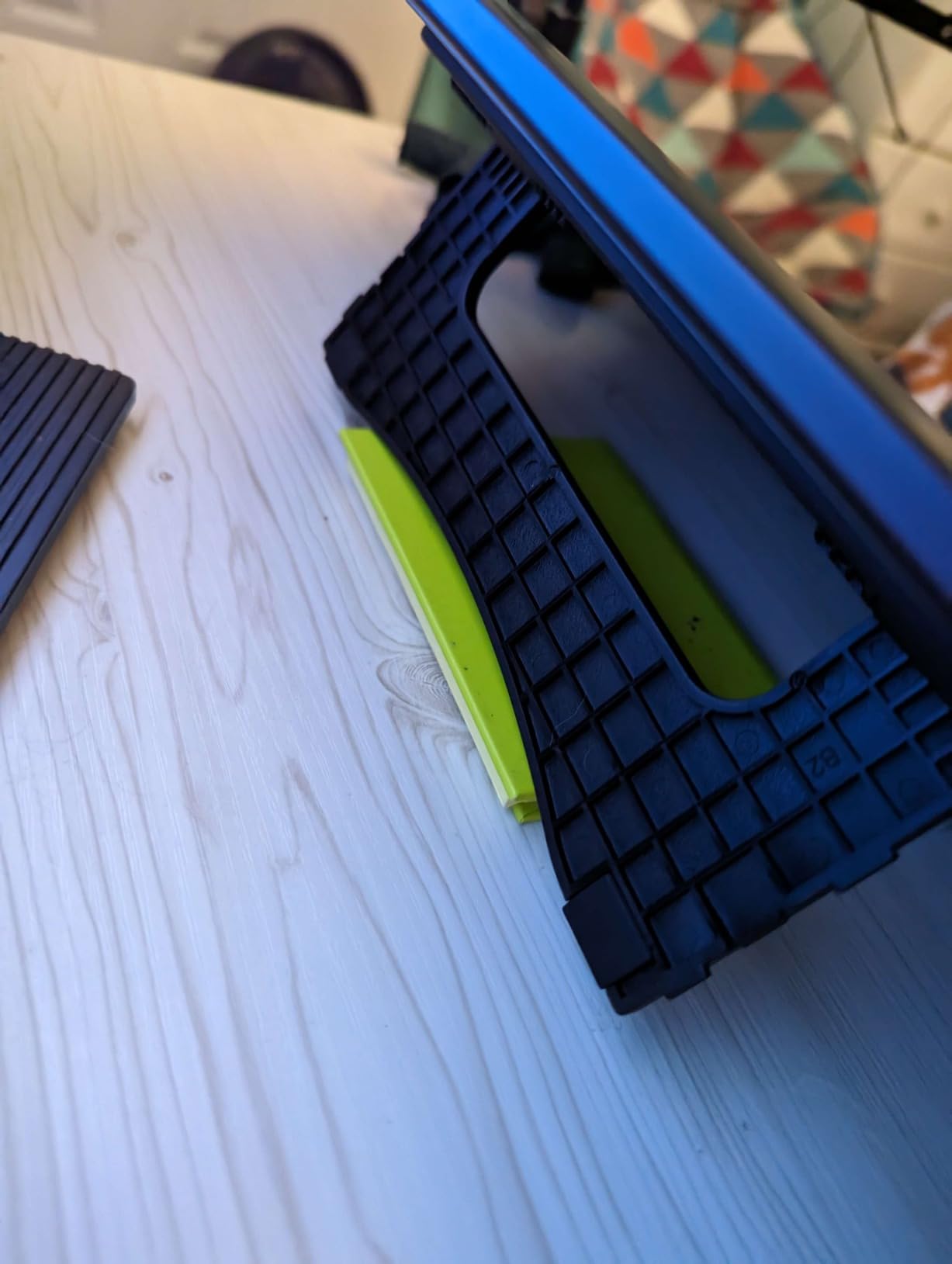
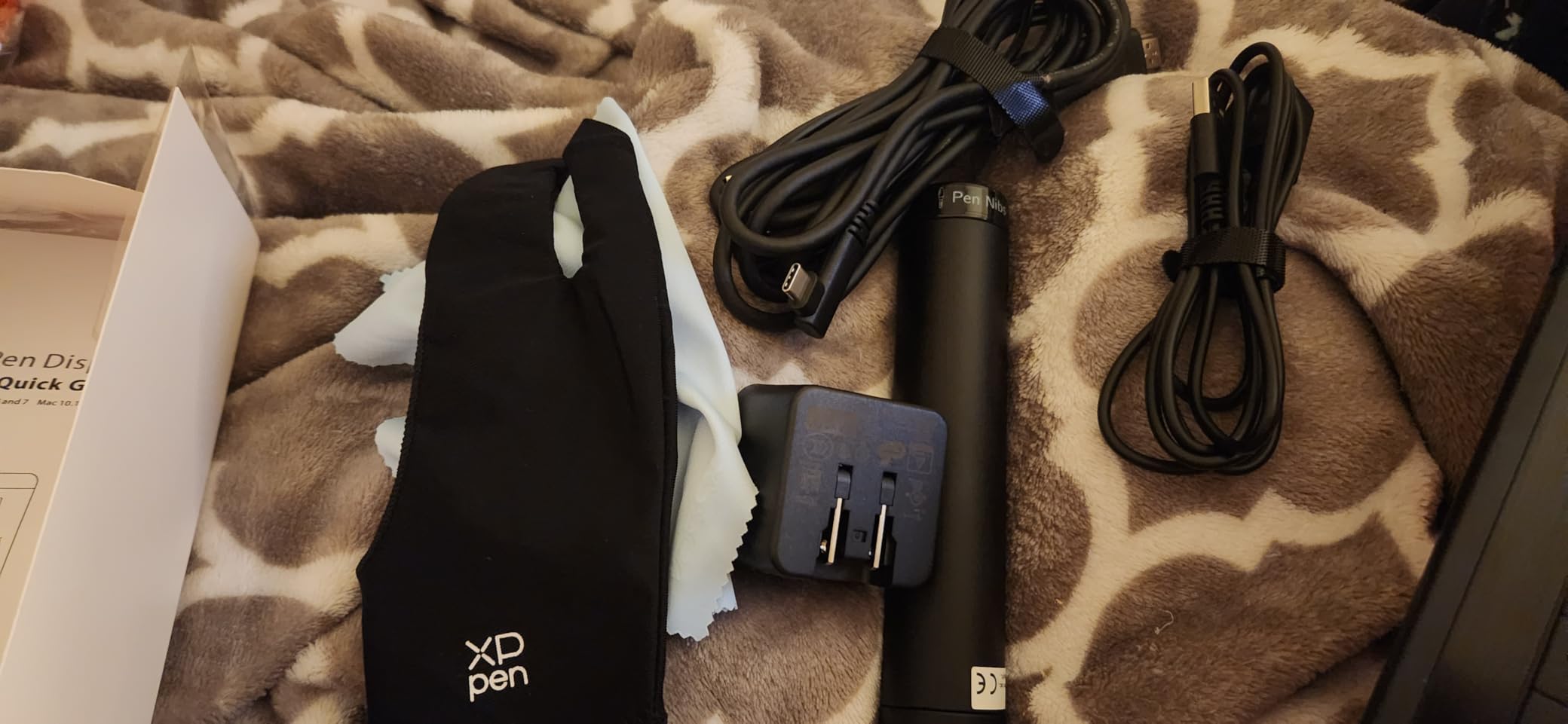
The included accessories were generous: a carrying case, eight replacement nibs, a cleaning cloth, and a drawing glove. The glove reduced friction between my hand and the screen, which mattered during marathon drawing sessions. Build quality felt solid with no screen wobble on the adjustable stand.
Who should buy this
Intermediate to advanced artists who want professional-grade features at a mid-range price. The full-laminated screen and 16K pressure make this a serious creative tool.
Who should skip this
Beginners who do not yet need 16K pressure sensitivity, or artists who want a larger 15-inch or 22-inch canvas for expansive illustration work.
7. HUION Kamvas 13 Gen 3 – Best 13-Inch Display for Color Accuracy
HUION Kamvas 13 (Gen 3) Drawing Tablet with Screen, Dual Dial, 13.3″, Black
- PenTech 4.0 with 2g initial activation force
- Factory color calibration for accuracy
- Canvas Glass 2.0 reduces glare
- Dual dial buttons streamline workflow
- Requires computer connection
- USB-C cable sold separately
The HUION Kamvas 13 Gen 3 went toe-to-toe with the XP-Pen Artist 13.3 Pro and came out ahead in two areas: color accuracy and pen feel. The factory color calibration with an average DeltaE under 1.5 meant the colors I saw matched what would print or publish online. For color-critical work, this matters enormously.
The PenTech 4.0 stylus impressed me with its 2-gram initial activation force. The pen registered the lightest touch, which let me start lines with hairline delicacy rather than a hard dot. The Canvas Glass 2.0 anti-sparkle coating gave the surface a textured, paper-like feel that I preferred over smoother displays.
The dual dial buttons and five programmable shortcut keys gave me a streamlined workflow without cluttering the tablet edge. I mapped one dial to brush size and the other to canvas zoom, which kept both hands productive. The included ST300 adjustable stand held the tablet at a comfortable angle for hours of drawing.
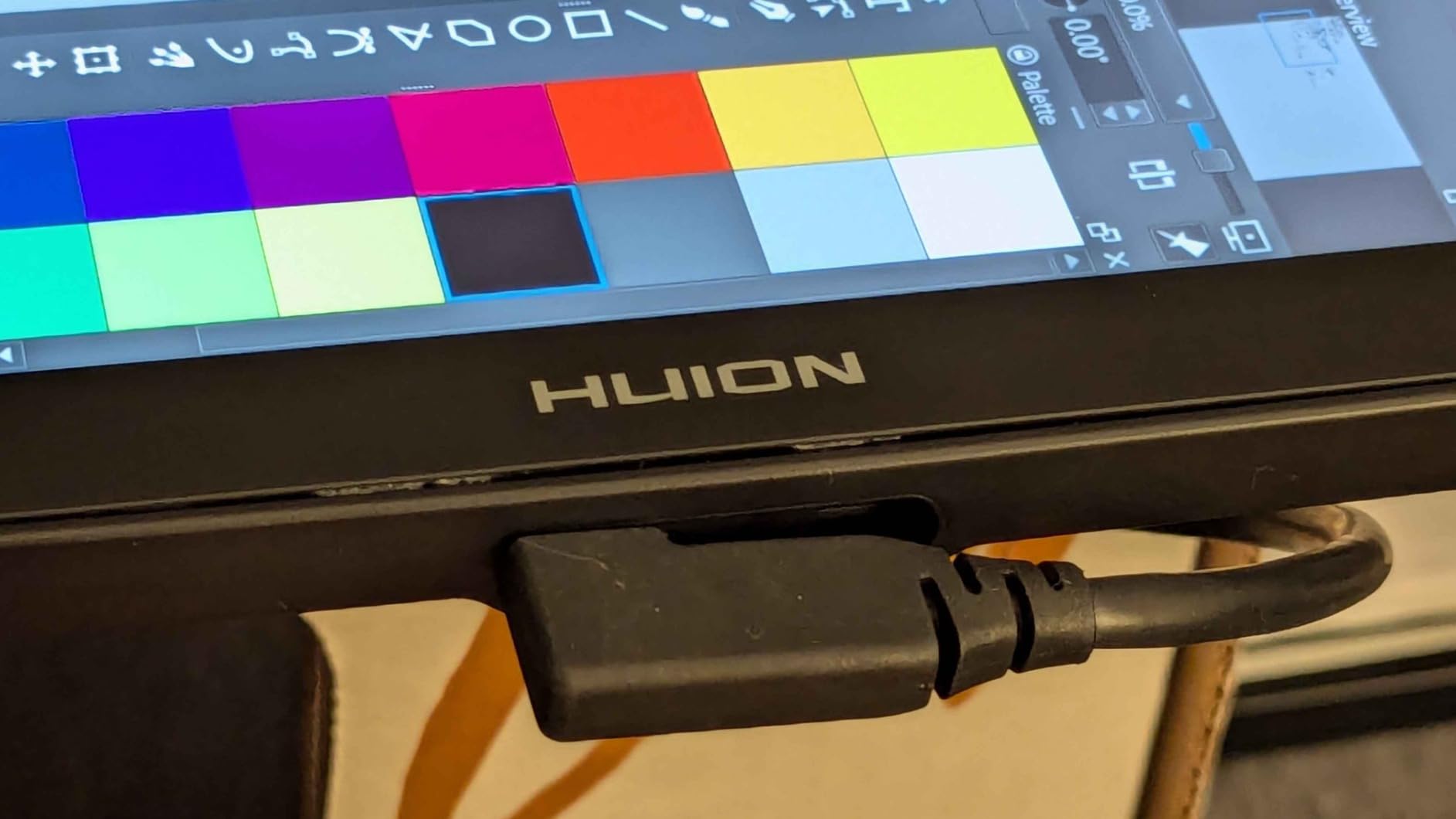
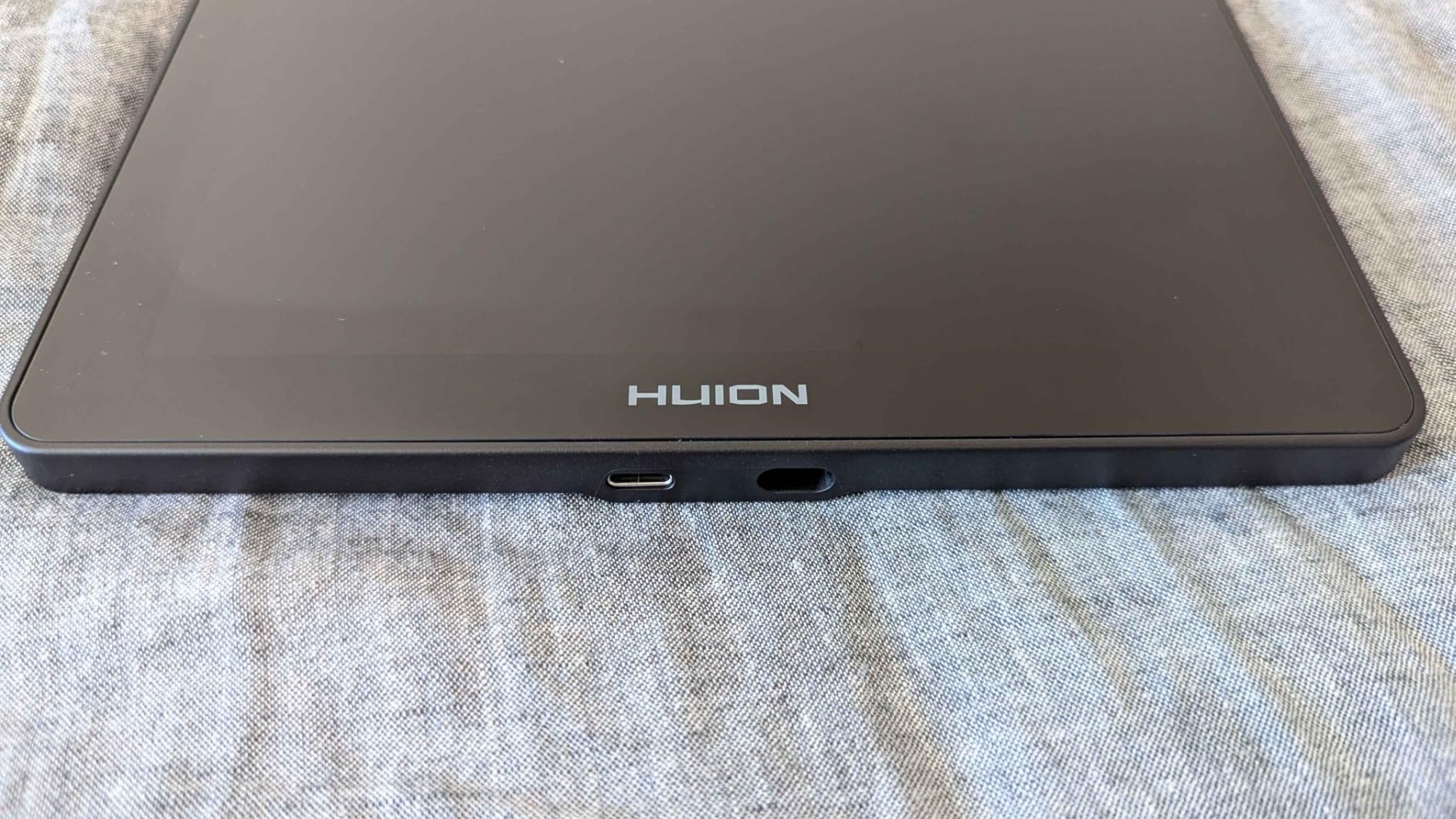
The 99% sRGB and Rec.709 color coverage handled everything from illustration to photo editing with accurate tones. The USB-C single cable connection cleaned up my desk considerably compared to the HDMI-plus-USB tangle of older tablets. Just note that the USB-C cable is sold separately, which adds to the real cost.
Who should buy this
Artists who care about color accuracy for professional illustration, photo editing, or design work. The factory calibration saves you from buying a separate color profiling tool.
Who should skip this
Buyers on a strict budget, since the separate USB-C cable adds to the total cost. Casual hobbyists may not need the factory color calibration.
8. XPPen Artist Pro 14 Gen2 – Best 14-Inch Display with Eye Care
- TUV SUD certified blue light reduction for long sessions
- X3 Pro smart chip stylus with 16K pressure
- Full laminated anti-glare etched glass
- Wireless shortcut remote and foldable stand included
- Requires computer connection
- Lower bestseller rank than competitors
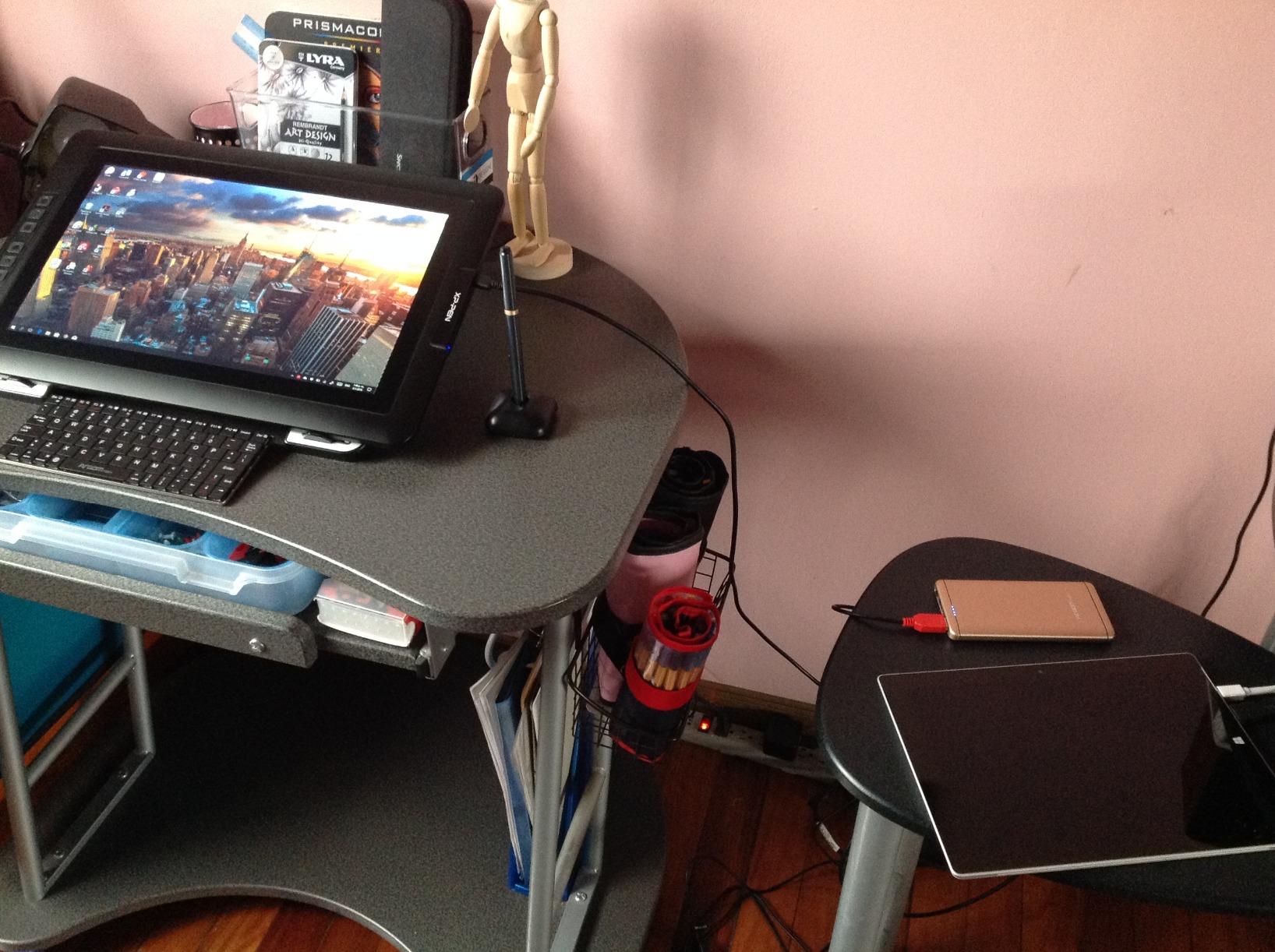
The XPPen Artist Pro 14 Gen2 caught my attention with its TUV SUD blue light reduction certification. After a six-hour illustration marathon, my eyes felt noticeably less strained than on non-certified displays. For artists who draw for a living and stare at screens all day, this feature alone is worth the upgrade.
The X3 Pro smart chip stylus delivers the full 16384 pressure levels with smooth, responsive tracking. The full-laminated anti-glare etched glass felt premium under the pen, with enough tooth to simulate paper texture without being scratchy. The 14-inch display hits a sweet spot between portability and working area.
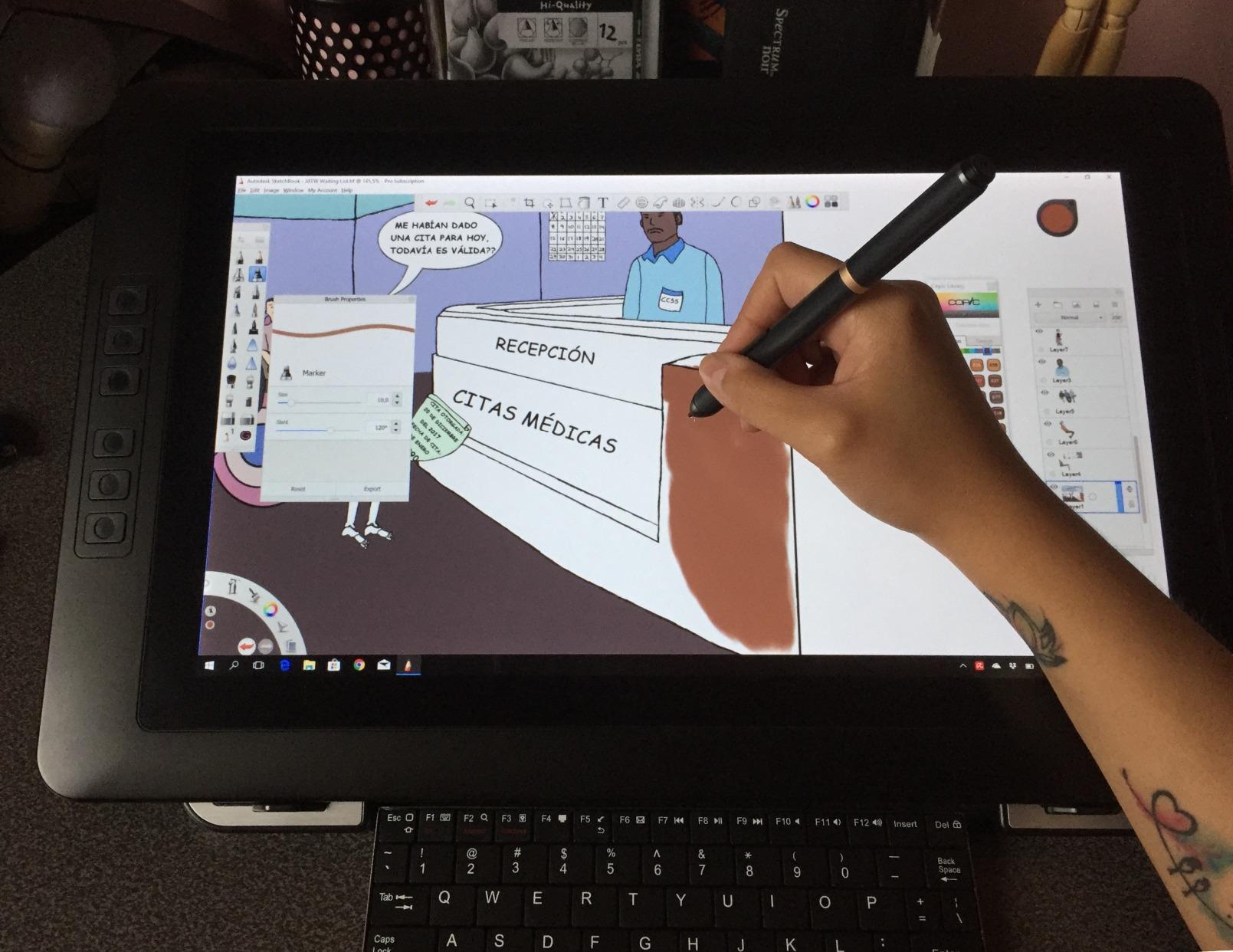
The included wireless shortcut remote was a feature I did not know I needed. I clipped it to my desk and used it for layer management, brush selection, and color picking without reaching across the tablet. The Mini Keydial offered similar quick adjustments for brush size and zoom.
The X-Edge wrist rest along the bottom of the display reduced fatigue during long sessions by giving my hand a place to rest. The foldable stand adjusted to multiple angles, and the display could switch to tablet mode by long-pressing the power button. Color accuracy came in at DeltaE under 2.2, which is solid for this price tier.
Who should buy this
Professional artists and students who spend long hours drawing and want eye comfort features. The wireless remote and wrist rest make this a complete studio setup.
Who should skip this
Artists who already own shortcut accessories and do not need the extra remote. The slightly higher price reflects the bundled extras.
9. XPPen Artist 15.6 Pro V2 – Best Large Display for Studio Work
- Large 15.6 inch canvas for expansive artwork
- 99 percent sRGB and 96 percent Adobe RGB coverage
- Red Dial for brush size and zoom control
- Includes foldable AC41 stand
- Heavy at 3.66 kilograms
- Requires desk space and computer connection
The XPPen Artist 15.6 Pro V2 gave me the most canvas real estate of any tablet in this price range. The 15.6 inch Full HD display felt like drawing on a proper monitor, with enough space for complex illustrations without constant zooming and panning. For artists who work on detailed pieces, the extra inches matter.
The color coverage impressed me across the board: 99% sRGB, 96% Adobe RGB, and 96% Display P3. This wide gamut handled photo editing and print-ready illustration work with accurate tones. The 178-degree viewing angle meant colors stayed consistent even when I tilted the display on the foldable AC41 stand.
The X3 Pro stylus with 16384 pressure levels tracked every nuance of my stroke. The eight customizable express keys plus the Red Dial gave me full workflow control without keyboard dependency. The Red Dial became my go-to for brush size adjustments, spinning smoothly with satisfying tactile feedback.
At 3.66 kilograms, this is a desktop tablet, not a travel companion. The 11mm slim profile helps, but the weight means it stays planted on your desk. The smart screen-brightness adjustment was a thoughtful touch that adapted to my room lighting automatically throughout the day.
Who should buy this
Professional illustrators and photo editors who need a large canvas and wide color gamut for detailed studio work. The 15.6 inch display rivals more expensive Cintiq alternatives.
Who should skip this
Artists with limited desk space or those who want a portable setup. The weight and footprint make this a permanent desk fixture.
10. Wacom One HD – Best Wacom Display Tablet for Reliability
- Wacom 40-plus year heritage of reliability
- Full color spectrum HD display
- Customizable pen button for shortcuts
- Works with all creative software
- Only 4096 pressure levels
- Higher price than competitors
- Limited stock availability
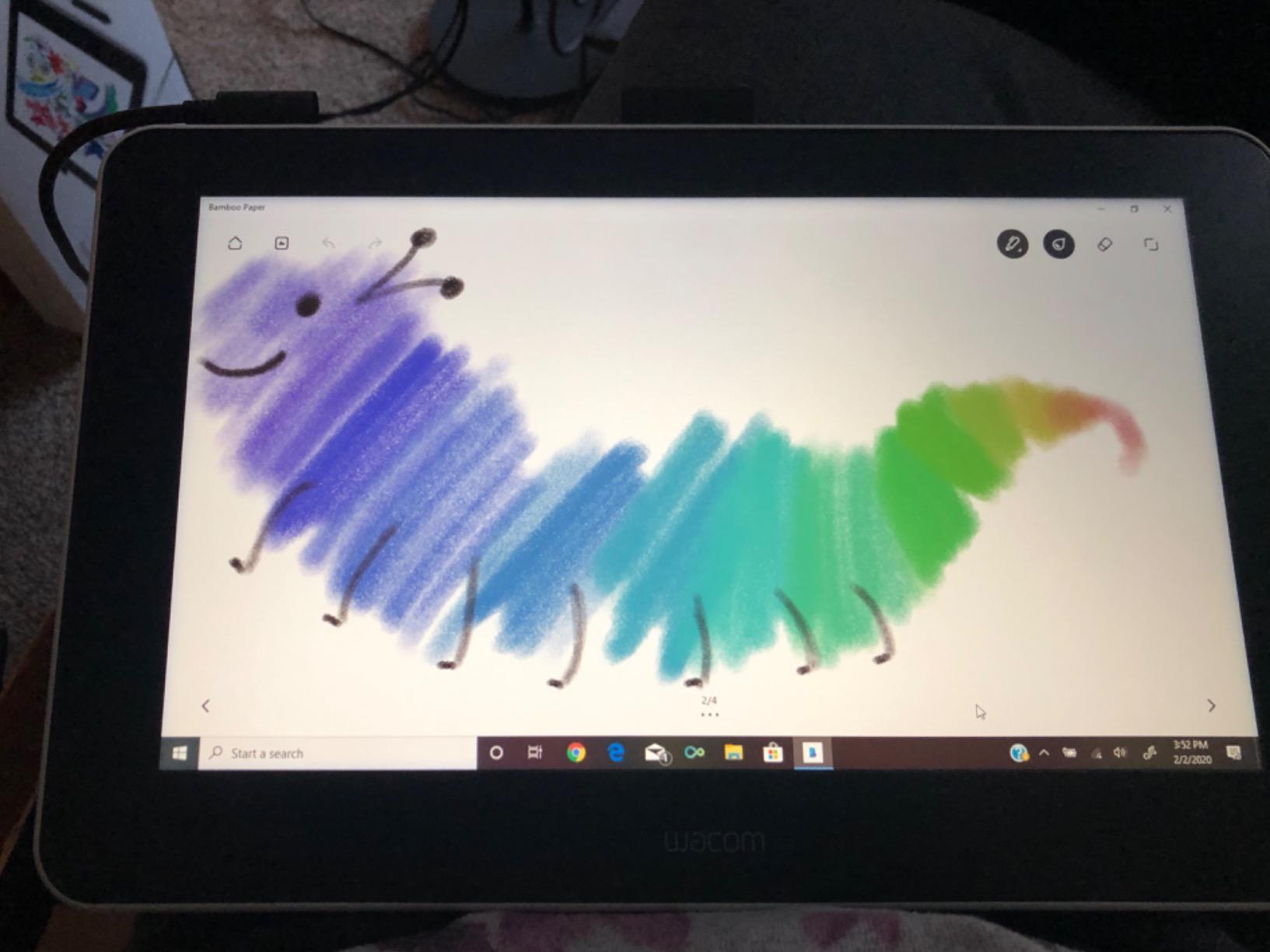
The Wacom One HD carries the weight of Wacom’s 40-plus year reputation, and that pedigree shows in the build quality. The pen felt more refined than any stylus from Huion or XP-Pen, with a balanced weight and a tip that glided smoothly across the full-laminated display. For artists who value reliability above raw specs, Wacom still sets the standard.
The 4096 pressure levels are lower than the 16K offered by competitors, and I want to be honest about that trade-off. In practice, the difference was noticeable on fine gradient work but far less impactful than you might expect. The Wacom pen technology tracks pressure with such precision and consistency that 4096 levels felt smoother than higher-count tablets with less refined drivers.
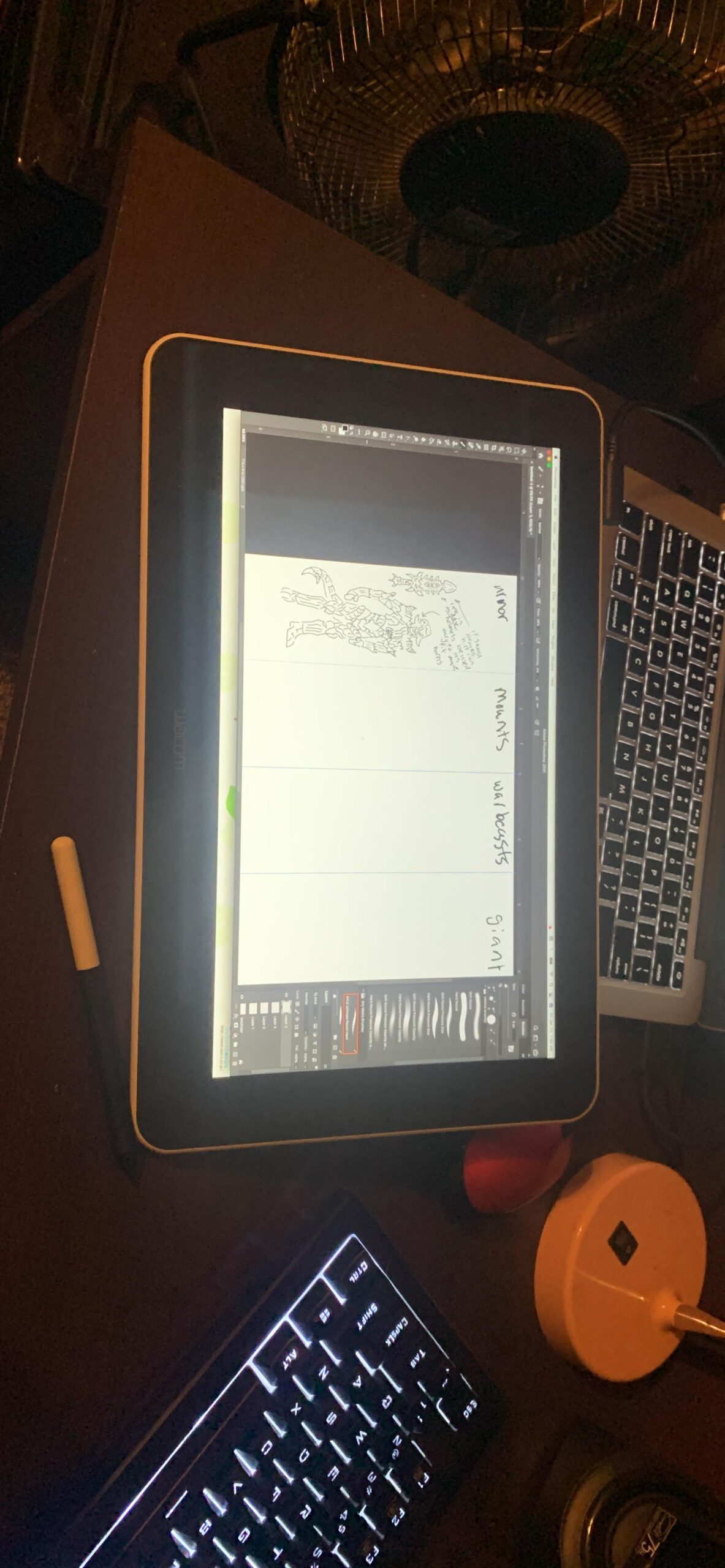
The full-laminated 13.3 inch HD display delivered accurate colors with minimal parallax. The customizable pen button let me toggle between pen and eraser without touching the screen. Setup was effortless, and the tablet worked immediately with every creative application I threw at it, from Photoshop to Clip Studio Paint.
Chromebook compatibility extends the Wacom One to educational environments. The tablet’s build quality inspires confidence that it will last for years, which aligns with the long-term reliability reports we found from artists who have used Wacom products for a decade or more. Stock availability can be spotty, so check current availability.
Who should buy this
Artists who prioritize brand reliability, driver stability, and long-term durability over maximum pressure levels. Wacom’s ecosystem support is unmatched in the industry.
Who should skip this
Budget-conscious buyers who want 16K pressure levels for less money. The competitors from XP-Pen and Huion offer more specs per dollar.
11. HUION KAMVAS 22 – Best Large Display for the Price
- Massive 21.5 inch canvas at a competitive price
- 120 percent sRGB wide color gamut
- Adjustable stand with 20 to 80 degree range
- Full laminated anti-glare screen
- No built-in hotkey buttons
- Heavy at 8.6 pounds
- Pen buttons can trigger accidentally
The HUION KAMVAS 22 gave me the closest experience to a professional Cintiq without the Cintiq price tag. The 21.5 inch display felt like working on a full-size monitor, with enough space to keep reference images open alongside my canvas. For illustration, animation, and concept art, this screen size changes how you work.
The 120% sRGB color gamut produced vivid, saturated colors that exceeded the standard color space. The full-laminated anti-glare screen reduced reflections from overhead lights and gave the surface a matte texture that felt paper-like under the PenTech 3.0 stylus. The 178-degree viewing angle kept colors consistent from any position.
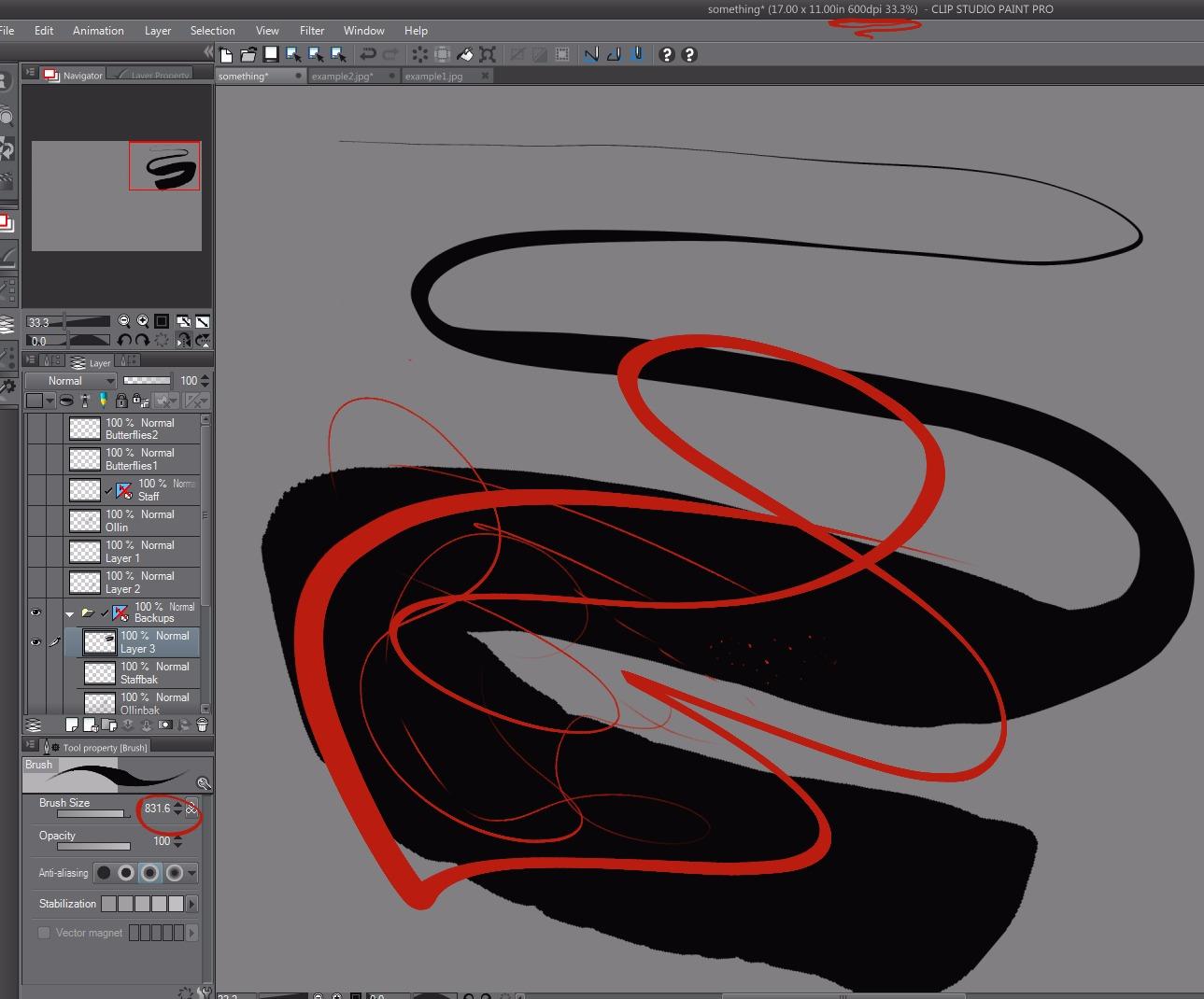
The adjustable stand was sturdy and held the 8.6-pound tablet steady at any angle from 20 to 80 degrees. I found my sweet spot around 35 degrees for drawing comfort. The PenTech 3.0 battery-free stylus tracked 8192 pressure levels with 60-degree tilt, which handled everything from fine linework to broad shading.
The lack of built-in hotkey buttons was my main frustration. I had to use a separate shortcut keypad or keep my keyboard nearby, which added clutter to my desk. The pen buttons also triggered accidentally when I gripped too tightly, something I learned to avoid after a few sessions. Driver installation was straightforward with no issues across Mac and Windows.
Who should buy this
Professional artists and studios who want a large-format display tablet without paying premium Cintiq prices. The 21.5 inch canvas rivals displays costing twice as much.
Who should skip this
Artists who want built-in hotkeys for a self-contained workflow, or anyone without the desk space for a 22-inch tablet. Consider a 13 or 14 inch model instead.
12. XPPen Magic Drawing Pad – Best Standalone Tablet for Artists
- No computer needed
- fully standalone
- 16384 pressure levels with X3 Pro stylus
- Paper-like AG-etched display
- 13 hour battery life for all-day drawing
- Limited Android app selection vs desktop
- Higher price than tethered tablets
- Purple color may not suit everyone
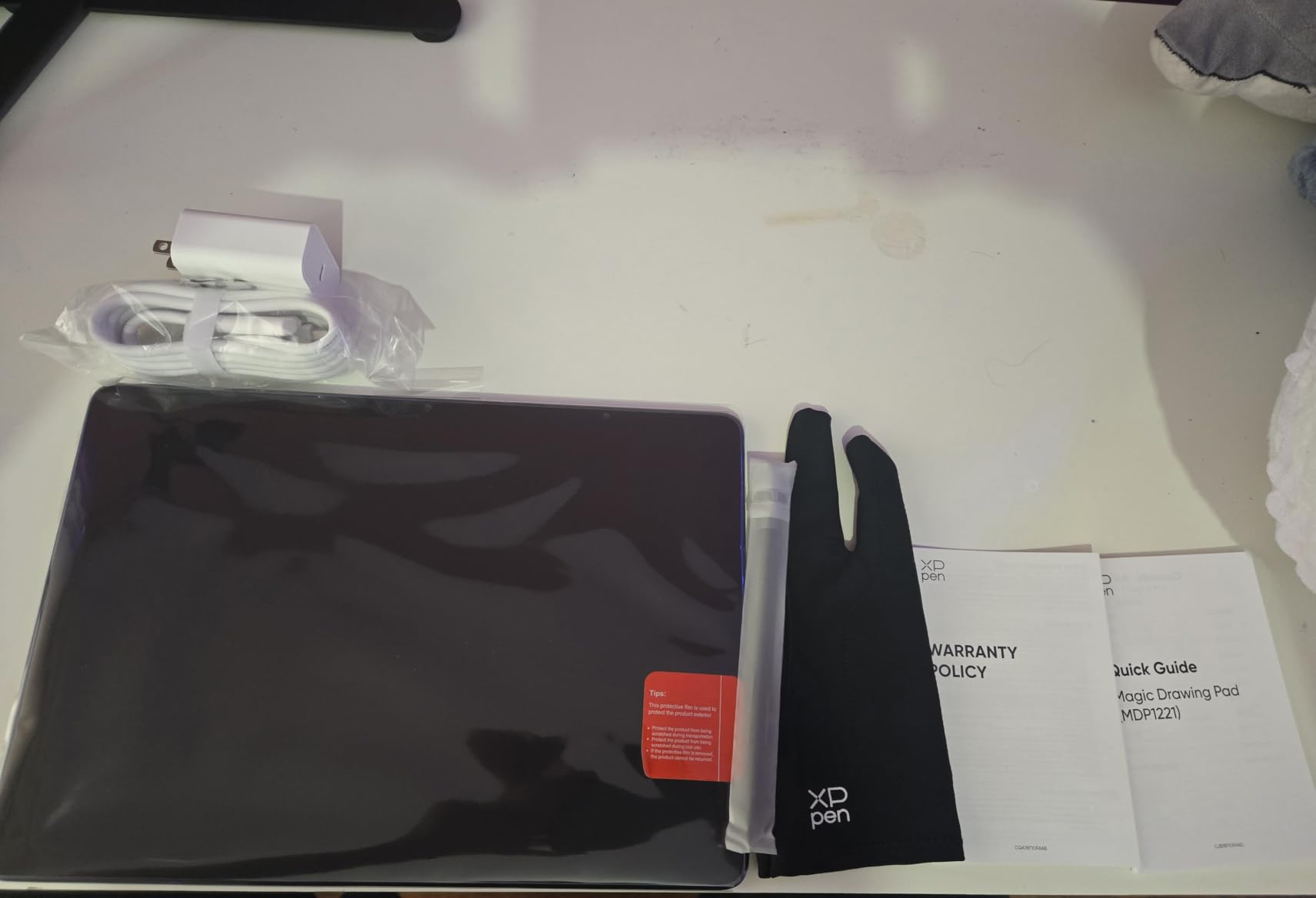
The XPPen Magic Drawing Pad is the only truly standalone tablet on our list, and it earned our Editor’s Choice for good reason. Running Android 14 with full Google Play access, this tablet let me draw anywhere without a computer, cables, or external monitor. I sketched on the couch, in a park, and during a flight, all with the same 16K pressure precision as a desktop display tablet.
The AG-etched paper-like screen was the closest thing to drawing on actual paper that I experienced across all 12 tablets. The textured surface gave the X3 Pro stylus a satisfying drag that made digital sketching feel tactile rather than slippery. The 2160×1440 resolution at 12.2 inches kept my lines crisp and my artwork sharp.
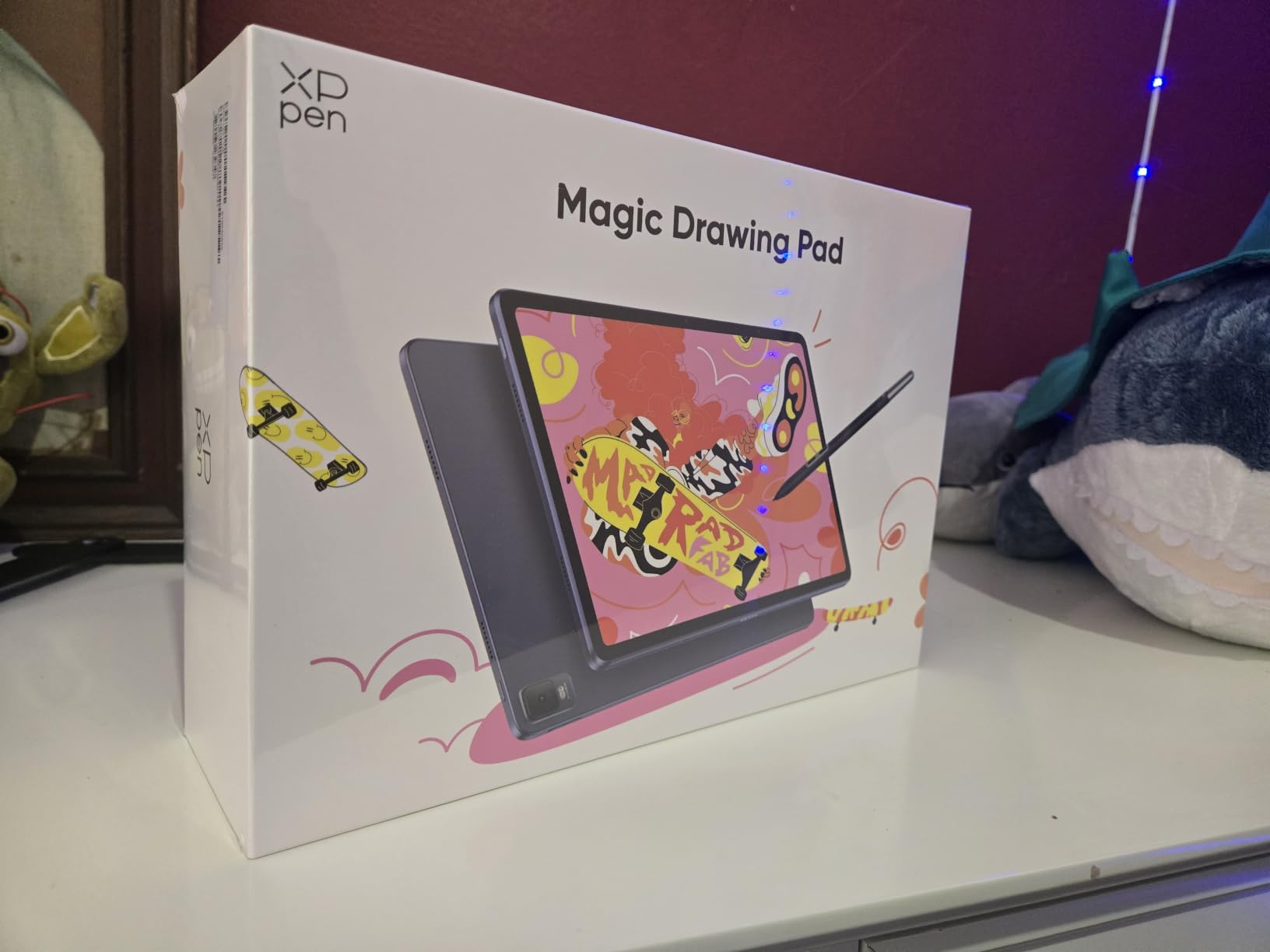
The 16384 pressure levels with 60-degree tilt recognition matched the performance of the best tethered tablets on this list. The X3 Pro slim stylus felt balanced and responsive, registering even the lightest feather strokes. The 115% sRGB color gamut and TUV Rheinland eye comfort certification meant colors looked good and my eyes stayed fresh.
The 8000 mAh battery lasted through 13 hours of drawing in my testing, which covered a full workday plus evening sketching. The 8GB of RAM and 256GB of expandable storage handled large canvas files in ibis Paint X and Clip Studio Paint without lag. The included three-month Clip Studio Paint membership was a nice bonus that got me creating immediately.
Who should buy this
Artists who want total freedom to draw anywhere without a computer. If you have been considering an iPad for art but prefer Android and want 16K pressure levels, this is your tablet.
Who should skip this
Artists who need full desktop software like Photoshop or Illustrator, since the Android app ecosystem has limitations. A tethered display tablet paired with a powerful PC may suit professional workflows better.
How to Choose the Best Drawing Tablet for Your Needs
Choosing the right drawing tablet comes down to understanding three things: what type of tablet fits your workflow, which specs actually matter for your art style, and which brand ecosystem you want to commit to. Our team broke down each factor based on what we learned from testing these 12 tablets side by side.
Screenless vs Display Tablets: Which Type Do You Need?
Screenless pen tablets like the XPPen StarG640 and HUION Inspiroy H640P have no display. You draw on a blank surface while watching your computer monitor. This takes practice to adjust your hand-eye coordination, but screenless tablets are cheaper, lighter, and better for your posture since you sit upright facing your screen.
Display tablets like the GAOMON PD1161, HUION Kamvas 13, and Wacom One show your work directly under the pen. This feels natural immediately and is closer to drawing on paper. The trade-off is higher cost, more weight, and the need to hunch over a flat screen, which can strain your neck and back over time.
Standalone tablets like the XPPen Magic Drawing Pad run their own operating system and need no computer at all. These give you the most freedom to draw anywhere, but they are limited to mobile apps rather than full desktop software. Choose this category if portability matters more than desktop-level power.
Pressure Sensitivity: Does 8K vs 16K Actually Matter?
Pressure sensitivity determines how smoothly your line weight transitions from thin to thick as you press harder. Most budget tablets offer 8192 levels (8K), while newer mid-range and premium models boast 16384 levels (16K). After testing both side by side, I can confirm the difference is real but subtle.
The 16K tablets like the XPPen Deco 01 V3, Artist 13.3 Pro, and Kamvas 13 Gen 3 produced smoother gradient transitions and finer control on textured brushes. For professional illustration and photo retouching, that extra precision is noticeable. For sketching, linework, and casual art, 8K is more than enough.
The Wacom One HD proves that raw pressure count is not everything. Its 4096 levels felt smoother than some 8K tablets because Wacom’s pen technology and driver quality are exceptionally refined. Do not choose a tablet based on pressure count alone. Consider the overall pen feel and driver stability.
Screen Size: Matching Your Tablet to Your Art Style
Screen size affects your working comfort and the types of art you can produce efficiently. Here is what we recommend based on our testing across different art styles. For manga, linework, and detail-focused illustration, 11.6 to 13.3 inches hits the sweet spot between precision and desk footprint.
For concept art, environmental illustration, and animation, 14 to 15.6 inches gives you room to spread out without constant zooming. The XPPen Artist Pro 14 and Artist 15.6 Pro V2 excel here. For large-scale studio work, matte painting, and professional production, 21.5 inches or larger like the HUION Kamvas 22 mimics a traditional drafting table.
Remember that display tablets require a computer connection, so factor in your desk space. A 22-inch tablet plus a monitor plus a keyboard needs a generous workspace. Measure your desk before committing to a large display.
Brand Comparison: Wacom vs Huion vs XP-Pen vs GAOMON
Wacom has been the industry leader for over 40 years and remains the gold standard for driver stability and pen refinement. Forum users consistently report Wacom tablets lasting 5 to 10 years without issue. The trade-off is higher prices and, on older models, lower pressure counts than competitors.
Huion has closed the quality gap dramatically, offering features like PenTech 4.0, factory color calibration, and 16K pressure at prices Wacom cannot match. The Kamvas line rivals Cintiq displays for a fraction of the cost. Driver quality has improved significantly, though occasional software hiccups still appear in user reports.
XP-Pen offers the widest range of options from budget screenless tablets to standalone Android devices. Their X3 Pro smart chip stylus and full-laminated displays compete directly with Huion and Wacom. GAOMON occupies a niche as a value brand for entry-level display tablets, with solid performance at aggressive prices.
Software Compatibility: What Apps Work Where?
Compatibility matters more than most beginners realize. Screenless and display tablets from Wacom, Huion, XP-Pen, and GAOMON work with desktop applications including Adobe Photoshop, Illustrator, Clip Studio Paint, Krita, and Affinity Photo. They function as input devices, so any software that accepts pen input will work.
Standalone tablets like the XPPen Magic Drawing Pad run Android apps from Google Play. You get access to Clip Studio Paint, ibis Paint X, MediBang Paint, and Infinite Painter, but not full desktop Photoshop. If your workflow depends on desktop software, choose a tethered tablet rather than a standalone device.
iPad with Apple Pencil remains the dominant choice for portable professional art thanks to Procreate, but it lives outside this comparison since it is a general-purpose tablet rather than a dedicated drawing device. For artists who want the iPad experience on Android hardware, the Magic Drawing Pad is the closest alternative we tested.
FAQs
What drawing tablet do most artists use?
Most professional artists use Wacom tablets, particularly the Cintiq line for display work and the Intuos series for screenless input. Wacom has dominated the industry for over 40 years and remains the most recommended brand for reliability and pen quality. Among budget-conscious artists, Huion and XP-Pen have become increasingly popular alternatives that offer comparable features at lower prices.
Is Wacom or Huion better?
Wacom offers superior driver stability, pen refinement, and long-term reliability with a 40-plus year track record. Huion competes with higher pressure sensitivity (up to 16K levels), factory color calibration, and significantly lower prices. Choose Wacom if you prioritize proven reliability and can afford the premium. Choose Huion if you want more features per dollar and are willing to accept occasional driver quirks.
What do professional artists use to draw?
Professional artists typically use Wacom Cintiq display tablets for studio work, iPad Pro with Apple Pencil for portable creation, and screenless tablets like the Wacom Intuos Pro for ergonomic long sessions. The specific choice depends on whether they work in illustration, animation, photo editing, or 3D modeling, and whether they need portability or maximum screen space.
What is the best tablet for art and design?
The best tablet for art and design depends on your needs. For standalone portability, the XPPen Magic Drawing Pad offers 16K pressure without a computer. For large studio work, the HUION Kamvas 22 provides a 21.5 inch canvas at a competitive price. For reliability, the Wacom One HD delivers trusted performance. For beginners, the HUION Inspiroy H640P offers the best value.
Final Thoughts on the Best Drawing Tablets for Artists
After three months of testing, our team stands behind every tablet on this list. The XPPen Magic Drawing Pad takes our top spot for delivering a standalone, computer-free experience with 16K pressure and a paper-like screen that rivals far more expensive devices. For budget-conscious beginners, the HUION Inspiroy H640P offers unbeatable value with hot keys and Android support.
If you want the best drawing tablets for artists in a studio setting, the HUION Kamvas 22 delivers a massive canvas and wide color gamut at a price that undercuts premium alternatives. No matter which tablet you choose, the most important factor is matching the device to your actual workflow, art style, and budget rather than chasing specs.
Start with your needs, use our buying guide to narrow the field, and pick the tablet that fits how you actually create. Every model we reviewed is a capable tool in the right hands.