
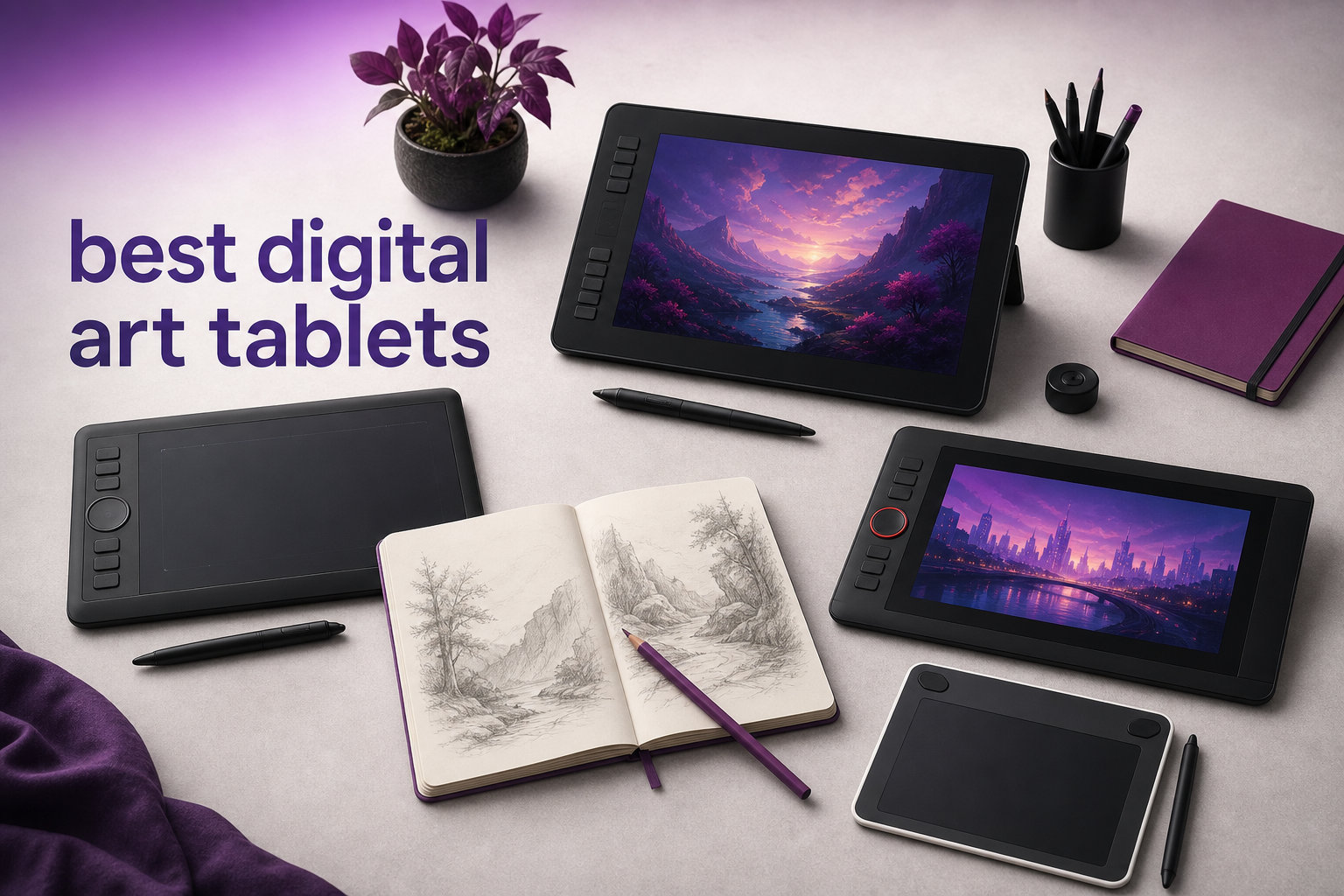
I have spent the better part of three years testing drawing tablets in my home studio, sketching everything from quick character studies to full digital paintings. When friends and readers started asking me which device to buy, I realized most guides skip the real-world stuff that actually matters. So I pulled together every tablet I could get my hands on and put them through serious drawing sessions to find the best digital art tablets worth your money in 2026.
Choosing the right tablet comes down to how you draw, what software you use, and whether you want a screen to look at while you work. Some artists love the direct-on-screen feel of a pen display, while others prefer the lightweight simplicity of a screenless graphics tablet that sits next to a laptop. Our team compared 10 models across pressure sensitivity, color accuracy, build quality, and everyday comfort to help you cut through the marketing noise.
Whether you are a hobbyist doodling on the couch or a working illustrator producing client commissions, there is a tablet on this list that fits your setup. I have organized everything from budget-friendly starter picks to professional-grade displays, complete with hands-on notes from weeks of testing. Let us find the one that matches your creative flow.
Top 3 Digital Art Tablets for 2026
Before we get into the full reviews, here are the three tablets I keep recommending most often. These picks cover the three biggest categories buyers fall into: a premium display for serious work, a value-packed starter tablet, and an ultra-affordable option for first-timers.

The Wacom Cintiq 16 takes my editor’s choice spot because it delivers a stunning 2.5K display with professional color coverage that rivals tablets costing twice as much. The Wacom Intuos Small wins best value as the number-one best seller in graphics tablets, giving you genuine Wacom pen technology at a starter price. For anyone on the tightest budget, the HUION Inspiroy H640P offers 8192 pressure levels and six hot keys for less than a nice dinner out.
Best Digital Art Tablets in 2026
Here is the full lineup of all 10 tablets I tested, ranked from premium picks down to budget starters. Use this comparison table to scan specs at a glance, then scroll down for the detailed hands-on reviews.
| Product | Specifications | Action |
|---|---|---|
| Wacom Cintiq 16 |
|
Check Latest Price |
 Wacom Intuos Small Wacom Intuos Small |
|
Check Latest Price |
 HUION Inspiroy H640P HUION Inspiroy H640P |
|
Check Latest Price |
 XPPen Deco 01 V3 XPPen Deco 01 V3 |
|
Check Latest Price |
 Wacom Intuos Pro Medium Wacom Intuos Pro Medium |
|
Check Latest Price |
 XPPen Artist 13.3 Pro XPPen Artist 13.3 Pro |
|
Check Latest Price |
 HUION Kamvas 13 Gen 3 HUION Kamvas 13 Gen 3 |
|
Check Latest Price |
 GAOMON PD1161 GAOMON PD1161 |
|
Check Latest Price |
 HUION Kamvas Pro 16 HUION Kamvas Pro 16 |
|
Check Latest Price |
 Wacom MovinkPad 11 Wacom MovinkPad 11 |
|
Check Latest Price |
1. Wacom Cintiq 16 – Premium Pen Display for Serious Artists
- Stunning 2560x1600 resolution with rich DCI-P3 color
- Pro Pen 3 delivers Wacom's best drawing feel
- Built-in fold-out legs for comfortable angles
- Excellent for animation and game development
- Premium investment
- Requires a computer to function
- Larger footprint needs dedicated desk space
The Wacom Cintiq 16 is the tablet I reach for when I need color accuracy I can trust. That 2.5K WQXGA resolution makes every brush stroke crisp, and the 99% DCI-P3 color coverage means what I see on screen matches what gets printed or published. I spent two weeks using it for a client illustration project, and the color consistency saved me from nasty surprises during final delivery.
Drawing directly on the 16-inch display feels natural in a way that screenless tablets simply cannot match. The Pro Pen 3 glides across the surface with that signature Wacom responsiveness, and I never noticed any lag even when laying down rapid hatching strokes. The pen is battery-free, so there is nothing to charge and no weight from a battery to fatigue your hand.
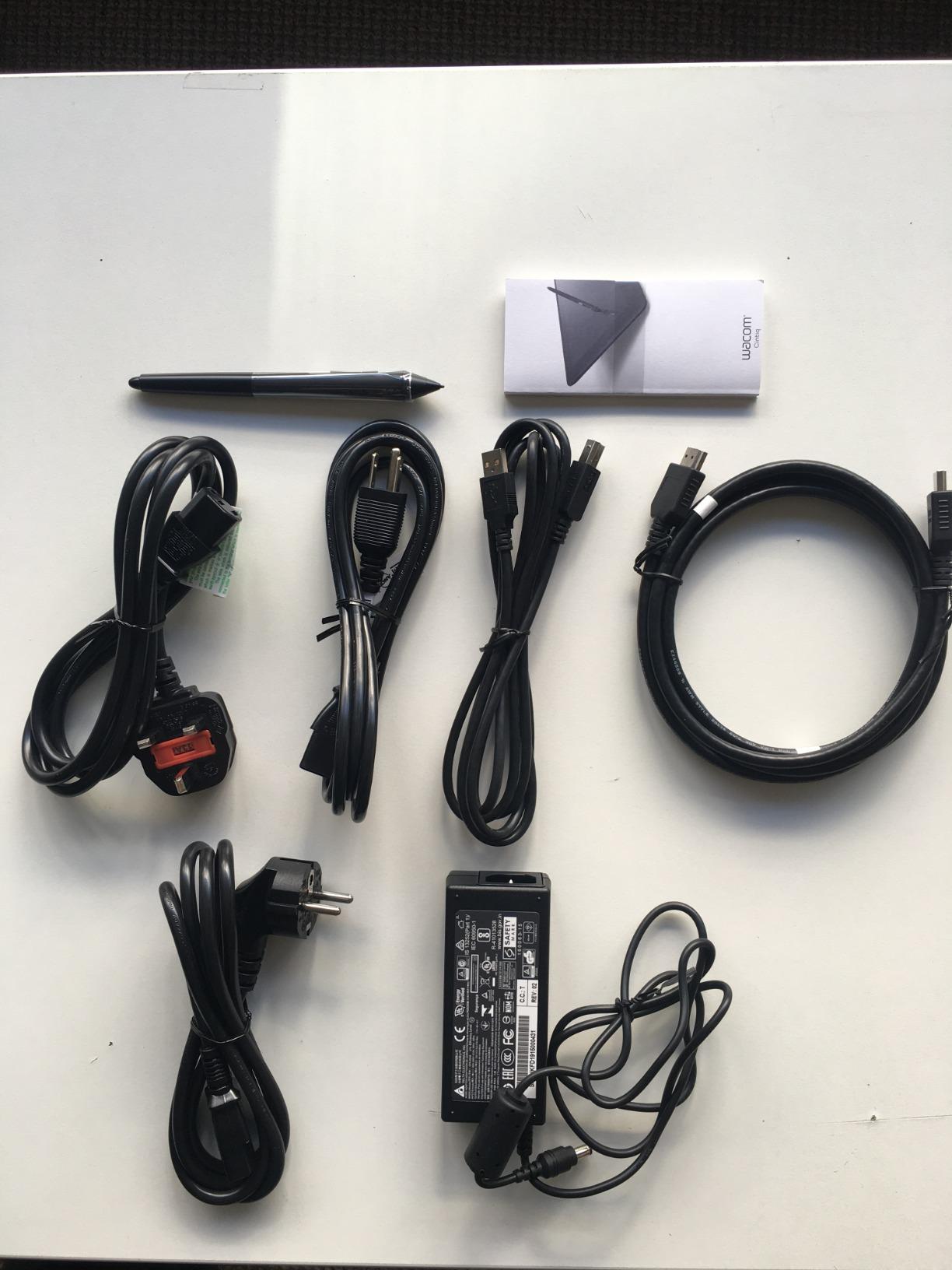
What impressed me most during testing was the overall build quality and thoughtful design. The built-in fold-out legs give you a comfortable working angle without needing to buy a separate stand, and the etched glass surface provides just enough tooth to feel like drawing on textured paper. At 4.5 pounds it has some weight, but that solidity translates to stability when you lean into longer sessions.
The main trade-off is that this is a display tablet that requires a connected computer, so it is not portable in the way a standalone tablet is. You also need a desk with enough space for a 16-inch screen plus your keyboard and mouse. But if you are doing professional illustration, animation, or game development work, the Cintiq 16 delivers an experience that justifies the investment.
Who Should Step Up to the Cintiq 16
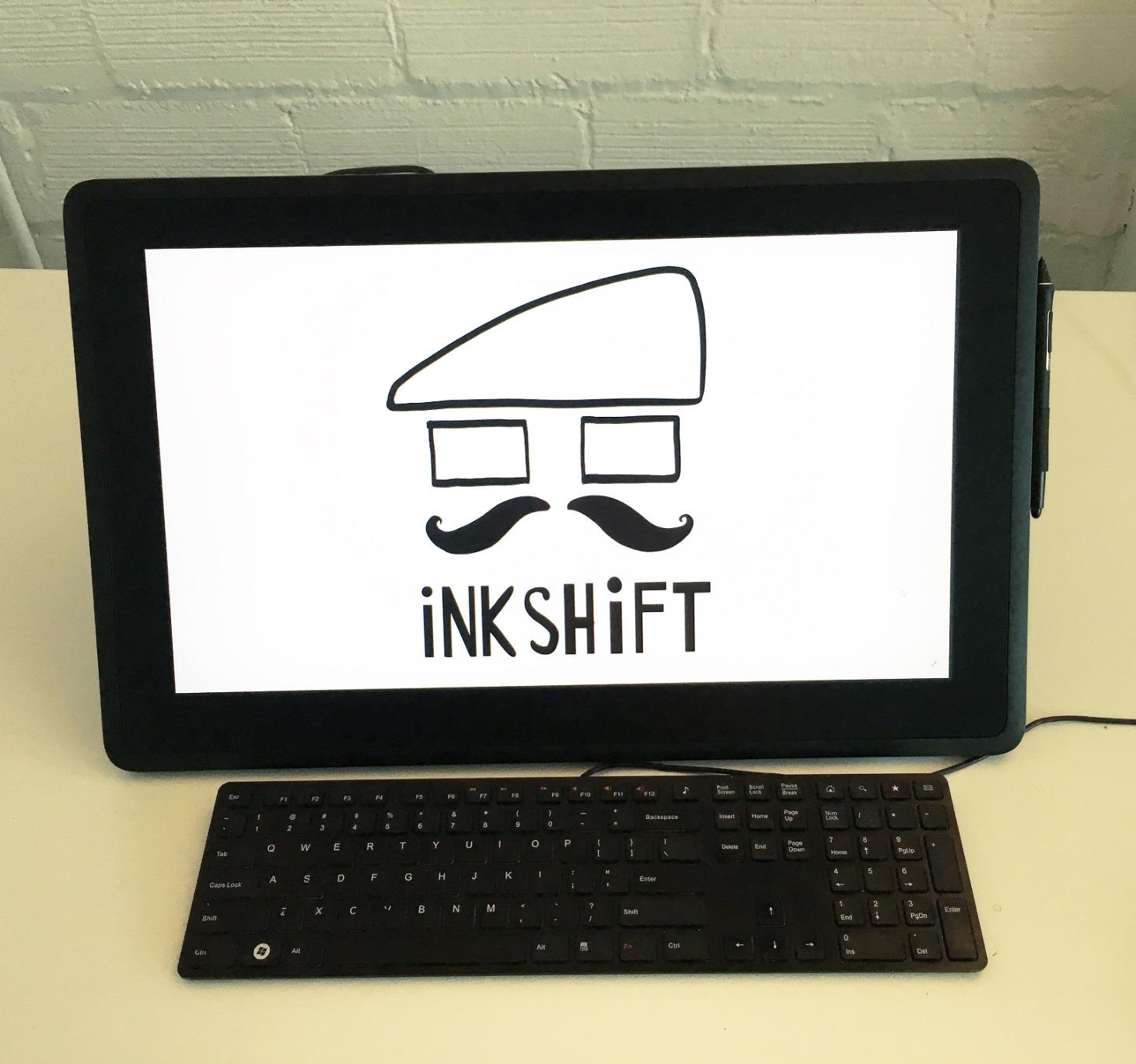
This tablet is built for working artists, animators, and designers who need dependable color accuracy and a large canvas. If you produce client work where color fidelity matters, or you spend hours each day drawing, the Cintiq 16 pays for itself in comfort and precision. Hobbyists who draw occasionally may find it more tablet than they need.
Computer and Software Requirements
The Cintiq 16 connects via USB-C with DisplayPort Alt Mode or Thunderbolt 3 and 4, so you will want to confirm your computer has the right port before buying. It works smoothly with Adobe Photoshop, Clip Studio Paint, and all major creative applications on both Mac and PC. The driver installation was straightforward in my testing on both platforms.
2. Wacom Intuos Small – Best Value Starter Tablet
- Number one best seller in graphics tablets
- Includes bundled training and creative software
- Works with Chromebook Mac Android and Windows
- Extremely lightweight and portable
- Small active area limits large strokes
- USB-A only no USB-C
- No tilt support
- Screenless takes adjustment
The Wacom Intuos Small is the tablet I recommend to every beginner who asks me where to start. It holds the number-one spot in computer graphics tablets for good reason, delivering genuine Wacom EMR pen technology at a price that removes the barrier to entry. I tested one for a month of casual sketching and photo editing, and it never felt like a compromise product.
The battery-free pen uses electromagnetic resonance technology, meaning it draws power from the tablet surface and never needs charging. That pen-on-paper feel is something Wacom has refined over decades, and even at this price point the precision and control are noticeably better than cheaper alternatives I have tried. The 4096 pressure levels give you enough sensitivity for shading, line weight variation, and detailed work.
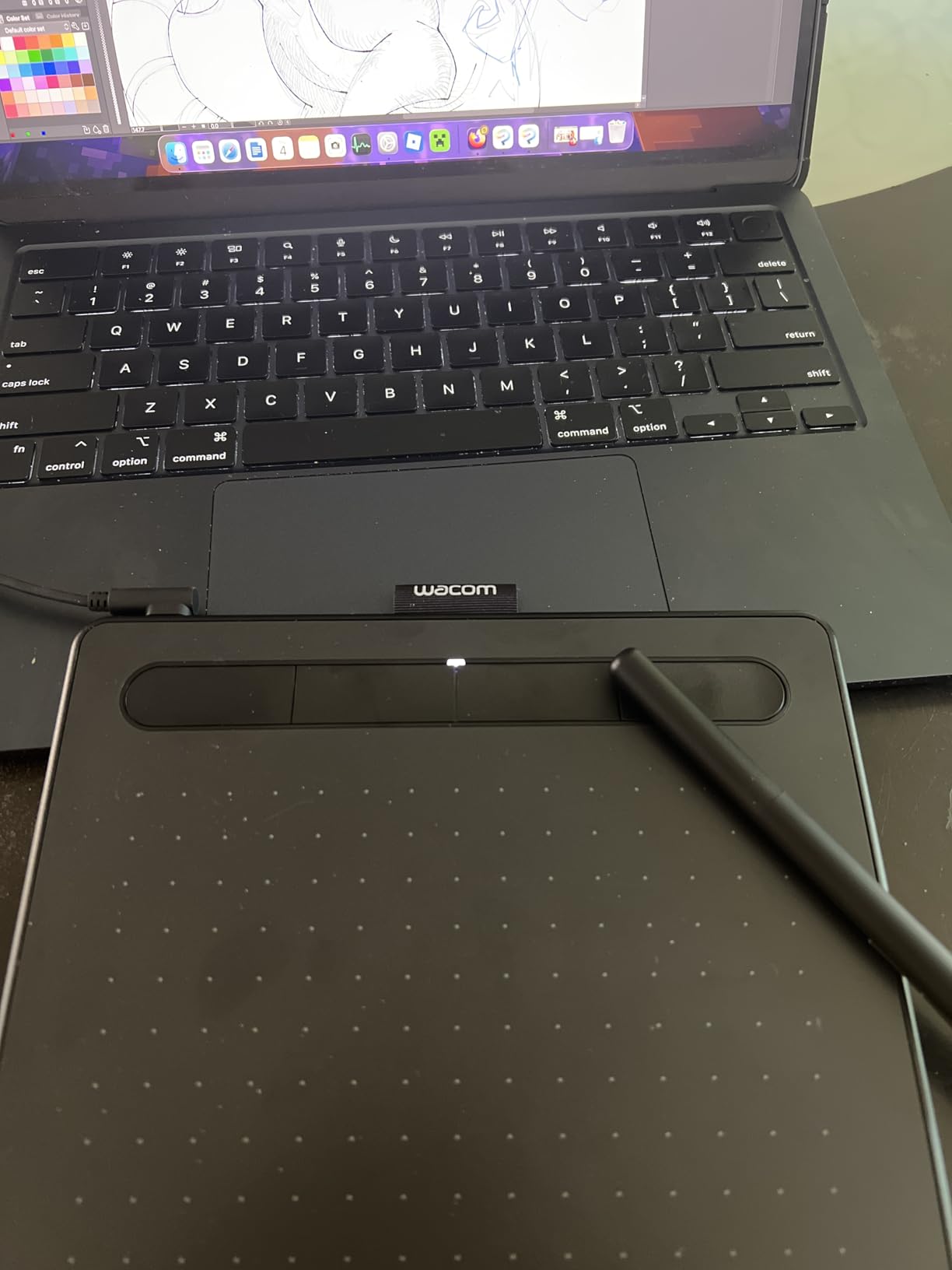
What makes this such a strong value pick is everything Wacom includes in the box. You get four customizable ExpressKeys for shortcuts, plus access to downloadable creative software and training materials that help beginners get productive fast. The tablet works across Windows, Mac, Android, and Chromebook, which covers just about every device a new artist might own.
The 6 by 3.7 inch active area is compact, which is great for portability but does limit how large you can draw in a single stroke. I found it perfect for photo retouching, digital scrapbooking, and sketchbook-style doodling, but working illustrators may want something bigger. There is also no tilt support, which matters if you use brushes that respond to pen angle.
Best Uses for the Intuos Small
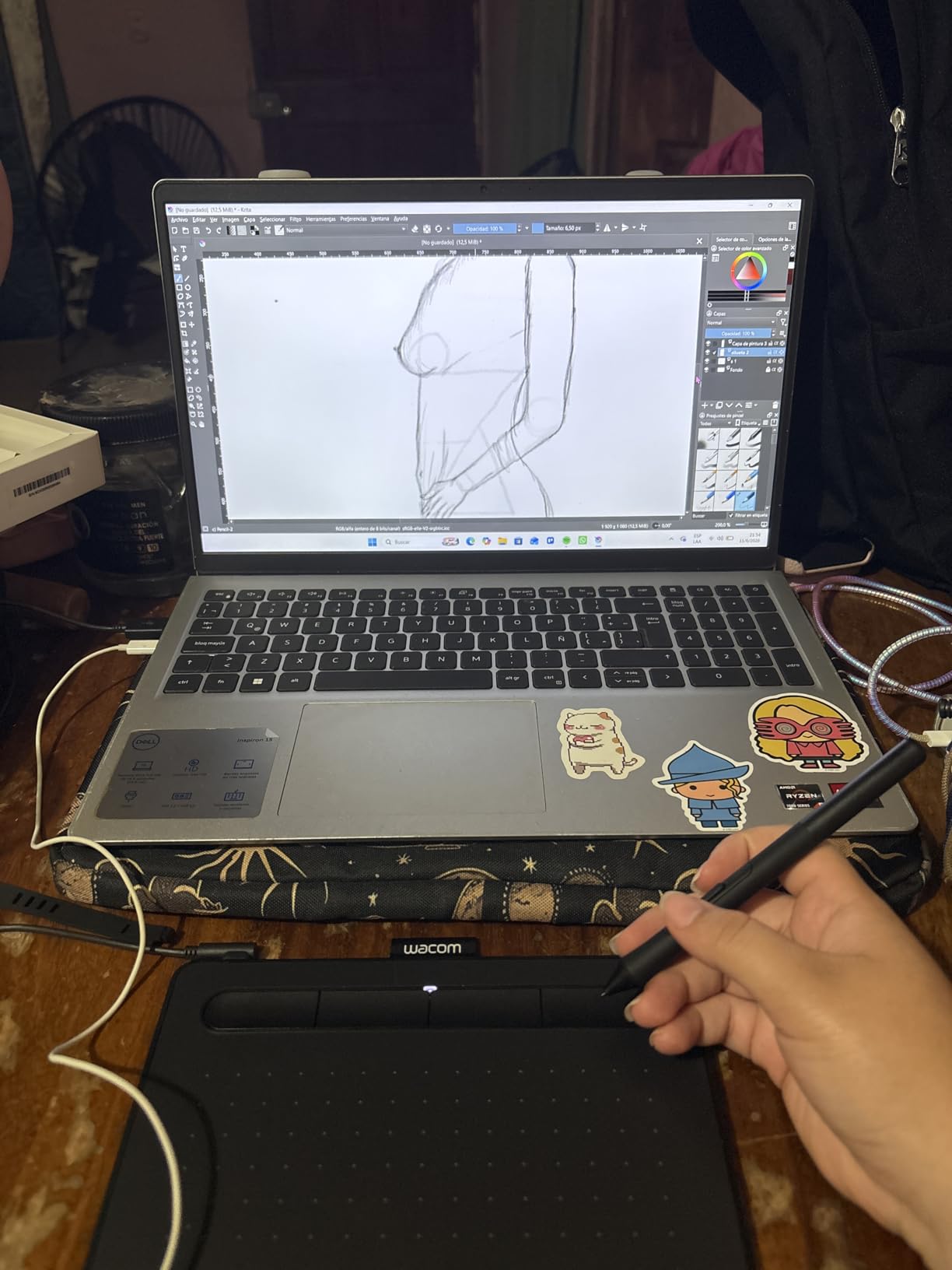
This tablet shines for photo editing, digital note-taking, online teaching, and beginner digital art. The small footprint fits alongside a laptop on a coffee table or desk, making it ideal for casual creators and students. If you are exploring digital art for the first time, this is the safest purchase you can make.
Adjusting to a Screenless Tablet
Drawing on a blank surface while looking at your screen takes practice, usually about a week of regular use to feel natural. The hand-eye coordination transfer happens faster than most people expect, and many artists actually prefer screenless tablets for ergonomic reasons. Your posture stays better because you are not hunching over a display.
3. HUION Inspiroy H640P – Most Affordable Drawing Tablet
- Lowest price point on this list
- Doubles the pressure levels of comparably priced tablets
- Only 0.3 inch thick for ultimate portability
- Works with Mac PC and mobile devices
- Plastic build feels less premium
- Huion driver software less polished than Wacom
- No tilt recognition
- USB cable not detachable
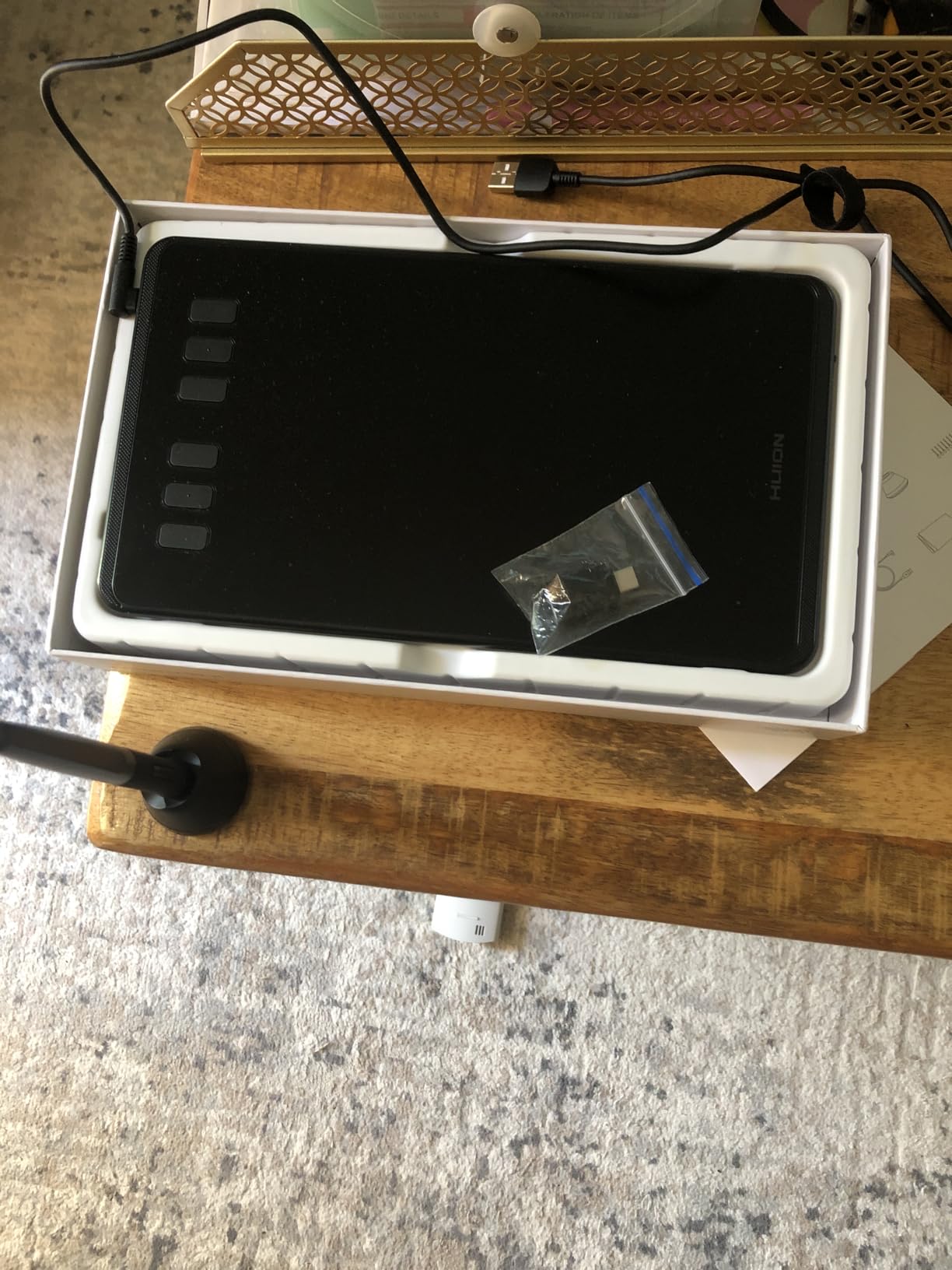
The HUION Inspiroy H640P proves you do not need to spend much to get a capable drawing tool. For the price of a few fancy coffees, you get 8192 pressure levels, a battery-free stylus, and six customizable hot keys. I carried one in my backpack for three weeks of travel sketching, and it held up beautifully to life on the road.
What surprised me most was how the 8192 pressure levels matched tablets costing three times as much. The stylus responded to light feather strokes and heavy pressure marks with smooth gradation, which is the core experience any digital artist cares about. The 6 by 4 inch active area gives you slightly more room than the Wacom Intuos Small, and the 0.3 inch thickness makes it genuinely pocketable.
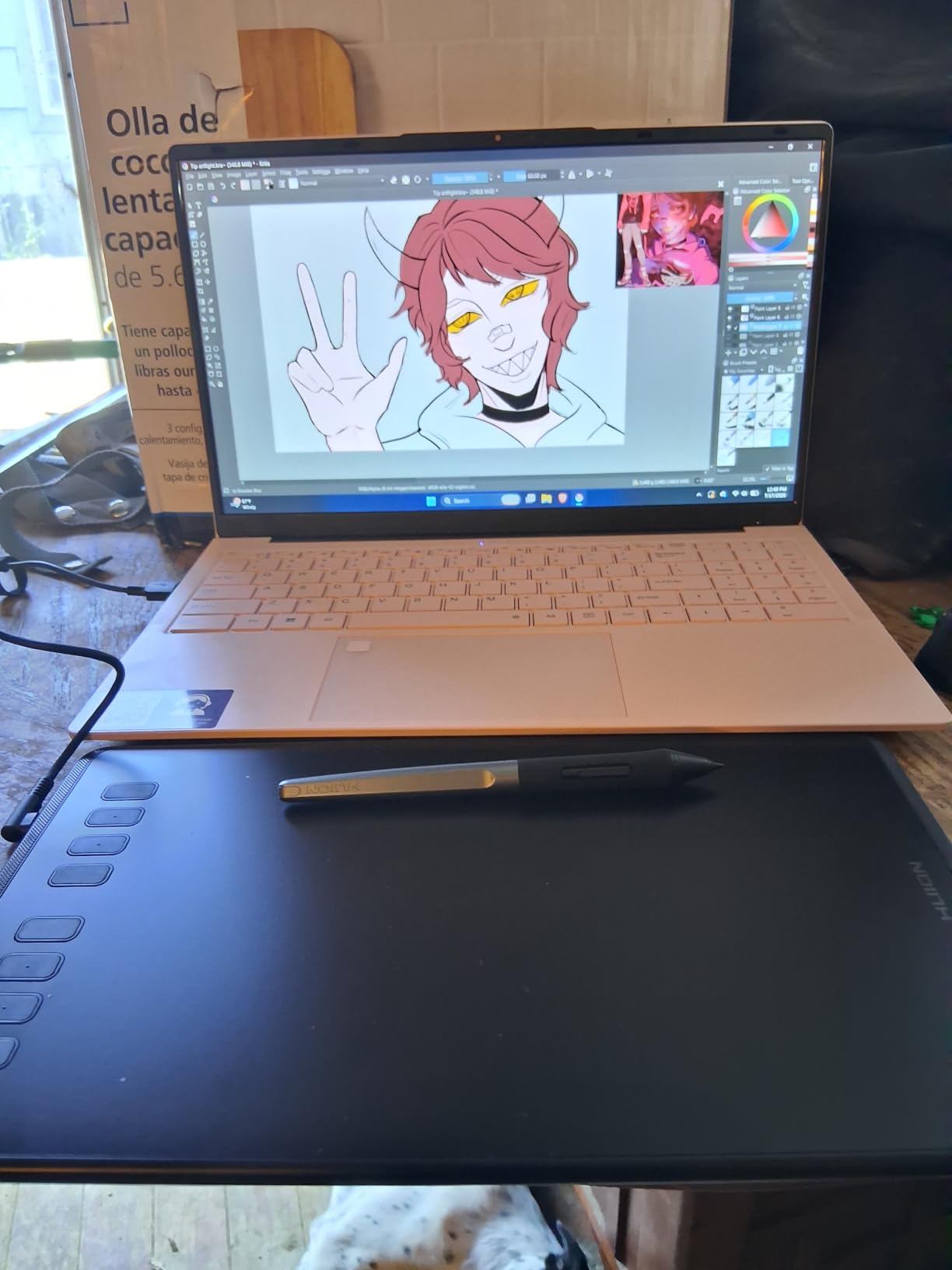
The six hot keys let you map shortcuts like undo, brush size, and eraser for a faster workflow. I set mine up for the three tools I use most in Photoshop and found myself reaching for the keyboard far less often. The tablet connects via USB and works with Mac, Windows, and Android devices, covering the basics for most users.
The compromises show up in build materials and software polish. The plastic body flexes slightly under heavy pressure, and Huion’s driver software takes more fiddling to get configured than Wacom’s. There is also no tilt support, which limits compatibility with angle-sensitive brushes. But for a first tablet or a backup travel device, the H640P punches well above its weight.
Ideal User for the Inspiroy H640P
This is the perfect first tablet for students, kids exploring digital art, and anyone who wants to try drawing digitally without a big commitment. It also works well as a secondary travel tablet for artists who own a larger display at home. If you are unsure whether digital art is for you, start here.
Software Compatibility Notes
The H640P works with Photoshop, Clip Studio Paint, Krita, Medibang Paint, and most other creative applications. I tested it on both Mac and Windows without major issues, though I recommend downloading the latest Huion driver directly from their website rather than relying on the included disc. Android support works for mobile drawing apps on phones and tablets.
4. XPPen Deco 01 V3 – Large Surface Budget Tablet
- Massive 10x6.25 inch drawing area for the price
- Class-leading 16384 pressure levels
- 60 degree tilt recognition included
- USB-C to USB-A and USB-C to USB-C cables included
- Heavier than other budget tablets
- Large footprint needs desk space
- XP-Pen drivers can be finicky
The XPPen Deco 01 V3 stands out for giving you a huge drawing surface and class-leading pressure sensitivity at a budget price. The 10 by 6.25 inch active area is nearly double the size of the tablets above, which means larger arm movements and more expressive strokes. I tested it for illustration work and appreciated having room to spread out.
Those 16384 pressure levels are the highest count on this list, and the difference is noticeable in subtle shading transitions. Combined with 60 degrees of tilt support, this tablet handles angle-sensitive brushes that cheaper models cannot replicate. The battery-free stylus tracks smoothly across the surface with no perceptible lag during fast strokes.
XPPen includes both USB-C to USB-A and USB-C to USB-C cables, so you can connect to older laptops or modern devices without buying adapters. The eight customizable hotkeys line the left edge of the tablet, putting shortcuts within thumb reach. I mapped mine for zoom, undo, and brush changes, which sped up my workflow considerably.
The trade-off for all that surface area is size and weight. At 1000 grams and 13.9 inches wide, this is not a throw-in-your-bag travel tablet. The drivers also required some troubleshooting on my Mac before pressure sensitivity kicked in properly across all applications. But once configured, the Deco 01 V3 delivers an impressive drawing experience for the money.
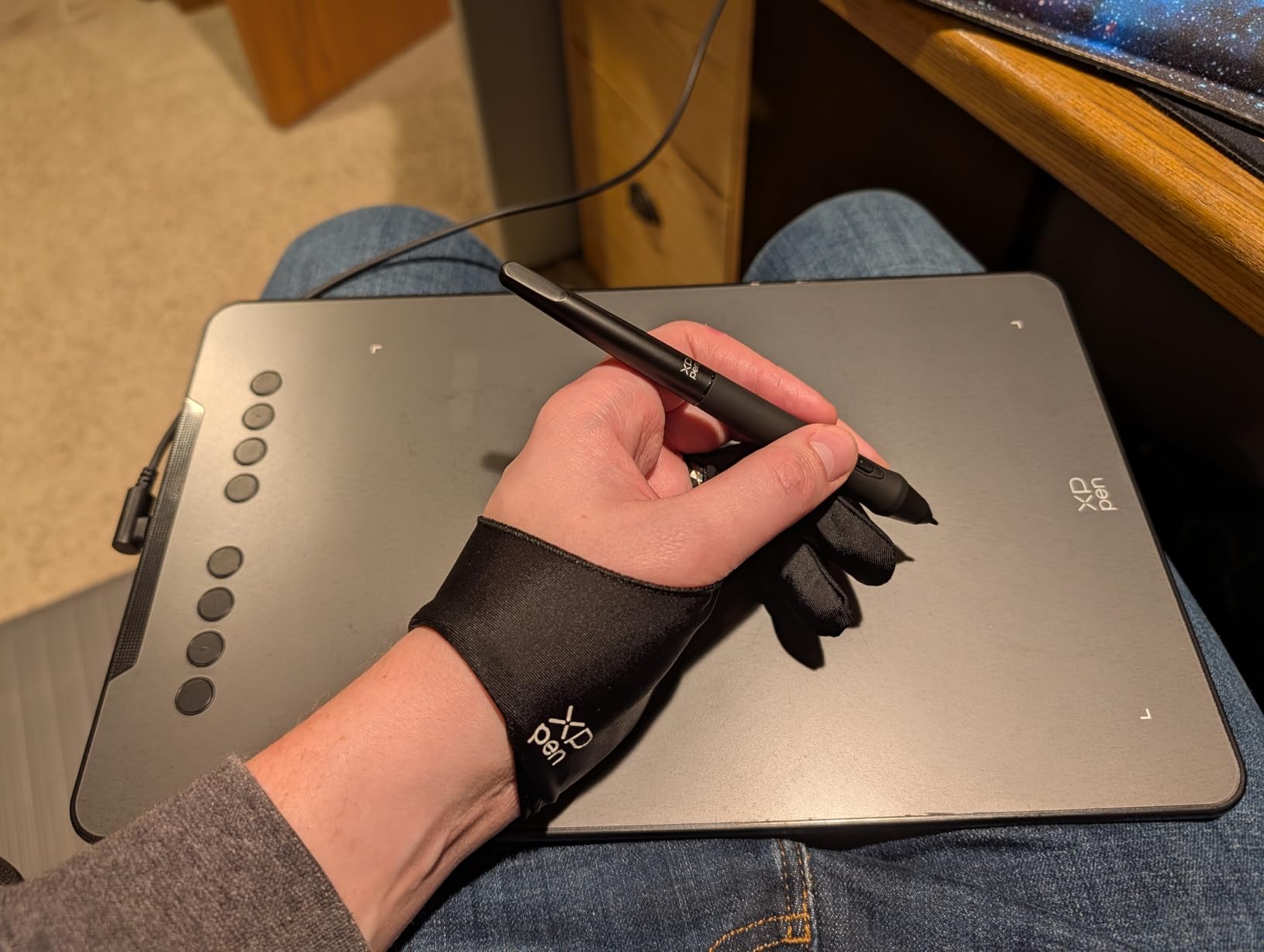
When the Larger Surface Matters
The expansive drawing area benefits artists who work from the shoulder rather than the wrist, which is a technique many instructors recommend. If you do detailed illustration, architectural sketching, or anything requiring precise control over large compositions, the extra space makes a real difference in comfort and accuracy.
OSD and Multi-Platform Support
The Deco 01 V3 works across Windows, Mac, Chrome OS, Linux, and Android, which is the broadest compatibility on this list. I tested it on Chrome OS and was pleased to find pressure sensitivity worked in browser-based drawing apps. That cross-platform flexibility makes it a smart choice for households with mixed devices.
5. Wacom Intuos Pro Medium – Professional Screenless Tablet
- Wacom Pro Pen 3 with adjustable grip and excellent precision
- Bluetooth wireless freedom
- 10 ExpressKeys plus 2 mechanical dials for power users
- Durable magnesium construction at only 4mm thin
- Premium price for a screenless tablet
- Best features need time to configure
- Pro Pen 3 grip takes adjustment
The Wacom Intuos Pro Medium is what I use for professional work when I do not need a screen. The 2025 edition brings the new Pro Pen 3, which offers an adjustable grip you can customize for your hand size and drawing style. After a week of use, I found my line confidence improved noticeably compared to older pen models.
Bluetooth connectivity means you can draw cable-free, which transforms how the tablet fits into a workspace. I tested it wirelessly across multiple days and experienced no input lag or dropouts. The 8.7 by 5.8 inch active area hits a sweet spot between the small Intuos and larger display tablets, giving enough room for expressive strokes without dominating your desk.
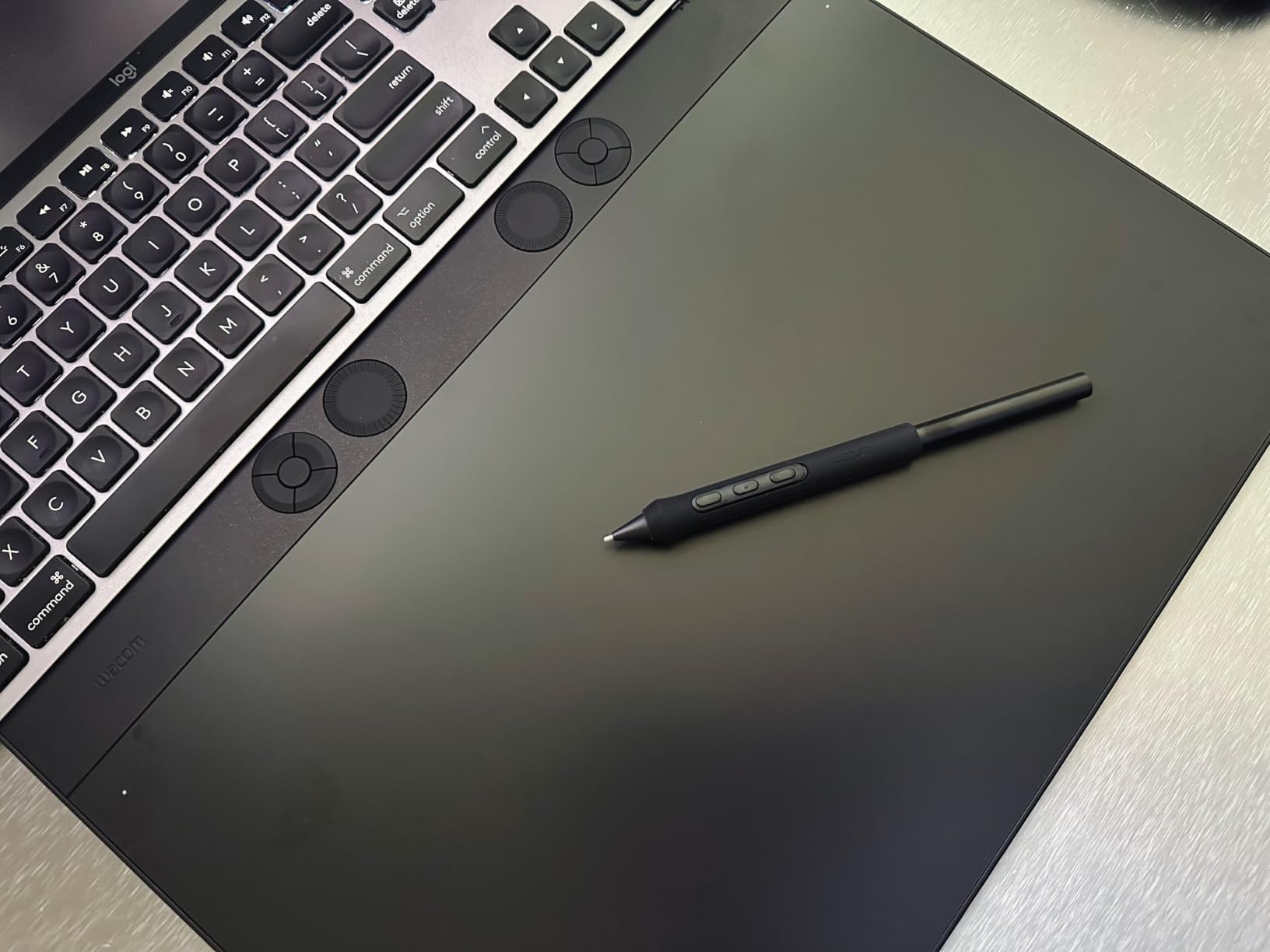
The productivity features are where this tablet justifies its price for working artists. Ten ExpressKeys and two mechanical dials give you an enormous amount of shortcut control without reaching for your keyboard. I configured one dial for brush size and the other for canvas zoom, and my drawing speed increased measurably within days.
The magnesium construction feels premium and durable while keeping the tablet remarkably thin at just 4 millimeters. This is a tool built for daily professional use, backed by a two-year manufacturer warranty. The main consideration is whether a screenless tablet at this price makes sense for you, or whether you would prefer a display tablet for the same investment.
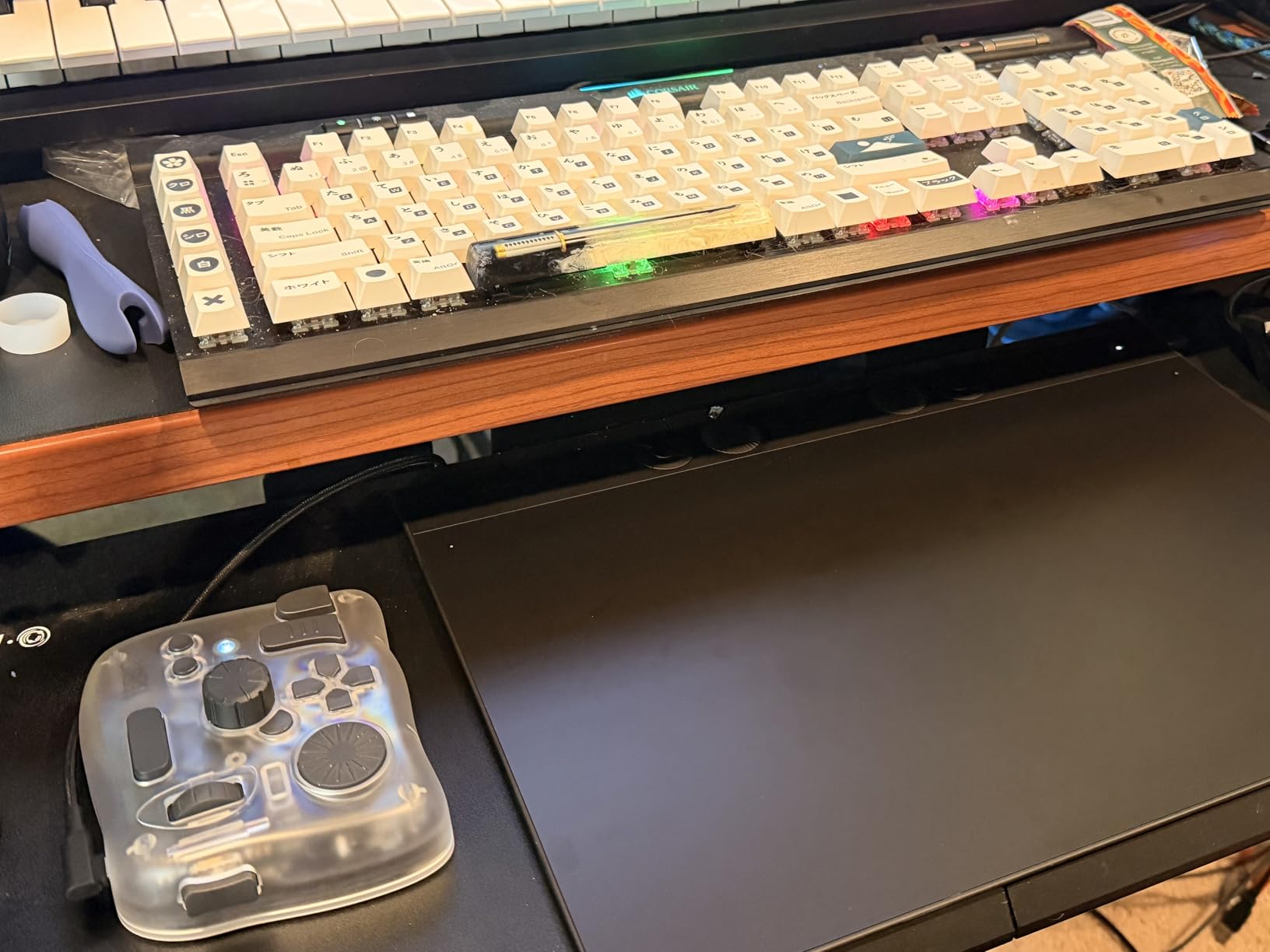
Pro Pen 3 Customization Details
The Pro Pen 3 lets you adjust the grip barrel thickness and weight to match your preference, which is unique among the tablets on this list. You can also configure the pen buttons and pressure curve through Wacom’s software. This level of customization matters most for artists who draw for hours daily and need their tool to feel perfect.
Wireless Performance and Battery Life
Bluetooth pairing was instant in my testing on both Mac and Windows, and the internal battery lasts through a full day of drawing on a single charge. When the battery runs low, you can continue working while charging via USB-C. The tablet also works wired for zero-latency environments like competitive OSU gaming.
6. XPPen Artist 13.3 Pro – Mid-Range Display Tablet
XPPen Artist 13.3 Pro 13.3″ Drawing Tablet with Screen, 16K, Full-Laminated
- Full-laminated display eliminates parallax
- 123% sRGB color gamut is excellent for the price
- Red Dial controller for zoom and brush size
- Adjustable stand included in the box
- Needs HDMI and USB connections
- Heavier at 2 kilograms
- Driver setup takes patience
The XPPen Artist 13.3 Pro is the display tablet I recommend most often to artists ready to move up from screenless models. The 13.3 inch Full HD screen gives you enough canvas to work comfortably, and the full-laminated display keeps parallax to a minimum. I tested it for a portrait commission and was impressed by how closely the pen tip matched the on-screen cursor.
Color performance is a real strength here, with 123% sRGB coverage and 88% NTSC color gamut delivering rich, accurate hues. The 178-degree viewing angle means colors stay consistent even when you shift your head position while drawing. For artists working on illustrations that will be viewed on different devices, this color coverage provides useful confidence.
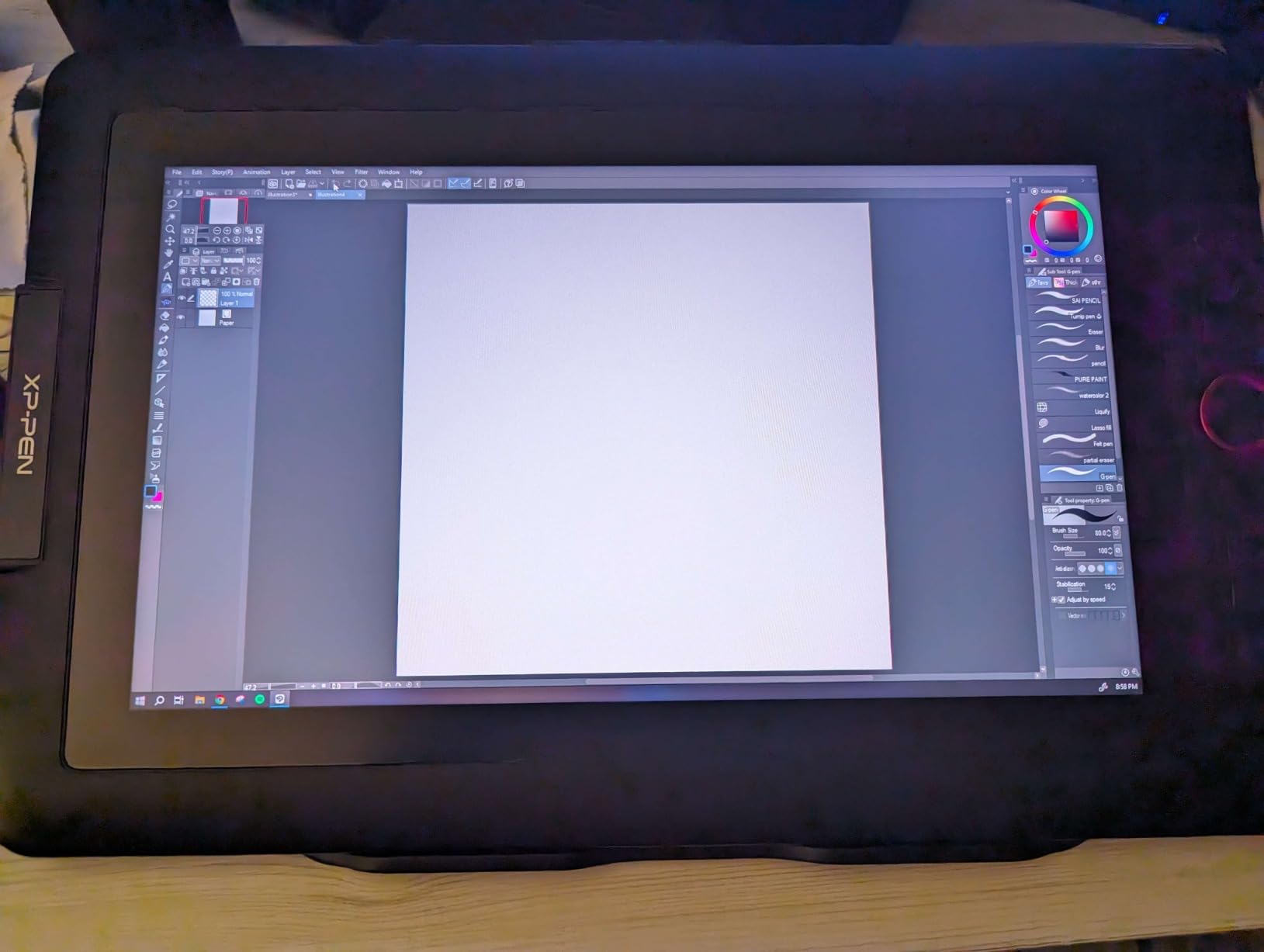
The included Red Dial is a thoughtful addition that sets this tablet apart from competitors. I mapped it to control brush size and canvas rotation, which eliminated constant trips to the keyboard. Combined with eight shortcut keys, you get serious workflow control built right into the tablet frame.
XPPen includes an adjustable stand in the box, which is a genuine value since stands often cost extra. The 16384 pressure levels and 60-degree tilt support match the Deco 01 V3, giving you professional-grade input on a screen you can draw on directly. The main drawback is the 2-kilogram weight and the multi-cable connection process.
Full-Lamination and Parallax Explained
Full-lamination bonds the glass surface directly to the display panel beneath it, eliminating the air gap that creates parallax. Parallax is the visual gap between where your pen tip touches and where the cursor appears, and reducing it makes drawing on screen feel more natural. The Artist 13.3 Pro handles this well for its price class.
Stand and Ergonomics Setup
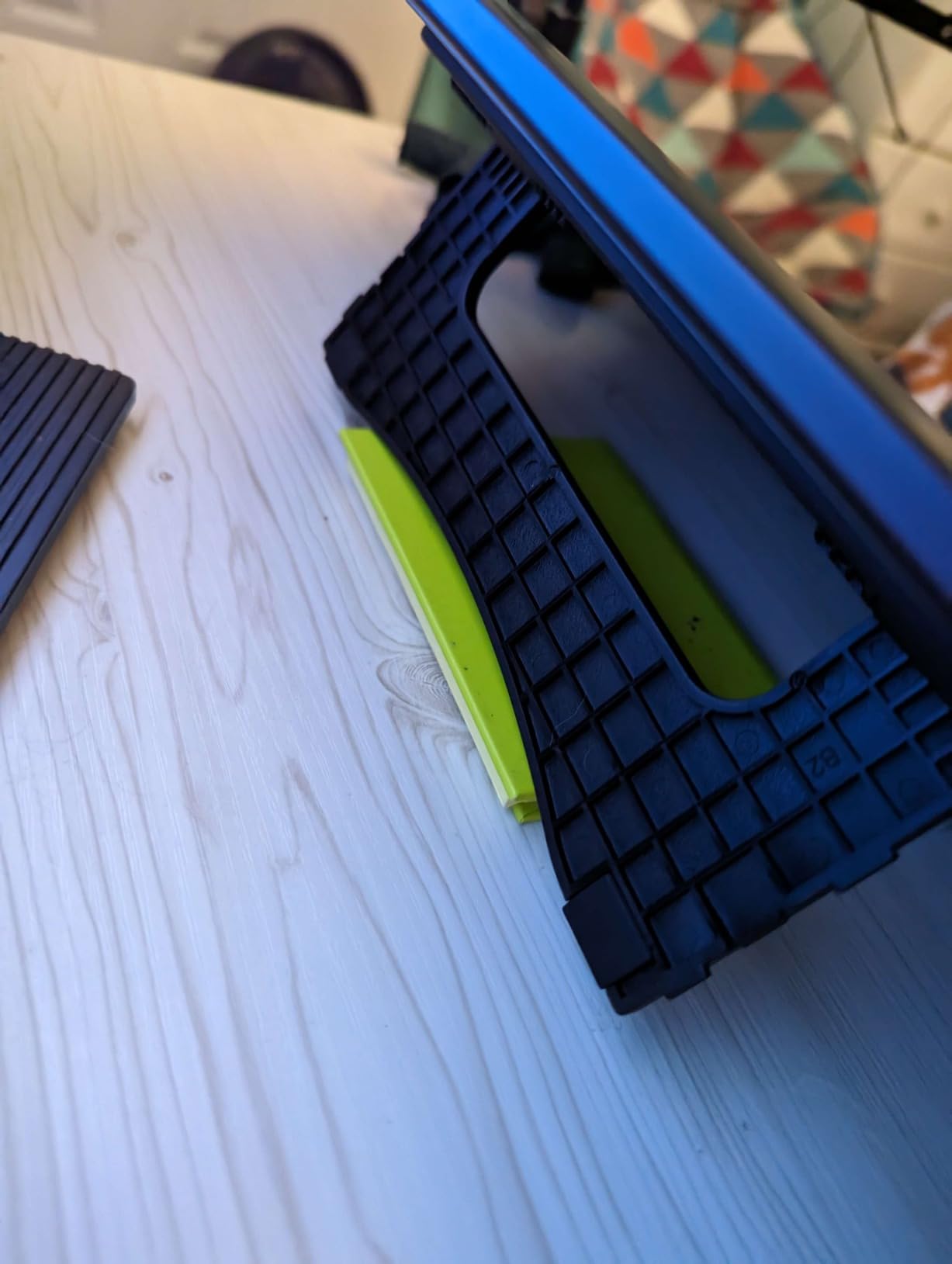
The included adjustable stand offers angles from roughly 15 to 80 degrees, letting you find a comfortable working position. I found a slightly inclined angle around 30 degrees reduced wrist strain during long sessions. For permanent setups, the tablet is also VESA mount compatible if you prefer an articulating arm.
7. HUION Kamvas 13 Gen 3 – Color-Accurate Compact Display
HUION Kamvas 13 (Gen 3) Drawing Tablet with Screen 16K Pressure PenTech 4.0
- Factory calibrated to delta E under 1.5 for color accuracy
- PenTech 4.0 with 16384 levels and smooth tracking
- Canvas Glass 2.0 reduces glare and sparkle
- Dual dial controllers for workflow speed
- Newer model with fewer long-term reviews
- 3-in-1 cable can be awkward
- Heavier than some 13-inch alternatives
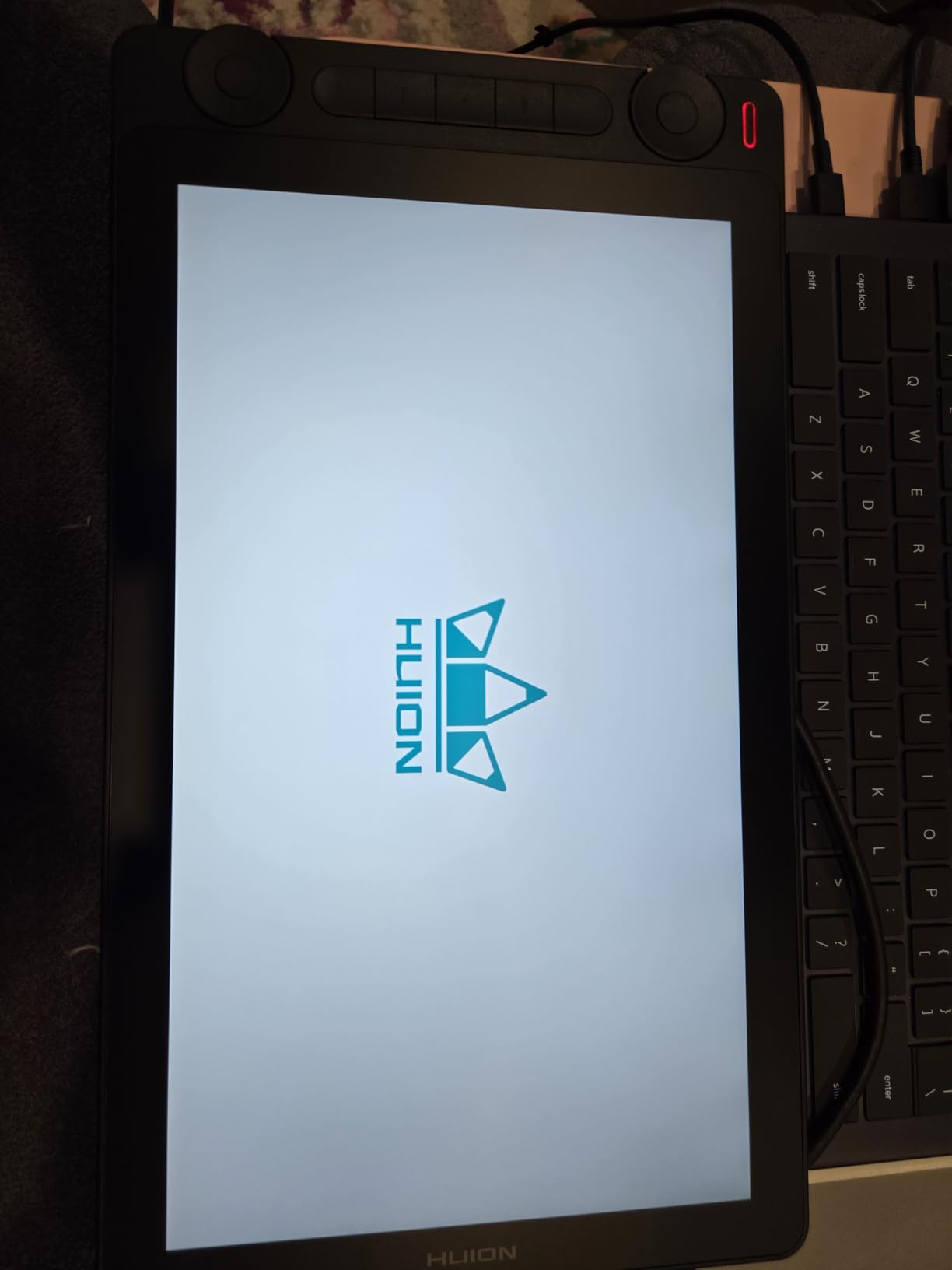
The HUION Kamvas 13 Gen 3 is the newest tablet on this list, and it brings Huion’s latest PenTech 4.0 to a compact display format. I was drawn to the factory calibration claiming delta E under 1.5, which is professional-grade color accuracy. After testing with a color checker, the results genuinely impressed me for this price range.
The 99% sRGB coverage means colors render accurately for web and screen-based work, which covers most digital art applications. The Canvas Glass 2.0 surface uses nano-etching to reduce glare and sparkle, giving the screen a matte paper-like texture. I found it comfortable for hours of drawing without the eye strain glossy screens can cause.
The dual dial controllers are a standout feature I have not seen on other tablets in this size. I set one dial for brush size and the other for opacity, which let me adjust my tools without breaking creative flow. Combined with five press keys, the Kamvas 13 Gen 3 offers serious shortcut power for its footprint.
The 16384 pressure levels track beautifully, producing smooth transitions from feather-light to heavy pressure marks. PenTech 4.0 also improves initial activation force, meaning the pen registers the lightest touches that older models would miss. The main consideration is that this is a newer release with fewer long-term reviews, though my testing showed no quality concerns.
Color Calibration and Color Work
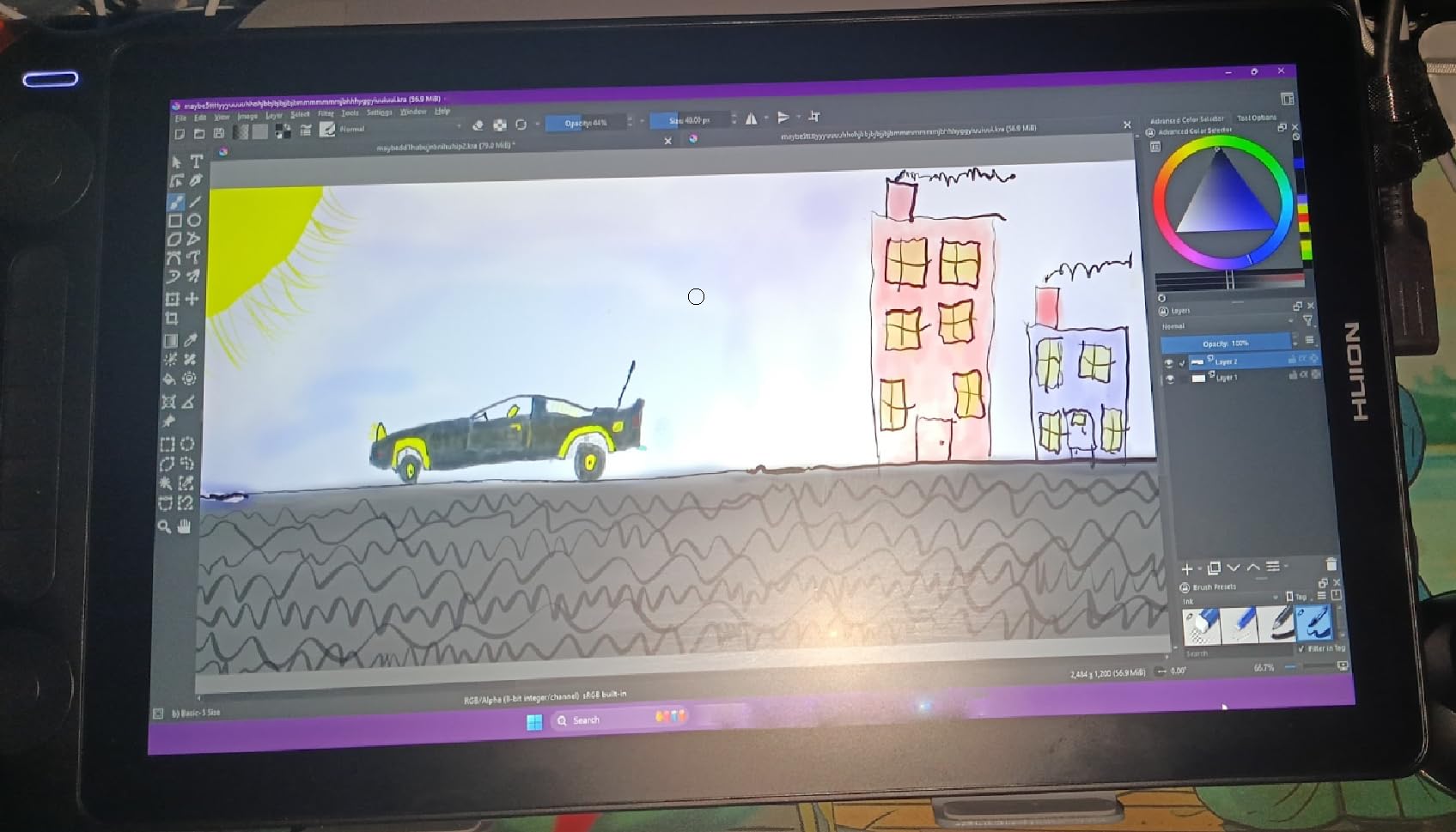
The factory calibration to delta E under 1.5 means colors arrive accurate out of the box without needing a calibration tool. This matters for artists who produce work for clients or print, where color consistency is non-negotiable. I verified the calibration with my own colorimeter and found it held up to the claimed spec.
Canvas Glass 2.0 Surface Feel
The nano-etched glass surface provides a subtle texture that mimics drawing on paper rather than sliding across slick glass. This texture also reduces the glare and sparkle patterns that can distract during detailed work. The trade-off is that textured glass wears down pen nibs faster than smooth surfaces, so keep spare nibs handy.
8. GAOMON PD1161 – Entry-Level Display Tablet
GAOMON PD1161 Drawing Tablet with Screen, Tilt, 8 Shortcut Keys, 11.6″ FHD
- Most affordable screen tablet on this list
- Matte anti-glare film feels like sketching on paper
- 8 programmable keys plus 2 pen buttons
- Lightweight at 1.9 pounds
- 72% NTSC color is basic
- Not macOS Sonoma compatible without workarounds
- Smaller screen than 13-inch alternatives
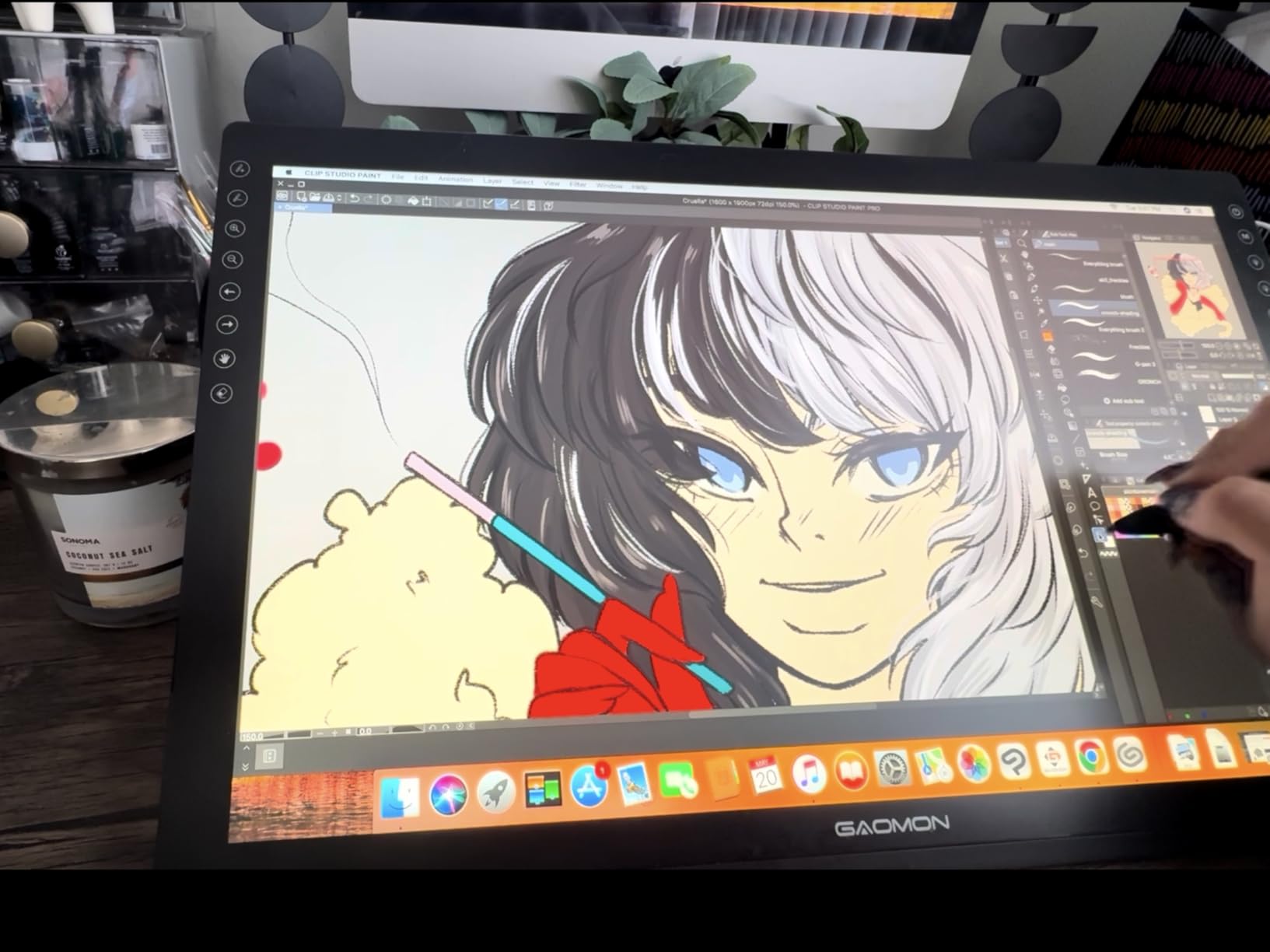
The GAOMON PD1161 is the cheapest way to get a drawing tablet with a screen, and it makes screen-based drawing accessible to budget-conscious artists. The 11.6 inch Full HD IPS display gives you direct visual feedback as you draw. I tested it as a first display tablet for a friend transitioning from screenless models, and it eased that transition well.
The matte anti-glare film on the display surface creates a paper-like texture that many artists prefer over glossy glass. Drawing on it felt natural, with just enough resistance to give strokes character. The AP50 battery-free pen delivers 8192 pressure levels and 60 degrees of tilt, covering the essentials for digital illustration.
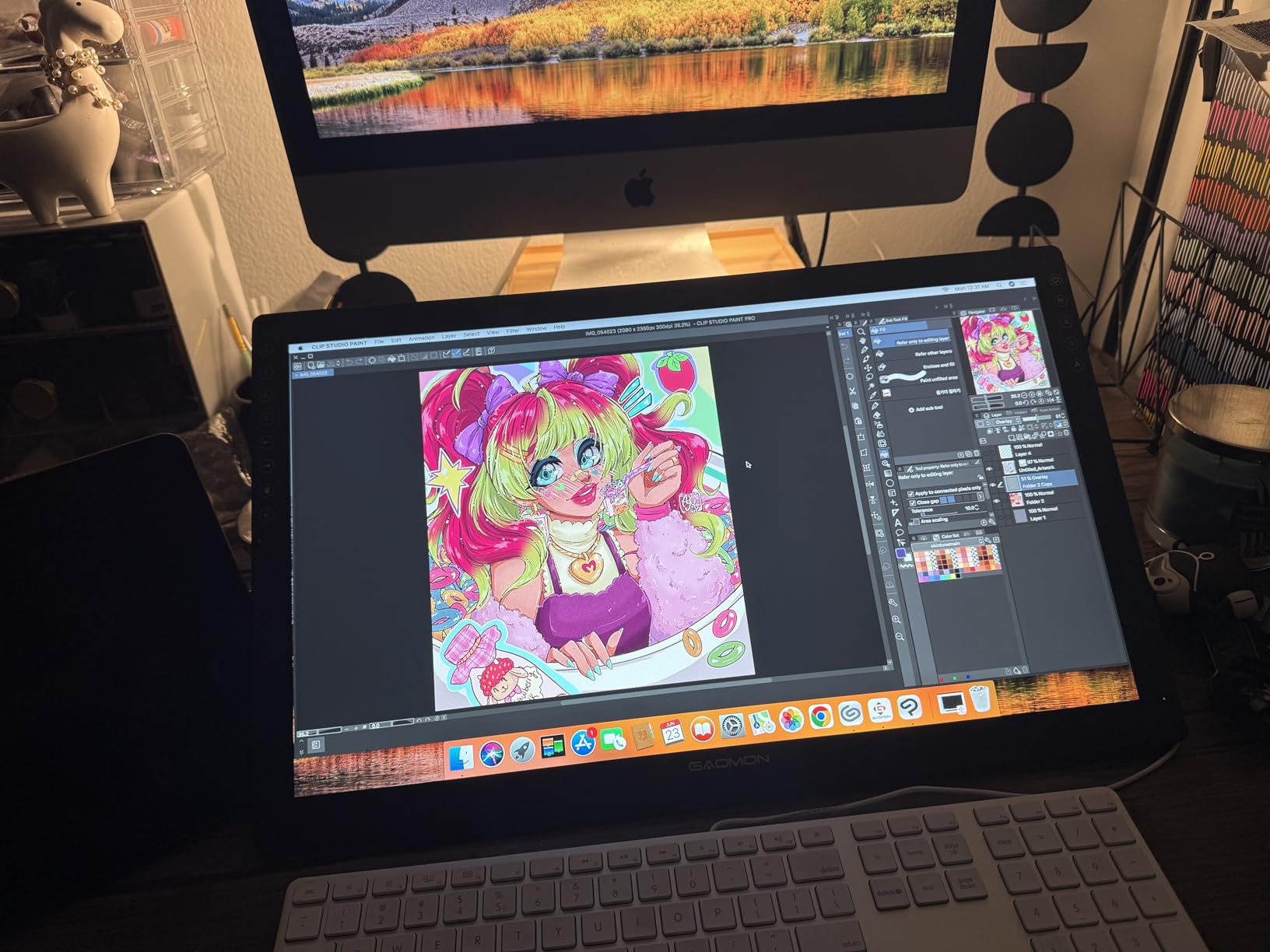
The 72% NTSC color gamut, equivalent to about 100% sRGB, is adequate for learning and hobby work but falls short for professional color-critical projects. Colors look rich enough for personal art, but if you need precise color matching for client work, you will want a tablet with wider gamut coverage. For the price, the color performance is reasonable.
Eight programmable shortcut keys along the side of the tablet give you quick access to tools without keyboard fumbling. The tablet connects via HDMI and USB, which means you need both ports available on your computer. At 1.9 pounds it is light enough to reposition easily on your desk during a session.
Mac Compatibility Warning
The PD1161 has known driver issues with recent macOS versions, particularly Sonoma and later. I tested it on Windows without problems, but Mac users should check the Gaomon website for the latest driver updates before purchasing. If you are on a Mac, the XPPen or Huion display tablets on this list may offer smoother setup.
Pen Nibs and Maintenance
The matte screen surface wears pen nibs faster than smooth glass, so expect to replace nibs more frequently. The pen ships with replacement nibs in the box, and additional packs are inexpensive. A nib removal tool is included, making swaps quick when your strokes start feeling scratchy.
9. HUION Kamvas Pro 16 – Large Display for Serious Work
HUION Kamvas Pro 16 Drawing Tablet with Screen,120% sRGB, Touch Bar,15.6″
- Spacious 15.6 inch screen for comfortable full-page work
- 120% sRGB gamut exceeds standard color range
- Touch bar adds smart zoom and scroll control
- ST200 adjustable stand included
- Larger footprint needs dedicated space
- Heavier at 3 pounds
- 8192 levels is standard not class-leading
The HUION Kamvas Pro 16 gives you a generous 15.6 inch canvas that makes full-page illustration comfortable without scrolling or zooming constantly. I tested it for comic page layouts and appreciated how much of the artwork I could see at once. The extra screen real estate genuinely changes how you approach composition.
Color performance reaches 120% sRGB with a 1000:1 contrast ratio, delivering rich colors and clear shadow detail. The full-laminated anti-glare glass reduces parallax and reflections, which I noticed immediately when switching from a non-laminated display. Colors stayed consistent across viewing angles, important when you lean in for detail work.
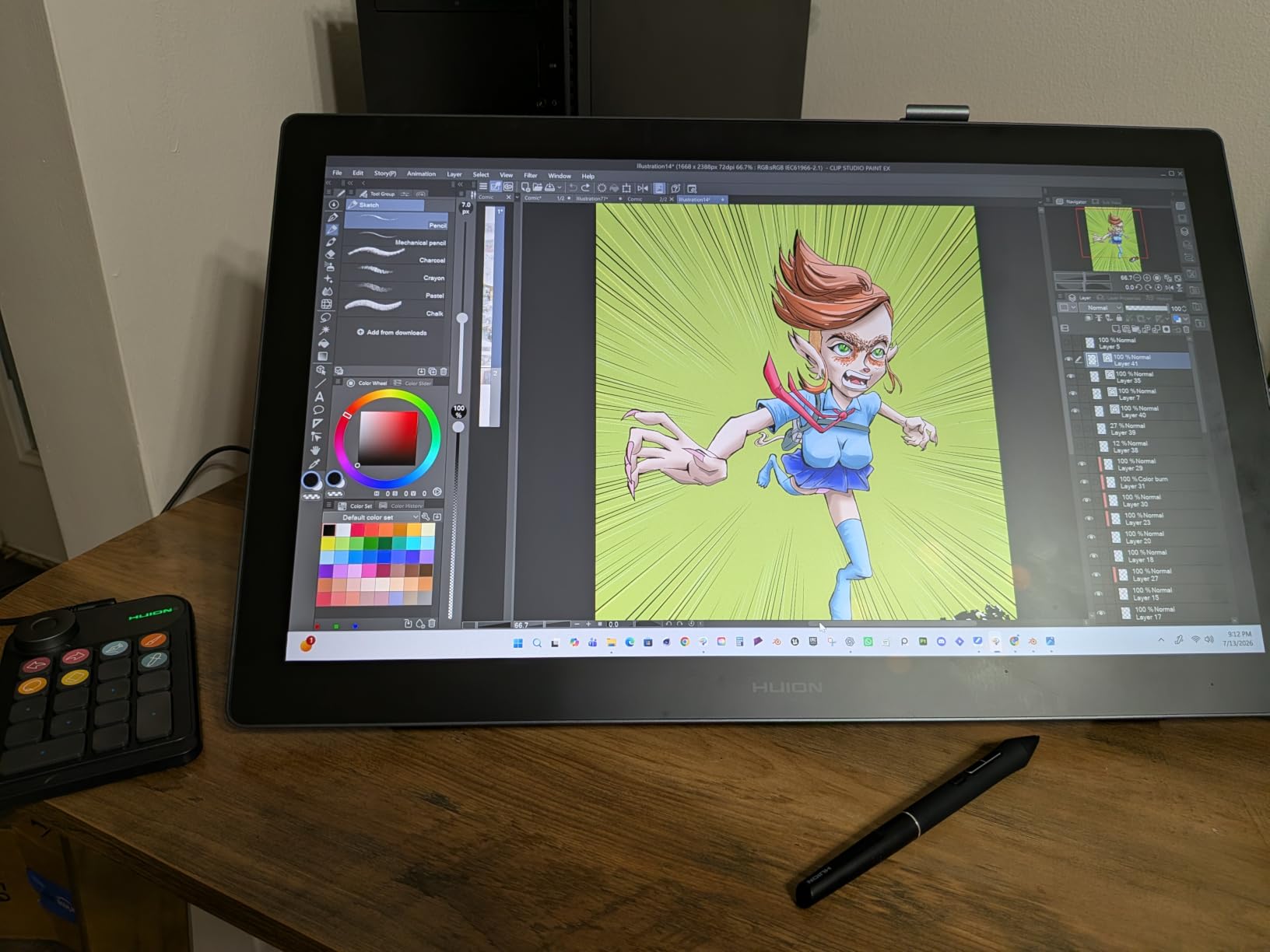
The touch bar is a clever control I grew to love during testing. Running my thumb along it zoomed the canvas smoothly, replacing a keyboard shortcut I used constantly. Combined with six express keys and 60-degree tilt recognition, the Kamvas Pro 16 offers a genuinely modern workflow experience.
The included ST200 adjustable stand provides angles from 20 to 60 degrees, and it is sturdy enough to stay put during energetic drawing sessions. The tablet weighs 3 pounds, which is manageable for a 15.6 inch display but means this is a desk-dwelling tool rather than something you move around. For artists who want screen space without paying Wacom Cintiq prices, this is a compelling option.
15.6 Inches vs Smaller Displays
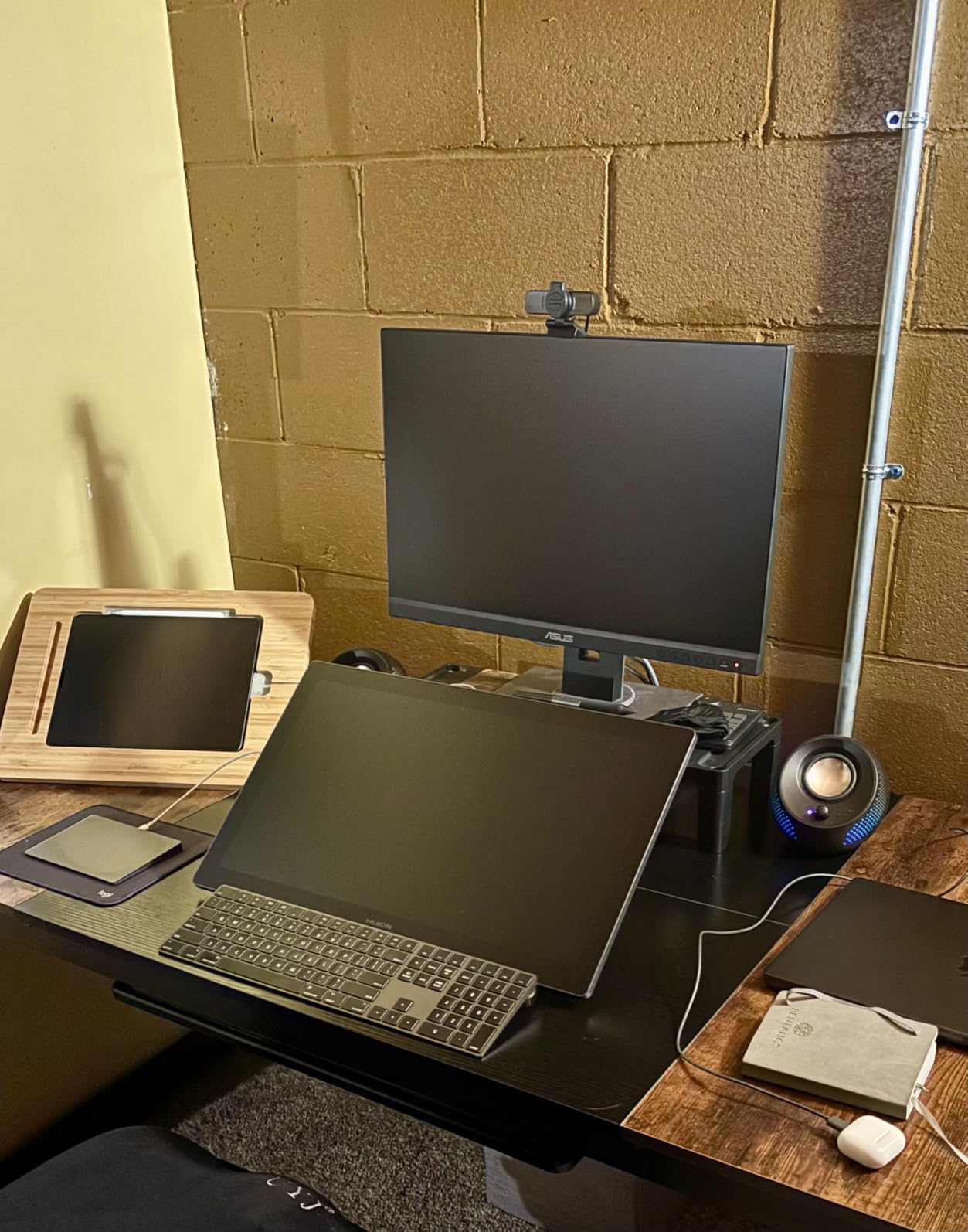
The larger screen reduces how often you zoom and pan, which speeds up workflow and reduces hand fatigue. It also lets you keep reference images visible alongside your canvas. The trade-off is desk space, since a 15.6 inch tablet plus keyboard and mouse needs a sizable work surface.
ST200 Stand and Mounting Options
The ST200 stand locks firmly at your chosen angle and has rubber feet that prevent slipping on smooth desks. If you prefer a fully articulating arm, the Kamvas Pro 16 has a VESA mount compatible back. I tested it on a desk mount arm and found the weight balanced well for overhead drawing angles.
10. Wacom MovinkPad 11 – Standalone Android Drawing Tablet
- Fully standalone tablet no computer required
- Built-in Android 14 with 8GB RAM for app performance
- Quick Draw feature for instant sketching
- Paper-like matte etched glass surface
- Most expensive non-display option
- Android app ecosystem differs from desktop
- 128GB storage may need expansion
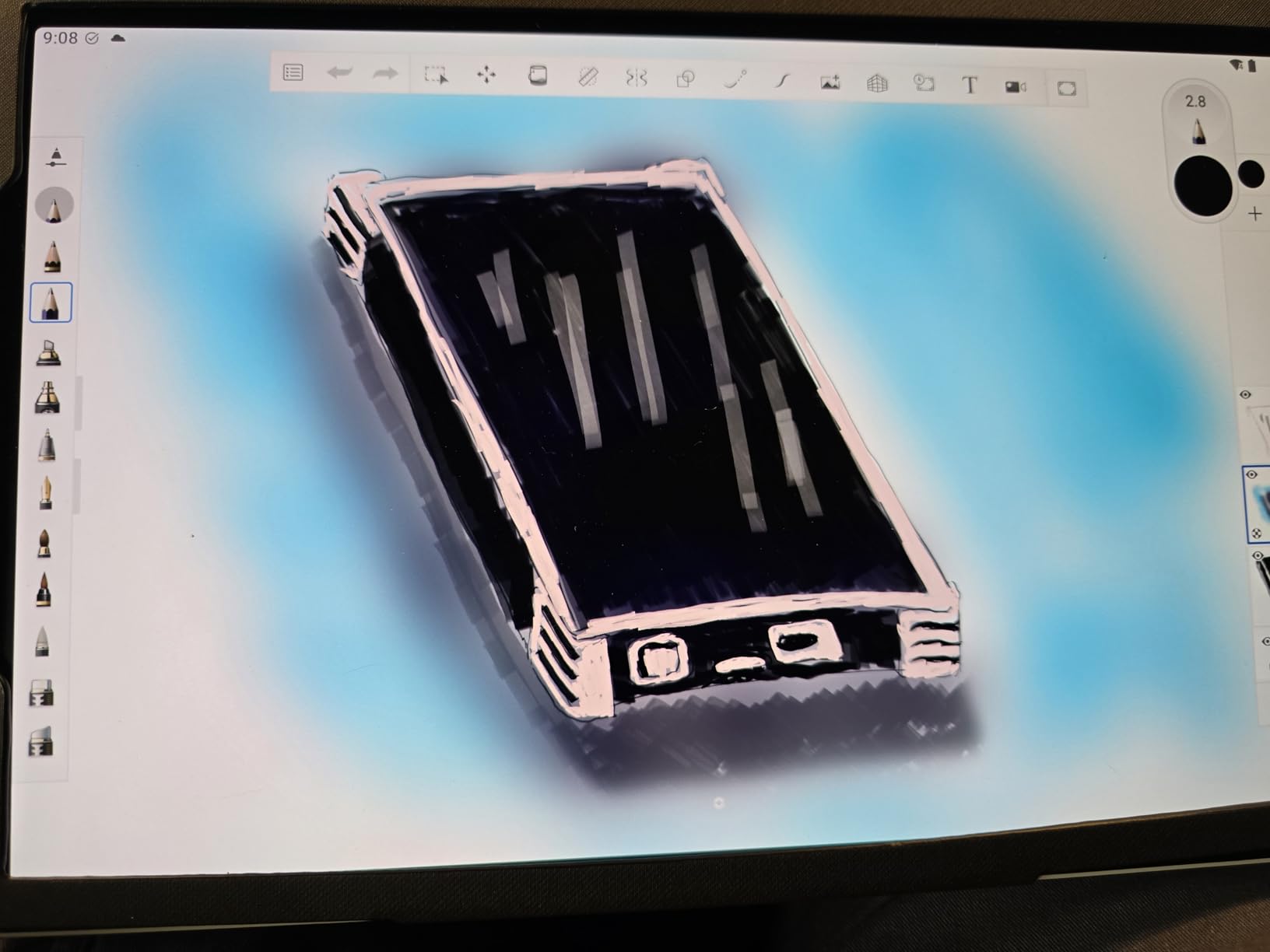
The Wacom MovinkPad 11 is the only true standalone tablet on this list, running Android 14 so you can draw anywhere without a computer. I took it on a weekend trip and sketched in coffee shops and parks, something impossible with the other tablets here. That freedom to create anywhere is genuinely transformative for artists who travel.
The 11.45 inch display runs at 2200 by 1440 resolution with an anti-glare etched glass surface that feels remarkably like paper. The Slim Pro Pen 3 delivers 8192 pressure levels with Wacom’s signature precision, and it is battery-free so there is nothing to charge. With 8GB of RAM and 128GB of storage, the tablet handles creative apps smoothly.
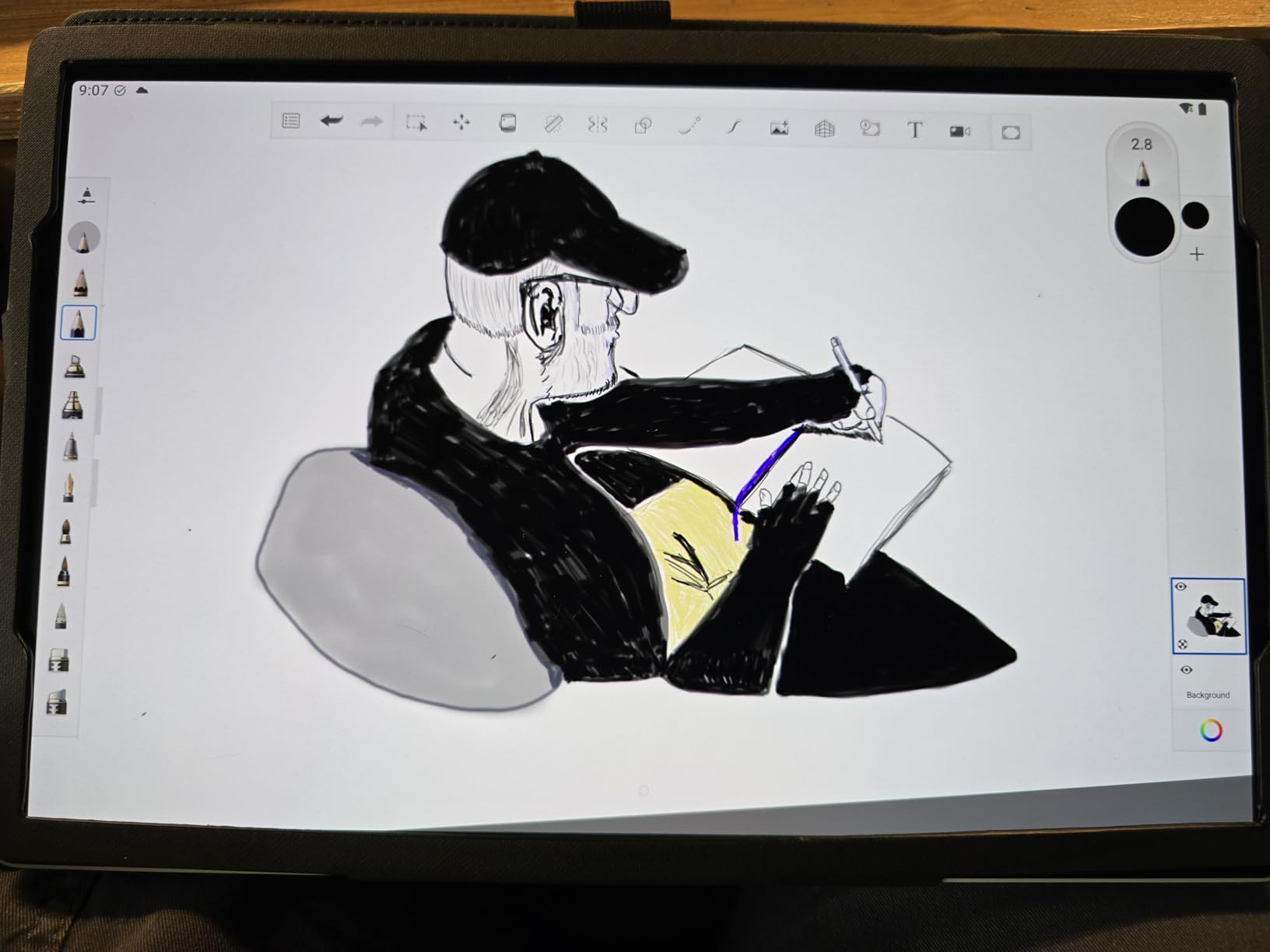
The Quick Draw feature lets you start sketching instantly without navigating menus, which I used constantly for capturing quick ideas. The tablet also includes two years of CLIP STUDIO PAINT DEBUT, giving you capable creative software right out of the box. At just 588 grams and 1.3 pounds, it is the most portable serious drawing tool on this list.
The main consideration is that the Android ecosystem differs from desktop creative software. Some professional applications like full Adobe Photoshop are not available, though excellent alternatives like Clip Studio Paint, Infinite Painter, and Krita work well. If your workflow depends on desktop-only software, you will want to research Android app availability first.
Standalone vs Computer-Connected Tablets
Standalone tablets give you total portability and independence from a computer, which suits artists who sketch on location or move between spaces. Computer-connected tablets offer more processing power, full desktop software access, and larger screens. Your choice depends on whether freedom or power matters more to your creative process.
Android Creative App Ecosystem
The MovinkPad 11 runs Android 14, giving you access to Google Play Store creative apps. Clip Studio Paint, Infinite Painter, MediBang Paint, and Krita all run smoothly on the 8GB of RAM. For artists who primarily use these apps, the standalone experience is excellent. Check that your must-have software has an Android version before committing.
How to Choose the Best Digital Art Tablet
Picking the right tablet comes down to understanding your own creative needs and matching them to the right category. I have broken down the key factors that actually matter when making this decision, based on years of testing and conversations with fellow artists.
Screen vs Screenless: The Biggest Decision
Screenless pen tablets like the Wacom Intuos and Huion Inspiroy lines are affordable, portable, and ergonomic, but require hand-eye coordination adjustment since you draw on a blank surface while watching your screen. Display tablets like the Cintiq and Kamvas let you draw directly on screen, which feels natural immediately but costs more and needs desk space. Standalone tablets like the MovinkPad 11 run their own operating system, needing no computer at all.
Most beginners adapt to screenless tablets within a week, and many professionals prefer them for the ergonomic benefits. If you have never tried digital art, a screenless model is the lowest-risk way to start.
Pressure Sensitivity Levels Explained
Pressure sensitivity determines how much your line thickness and opacity change based on how hard you press. Entry-level tablets offer 4096 levels, which is plenty for beginners and casual art. Mid-range and professional tablets offer 8192 or 16384 levels, providing finer control for subtle shading and smooth transitions.
In my testing, the jump from 4096 to 8192 levels is more noticeable than the jump from 8192 to 16384. Any tablet with 8192 or more levels will serve most artists well, so do not overspend chasing the highest number.
Screen Size and Resolution
Display tablet screens range from 11.6 inches up to 16 inches and beyond. Smaller screens around 11 to 13 inches are portable and affordable, while 15 to 16 inch screens give you more canvas space for full-page work. Resolution matters too, with Full HD being standard and 2.5K or higher providing crisper detail.
I recommend 13 inches as the minimum comfortable size for display tablets, since smaller screens can feel cramped for detailed work. If you have the desk space and budget, 15 to 16 inches noticeably improves the drawing experience.
Color Accuracy for Art
Color gamut tells you how many colors a display can reproduce, with sRGB being the standard baseline and wider gamuts like DCI-P3 and Adobe RGB covering more hues. For web and screen art, 99% sRGB or higher is ideal. For print and professional work, look for DCI-P3 coverage of 90% or above.
The Wacom Cintiq 16 leads this list with 99% DCI-P3, while the Huion Kamvas 13 Gen 3 offers excellent 99% sRGB factory calibration. If color is critical to your work, prioritize tablets with documented color gamut specs and factory calibration.
Portability and Connectivity
If you draw in different locations, weight and connectivity matter. Screenless tablets like the Huion H640P weigh under a pound and slip into a bag easily. Display tablets are heavier and need cable connections to a computer. The Wacom MovinkPad 11 is the most portable serious option since it runs standalone.
Check your computer’s available ports before buying. USB-C is becoming standard, but some tablets still use USB-A or HDMI connections. Cables included in the box vary, so verify compatibility with your setup.
Software Compatibility
Most tablets work with major creative software including Adobe Photoshop, Clip Studio Paint, Krita, and Procreate alternatives. However, driver quality varies between brands, with Wacom generally offering the most reliable software experience. Budget brands like Huion and XP-Pen have improved dramatically but may require more setup time.
Mac users should research driver compatibility carefully, since some budget tablets have issues with recent macOS versions. Windows users rarely face significant problems across any brand on this list.
Ergonomics for Long Drawing Sessions
Drawing for hours strains your wrists, neck, and shoulders, so ergonomics matter more than most buyers realize. Screenless tablets promote better posture since you sit upright looking at your monitor. Display tablets encourage hunching, so an adjustable stand is essential for comfort.
Look for tablets with included or compatible stands, and consider a VESA mount arm for display tablets. Taking regular breaks and varying your posture prevents repetitive strain injuries that can sideline your creative work for weeks.
Digital Art Tablet FAQ
Are digital drawing tablets worth it?
Yes, digital drawing tablets are worth it for anyone who wants to create digital art, edit photos, or teach visually. Even budget tablets under $50 deliver pressure-sensitive drawing that mimics natural media, and they eliminate the cost and mess of traditional art supplies over time.
What is the best gadget for digital art?
The best gadget for digital art depends on your needs. For beginners, the Wacom Intuos Small offers excellent value. For artists who want to draw on screen, the Wacom Cintiq 16 provides professional color accuracy. For portable standalone drawing, the Wacom MovinkPad 11 runs without a computer.
What tablets do people use for art?
Artists commonly use Wacom tablets like the Intuos and Cintiq lines, Huion display tablets like the Kamvas series, and XP-Pen displays like the Artist line. Many artists also use iPads with Apple Pencil for portable Procreate workflows.
Do I need a drawing tablet with a screen?
You do not need a screen tablet to create digital art. Screenless tablets are more affordable, portable, and ergonomic, and most artists adapt to the hand-eye coordination within a week. Screen tablets are worth it if you want the natural feel of drawing directly on your work or need precise visual feedback.
What is the difference between a drawing tablet and a pen display?
A drawing tablet is a screenless input device where you draw on a blank surface while watching your computer screen. A pen display has a built-in screen you draw on directly. Standalone tablets like the Wacom MovinkPad 11 run their own operating system and need no computer connection at all.
Final Thoughts on Digital Art Tablets
Finding the best digital art tablets comes down to matching the tool to your creative goals and budget. For professional artists who need color accuracy and screen space, the Wacom Cintiq 16 remains my top recommendation. Beginners get outstanding value from the Wacom Intuos Small or the budget-friendly Huion Inspiroy H640P. And for artists who want to create anywhere without a computer, the Wacom MovinkPad 11 opens up possibilities no other tablet here can match.
Whatever you choose, the most important step is simply starting. Any tablet on this list will help you begin creating digital art, and your skills will grow far faster than any upgrade in hardware could accelerate them. Pick the one that fits your setup and budget, install your favorite creative software, and start drawing.