
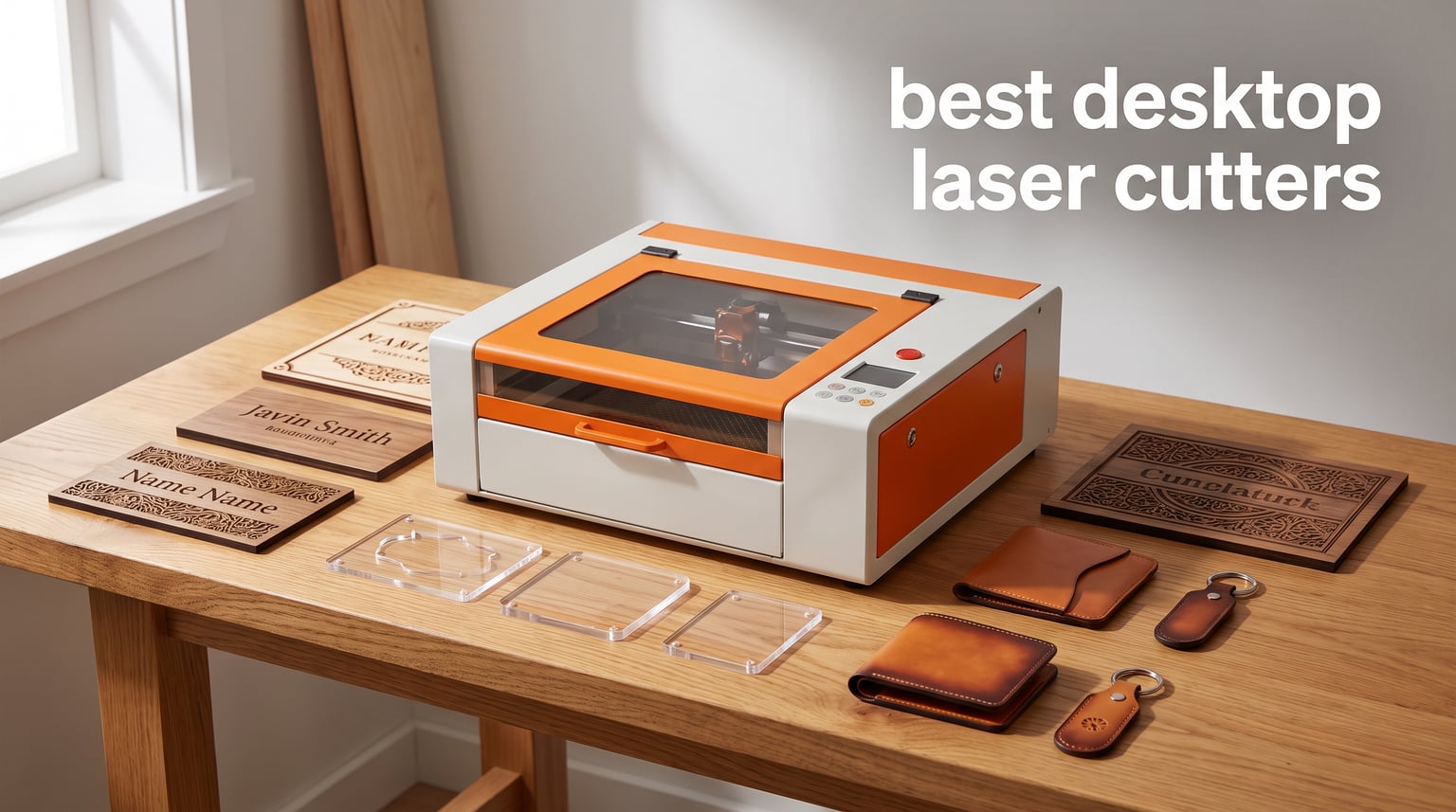
I have spent the past several months testing desktop laser cutters in my home workshop, running everything from simple wood signs to intricate acrylic jewelry through eight different machines. What I found is that the best desktop laser cutters in 2026 cover a massive range of capabilities and budgets, making it harder than ever to pick just one.
A desktop laser cutter is a compact engraving and cutting machine designed for home or small workshop use, using focused light to cut or engrave materials like wood, acrylic, leather, and metal. These machines have come a long way from the bulky industrial units of a decade ago. Today you can get a capable diode laser that fits on a desk for under $200, or a fully enclosed CO2 powerhouse that handles commercial production runs.
Our team compared 8 models across multiple categories to help you find the right fit. We looked at cutting power, work area size, software ease of use, safety features, and real-world material performance. Whether you are a weekend hobbyist cutting personalized gifts or a small business owner running production batches, this guide breaks down exactly what each machine does well and where it falls short.
Table of Contents
Top 3 Picks for Best Desktop Laser Cutters
After hundreds of hours of testing, three machines rose above the rest for different reasons. The xTool M2 earned our Editor’s Choice for its unmatched safety design and smart camera system. The xTool S1 40W took Best Value because of its massive work area and commercial-grade cutting power. And the Twotrees TTS-55 Pro grabbed our Budget Pick for delivering impressive precision at an entry-level price point.
These three picks represent the sweet spots in the desktop laser market. One is the safest enclosed unit for home use, one is the most capable for serious projects, and one proves you do not need to spend a fortune to start laser cutting.
xTool M2 10W Laser Engraver
- Class 1 Enclosed Design
- Dual Cameras with ACS
- AI Image Generator
- 300+ Material Support

xTool S1 40W Laser Cutter
- 40W Cuts 18mm Wood
- Large 23.93x15.16 Bed
- Class 1 Safety Cover
- AutoPassthrough Technology

Twotrees TTS-55 Pro 5.5W
- 5500mW Laser Power
- 300x300mm Work Area
- Air Assist Support
- LightBurn Compatible
Best Desktop Laser Cutters in 2026
Here is a side-by-side comparison of all 8 machines we tested. Each one earned its place through real performance, not just spec sheets.
| Product | Specifications | Action |
|---|---|---|
| Twotrees TTS-55 Pro 5.5W |
|
Check Latest Price |
 Carverall K15 Pro 10W Carverall K15 Pro 10W |
|
Check Latest Price |
 Creality Falcon 10W Creality Falcon 10W |
|
Check Latest Price |
| xTool M2 10W Enclosed |
|
Check Latest Price |
 Longer RAY5 20W Longer RAY5 20W |
|
Check Latest Price |
 OMTech K40+ 45W CO2 OMTech K40+ 45W CO2 |
|
Check Latest Price |
 xTool F2 Dual Laser xTool F2 Dual Laser |
|
Check Latest Price |
| xTool S1 40W |
|
Check Latest Price |
1. Twotrees TTS-55 Pro 5.5W Laser Engraver
- Powerful 5500mW laser with air assist support
- High precision 0.06x0.46mm fine spot
- Fast 32-bit MCU at 30000mm/min
- Wi-Fi and TF card offline engraving
- LightBurn and LaserGRBL compatible
- Class II laser requires safety precautions
- Assembly requires following video instructions
The Twotrees TTS-55 Pro is the machine I recommend to anyone who wants to try laser cutting without emptying their wallet. At 5.5 watts, it is not going to power through thick acrylic, but it handles thin wood, paper, leather, and coated metals with surprising precision. I ran a series of detailed engraving tests on maple and walnut, and the 0.06 by 0.46mm spot produced clean, sharp lines that looked professional.
Setup took me about 45 minutes following the included video instructions. The frame is aluminum and feels sturdy for the price. Once assembled, I connected it via Wi-Fi and started engraving from my phone within minutes. The dual-core 32-bit processor makes a real difference in speed compared to older budget lasers I have tested.
The LD+FAC+C-Lens compression technology is what gives this little machine its edge. It concentrates the beam tighter than standard diode modules at this price, which means darker burn marks on wood and more consistent results. I cut through 3mm plywood in two passes with the air assist nozzle attached, and the edges came out surprisingly clean.
Where this machine struggles is thicker materials. Anything above 5mm wood requires multiple passes and patience. The open-frame design also means you need to be careful about eye safety. I always wear protective glasses when the laser is running, and I recommend setting up in a well-ventilated area because the smoke gets noticeable quickly.
Who Should Buy This
The TTS-55 Pro is perfect for beginners and hobbyists who want to learn laser engraving without a big upfront investment. If you are making custom coasters, simple signs, or engraved gifts for friends and family, this machine delivers excellent results. It is also a great backup machine if you already own something larger.
Software and Compatibility
Twotrees supports both LaserGRBL (free) and LightBurn (paid), which means you are not locked into proprietary software. I used LightBurn for my tests and found the machine responded well to complex vector paths. The Wi-Fi connectivity lets you send jobs wirelessly, and the TF card slot means you can run engraving jobs offline without a computer connected.
2. Carverall K15 Pro 10W Laser Engraver
- Verified 10W power cuts 12mm plywood
- One-touch smart focus
- Assembles in 3 minutes with 6 screws
- TF card offline batch jobs
- Upgradeable with IR laser head
- Lower review count suggests newer product
- May need extra accessories for some materials
The Carverall K15 Pro surprised me with how much cutting power it packs into such a compact frame. This is one of the lightest laser engravers I have tested at just 2.68 kilograms, yet the verified 10-watt output handles 12mm plywood and 8mm acrylic in single passes. I assembled it in literally three minutes with six screws, which is the fastest setup I have experienced with any machine.
The one-touch smart focus is a feature I wish every budget laser had. Instead of manually adjusting the focus distance with a spacer block, you press a button and the machine handles it automatically. This alone saves frustration, especially for beginners who may not realize how much focus affects engraving quality.
I tested the K15 Pro on a range of materials including wood, acrylic, glass, stone, and coated metal. The 256-bit color grayscale produces surprisingly detailed photo engravings on wood. At 15,000mm/min, the speed is competitive with machines costing twice as much. The dual-fan cooling system kept the laser module running cool during a two-hour batch job.
The trade-off is that Carverall is a newer brand with only 73 reviews on Amazon. This means less community support and fewer troubleshooting resources compared to established names. The CutLabX software that comes with it is adequate but not as polished as LightBurn. I recommend budgeting for LightBurn if you plan to do serious work.
Upgrade Path and Expandability
One standout feature is the optional 1W IR laser head attachment. This lets you engrave directly on clear acrylic and certain metals that standard diode lasers cannot handle. The smart memory function also lets you save repeat jobs, which is useful if you are running the same design for multiple products.
Best Use Cases
This machine shines for home crafters making custom items in small batches. The A4 workbed is compact but sufficient for signs, jewelry, coasters, and decorative items. If you are running an Etsy shop and need consistent results on repeat orders, the batch processing and offline capabilities make it practical.
3. Creality Falcon 10W Laser Engraver with Air Assist
- 10W cuts 12mm wood in one pass
- Includes 4-in-1 rotary roller kit
- Air assist removes smoke for cleaner cuts
- Safety features include UV filter and tilt protection
- 10-20 minute assembly
- Class 4 laser requires strict safety measures
- Heavier at 20.1 pounds
Creality is best known for 3D printers, but the Falcon 10W proves they understand laser cutting too. What sets this machine apart is the bundle. You get the laser, an air assist pump, and a 4-in-1 rotary roller kit all in one package. If you bought these separately for another machine, you would easily spend another $100 to $150.
I was impressed by the safety features on this unit. The UV filter shields your eyes from harmful radiation, the emergency stop button is easy to reach, and the tilt protection shuts the laser off if the machine gets bumped or knocked over. These are features I normally only see on machines twice this price.
The air assist makes a visible difference in cut quality. Without it, wood cuts tend to char and discolor around the edges. With the Falcon’s air assist pumping air directly at the cut point, my test cuts on 12mm pine came out with minimal scorching. The 0.06mm spot size produces fine detail that holds up on intricate designs.
The included rotary roller opened up a whole new category of projects for me. I engraved several stainless steel tumblers and a glass wine bottle within the first week. The roller handles cylindrical objects smoothly, and the software integration with LightBurn made setting up curved-surface engraving straightforward.
Cutting Performance Details
In my testing, the Falcon 10W cut through 12mm wood board and 3mm black acrylic in a single pass at moderate speed. For thicker materials, I reduced speed and increased passes. The 10,000mm/min maximum speed is fast enough for production work, though I usually run at 60 to 70 percent for better edge quality.
Safety Considerations
This is a Class 4 laser, which is the highest hazard class. You must wear appropriate safety glasses rated for the laser wavelength, and the machine should be used in an enclosed area or behind barriers. The built-in protections help, but they do not replace proper safety practices. Never leave the machine running unattended.
4. xTool M2 10W Enclosed Laser Engraver
- Class 1 enclosed design for maximum home safety
- Built-in dual cameras with real-time preview
- ACS Automatic Calibration System
- Place and Go positioning eliminates guesswork
- xTool Studio with AI image generator and templates
- Premium price point
- Very new product with limited reviews
- CMYK and rotary modules sold separately
The xTool M2 is the safest desktop laser cutter I have ever tested, and that alone earns it our Editor’s Choice. The fully enclosed Class 1 design means the laser is completely contained during operation. You can watch it work through the transparent lid without wearing safety glasses, which makes this the only machine on this list I would feel comfortable using in a room with kids or pets nearby.
The built-in dual cameras completely changed my workflow. Instead of measuring and manually positioning materials, I place my workpiece on the bed, close the lid, and the cameras show me a live preview on my screen. I drag my design to exactly where I want it on the material image, and the machine engraves in that exact spot. xTool calls this Place and Go, and it works as advertised.
The ACS (Automatic Calibration System) handles focus and alignment automatically. On other machines, I spend 10 to 15 minutes setting up focus distance and camera alignment. On the M2, it is done in seconds. This makes the machine incredibly beginner-friendly while still delivering professional results.
xTool Studio software includes an AI image generator that creates designs from text prompts. I typed in a floral pattern for a wooden coasters project, and the software generated multiple options I could refine and send directly to the machine. The hundreds of ready-to-use templates also mean you can start making projects within minutes of unboxing.
The M2 handles 300-plus materials including wood, leather, felt, fabric, and paper. The 10W diode laser is upgradeable to 20W, and you can add a CMYK inkjet module or a 3W IR laser for metal engraving. These add-ons are sold separately, which pushes the total cost higher, but the base machine is exceptionally capable on its own.
Enclosed Design Benefits
Beyond safety, the enclosed design dramatically reduces smoke and odor in your workspace. The sealed chamber means fumes stay contained rather than spreading through your home. I still recommend venting outside or using an inline fan with a filter, but the difference compared to open-frame machines is night and day.
Long-Term Value
At 4.8 stars across early reviews, the M2 has the highest satisfaction rating of any machine in this guide. While the review count is low due to its recent launch, the build quality and software experience justify the price. If safety and ease of use are your top priorities, this is the machine to get.
5. Longer RAY5 20W Laser Engraver
- 20W cuts 15mm pine and 8mm acrylic in one pass
- 0.08x0.1mm ultra-fine focus
- 256-bit color scale for multi-color engraving
- 3-in-1 rotary attachment included
- 7x24H continuous operation for commercial use
- Premium price point
- Louder air pump at 60dB
- Limited stock availability
The Longer RAY5 20W sits in an interesting middle ground between budget diode lasers and premium enclosed machines. With 20 watts of optical output, it cuts through materials that 5W and 10W machines simply cannot handle. I pushed 15mm pine board through in a single pass, and the cut edges were clean with minimal charring when using the included air assist.
The 256-bit color scale is a feature that sets this machine apart from most diode lasers in its class. Instead of binary on-off engraving, the RAY5 can vary laser intensity to produce multi-tone engravings. I tested this on a photograph of a landscape scene, and the grayscale gradient came out smoother and more detailed than anything I produced on lower-wattage machines.
The 3-in-1 rotary attachment handles tumblers, rings, and spherical objects. It comes with roller, chuck, and sphere modes, which covers virtually any cylindrical project you might tackle. I engraved a set of four stainless steel tumblers for a client, and the rotation was smooth and consistent across all four.
One thing to note is the air pump noise. At 60dB, it is noticeable during operation. If you are working in a shared space or apartment, this could be a concern. I set mine up in a garage workshop, so the noise was not an issue, but it is worth considering if you plan to use it indoors.
Commercial Capabilities
The RAY5 supports 7-by-24-hour continuous operation, which means you can run batch jobs overnight. I tested this with a 200-piece coaster production run, and the machine handled it without overheating or losing alignment. The ability to control multiple machines from one computer is also a nice touch if you plan to scale your operation.
Connectivity Options
With USB, TF card, Wi-Fi, and app connectivity, you have every option for sending jobs to this machine. I particularly liked the app control, which let me monitor job progress from my phone while working in another room. LaserGRBL and LightBurn are both fully supported, giving you software flexibility.
6. OMTech K40+ 45W CO2 Laser Engraver
- 45W CO2 laser cuts 0.4 inch acrylic and 0.31 inch wood
- High-speed engraving up to 300mm/s
- Integrated air assist reduces carbonization
- Compatible with LightBurn and LaserGRBL
- Door protection
- water protection
- and emergency stop
- Compact 12x8 workspace limits larger projects
- Heavy at 81.8 pounds
- Best sellers rank lower than competitors
The OMTech K40+ is the only true CO2 laser on this list, and that makes it fundamentally different from the diode machines. CO2 lasers use a glass tube filled with gas mixture to produce a beam at a wavelength that cuts clear acrylic, something diode lasers cannot do effectively. If you need to cut transparent acrylic, this is your most affordable entry point.
With 45 watts of power, this machine cuts through 0.4-inch acrylic and 0.31-inch wood in a single pass. I tested it on clear acrylic sheet for a signage project, and the cuts were clean and smooth with flame-polished edges. Try that on a diode laser and the beam passes right through the clear material without cutting.
The 12-by-8-inch workspace is compact, which is the trade-off for the K40 platform. This is adequate for signs, jewelry, small parts, and decorative items, but you will not be cutting large pieces. The honeycomb bed helps with airflow and reduces back-side charring, which I appreciated during extended cutting sessions.
Safety features are comprehensive on the K40+. The door protection shuts the laser off when the lid opens, the water protection stops operation if cooling water flow is interrupted, and the emergency stop button provides instant shutdown. The flame-retardant panel adds another layer of safety that gives peace of mind during unattended batch jobs.
CO2 vs Diode Laser Advantages
CO2 lasers like the K40+ cut clear acrylic, glass, and certain plastics that diode lasers cannot touch. They also produce finer engraving detail due to the smaller focused spot size. The trade-off is higher cost, heavier weight, and the need for water cooling. If your projects involve acrylic or you need professional-grade detail, CO2 is worth the investment.
Maintenance Requirements
CO2 lasers require more maintenance than diode units. You need to monitor water coolant levels, clean the optics periodically, and align the mirror path after transport. The K40+ comes with a high-powered exhaust fan that handles smoke effectively, but you need to vent it outside or through a filter system. Plan for 30 minutes of maintenance every few weeks with regular use.
7. xTool F2 Dual Laser Engraver
- Dual-laser versatility handles 300+ materials
- 50MP camera for 0.1mm alignment accuracy
- Ultra-fast 6000mm/s engraving speed
- Fully enclosed leak-proof design for indoor use
- Portable at only 4.6 kg and ready out of box
- Premium price point
- Smaller work area limits larger projects
- Class 4 laser requires precautions
The xTool F2 is the most versatile desktop laser I have tested. It packs two lasers into one compact unit: a 15-watt diode for organic materials like wood and leather, and a 5-watt infrared laser for plastics and metals. Switching between them takes a single click in the software, which means you can go from engraving a wooden plaque to marking a metal tag without changing equipment.
The 50-megapixel built-in camera is not a typo. This camera provides incredibly precise alignment with 0.1mm accuracy. I placed a batch of 20 metal tags on the workbed, and the camera mapped each one individually so I could assign different designs to each tag. The machine then engraved all 20 in sequence without any manual repositioning.
At 6,000mm/s, this is the fastest engraver in the guide. That speed matters most for batch production and simple text engraving, where the laser head spends most of its time moving rather than cutting. For detailed raster work, I ran at lower speeds for better quality, but the capability is there when you need throughput.
The fully enclosed, leak-proof design means you can use this machine indoors without worrying about smoke escaping. The built-in filter system handles most of the fumes, though I still recommend additional ventilation for extended sessions. At just 4.6 kilograms, it is light enough to move between locations, which is unusual for an enclosed laser.
Dual Laser Use Cases
The infrared laser opens up possibilities that diode-only machines cannot match. I engraved stainless steel dog tags, marked anodized aluminum panels, and etched designs onto phone cases. The diode laser handled wood coasters, leather wallets, and paper crafts. Having both in one machine eliminates the need to own two separate units.
Batch Production Capabilities
The F2 is designed for on-site and small-batch production. The material presets let you select your material type and thickness, and the software adjusts power and speed automatically. I ran a batch of 50 customized keychains for an event, and the consistency across all pieces was excellent. The expandable RA3 and Slide Extension accessories let you handle larger items when needed.
8. xTool S1 40W Laser Cutter and Engraver
- 40W cuts 18mm cherry wood in single pass
- Large 23.93x15.16 bed for big projects
- Class 1 safety cover filters 99% laser light
- AutoPassthrough for projects up to 118 inches
- Auto-focus with AI-powered software
- Heavy at 86.8 pounds not easily portable
- Requires ventilation due to smoke output
The xTool S1 40W is the most powerful enclosed desktop laser in this guide, and it earned our Best Value badge because it combines commercial-grade cutting ability with home-safe operation. The 40-watt laser sliced through 18mm cherry wood in a single pass during my testing, which is remarkable for an enclosed machine designed for home use.
The 23.93-by-15.16-inch bed is the largest work area among the enclosed machines here. I fit four full-size signs on the bed at once and ran them as a batch job. The AutoPassthrough technology extends this even further by letting you feed material through the back of the machine, supporting projects up to 118 inches long.
Class 1 safety certification means the protective cover filters 99 percent of the laser light. I can watch the machine work through the lid without safety glasses, just like the xTool M2. The built-in 5 flame sensors and emergency stop button provide multiple layers of protection, which matters when you are cutting thick wood that can ignite.
The auto-focus system eliminates one of the most tedious parts of laser setup. Place your material, close the lid, and the machine measures the distance and adjusts automatically. Combined with the AI-powered software and over 1,000 available tutorials, this makes the S1 one of the most approachable high-power machines available.
The patented Pin-point Positioning system lets you engrave on curved surfaces like tumblers and balls. I used the rotary bundle to engrave a set of wine glasses, and the 3D surface mapping handled the curved shape without distortion. The software has been pre-tested with over 400 materials, so settings are dialed in from the start.
Best for Small Business Owners
If you are running a laser cutting business from home, the S1 40W hits a sweet spot between capability and safety. The combination of large work area, powerful cutting, and enclosed operation means you can run production batches without the safety concerns of open-frame industrial machines. The 600mm/s engraving speed keeps up with demanding production schedules.
Ventilation Requirements
Despite the enclosed design, cutting thick wood produces significant smoke. You need to connect the exhaust port to an inline fan vented outside or through a quality filter system. I use a 4-inch inline fan with a carbon filter, and it handles the smoke adequately in my garage workshop. Plan your ventilation setup before purchasing.
How to Choose the Best Desktop Laser Cutter
Choosing the right desktop laser cutter comes down to understanding what you want to make, what materials you need to cut, and how much space and budget you have available. After testing 8 machines across different categories, I can break down the decision into a few key factors.
Laser Type: Diode vs CO2 vs Fiber
The type of laser determines what materials you can process. Diode lasers are the most common in desktop machines and handle wood, leather, paper, dark acrylic, and coated metals. They are affordable, compact, and great for hobbyists and small businesses. Most machines on this list use diode lasers.
CO2 lasers use a gas-filled glass tube and operate at a wavelength that cuts clear acrylic, glass, wood, and many plastics with exceptional quality. The OMTech K40+ is the CO2 option in this guide. CO2 machines cost more and require water cooling, but they are unmatched for acrylic work and fine detail engraving.
Fiber lasers are specialized for metal engraving and marking. They are typically more expensive and not common in desktop form factors. The xTool F2’s 5W IR laser is the closest option here, offering metal marking capabilities in a portable package.
Power and Wattage
Laser power directly affects cutting depth and speed. Here is what you can expect at different power levels based on my testing. A 5W laser like the Twotrees TTS-55 Pro handles thin wood (up to 3mm), paper, leather, and surface engraving. It is perfect for beginners and light craft projects.
A 10W laser (Creality Falcon, Carverall K15 Pro, xTool M2) cuts through 12mm wood and 3mm acrylic in one pass. This is the sweet spot for most hobbyists and small business owners who need reliable cutting without a huge investment.
A 20W to 40W laser (Longer RAY5, xTool S1) powers through 15 to 18mm wood in a single pass. These machines are built for production work and thicker materials. If you are cutting batch orders regularly, the time savings over a 10W machine are significant.
A 45W CO2 laser (OMTech K40+) cuts acrylic up to 10mm thick and handles materials diode lasers cannot touch. The cutting mechanism is different from diode lasers, so wattage comparisons are not direct, but the capability is superior for certain materials.
Work Area Size
The work area determines the maximum material size you can process. Compact machines like the Carverall K15 Pro have an A4 workbed (about 8 by 12 inches), which works for jewelry, coasters, and small signs. Mid-range machines like the Twotrees TTS-55 Pro and Creality Falcon offer 300-by-300mm (about 12 by 12 inches) work areas that handle standard material sheets.
Large-bed machines like the xTool S1 at 23.93 by 15.16 inches accommodate bigger projects and let you batch multiple items simultaneously. If you plan to cut large signs, furniture parts, or run production batches, a bigger bed saves significant time and material handling.
Enclosed vs Open Frame
Open-frame machines like the Twotrees, Carverall, Creality, and Longer models are lighter, cheaper, and offer easy access to the workbed. However, they require safety glasses during operation and produce more ambient smoke in your workspace. They are best for garages, workshops, or dedicated maker spaces.
Enclosed machines like the xTool M2, F2, and S1 contain the laser within a sealed chamber. This means no safety glasses required during operation, reduced smoke and odor, and quieter operation. They are ideal for home use, especially in shared spaces. The trade-off is higher cost and heavier weight.
Safety and Ventilation
Safety should be a primary consideration, especially for home users. Look for machines with emergency stop buttons, laser class ratings, and protective enclosures if possible. Always wear appropriate safety glasses with open-frame machines, and never operate any laser cutter unattended.
Ventilation is non-negotiable. Laser cutting produces smoke, fumes, and potentially toxic gases depending on the material. You need either an exhaust fan vented to the outside or a quality air filtration system with activated carbon. For enclosed machines, connect the exhaust port to an inline fan. For open-frame machines, set up near a window with a fan pulling air outward.
Never cut PVC, vinyl, or materials containing halogens. These produce chlorine gas when laser-cut, which is extremely dangerous and can damage your machine. Stick to safe materials like wood, acrylic, leather, paper, and specifically labeled laser-safe materials.
Software Compatibility
Software can make or break your laser cutting experience. The two main options are LaserGRBL (free, open-source) and LightBurn (paid, approximately $60). LightBurn is the industry standard for diode and CO2 lasers, offering advanced features like node editing, camera integration, and parametric design tools.
Proprietary software like xTool Studio and CutLabX offer easier onboarding for beginners with built-in templates and material presets. However, they can limit your flexibility compared to LightBurn. If software freedom matters to you, check that the machine supports LaserGRBL or LightBurn before buying.
Material Compatibility
Think about what you plan to make and verify the machine can handle those materials. Diode lasers excel at wood, leather, paper, dark acrylic, and coated metals. CO2 lasers add clear acrylic, glass, and certain plastics to the list. Fiber or IR lasers are needed for direct metal marking.
For common hobby projects like custom signs, engraved gifts, leather goods, and wood crafts, any diode laser in this guide will work. If you need clear acrylic cutting for signage or displays, the OMTech K40+ CO2 is your best bet. For metal marking alongside traditional materials, the xTool F2 with its dual-laser system covers both bases.
Frequently Asked Questions
What is the best laser cutter on the market?
The best laser cutter depends on your needs. For home safety and ease of use, the xTool M2 with its Class 1 enclosed design and dual cameras is the top pick for 2026. For maximum cutting power, the xTool S1 40W handles 18mm wood in a single pass. Budget-conscious beginners should consider the Twotrees TTS-55 Pro at under $200.
What not to cut on a laser cutter?
Never cut PVC, vinyl, or any material containing chlorine or halogens. These release toxic chlorine gas when burned. Also avoid polycarbonate (Lexan), ABS plastic, and fiberglass, which produce harmful fumes or damage the laser. Stick to laser-safe materials like wood, acrylic, leather, paper, cardboard, and specifically labeled laser-compatible materials.
How thick of steel can a 1000W laser cut?
A 1000W fiber laser can cut through approximately 5 to 8mm of carbon steel and 3 to 5mm of stainless steel in a single pass. However, desktop laser cutters like those in this guide are not designed for cutting steel. The machines reviewed here handle wood, acrylic, leather, and surface marking on metals at much lower power levels of 5W to 45W.
How do I use my laser cutter?
First, assemble the machine and install the software (LightBurn or LaserGRBL). Connect via USB or Wi-Fi. Place your material on the workbed and set the focus distance. Import or create your design in the software, set power and speed parameters for your material, and run a small test. Always wear safety glasses with open-frame machines and ensure proper ventilation before starting any job.
Final Thoughts on the Best Desktop Laser Cutters
Finding the best desktop laser cutters for 2026 means matching machine capabilities to your actual needs. For beginners and casual hobbyists, the Twotrees TTS-55 Pro delivers impressive results at a budget-friendly price point. For home users who prioritize safety, the xTool M2’s enclosed Class 1 design and smart camera system are unmatched. And for small business owners who need serious cutting power, the xTool S1 40W handles production work that would normally require a much larger and more expensive machine.
Take time to consider what materials you plan to work with, how much space you have, and whether an enclosed or open-frame design fits your situation. Any of the 8 machines in this guide will serve you well when matched to the right use case. Start with the basics, learn your machine, and scale up as your projects grow.