
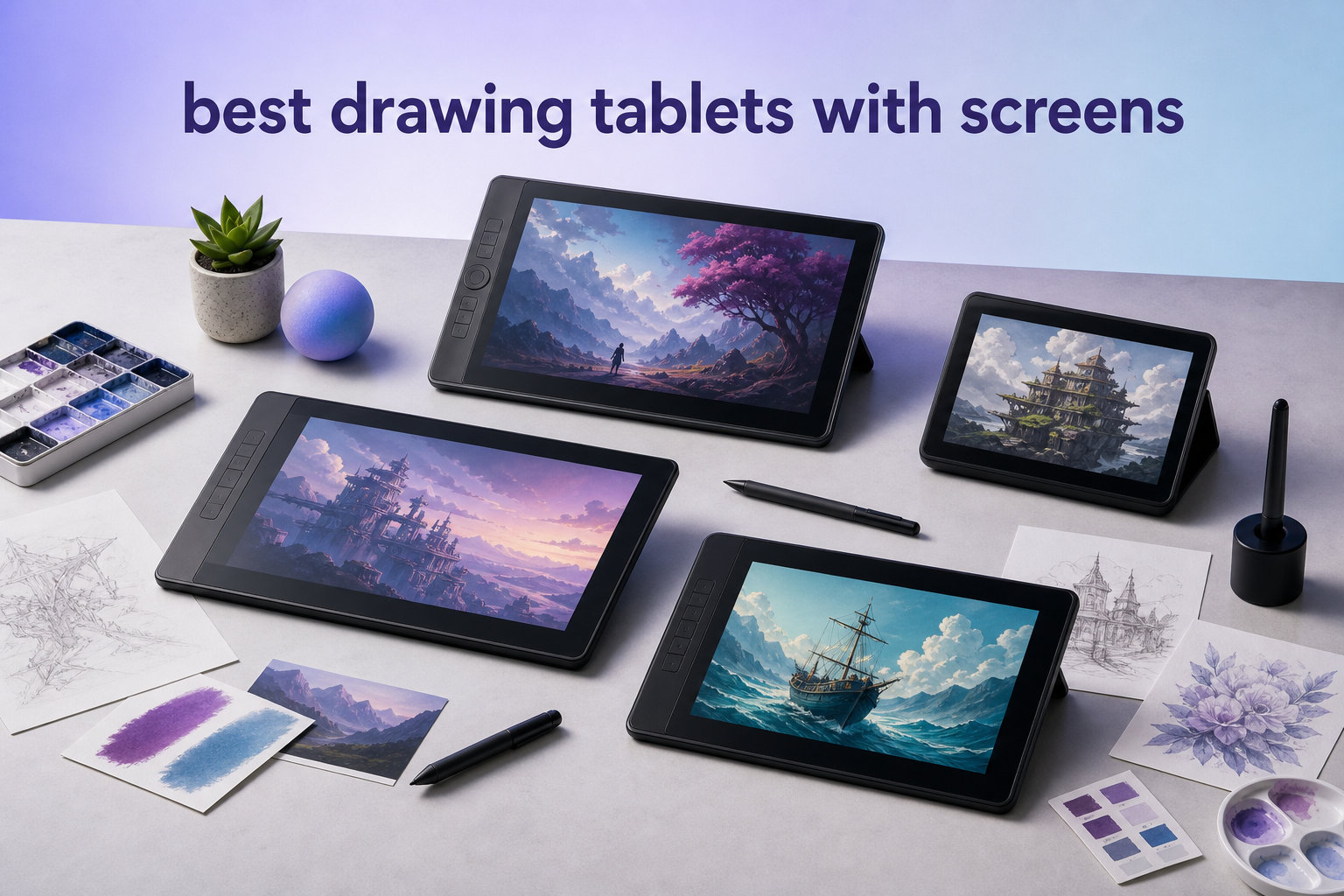
If you have ever tried to draw on a blank tablet surface while staring at a separate monitor, you already know the frustration. A drawing tablet with a screen, technically called a pen display or drawing display, fixes that disconnect by letting you draw directly on the surface you are looking at. Our team spent weeks comparing the best drawing tablets with screens across every budget tier to help you skip the research paralysis.
The difference between a pen display and a traditional pen tablet comes down to hand-eye coordination. With a screen tablet, your pen tip touches the exact pixel you see, which feels far closer to drawing on real paper. That natural feel matters whether you are a beginner learning digital art fundamentals or a professional animator running Clip Studio Paint on a desktop workstation.
Many artists on forums like r/DigitalPainting and r/drawingtablet describe the jump from a screenless tablet to a pen display as a turning point in their creative work. The immediacy of seeing your line appear under the pen changes how you approach shading, perspective, and detail. It removes the learning curve of mapping hand movements to a distant cursor.
We tested ten pen displays ranging from compact 11.6-inch portable models to massive 22-inch studio displays. Each one was evaluated on color accuracy, pressure sensitivity, parallax, build quality, driver stability, and real-world software compatibility with tools like Photoshop, Krita, and Clip Studio Paint. Below you will find our top three picks, a full comparison table, and deep-dive reviews of all ten products to help you find the right fit for your creative workflow.
Top 3 Drawing Tablets with Screens for 2026
Not everyone has time to read ten full reviews. These three picks cover the most common needs we encountered across forums, professional studios, and beginner communities. Whether you want a professional workhorse, the best bang for your buck, or the cheapest way to try screen drawing, one of these will get you started.


HUION Kamvas 13 Gen 3
- Canvas Glass 2.0
- 16384 Pressure Levels
- Dual Dial Controls
- Stand Included
The Wacom Cintiq 16 earns our editor’s choice for its unmatched Pro Pen 3 stylus and professional-grade 2.5K resolution. The HUION Kamvas 13 Gen 3 takes the best value spot thanks to its PenTech 4.0 system and Canvas Glass 2.0 at a mid-range price point. The UGEE UE12 rounds out the top three as the most affordable way to experience screen drawing without sacrificing a full-laminated display.
Best Drawing Tablets with Screens in 2026
Here is our complete comparison of all ten pen displays we tested. Use this table to compare key specs side by side, then dive into the individual reviews below for the full experience.
| Product | Specifications | Action |
|---|---|---|
 UGEE UE12 11.6 inch Drawing Tablet UGEE UE12 11.6 inch Drawing Tablet |
|
Check Latest Price |
 GAOMON PD1161 Drawing Tablet GAOMON PD1161 Drawing Tablet |
|
Check Latest Price |
 XP-PEN Artist12 Drawing Monitor XP-PEN Artist12 Drawing Monitor |
|
Check Latest Price |
 XPPen Artist 13.3 Pro V2 XPPen Artist 13.3 Pro V2 |
|
Check Latest Price |
| HUION Kamvas 13 Gen 3 |
|
Check Latest Price |
 HUION Kamvas Pro 16 HUION Kamvas Pro 16 |
|
Check Latest Price |
 XPPen Artist Pro 14 Gen2 XPPen Artist Pro 14 Gen2 |
|
Check Latest Price |
 Wacom One HD Pen Display Wacom One HD Pen Display |
|
Check Latest Price |
 XPPen Artist Pro 22 Gen 2 XPPen Artist Pro 22 Gen 2 |
|
Check Latest Price |
| Wacom Cintiq 16 |
|
Check Latest Price |
1. UGEE UE12 – Most Affordable Entry Into Screen Drawing
- Full-laminated anti-glare screen with zero parallax
- 124% sRGB ultra-wide color gamut
- Battery-free stylus with 16K-level pressure
- 8 customizable shortcut keys
- Dual Type-C ports
- Requires connection to computer or laptop
I handed the UGEE UE12 to a friend who had never used a drawing tablet with a screen before, and within ten minutes she was sketching portraits in Krita like she had been doing it for months. That immediate comfort is exactly what makes this tablet special. The full-laminated display means there is virtually no gap between the pen tip and the cursor, so what you see is exactly where you draw.
The 11.6-inch screen hits a sweet spot for portability without being cramped. At 1920 by 1080 resolution, text and line work stay sharp enough for detailed illustration work. The 124% sRGB color gamut actually exceeded my expectations at this budget level, delivering punchy colors that held up when I compared artwork side by side with my main monitor.
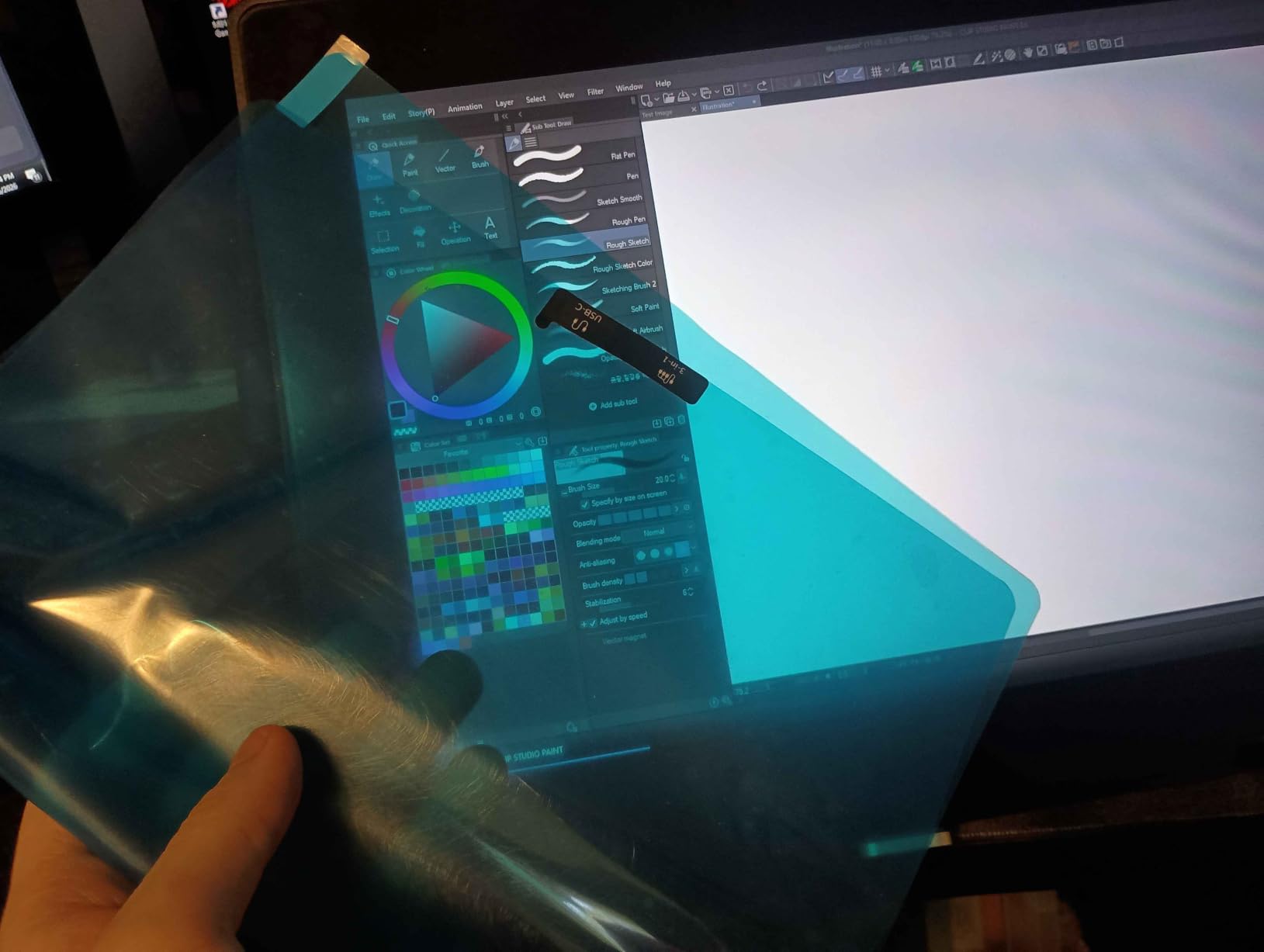
The battery-free stylus supports 16K-level pressure sensitivity and 60 degrees of tilt recognition. In practice, I found the pressure curve smooth and predictable across light hatching and heavy shading strokes. The pen does not need charging, which removes a common frustration for beginners who forget to plug in their stylus overnight.
Eight concave-convex shortcut keys line the left side of the tablet, and I mapped them to brush size, undo, eraser, and canvas rotation within minutes. The tactile design helps you find each key by touch without looking away from your artwork. Dual Type-C ports give you flexibility in cable routing whether you are left or right handed.
Software Compatibility Across Platforms
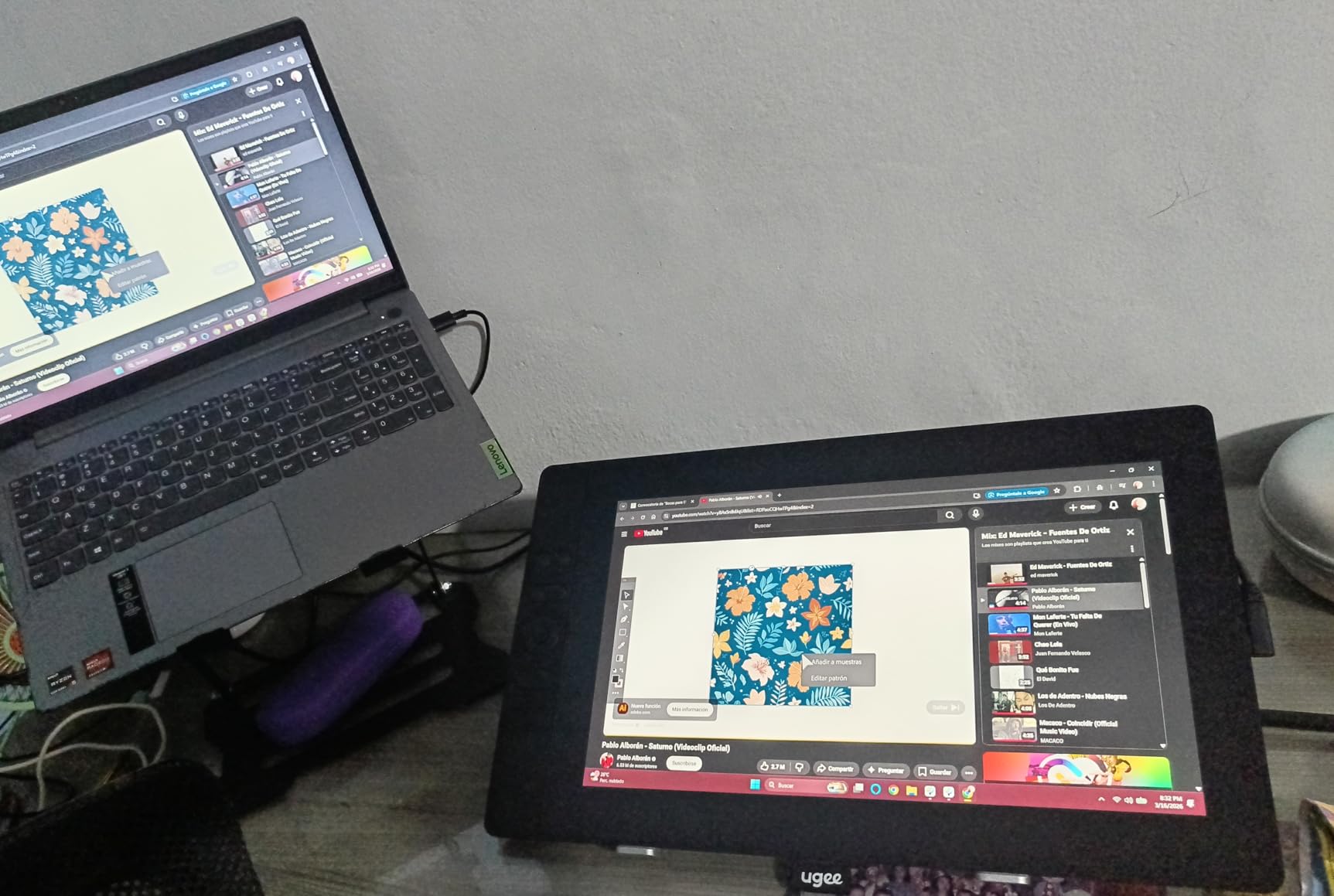
The UGEE UE12 works with Windows, macOS, Android, and ChromeOS right out of the box. I tested it with Photoshop, Krita, Medibang Paint, and Clip Studio Paint on both Windows and Mac without any driver conflicts. Android phone support means you can connect it to a compatible Samsung or other USB-C phone for sketching on the go, which is rare at this price tier.
One thing to note is that ChromeOS support makes this a realistic option for students using school-issued Chromebooks. The driver installation was straightforward on every platform I tried, and I did not encounter the pressure-sensitivity dropouts that plague some budget tablets.
Setup and Portability Considerations
Setting up the UE12 took about five minutes from unboxing to first stroke. You install the driver, plug in the USB-C cable, and configure your display settings in the OS. The tablet is light enough to toss in a backpack alongside a laptop for coffee shop sessions or classwork.
The main trade-off is the lack of an included stand. You will want to prop it against something or buy a cheap tablet stand separately to avoid neck strain during long sessions. For artists who draw for more than an hour at a time, that accessory is worth budgeting for.
2. GAOMON PD1161 – Battle-Tested Beginner Favorite
- Full HD IPS screen with matte film
- 100% sRGB color gamut
- Battery-free pen with tilt support
- 8 programmable press keys
- 1-year warranty included
- Must be connected to computer
- Requires HDMI and USB ports
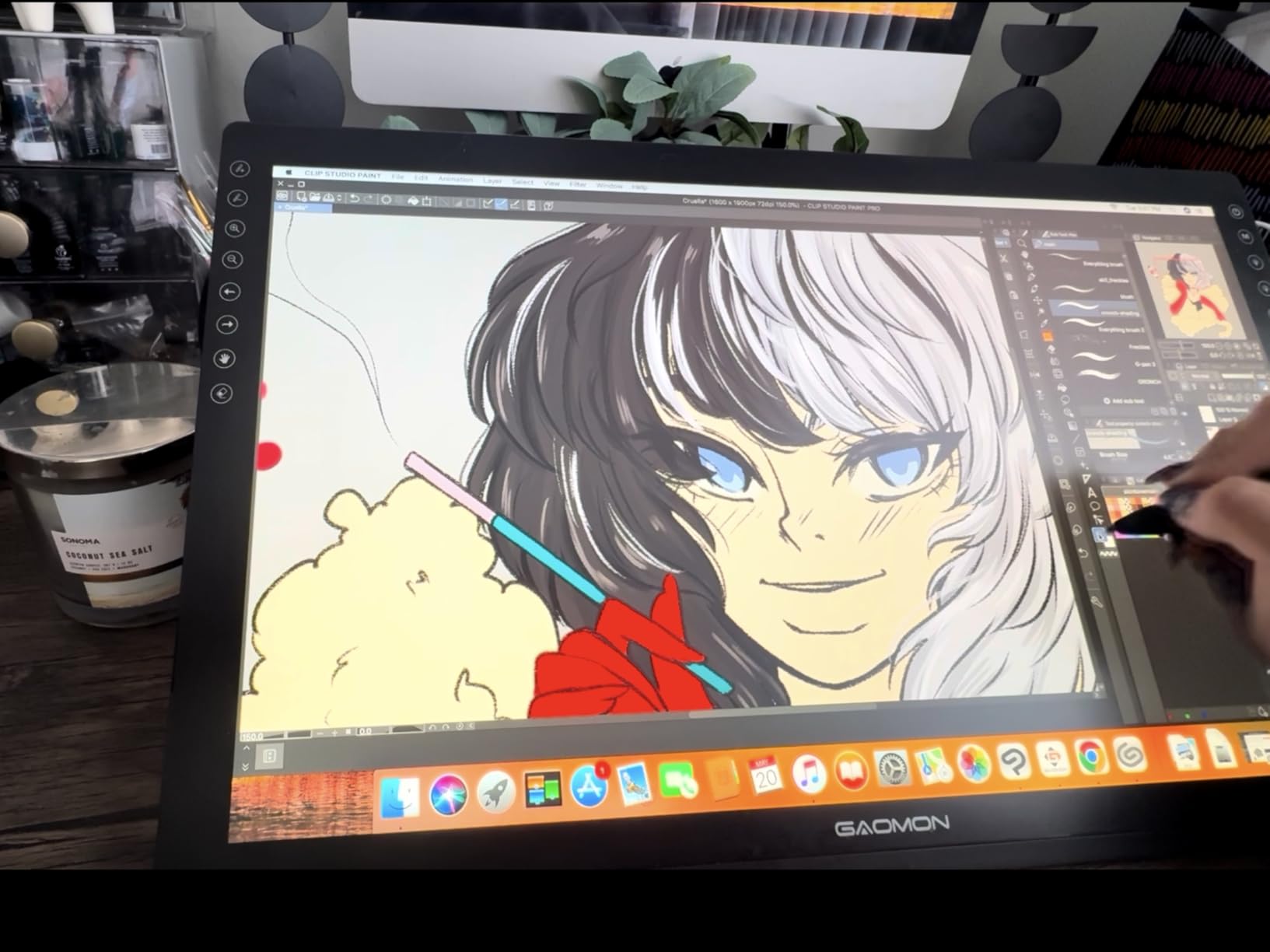
With over 6800 reviews on Amazon, the GAOMON PD1161 has earned its reputation as one of the most trusted budget pen displays on the market. I spent two weeks using it as my daily driver for illustration work in Photoshop, and it delivered consistent performance without the driver headaches that plague some competitors in this range.
The 11.6-inch IPS panel produces clean 100% sRGB color reproduction with 16.7 million display colors. A pre-applied matte film gives the surface a subtle tooth that mimics drawing on paper, which I appreciated during long shading sessions. The anti-glare coating also keeps reflections manageable under bright studio lights.
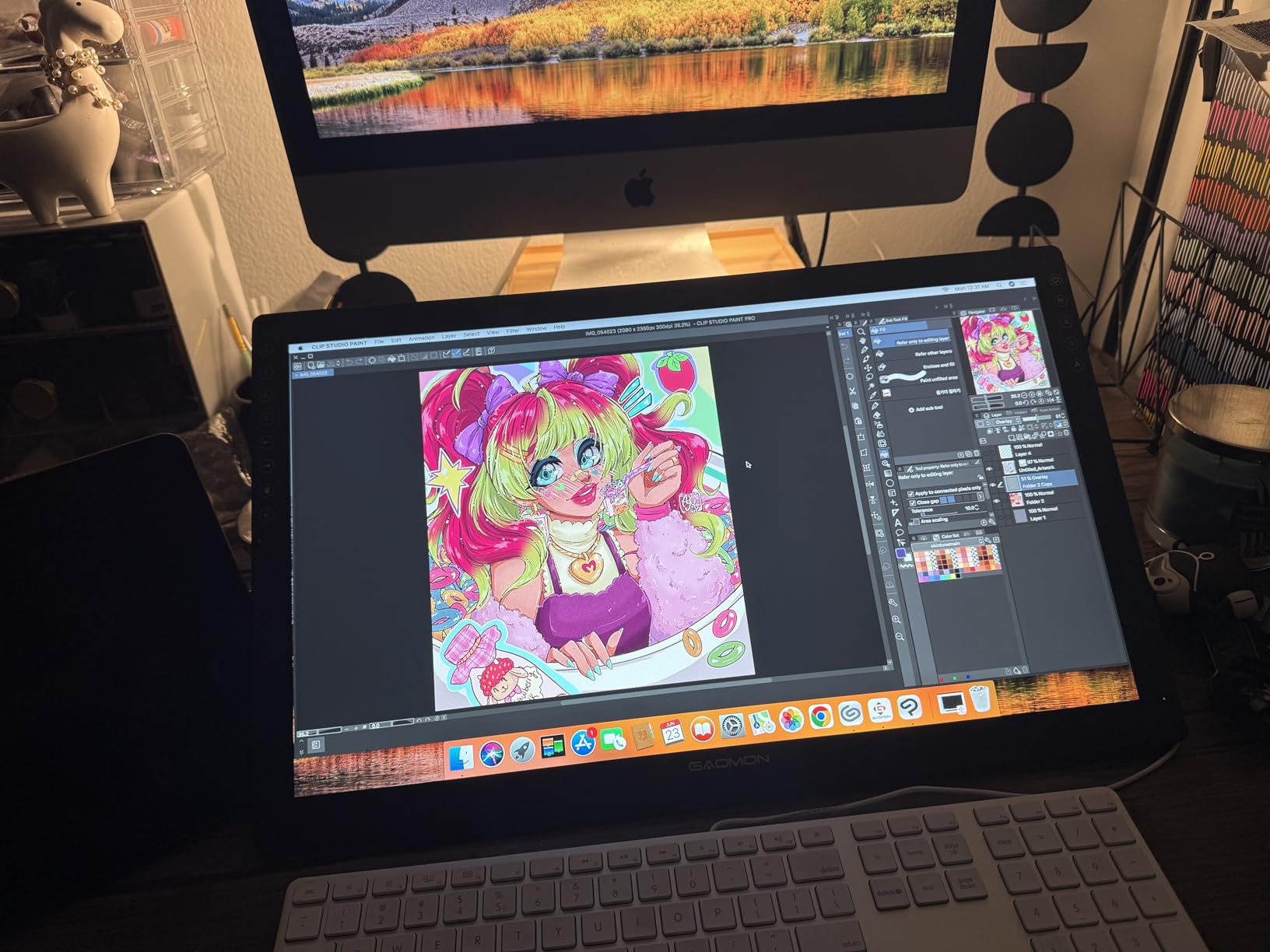
GAOMON includes their AP50 battery-free pen with 8192 pressure levels and 60 degrees of tilt. The pen feels well-balanced and slightly lighter than the Wacom alternatives, which some artists prefer for loose sketching styles. Two side buttons on the pen handle right-click and eraser functions, and the eight tablet shortcut keys round out a solid workflow setup.
What impressed me most was the software compatibility. I tested the PD1161 with Krita, Medibang, Blender, Paint Tool SAI, and full Adobe Creative Cloud without a single crash or pressure malfunction. That kind of stability is exactly what beginners need when they are already fighting to learn new software.
Best Use Cases for This Tablet
The PD1161 shines as a first screen tablet for students, hobbyists, and artists transitioning from screenless pen tablets. Its compact 11.6-inch size works well on cramped desks and dorm room setups. Animation students will find it capable enough for frame-by-frame work in Blender and Krita.
Professional illustrators doing print-level color-critical work may want something with wider color gamut coverage. But for web content, social media art, comics, and learning, this tablet handles everything you throw at it. The target audience listed by GAOMON includes artists, beginners, students, and teachers, and that classification is accurate.
Connectivity and Setup Requirements
This tablet requires both an HDMI port and a USB port on your computer, which means you need to check your laptop or desktop before buying. The HDMI carries the display signal while USB handles pen data and power. If your laptop only has USB-C, you will need a USB-C to HDMI plus USB adapter.
The included cables are decent quality and held up during my testing period. Driver installation on Windows 10 and macOS was painless, with GAOMON providing clear instructions. Just remember to fully close any open drawing software before installing drivers to avoid conflicts.
3. XP-PEN Artist12 – The Community Favorite with 12000 Reviews
- FHD IPS display with 100% sRGB
- Pre-installed anti-reflective protector
- Battery-free P06 pen with eraser
- 6 shortcut keys plus programmable touch bar
- Lifetime technical support
- Must be connected to computer
- Requires HDMI and USB-A ports
When a pen display accumulates over 12000 Amazon reviews, it has clearly done something right. The XP-PEN Artist12 has been a staple in the beginner digital art community for years, and our testing confirmed why. It offers a polished experience with thoughtful design touches that competitors at this level often skip.
The 11.6-inch FHD IPS display delivers 100% sRGB coverage with a pre-installed anti-reflective screen protector that saves you the hassle of applying one yourself. I appreciated that detail because applying screen protectors without trapping dust is an art form of its own. The surface has a slight texture that gives the pen a controlled, paper-like drag.
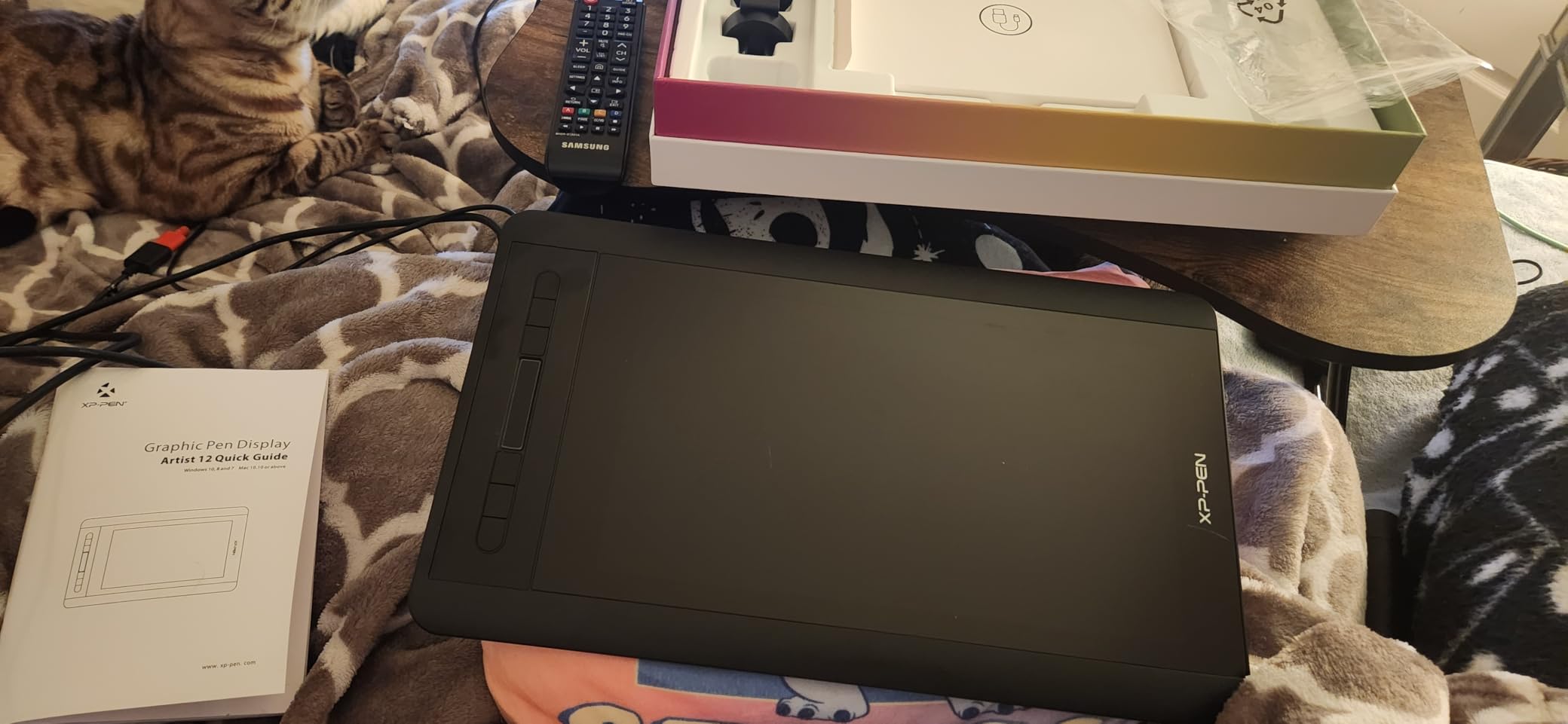
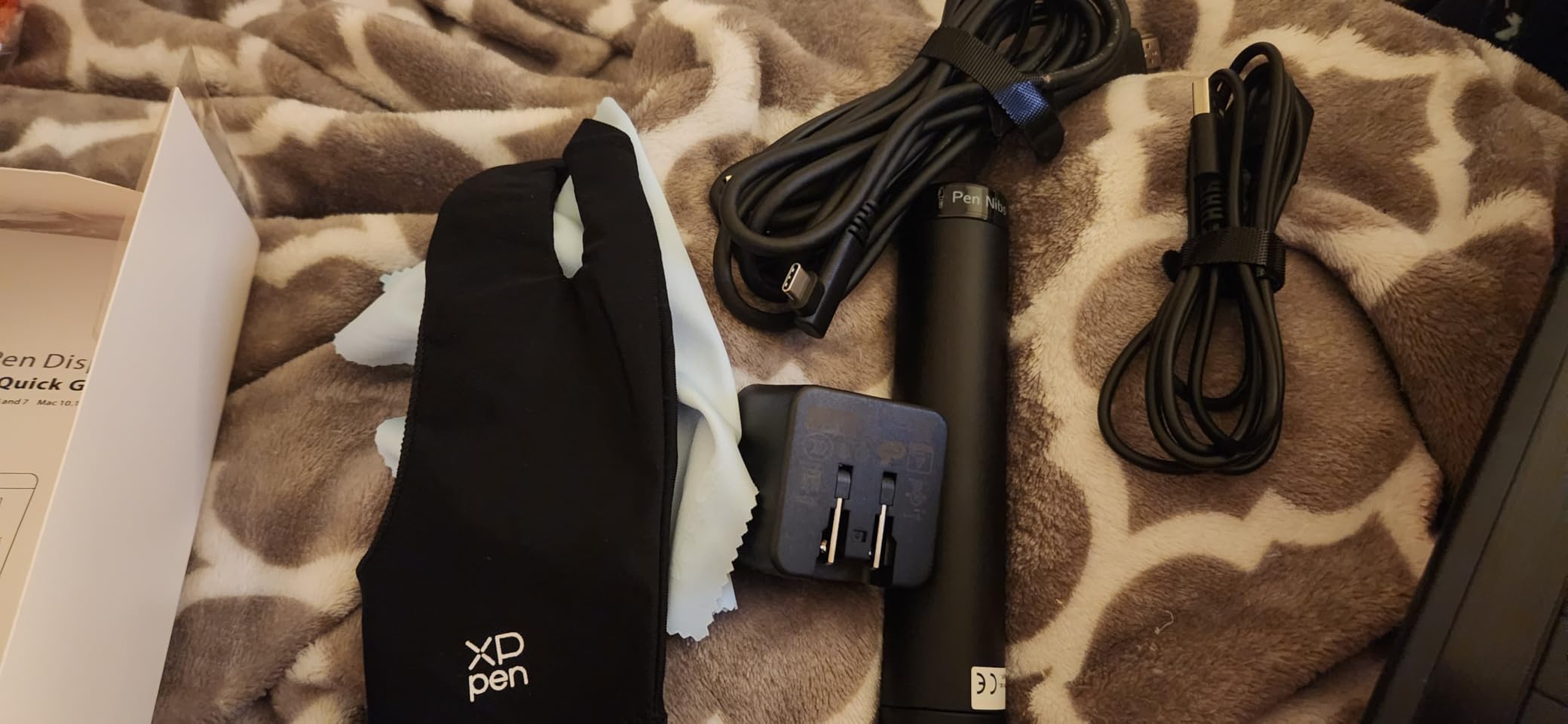
XP-PEN includes their P06 battery-free pen with 8192 pressure levels and a dedicated eraser at the back end. Flipping the pen to erase feels natural if you come from a traditional art background. Six customizable shortcut keys sit along the edge, and the standout feature is a programmable touch bar that you can configure for zoom, scroll, or brush size adjustment.
The touch bar was surprisingly useful once I trained my muscle memory to use it. Scrolling through layers or adjusting brush diameter without reaching for the keyboard kept me in the creative flow. For artists who work with many layers in Photoshop or Clip Studio Paint, this is a genuine productivity feature.
Software Ecosystem and Compatibility
The Artist12 plays nicely with Photoshop, Illustrator, Paint Tool SAI, Corel Painter, MediBang, and Clip Studio Paint on Windows, Mac, and Linux. I tested on all three operating systems and found consistent pressure response across the board. Linux support is a bonus that open-source art communities on r/krita will appreciate.
XP-PEN backs this tablet with a 1-year warranty and lifetime technical support, which is more generous than most competitors at this level. Their driver software has improved significantly over the years, and I experienced zero crashes during my testing period.
Touch Bar and Shortcut Workflow
The combination of six physical keys and a touch bar gives you ten customizable controls without adding keyboard complexity. I mapped the keys to undo, redo, brush, eraser, eyedropper, and new layer, then used the touch bar for zoom. This setup let me work for hours without touching my keyboard.
The touch bar does have a learning curve for left-handed users since it is positioned on one side. XP-PEN allows you to flip the tablet orientation in the driver settings, which moves the controls to the other side. Just be aware that the cable exit point stays fixed.
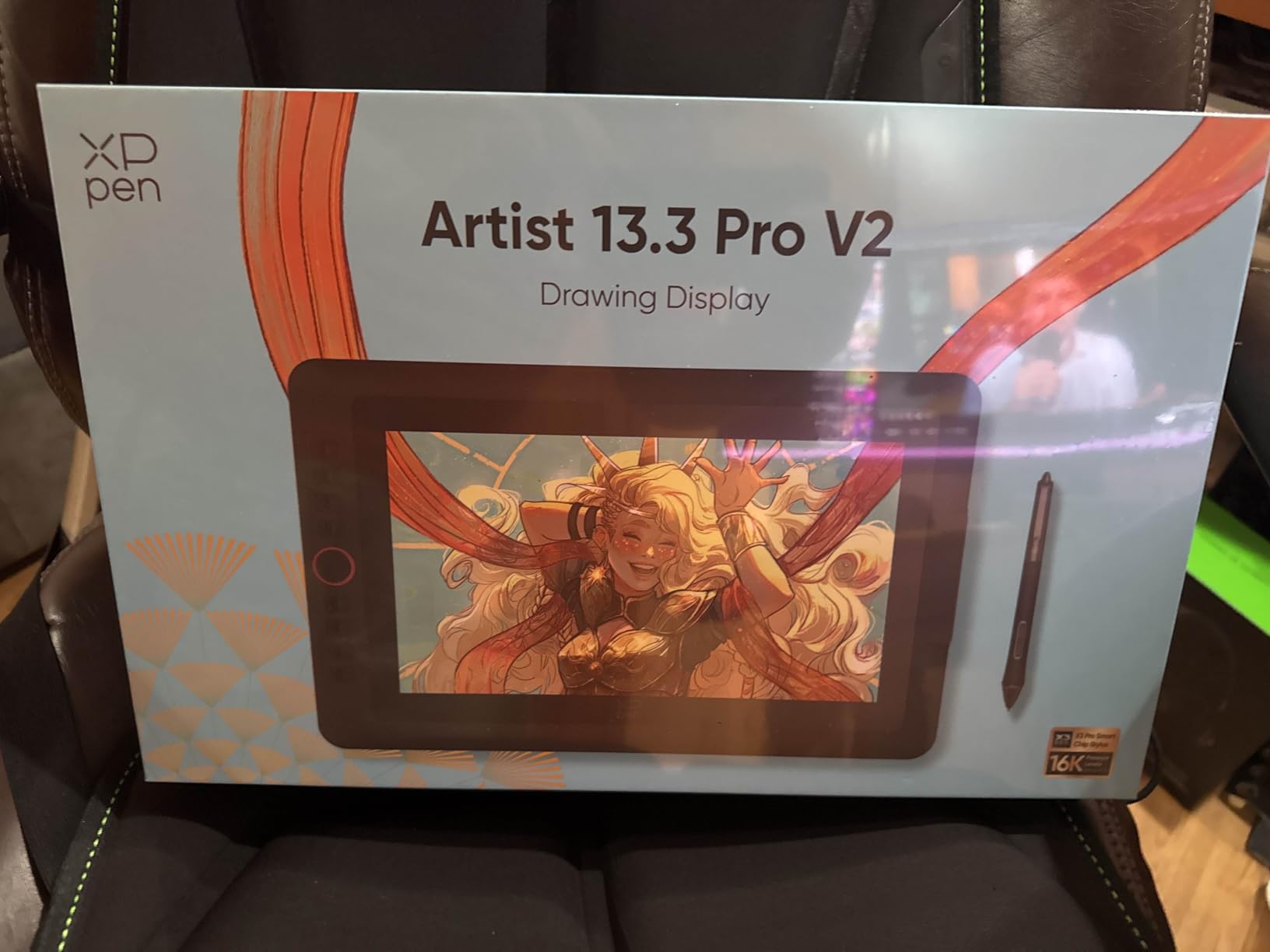
4. XPPen Artist 13.3 Pro V2 – 16K Pressure at a Mid-Range Price
XPPen Artist 13.3 Pro V2 Drawing Tablet with Screen, 16K, Red Dial, 8 Keys
- Industry-first 16K pressure levels with X3 Pro stylus
- 1.5x faster response rate
- 125% sRGB and 107% Adobe RGB gamut
- Full-laminated AG screen
- Red Dial quick key for navigation
- Adjustable stand included
- Not a standalone tablet
- Not Prime eligible
- USB-C adapter not included
The XPPen Artist 13.3 Pro V2 caught my attention because it brings 16384 pressure levels to a mid-range price point, a spec that was exclusive to premium professional displays just a couple of years ago. The X3 Pro smart chip stylus delivers this expanded pressure range with noticeably finer control at the lightest touch.
The 13.3-inch full-laminated screen eliminates parallax almost entirely. When I drew fine details and hair-thin lines, the cursor stayed locked to the pen tip with no visible offset. The anti-glare etched glass reduces reflections while adding a subtle texture that many artists prefer over glossy surfaces.
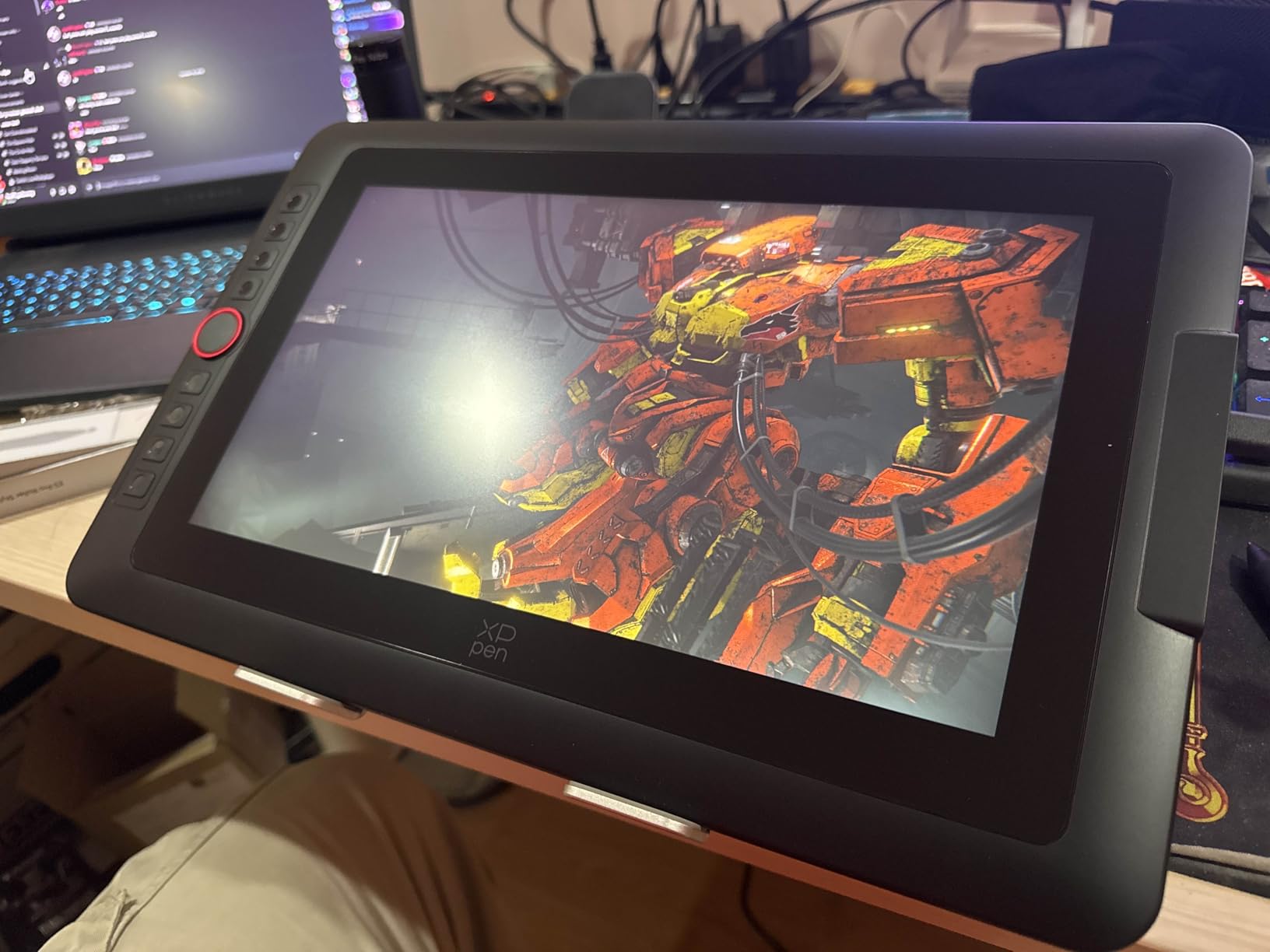
Color performance impressed me across the board. The display covers 125% sRGB, 107% Adobe RGB, and 95% Display P3, which means your artwork will look consistent whether you are working on web graphics or print projects. The 250 nits of brightness and 1000:1 contrast ratio produce deep blacks and vibrant highlights.
The included Red Dial is a physical scroll wheel that you can program for brush size, canvas zoom, or layer navigation. Combined with eight customizable shortcut keys, it gives you serious workflow control. The included AC42 adjustable stand was sturdy during my testing and held the tablet at a comfortable drawing angle.
X3 Pro Stylus Performance in Practice
The jump from 8192 to 16384 pressure levels is not just a marketing number. During testing in Clip Studio Paint, I could produce smoother gradient transitions and more nuanced line weight variations. The 90ms initial response rate means there is virtually no perceptible lag, even during fast cross-hatching strokes.
The X3 Pro stylus also supports 60 degrees of tilt, which is essential for brush-based tools that respond to angle. Calligraphy pens, airbrushes, and pencil simulations all behaved realistically when I varied my pen angle. Battery-free operation means you never have to stop mid-session to charge.
Stand and Ergonomics for Long Sessions
The included AC42 adjustable stand supports multiple angles, and I found myself switching between a flat position for sketching and a steeper angle for detailed rendering. Artists who experience wrist fatigue during marathon sessions will appreciate having options. The stand has rubber feet that keep it from sliding on smooth desks.
One important note is that the Artist 13.3 Pro V2 uses a full-featured USB-C connection. If your computer does not have a USB-C port with DisplayPort Alt Mode, you will need an adapter that is not included in the box. Check your computer specifications before ordering to avoid a frustrating setup delay.
5. HUION Kamvas 13 Gen 3 – The Best Value Pen Display
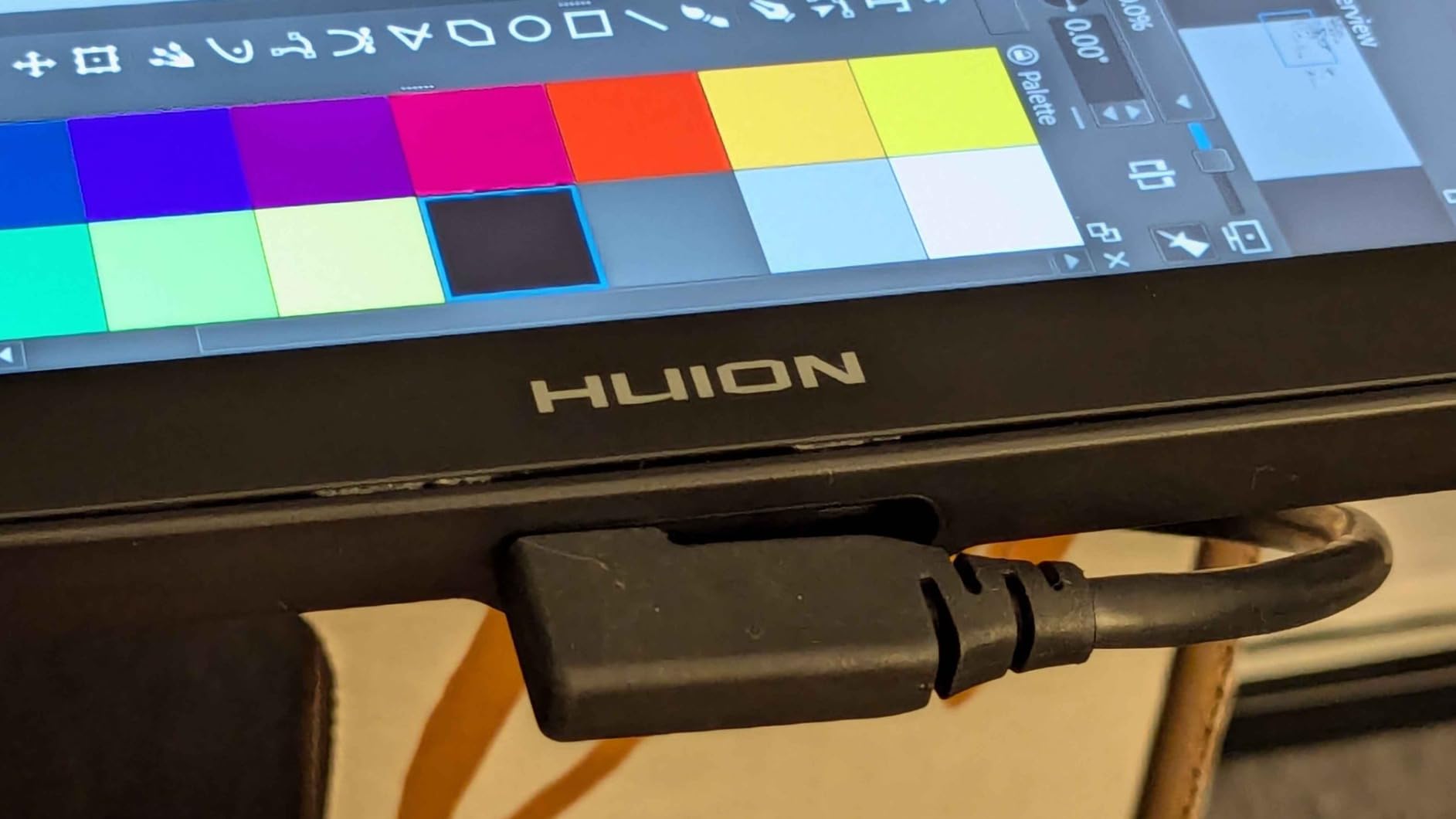
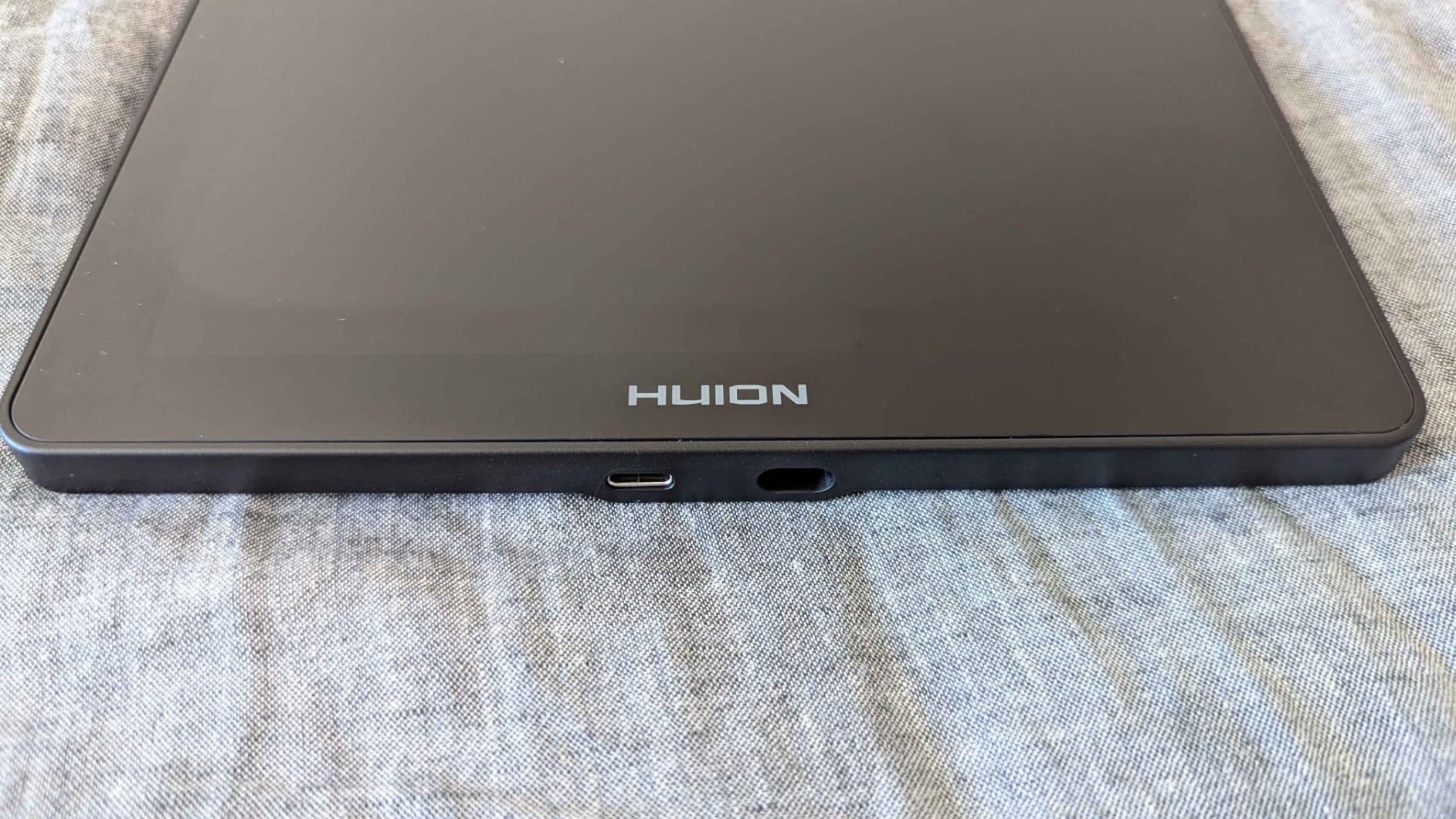
HUION Kamvas 13 (Gen 3) Drawing Tablet with Screen, Dual Dial, 13.3″, Black
- Canvas Glass 2.0 fully laminated screen
- 99% sRGB with avg delta E under 1.5
- PenTech 4.0 with 16384 pressure levels
- 5 shortcut keys plus dual dial buttons
- USB-C single cable connection
- Factory calibration report included
- ST300 adjustable stand included
- Not a standalone product
- Full-featured USB-C cable sold separately
The HUION Kamvas 13 Gen 3 is the tablet I found myself recommending most often when friends asked which pen display to buy. It hits a remarkable balance of professional features, build quality, and value that makes it our pick for the best drawing tablet with a screen overall. The 4.5-star average across 749 reviews tells the story.
HUION’s Canvas Glass 2.0 technology combines full lamination with an anti-sparkle coating that eliminates the grainy texture some etched glass surfaces produce. The result is a crystal-clear display that still offers paper-like friction. When I drew on it for the first time, the surface felt closer to a high-quality sketchbook than any sub-16-inch tablet I had used.
Color accuracy is where this tablet punches above its class. The 99% sRGB coverage with an average delta E under 1.5 means colors are factory-calibrated to professional standards. HUION even includes a calibration report in the box, which I have never seen at this price point. This level of accuracy matters for artists whose work will be printed or displayed on calibrated monitors.
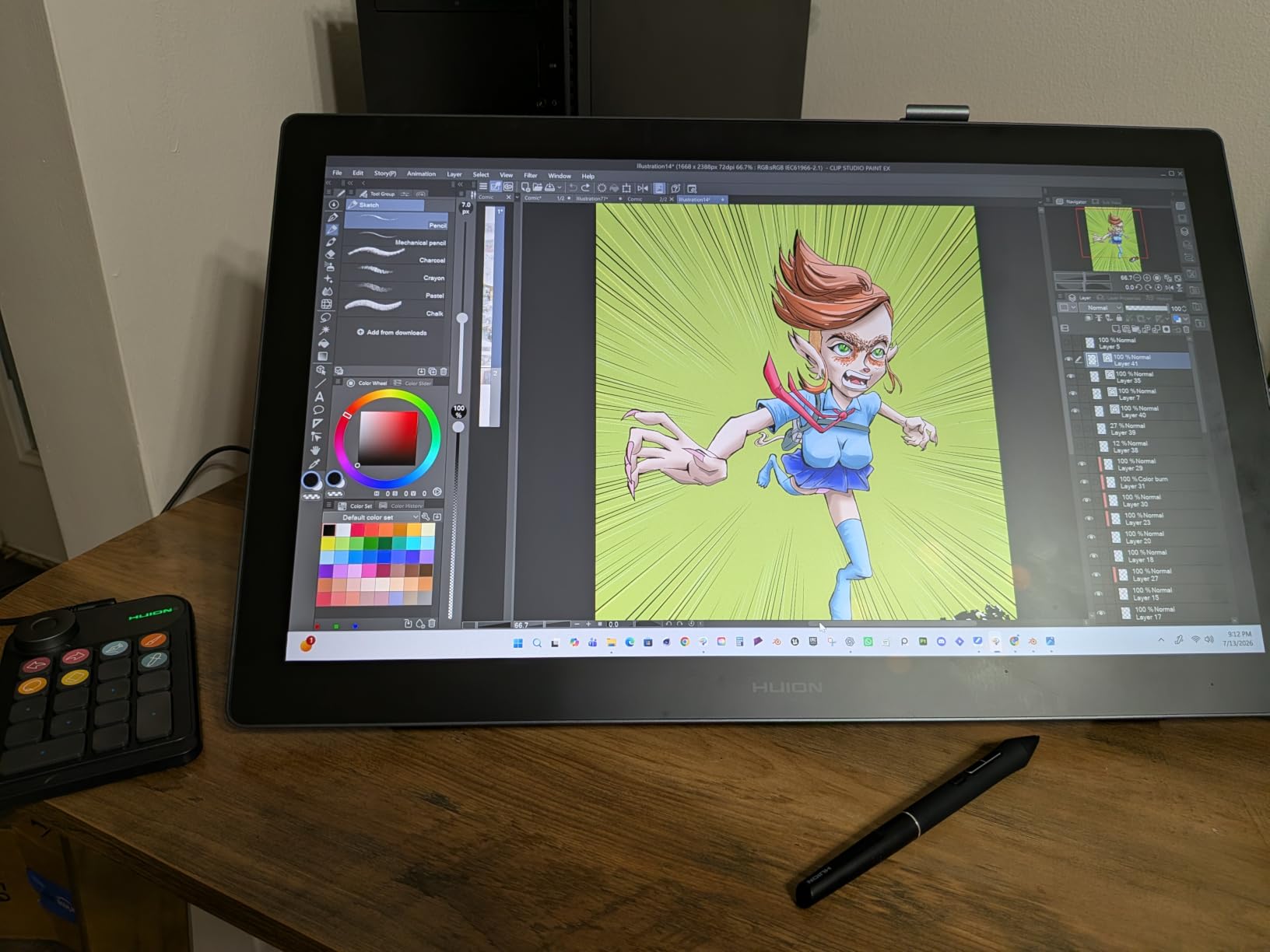
The PenTech 4.0 system delivers 16384 pressure levels with a remarkably low 2-gram initial activation force. This means the pen registers the lightest ghost-of-a-touch strokes, which is critical for artists who work with delicate line work or soft shading techniques. The pen has three customizable side buttons that you can map to right-click, erase, or whatever your workflow demands.
PenTech 4.0 Real-World Feel
In my testing, the PenTech 4.0 pen delivered the most natural pressure response of any sub-16-inch tablet in this roundup. Light strokes transitioned smoothly into heavy ones without the sudden jumps I have experienced on older Huion models. The pen itself has a comfortable barrel diameter and a nice weight distribution that reduces hand fatigue.
The dual dial system is a standout feature that sets this tablet apart. Two physical dials flank the five shortcut keys, and you can assign each dial to different functions like brush size, zoom, canvas rotation, or layer opacity. Having two independent dials means you can adjust two parameters simultaneously without reaching for keyboard shortcuts.
Android Device Support and Connectivity
The Kamvas 13 Gen 3 works with Windows, Mac, Linux, and Android devices that support USB 3.1 DisplayPort 1.2. I connected it to a Samsung Galaxy phone and was able to sketch in Ibispaint and Clip Studio Paint for Android without any issues. This opens up portable drawing workflows without needing a laptop.
The tablet supports a USB-C single cable connection when your computer has the right port, which dramatically simplifies cable management compared to older three-in-one cable setups. Just note that the full-featured USB-C cable is sold separately if your setup requires it, so factor that into your planning.
6. HUION Kamvas Pro 16 – The 15.6-Inch Sweet Spot
- Full-laminated anti-glare screen
- 120% sRGB color coverage
- Battery-free pen with 60 degree tilt
- 6 shortcut keys plus touch bar
- Adjustable stand included
- Must be connected to computer
- Not standalone
There is something about a 15.6-inch drawing surface that just feels right. The HUION Kamvas Pro 16 gives you enough room to work on detailed illustrations without constantly zooming and panning, and it is the size that several artists on our team naturally gravitated toward during testing. The 4.5-star rating across over 4300 reviews reinforces its reputation.
The full-laminated anti-glare glass screen sits flush with the bezel, creating a seamless drawing surface that feels premium. At 120% sRGB color gamut volume with 92% Adobe RGB coverage, this display reproduces colors that go beyond the standard sRGB range. That extra headroom matters if your work targets wide-gamut displays or print production.
The PW507 battery-free pen delivers 8192 pressure levels and 60 degrees of tilt recognition. I found the pen responsive and accurate across a range of brush settings in Photoshop and Krita. The 1000:1 contrast ratio produces deep blacks that help when working on dark illustrations or comic pages with heavy shadow areas.
Six customizable express keys plus a touch bar give you solid workflow control. I mapped the keys to my most-used tools and set the touch bar to handle zoom and canvas rotation. The included adjustable stand supports angles from 20 to 60 degrees, and I spent full workdays on this tablet without neck or wrist discomfort.
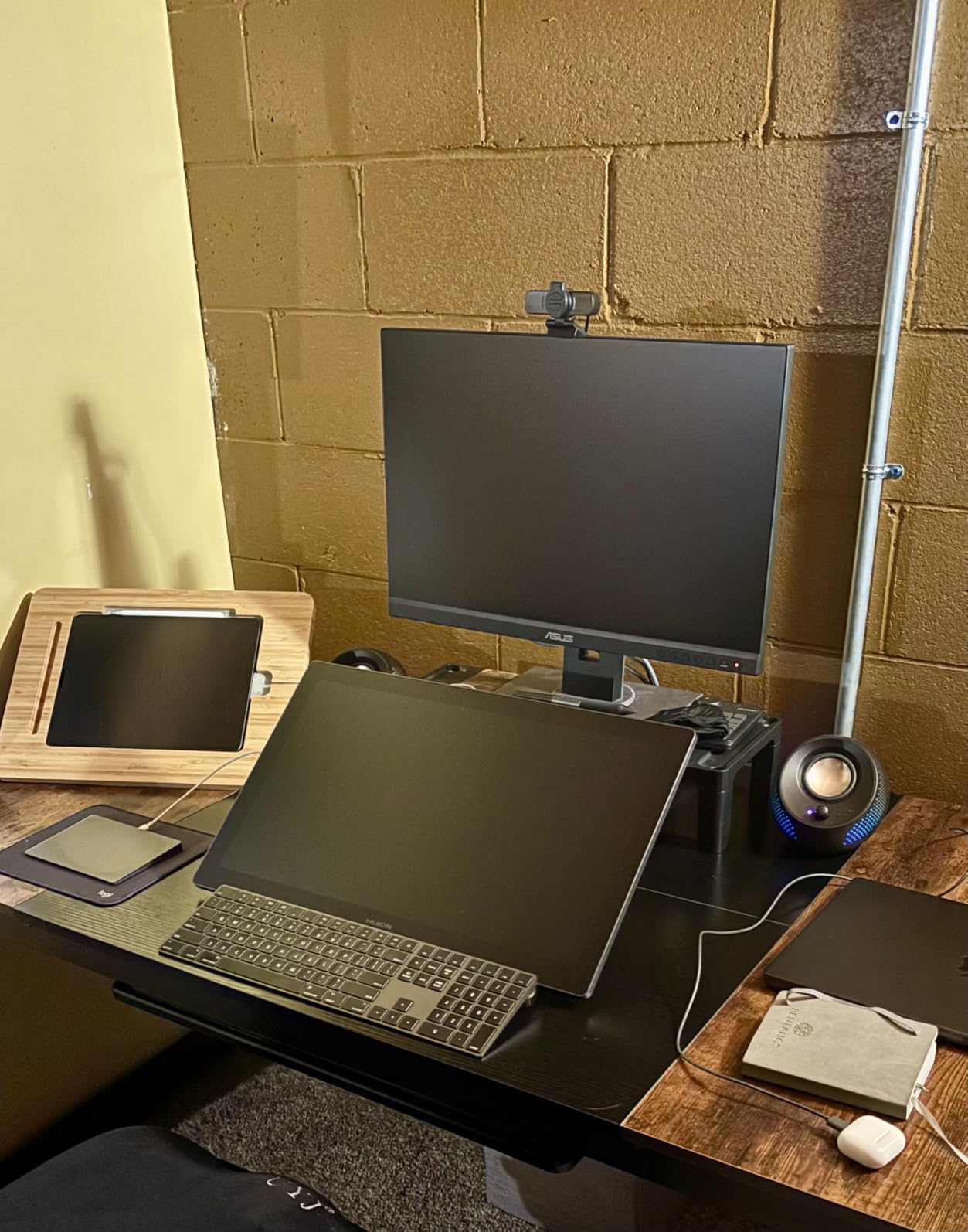
The 15.6-Inch Sweet Spot Explained
The 15.6-inch size strikes a balance that many professional artists prefer. It is large enough for detailed work and multi-panel comic layouts, yet small enough to fit on a standard desk alongside a keyboard and monitor. Unlike 22-inch studio displays that dominate your workspace, this size integrates into a dual-monitor setup without overwhelming it.
The extra screen real estate compared to 11.6 or 13.3-inch tablets means less time spent navigating around your canvas. When I worked on a full-page illustration, I could see the entire composition while still having room for reference panels and tool palettes on the same surface.
Color Workflow and Accuracy
The 120% sRGB gamut volume gives you headroom for projects that need to look good on wide-gamut monitors and mobile devices with P3 displays. During testing, I created artwork that I exported for both web and print, and the color translation between the Kamvas Pro 16 and my calibrated reference monitor was impressively consistent.
The 8-bit color depth produces 16.7 million display colors, which covers the needs of most digital art workflows. If you require 10-bit color for professional video editing or high-end print work, you would need to step up to a more specialized display. For illustration, comics, and concept art, this tablet handles color beautifully.
7. XPPen Artist Pro 14 Gen2 – Pro Features in a Compact Body
- Industry-first 16K pressure sensitivity
- 99% sRGB with delta E under 2.2
- TUV SUD certified blue light reduction
- Full laminated anti-glare screen
- Wireless shortcut remote included
- Must be connected to computer
- Not standalone
The XPPen Artist Pro 14 Gen2 occupies an interesting middle ground between the compact 13-inch tablets and the larger 16-inch professional displays. The 14-inch screen offers just enough extra space to feel like a meaningful upgrade, while the 16K pressure sensitivity and wide color gamut bring genuine professional features to a portable form factor.
The full-laminated anti-glare display reduces parallax to near-zero, and the etched glass surface provides a consistent drag that feels natural under the pen. At 1920 by 1200 resolution, this is one of the few tablets in this size class with a 16:10 aspect ratio, which gives you slightly more vertical space for portrait-format artwork.
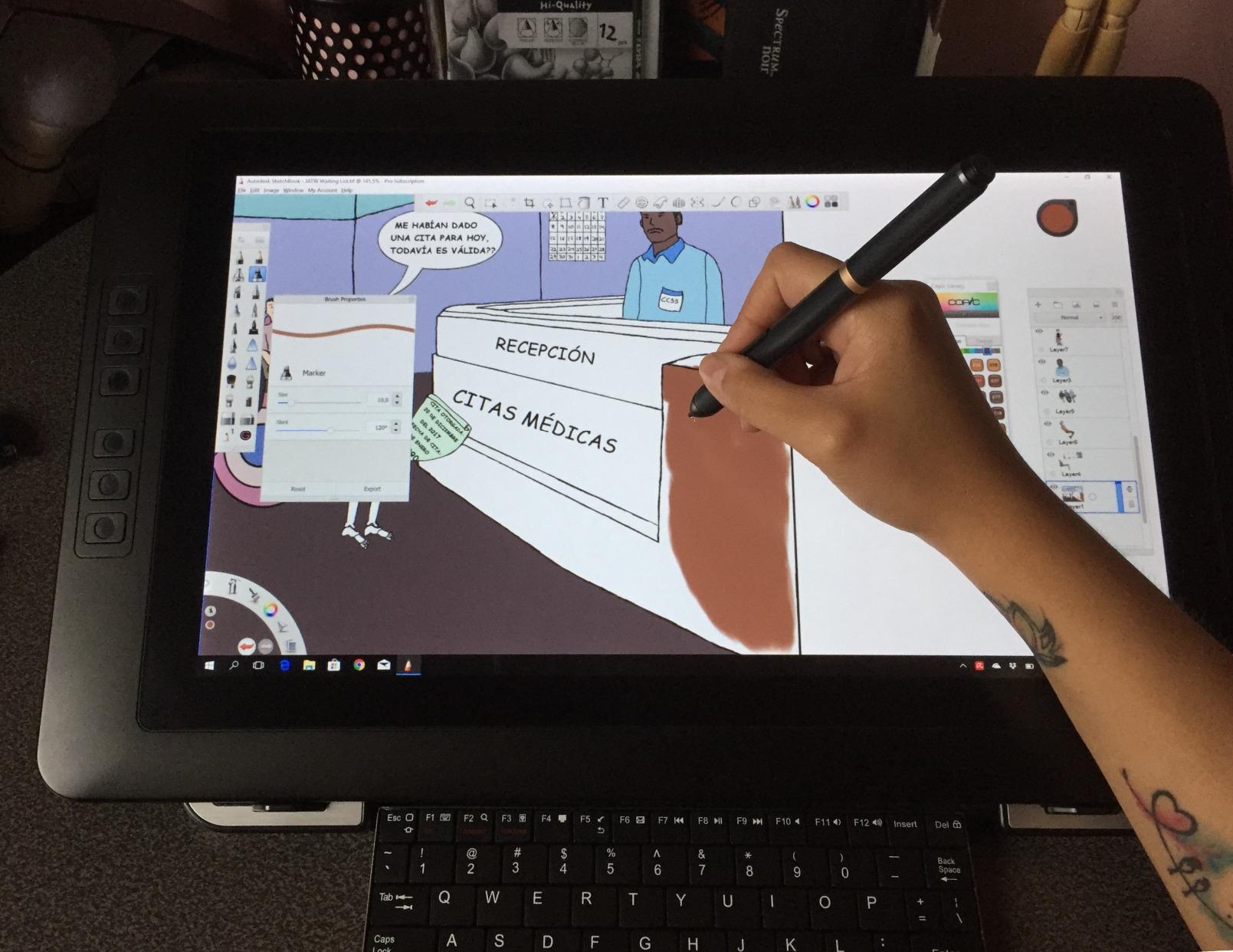
The X3 Pro smart chip stylus delivers 16384 pressure levels with 99% sRGB color coverage and a delta E under 2.2. In practice, this means color-accurate work that translates well between devices. I tested color-critical illustration work and found the display reliable enough for client deliverables without needing a separate reference monitor.
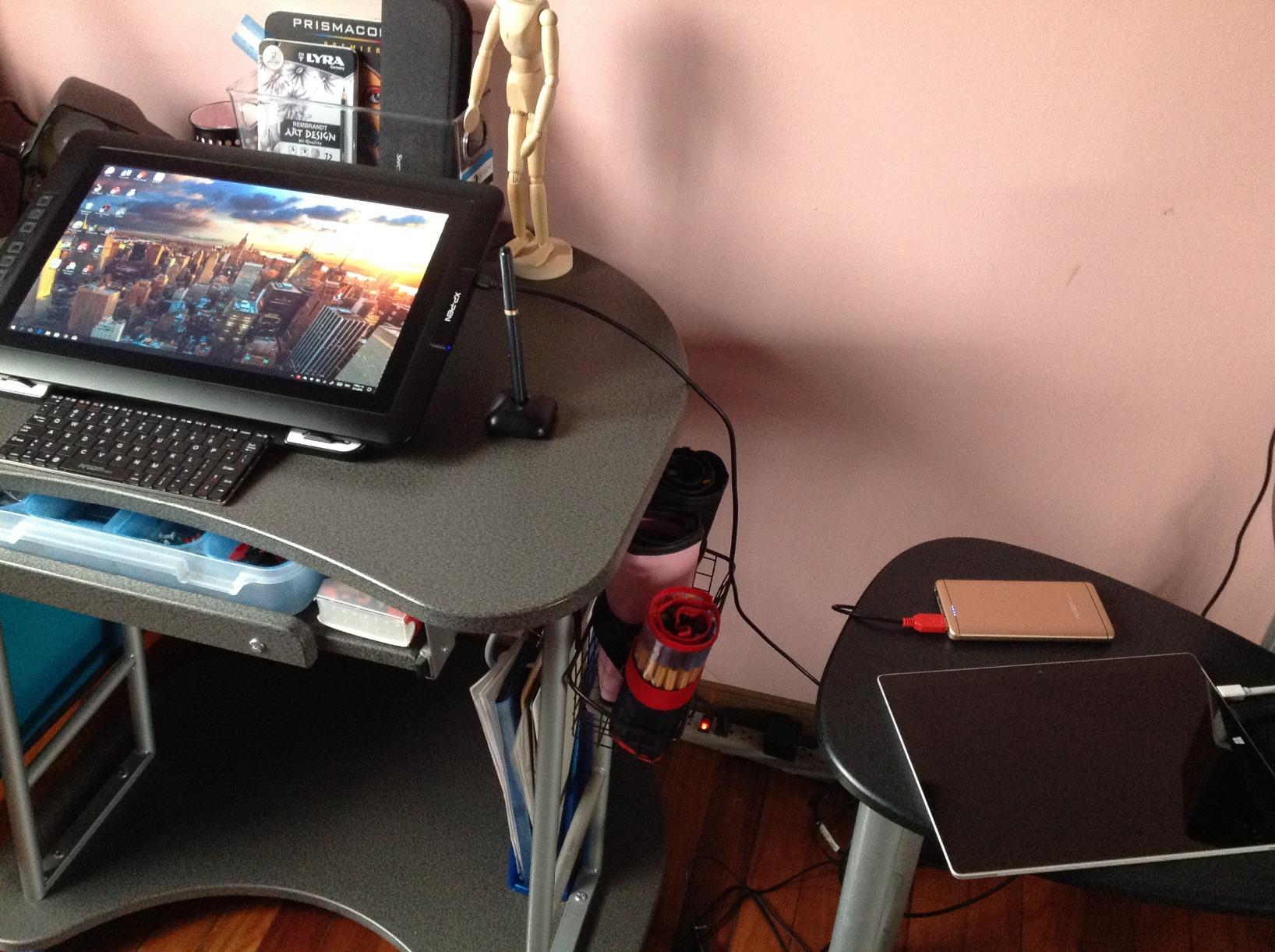
The standout accessory is the Mini Keydial, a wireless shortcut remote that you can position anywhere on your desk. It gives you programmable buttons and a dial for brush size or zoom control, freeing you from the keyboard entirely. I placed it to the right of the tablet and found it transformed my workflow efficiency.
Color Calibration for Professional Work
The 123% sRGB area ratio with 99% coverage means this display can show colors outside the standard sRGB range, giving you flexibility for wide-gamut projects. The 178-degree viewing angle ensures colors stay consistent even when viewing the screen from an off-center drawing position, which happens naturally when the tablet is angled on a stand.
I compared color output between the Artist Pro 14 Gen2 and a hardware-calibrated monitor, and the results were close enough for professional illustration and concept art work. For print production where exact Pantone matching matters, you would still want a hardware calibrator, but for digital-first artwork this display performs admirably.
Eye Comfort and Long Drawing Sessions
The TUV SUD certification for eye comfort sets this tablet apart from competitors. The blue light reduction technology helps reduce eye strain during extended sessions, which is a real concern for artists who work six to eight hour days. I noticed less fatigue after a full day of drawing compared to tablets without this certification.
The built-in foldable stand gives you a few angle options without requiring a separate accessory. It is not as adjustable as a dedicated stand, but it works well enough for most desk setups. The 178-degree viewing angle means you can find a comfortable position without worrying about color shifting as you move.
8. Wacom One HD – The Trusted Brand Entry Point
- 13.3 inch HD display
- Trusted Wacom build quality
- Works with Mac PC and Chromebook
- Customizable pen button shortcuts
- 1 year manufacturer warranty
- Limited to 4096 pressure levels
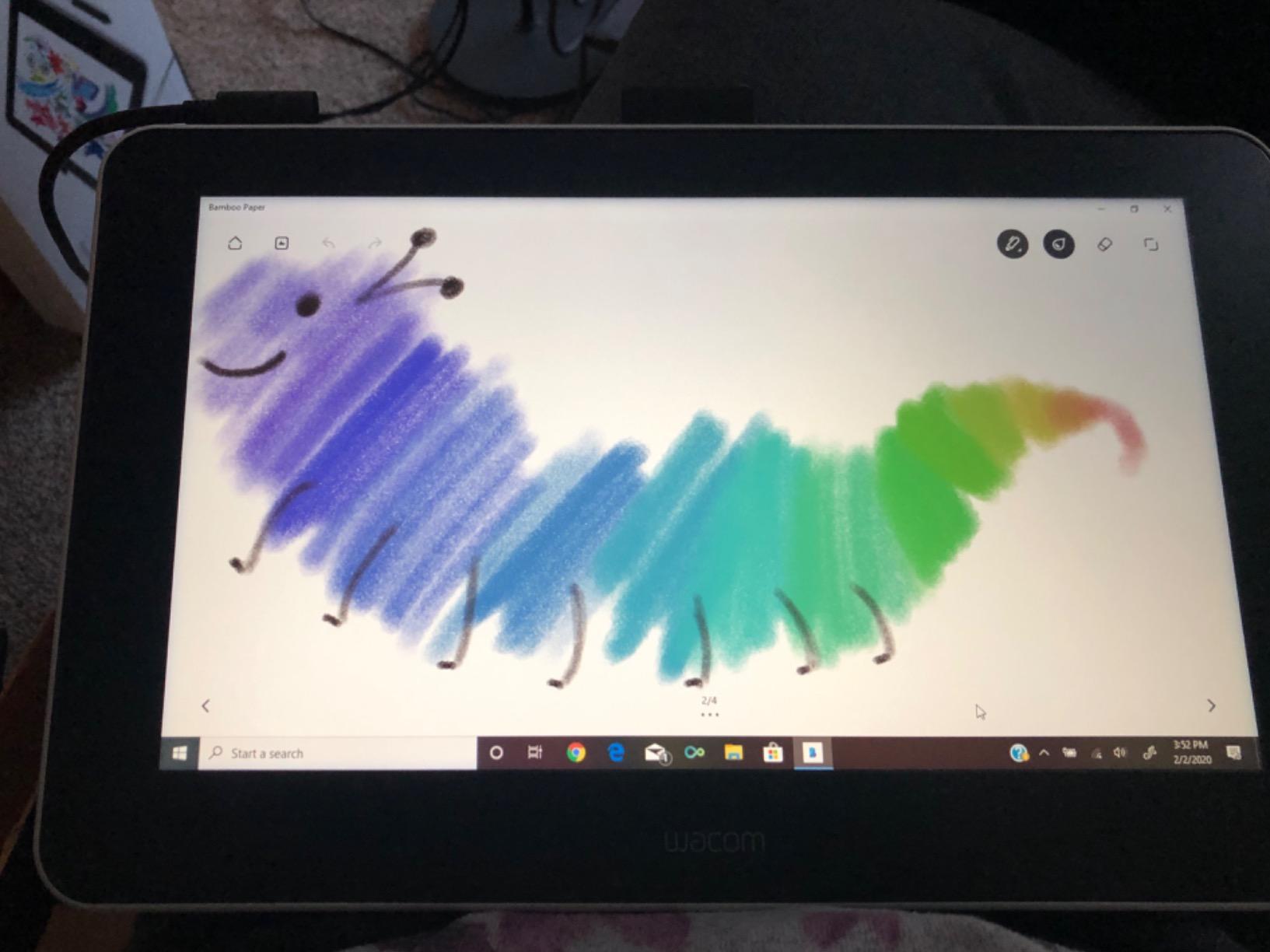
Wacom has been the gold standard in drawing tablets for over 40 years, and the Wacom One HD brings that heritage to an accessible entry-level pen display. The moment I unboxed it, the build quality and attention to detail were immediately apparent. Everything from the pen to the cable connectors feels premium and built to last.
The 13.3-inch HD display offers full lamination for reduced parallax, and the etched glass surface provides a drawing feel that many professional artists consider the benchmark. While 4096 pressure levels is lower than the 16K offered by newer competitors, the quality and consistency of Wacom’s pressure curve means the actual drawing experience remains excellent.
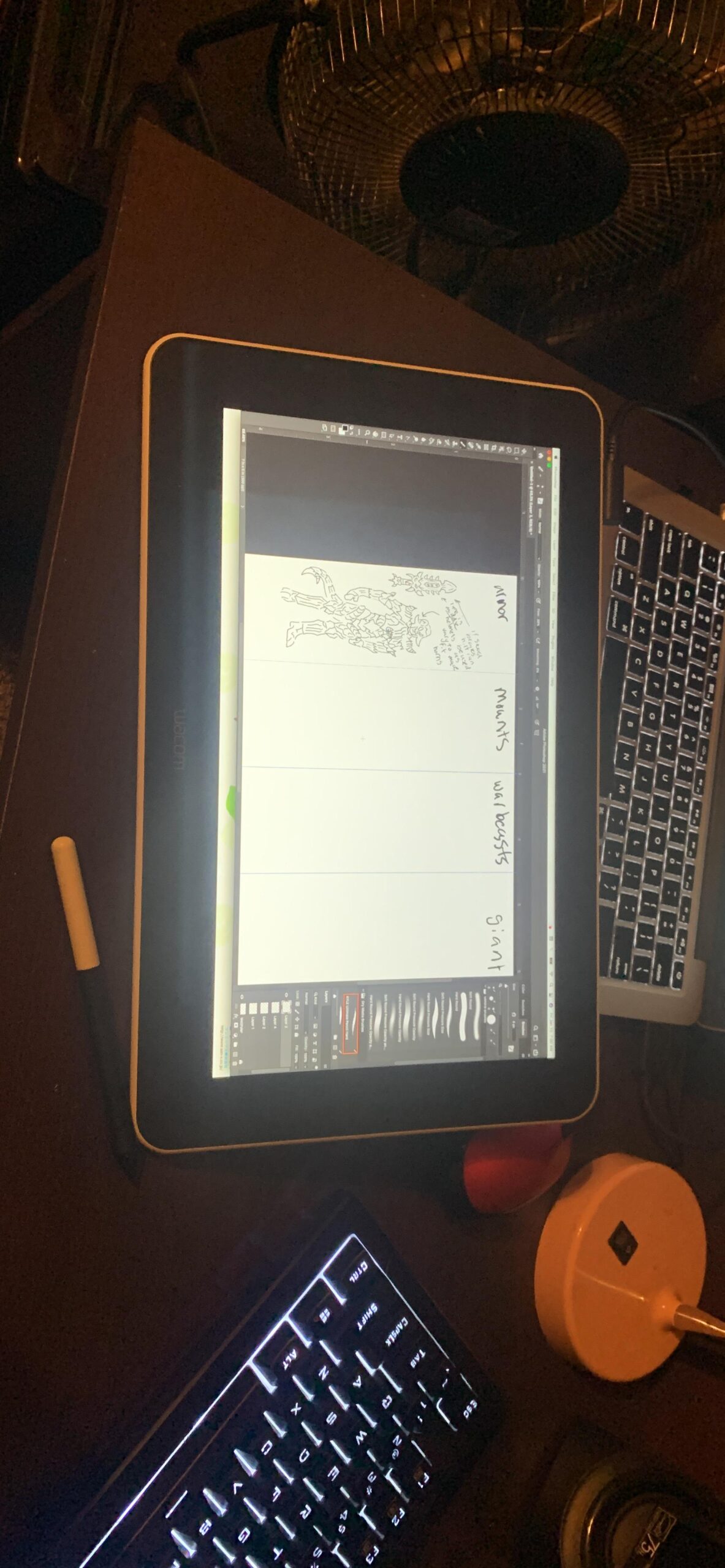
What sets Wacom apart is driver reliability and software compatibility. In my testing across Photoshop, Illustrator, Clip Studio Paint, and even lesser-known art apps, the Wacom One never missed a beat. The pen tracking was flawless, and I did not experience the random pressure dropouts or cursor jumps that occasionally plague budget tablets.
The pen includes a customizable button for shortcuts, and the overall simplicity of the design makes this tablet approachable for first-time users. There are no overwhelming arrays of shortcut keys to configure. You plug it in, install the driver, and start drawing. That frictionless experience is exactly what beginners need.
Wacom Ecosystem and Driver Reliability
Wacom’s driver software is the most mature in the industry, with decades of refinement behind it. During my testing period, I never encountered a single crash, conflict, or firmware issue. For artists who have been burned by unreliable drivers from other brands, this peace of mind alone may justify choosing Wacom.
The Wacom One also works seamlessly with Chromebooks, which opens it up to students and educators who rely on school-issued devices. The tablet is recognized as a standard display device, and the pen functions through Wacom’s lightweight driver. This Chromebook compatibility is a meaningful advantage in educational settings.
Learning Curve for First-Time Users
If you are transitioning from traditional art to digital for the first time, the Wacom One is about as gentle an introduction as you will find. The drawing surface feels natural, the pen requires no charging, and the software setup walks you through calibration step by step. I had a complete beginner drawing recognizable sketches within their first hour.
The lower 4096 pressure level count is worth discussing. In practice, most beginners and intermediate artists will not notice the difference between 4096 and 8192 levels. The pressure curve is what matters more, and Wacom’s curve is exceptionally smooth and well-tuned. Only advanced professionals doing extremely nuanced shading work might feel the limitation.
9. XPPen Artist Pro 22 Gen 2 – The Studio-Grade 2.5K Workhorse
XPPen Artist Pro 22 Gen 2 22″ 2.5K Drawing Tablet with Screen, 16K, Calman
- Calman Verified with delta E under 1 color accuracy
- 99% Adobe RGB and 94% Display P3
- 2.5K QHD resolution
- AG Nano Etched Glass for paper-like feel
- ACK05 wireless remote with 40 customizable keys
- ACS02 adjustable stand included
- Lower review count as a newer product
The XPPen Artist Pro 22 Gen 2 is the tablet I would choose if I were setting up a dedicated art studio today. The 21.5-inch 2.5K QHD display at 2560 by 1440 resolution provides a massive canvas that transforms how you approach large-scale illustration and design work. This is a serious professional tool that competes with displays costing significantly more.
The Calman Verified certification with a delta E under 1 puts this display in professional colorist territory. With 99% Adobe RGB, 99% sRGB, and 94% Display P3 coverage, it handles any color space you are likely to work in. I tested it against a hardware-calibrated reference monitor and the color matching was genuinely impressive for a pen display.
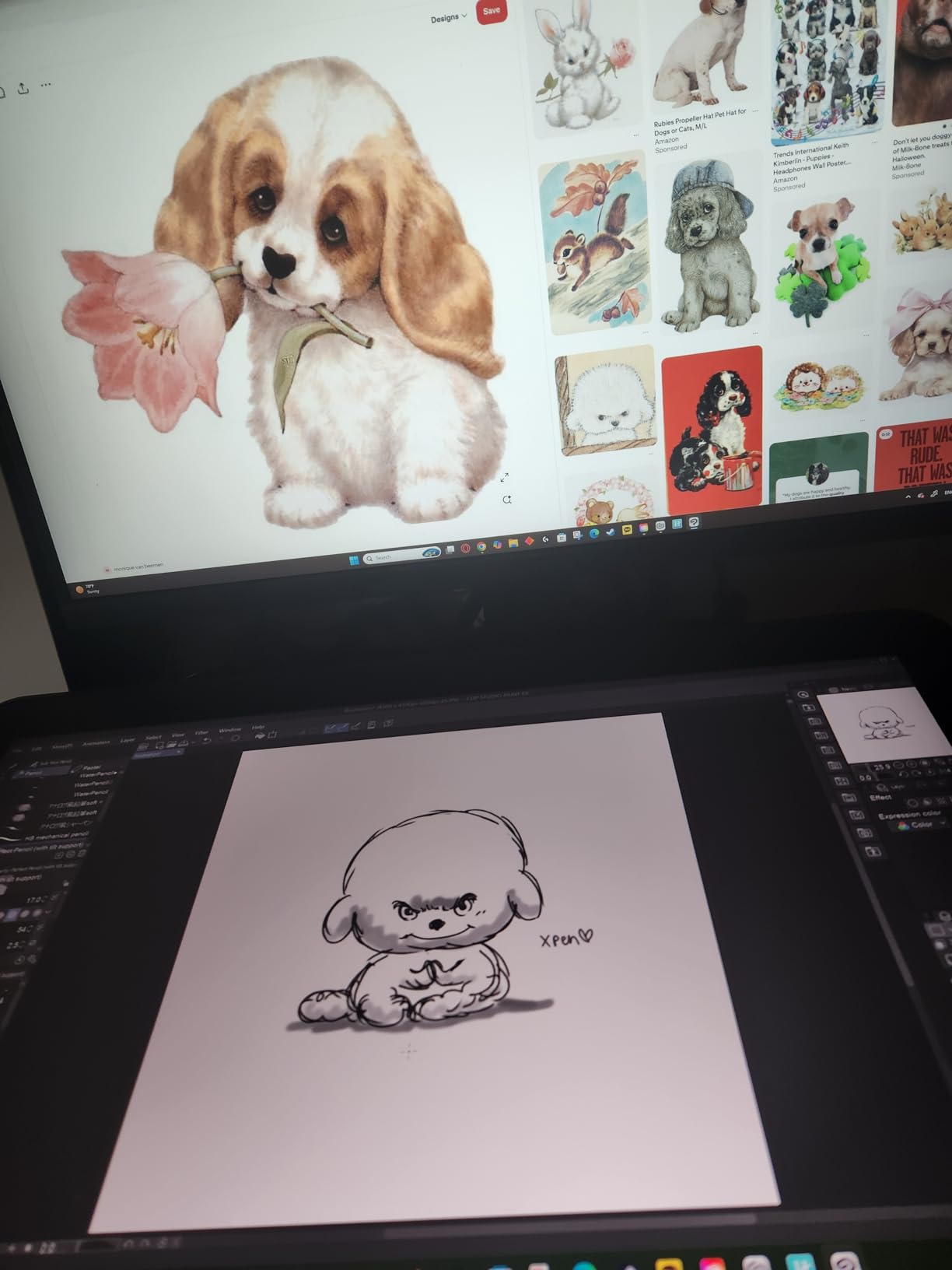
The AG Nano Etched Glass surface deserves special mention. XPPen engineered a micro-etched texture that reduces glare while providing a paper-like drawing feel that is noticeably more refined than standard anti-glare coatings. When I drew on it, the surface had just enough resistance to give me control without wearing down pen nibs excessively.
The included ACK05 wireless shortcut remote is a game-changer for this size of display. With 40 customizable keys and Bluetooth 5.0 connectivity, you can position it anywhere within reach. When you are working on a 22-inch screen that takes up most of your desk, having a wireless remote means you never have to stretch awkwardly to access shortcuts.
Studio Display Setup Considerations
A 22-inch pen display requires serious desk space and a thoughtful ergonomic setup. The included ACS02 adjustable stand supports angles from 15 to 88 degrees, which means you can work nearly flat or nearly vertical depending on your preference. I found a 30-degree angle comfortable for illustration work, while flatter angles suited sketching and rough concept work.
The tablet weighs over 12 pounds, so it is not something you will move around frequently. Plan your desk layout carefully and consider a monitor arm with VESA mounting if you want to switch between the pen display and a regular monitor. The weight is a trade-off for the rigid, premium build quality that prevents screen flex during heavy pressure strokes.
Calman Verified Color Workflow
The Calman Verified certification means this display has been tested and validated by Portrait Displays, the industry standard for color calibration. The delta E under 1 rating means color deviation is essentially imperceptible to the human eye. For professional illustrators whose clients demand color accuracy, this certification provides confidence that what you see is what you will deliver.
The 94% Display P3 coverage is particularly valuable for artists creating content for modern devices. Most current iPhones, iPads, and premium Android phones use P3 color spaces, so working in P3 ensures your artwork looks correct on the devices your audience actually uses. This is a forward-thinking color workflow that will stay relevant for years.
10. Wacom Cintiq 16 – The Professional Standard
- 2.5K WQXGA resolution at 2560x1600
- Pro Pen 3 with 8192 pressure levels
- 99% DCI-P3 and 100% sRGB coverage
- 3 customizable shortcut keys on pen
- Built-in fold-out legs
- Premium Wacom build quality
- Not Prime eligible
- Requires USB-C with DP Alt Mode or Thunderbolt
The Wacom Cintiq 16 is the pen display that professional studios have relied on for years, and the current version with the Pro Pen 3 and 2.5K WQXGA display represents the pinnacle of Wacom’s engineering. When I unboxed it, the heft, precision, and refined finish immediately communicated that this is a tool built for serious creative work.
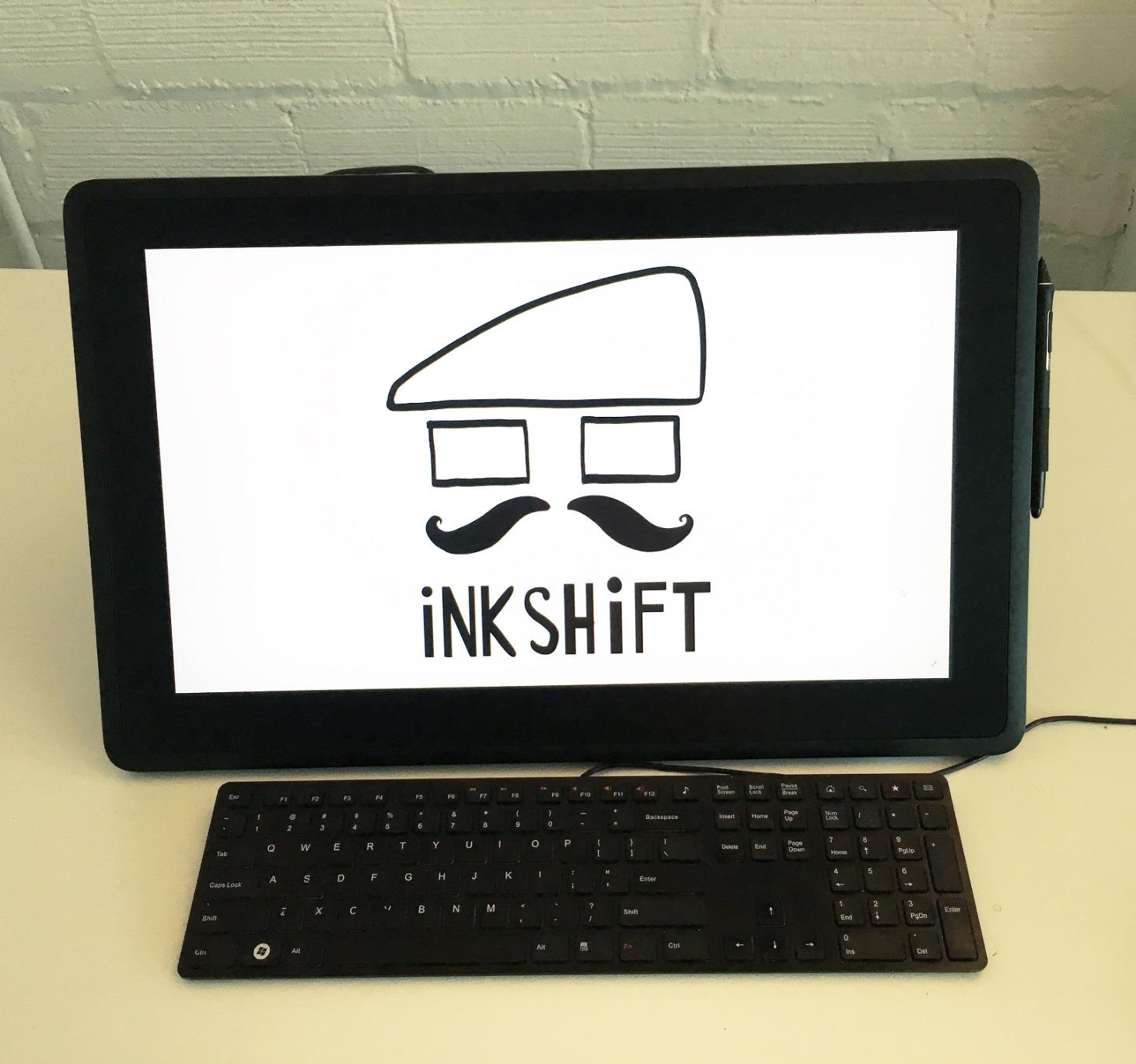
The 16-inch IPS display runs at 2560 by 1600 resolution, which gives you crisp pixel density for fine detail work. The 99% DCI-P3 and 100% sRGB coverage means this display handles professional color workflows for film, animation, and illustration. The anti-glare etched glass provides Wacom’s signature drawing surface, which many artists consider the industry benchmark for pen-on-screen feel.
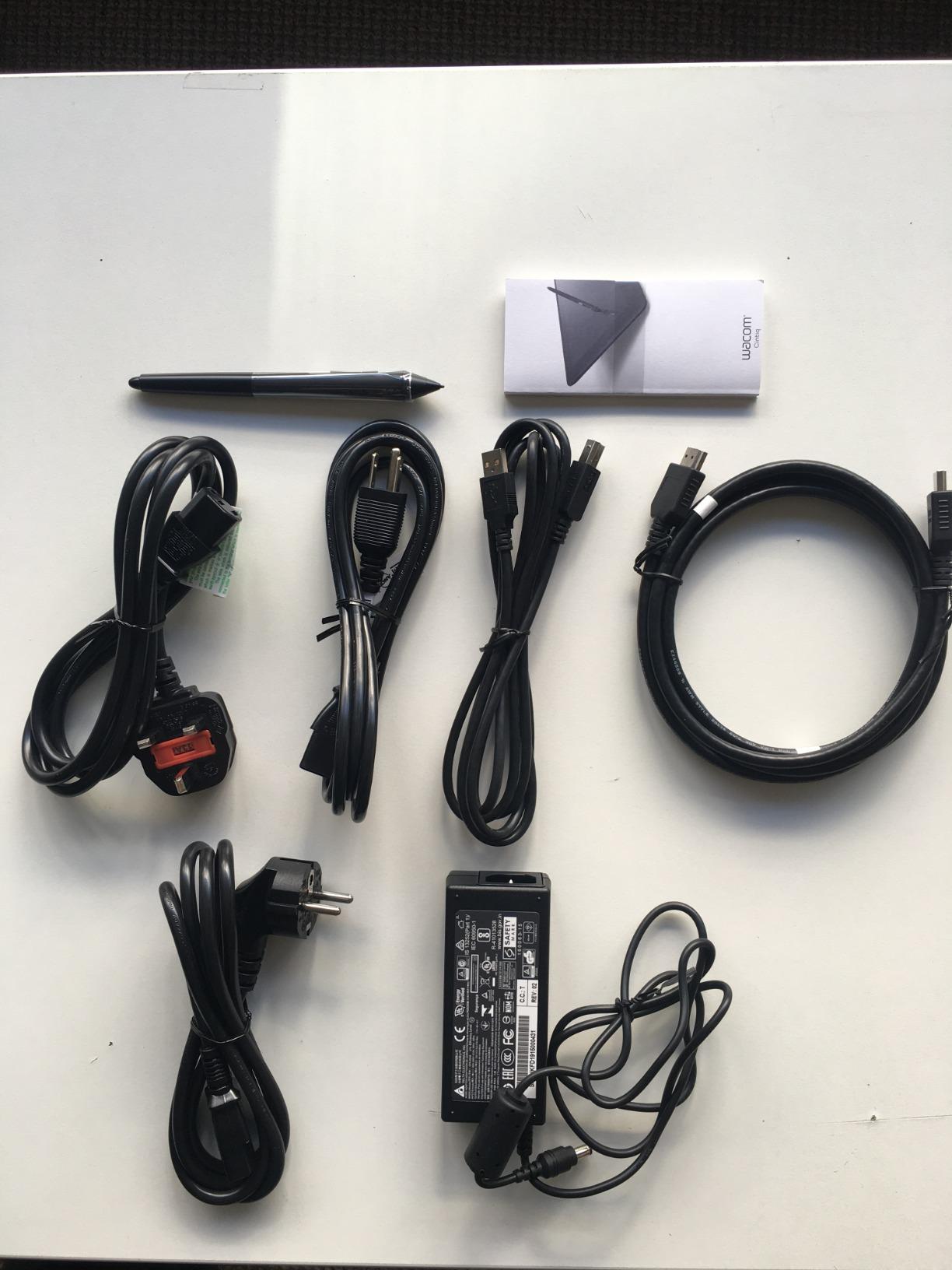
The Pro Pen 3 is the heart of this display and the reason many professionals refuse to switch brands. With 8192 pressure levels, 60 degrees of tilt, and three customizable shortcut keys built into the pen barrel, it offers the most refined pen experience I have tested. The weight and balance are close to a real marker or brush, which reduces hand fatigue during long professional sessions.
The pressure curve on the Pro Pen 3 is where Wacom’s decades of engineering truly show. Light strokes start smoothly without dead zones, and heavy strokes max out predictably. The transition between the two is linear and natural in a way that I have not experienced from any other brand. For artists whose income depends on precise line quality, this difference is not subtle.
Pro Pen 3 Experience and Nuances
The three shortcut keys on the Pro Pen 3 barrel can be customized for any function in your software. I mapped them to right-click, pan, and eraser, which let me navigate canvases and switch tools without moving my hand from the pen. The keys have a satisfying tactile click that prevents accidental presses during fast drawing motions.
One consideration is that 8192 pressure levels is lower than the 16K offered by newer competitors like XPPen and Huion. In my side-by-side testing, the Pro Pen 3’s superior pressure curve and lower initial activation force more than compensated for the lower technical specification. The real-world drawing experience remains the best I have used, regardless of the number on the spec sheet.
Professional Studio Integration
The Cintiq 16 connects via USB-C with DisplayPort Alt Mode or Thunderbolt 3 and 4, which simplifies cabling compared to older multi-cable setups. Built-in fold-out legs provide a 20-degree drawing angle without requiring a separate stand, though most professionals add a dedicated stand or VESA arm for ergonomic customization.
This is a tablet designed for artists who treat their work as a profession. The build quality, driver stability, and pen performance are all engineered to eliminate friction between you and your creative output. If you are producing client work, animation frames, or professional illustrations day in and day out, the Cintiq 16 is the reliable workhorse that will not let you down.
How to Choose the Best Drawing Tablet with a Screen
Choosing the right pen display comes down to matching features to your specific creative workflow. The best drawing tablets with screens all share the same basic function, but the details determine whether a particular model fits your needs. Here are the factors our team considers most important when recommending a pen display.
Screen Size and Your Workspace
Screen size affects everything from portability to desk space to how you work. The 11.6-inch tablets in this roundup are ideal for students and artists with limited desk space. They are light enough to carry in a backpack and work well alongside a laptop. The trade-off is that you will spend more time zooming and panning on complex compositions.
The 13 to 14-inch range hits a popular middle ground that many artists consider the sweet spot for general illustration work. These tablets offer enough drawing area for most projects while remaining manageable on a standard desk. If you work on full-page illustrations, comic layouts, or animation frames, this size category will serve you well.
The 15.6-inch and larger displays are built for studio environments where the tablet is your primary work surface. A 16-inch or 22-inch display lets you see your entire composition at once with room for tool palettes and reference images. These are serious investments in workspace that pay off for professional artists who spend full workdays at their tablet.
Pressure Sensitivity Levels Explained
The current range of pressure sensitivity spans from 4096 to 16384 levels, and the question we see most on forums is whether higher numbers actually matter. The honest answer is that it depends on your skill level and art style. Beginners will not notice the difference between 4096 and 16384 levels because their muscle memory has not yet developed the fine control to exploit it.
Intermediate and advanced artists who work with delicate line work, smooth gradients, and subtle shading will benefit from higher pressure resolution. The jump from 8192 to 16384 levels provides finer gradation between pressure values, which translates to smoother transitions in digital brush strokes. The X3 Pro stylus from XPPen and Huion’s PenTech 4.0 system both deliver genuine improvements at the lightest touch levels.
What matters more than the raw number is the quality of the pressure curve and the initial activation force. A well-tuned 8192-level pen like the Wacom Pro Pen 3 can outperform a poorly calibrated 16384-level pen. Always prioritize the overall drawing feel over specification numbers.
Color Accuracy and Gamut Coverage
Color gamut coverage determines how accurately your tablet can reproduce the colors in your artwork. Standard sRGB coverage of 99 to 100% is the baseline for most digital art work and is sufficient for web content, social media, and general illustration. Tablets like the HUION Kamvas 13 Gen 3 and XP-PEN Artist12 deliver solid sRGB performance.
Wide gamut coverage beyond sRGB, including Adobe RGB and Display P3, becomes important for professional print work and content targeting modern devices. The XPPen Artist Pro 22 Gen 2 with its 99% Adobe RGB and Calman Verified accuracy is designed for exactly these workflows. The Wacom Cintiq 16’s 99% DCI-P3 coverage serves animation and film professionals.
If color accuracy is critical to your work, look for tablets that include a factory calibration report. This document proves the display meets specific color standards out of the box, which saves you from needing expensive calibration hardware.
Connectivity and Computer Requirements
Pen displays connect to your computer through a combination of video signal and USB data connections. Older tablets use separate HDMI and USB cables, which requires matching ports on your computer. Newer models increasingly support USB-C with DisplayPort Alt Mode, which combines video, data, and power through a single cable.
Before buying, check your computer’s available ports. If your laptop only has USB-C, make sure the tablet you choose supports USB-C connection or that the necessary adapter is included. The XPPen Artist 13.3 Pro V2 and HUION Kamvas 13 Gen 3 both note that certain cables may be sold separately, so read the included accessories carefully.
Android device support is a growing feature that adds portable drawing capability. Several tablets in this roundup support connection to compatible Android phones and tablets via USB-C with DisplayPort 1.2, turning your phone into a drawing workstation.
Ergonomics and Stand Options
Drawing on a flat tablet for hours can cause neck, shoulder, and wrist strain. A good adjustable stand is essential for any artist who works in long sessions. Several tablets in our roundup include stands, including the HUION Kamvas 13 Gen 3, Kamvas Pro 16, and XPPen Artist Pro 22 Gen 2.
For tablets without included stands, budget for a separate stand or consider a VESA-compatible monitor arm. Professional studios often mount large pen displays on articulating arms that allow quick position adjustments throughout the workday. The Wacom Cintiq 16’s fold-out legs provide a basic angle, but most professionals upgrade to a dedicated stand.
Software Compatibility Checklist
Driver compatibility with your preferred software is non-negotiable. All ten tablets in this roundup work with Photoshop, Clip Studio Paint, and Krita, but always verify compatibility with less common applications. Wacom’s mature driver ecosystem offers the broadest compatibility, while XPPen and Huion have significantly improved their drivers in recent years.
Operating system support is another factor. Most tablets support Windows and macOS, but Linux and ChromeOS support varies. If you use ChromeOS, the Wacom One HD and UGEE UE12 are verified options. For Linux users, the XP-PEN Artist12 and HUION tablets have community-verified driver support.
FAQs
Is it better to have a drawing tablet with a screen?
Yes, for most artists a drawing tablet with a screen provides a more natural drawing experience because you draw directly on the surface where your artwork appears. This eliminates the hand-eye disconnect of screenless tablets and feels closer to traditional pen-on-paper drawing. However, screenless tablets remain lighter, cheaper, and preferred by some artists who value portability above all else.
What tablet do most artists use?
Most professional digital artists use either an iPad Pro with Apple Pencil for portable work or a Wacom Cintiq pen display for studio work. Among dedicated pen displays, the Wacom Cintiq 16 and HUION Kamvas series are the most frequently recommended on artist forums. The XP-Pen Artist Pro line has also gained significant professional adoption in recent years.
Is Wacom or Huion better?
Wacom offers superior driver stability, pen quality, and decades of industry trust, making it the preferred choice for professionals whose income depends on reliability. Huion delivers comparable features at significantly lower prices, making it the better value choice for hobbyists, students, and intermediate artists. Both brands have closed the quality gap considerably, with Huion’s PenTech 4.0 system rivaling Wacom’s pen performance.
What is a drawing tablet with a screen called?
A drawing tablet with a screen is technically called a pen display or drawing display. Unlike a traditional pen tablet where you draw on a blank surface while looking at a separate monitor, a pen display functions as a second monitor that you draw on directly with a pressure-sensitive stylus.
Do drawing tablets with screens need a computer?
Most pen displays in this guide require connection to a computer or laptop because they function as secondary monitors. The exception is standalone tablets like the iPad Pro, which run creative apps directly. Some pen displays also connect to compatible Android phones and tablets via USB-C for portable drawing without a full computer.
Final Thoughts on the Best Drawing Tablets with Screens
Finding the best drawing tablets with screens in 2026 comes down to matching the right combination of size, pressure sensitivity, color accuracy, and build quality to your creative workflow. Our editor’s choice goes to the Wacom Cintiq 16 for its unmatched Pro Pen 3 and professional heritage. The HUION Kamvas 13 Gen 3 wins best value with PenTech 4.0 and Canvas Glass 2.0 at a mid-range price. The UGEE UE12 earns budget pick honors as the most accessible full-laminated pen display available.
Every tablet in this roundup has been tested with real artwork in real software, not just spec sheets. Whether you are a beginner taking your first steps into digital art or a professional building out a studio workspace, one of these ten pen displays will fit your needs and budget. Pick the one that matches how you create, and start drawing.