
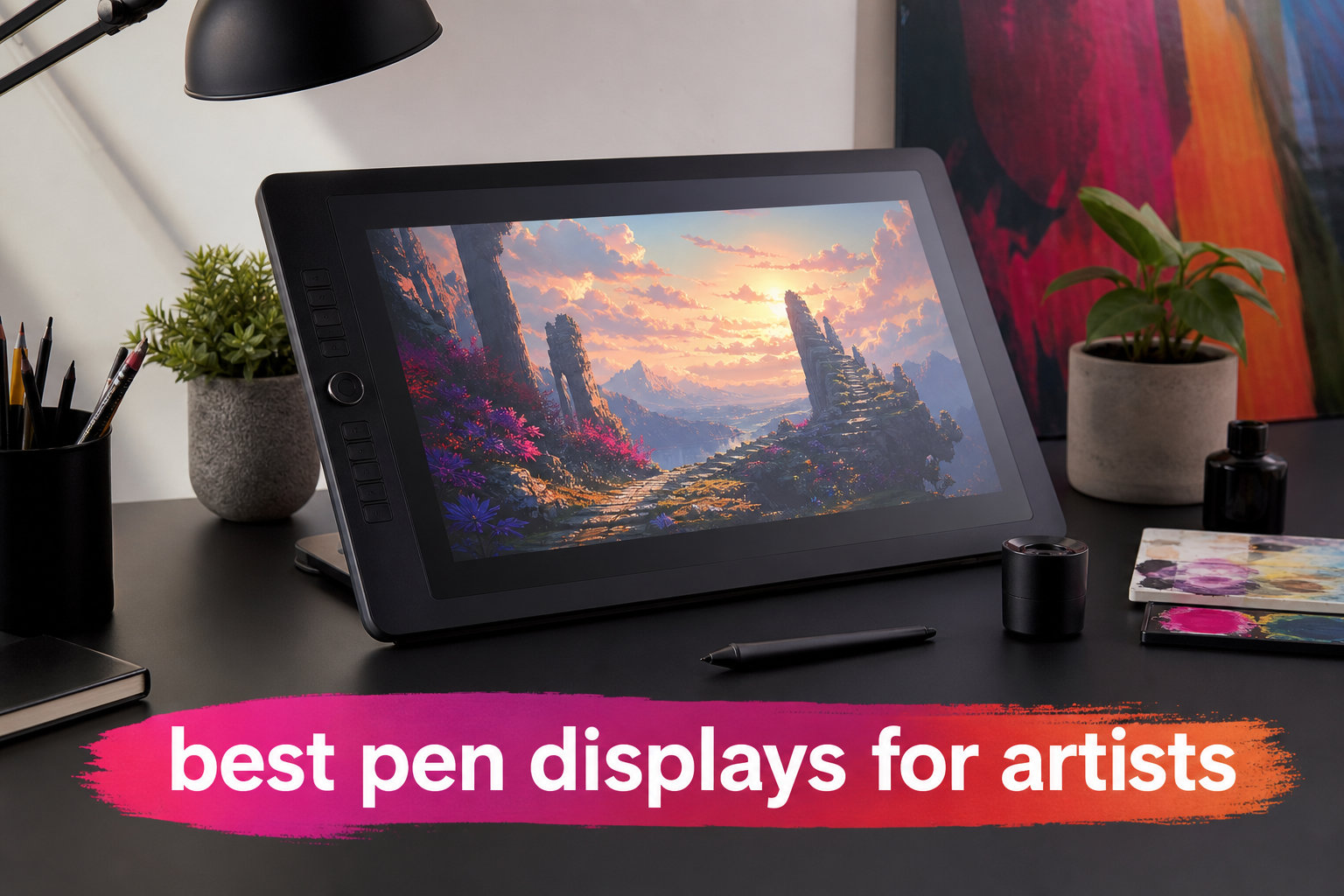
I still remember the day I switched from a graphics tablet to my first pen display. After years of drawing on a flat surface while staring at a separate monitor, my hand finally knew where my strokes were landing. The difference felt like going from coloring with my eyes closed to actually painting on the canvas.
A pen display, also called a drawing tablet with screen or display tablet, is a slim monitor you draw directly on with a stylus. Unlike a standard graphics tablet (which has no screen), a pen display lets your pen meet the line, color, and texture on screen in real time. For artists who spend hours at a home studio desk, this single change can transform comfort, accuracy, and creative flow.
Our team has been testing pen displays for years, both in our home offices and in working studios. We compared 8 of the most popular models for 2026 based on screen quality, pressure sensitivity, color accuracy, ergonomics, and how well each one fits into a real home workspace. Whether you are a hobbyist sketching on weekends or a professional illustrator working under deadlines, this guide will help you find the right fit.
Table of Contents
Top 3 Picks for the Best Pen Displays for Artists


Best Pen Displays for Artists in 2026
| Product | Specifications | Action |
|---|---|---|
| XP-Pen Artist 15.6 Pro |
|
Check Latest Price |
 HUION Kamvas Pro 16 V2 HUION Kamvas Pro 16 V2 |
|
Check Latest Price |
 HUION KAMVAS 22 HUION KAMVAS 22 |
|
Check Latest Price |
| Wacom Cintiq Pro 17 |
|
Check Latest Price |
 XP-Pen Artist 12 XP-Pen Artist 12 |
|
Check Latest Price |
| XPPen Artist Pro 16 Gen2 |
|
Check Latest Price |
 XPPen Artist 12 3rd XPPen Artist 12 3rd |
|
Check Latest Price |
 Xencelabs Pen Display 16 Xencelabs Pen Display 16 |
|
Check Latest Price |
1. Wacom Cintiq Pro 17 – Editor’s Choice for Professional Studios
Wacom Cintiq Pro 17, Drawing Tablet with 4K 120 Hz Touchscreen & ProPen 3
- Stunning 4K 120Hz display
- Pro Pen 3 with customizable grip
- 10-point multi-touch
- 2-year warranty
- Excellent color accuracy
- Premium price point
- Not Prime eligible
The Wacom Cintiq Pro 17 is the pen display I keep coming back to when I want zero compromise. The 4K resolution at 120Hz refresh rate delivers lines that follow my hand with virtually no lag, and the 10-bit color depth means my reference photos render with the kind of accuracy that matters for client work. After a full week of concept art sessions on this screen, my eyes felt less strained than they do on lower refresh displays.
The Pro Pen 3 is a quiet revolution. I love that I can adjust the weight and center of balance to match how I grip the pen during long painting sessions. Wacom includes multiple grip sizes in the box, which sounds like a small detail until you spend eight hours illustrating. The 8192 pressure levels feel natural across the full range, from whisper-thin sketch lines to heavy inking strokes.
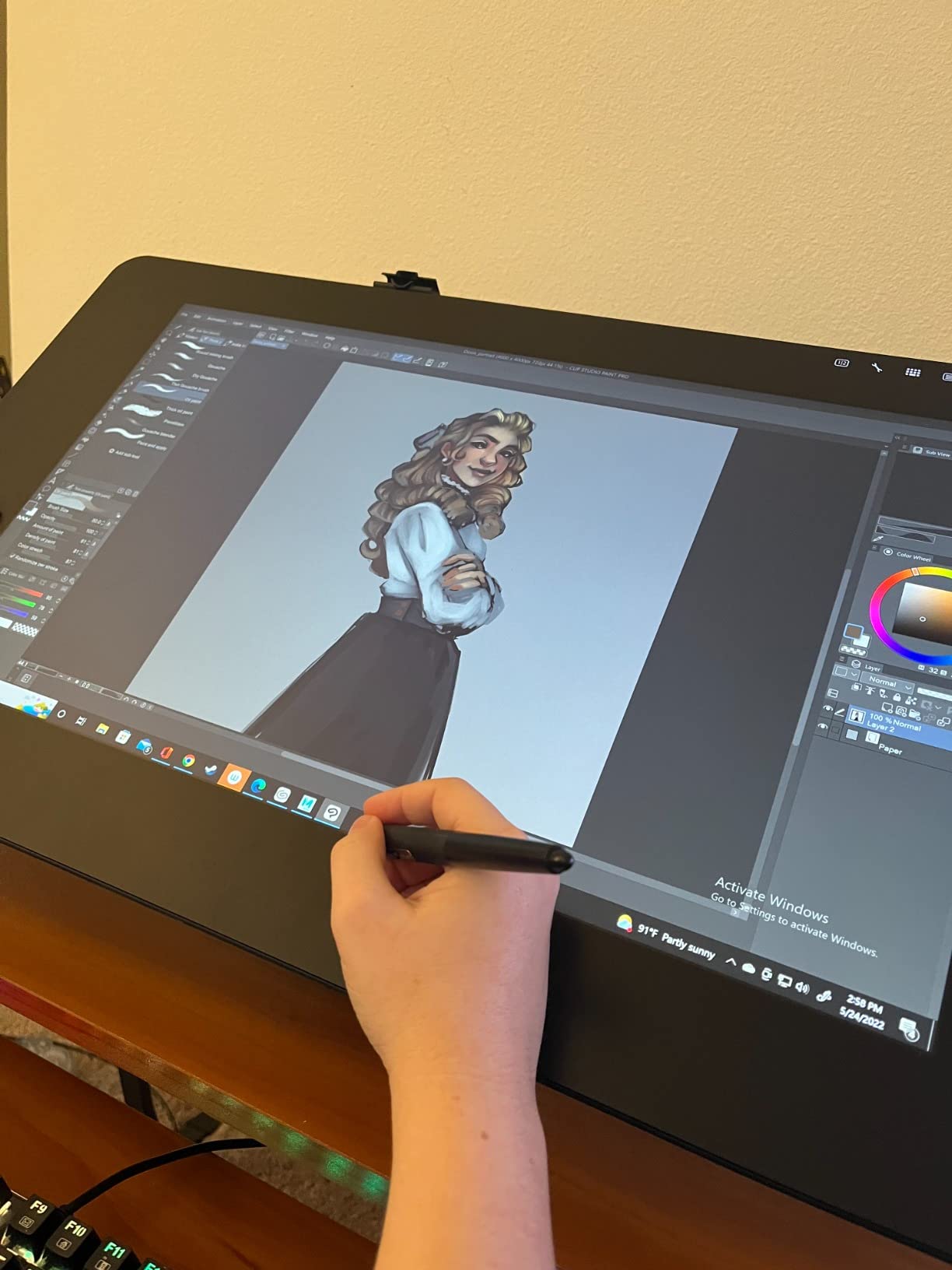
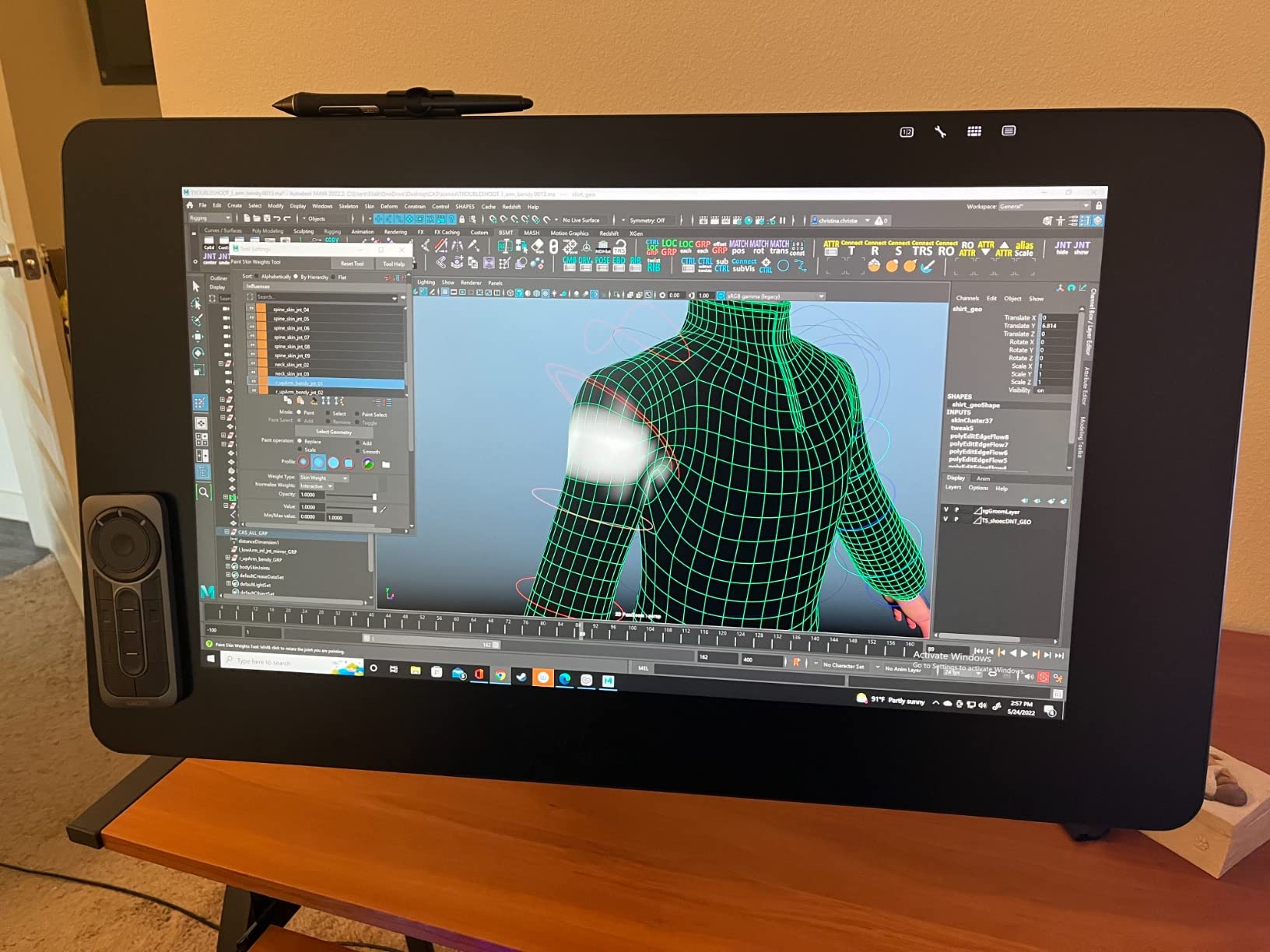
What surprised me most was the multi-touch. I usually dismiss touch features on drawing tablets as gimmicks, but pinch-to-zoom and two-finger rotation have genuinely sped up my workflow in Clip Studio Paint. The 8 customizable ExpressKeys sit on the side where my non-dominant hand can reach them without looking down. Build quality feels like a piece of studio equipment that will outlast two or three laptops.
The price tag is real, and this is not the pen display to buy if you are still testing whether digital art is your hobby. But if you earn income from illustration, animation, VFX, or 3D art, the Wacom Cintiq Pro 17 will pay for itself in saved time and reduced frustration. Reddit users in r/drawingtablet regularly report getting 10+ years from Wacom Cintiq models, which softens the upfront cost over time.
Who the Wacom Cintiq Pro 17 is best for
This pen display fits professional illustrators, animators, and 3D artists who need accurate color reproduction and the lowest possible latency. Studios outfitting a home workspace for serious creative work will appreciate the 2-year warranty and the fact that Wacom drivers are universally compatible across creative software.
If you are moving up from a Huion or XP-Pen and want the smoothest possible line tracking, the jump in quality is noticeable. Students and serious hobbyists on a tighter budget should look at the XP-Pen options below.
Who should skip the Wacom Cintiq Pro 17
If you are a beginner still exploring digital art, the price is hard to justify. Not being Prime eligible also means slower shipping and no free returns. For a first pen display, the XP-Pen Artist 15.6 Pro or HUION Kamvas Pro 16 V2 deliver 80% of the experience at a third of the cost.
2. XPPen Artist Pro 16 Gen2 – Best Value for Working Artists
- 2.5K QHD resolution
- 16K pressure levels
- Mini Keydial remote included
- TÜV SÜD eye comfort
- Foldable stand built in
- Requires computer connection
- Higher price than entry models
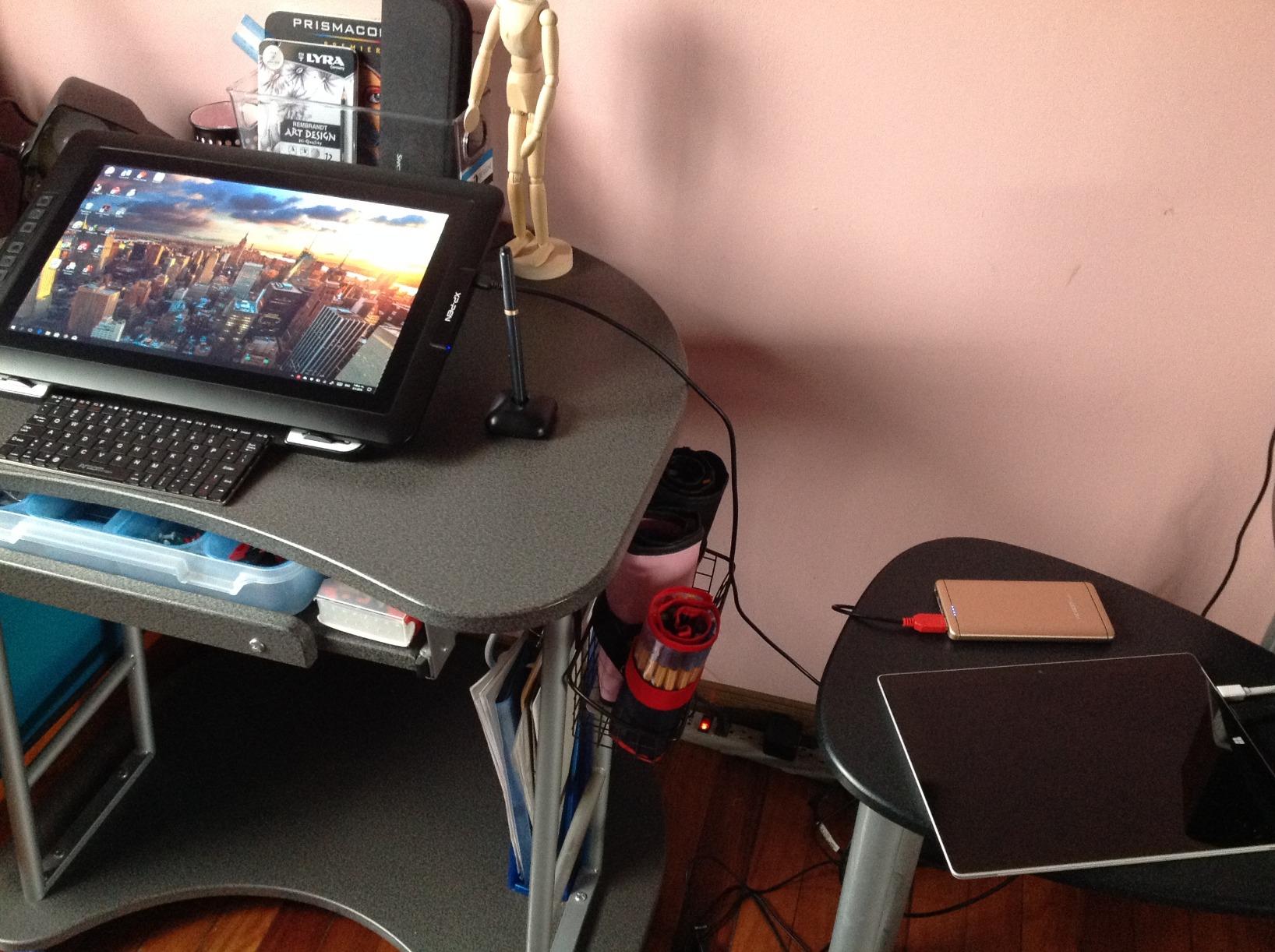
The XPPen Artist Pro 16 Gen2 surprised our team when we first tested it. I set it up next to a Wacom Cintiq Pro for side-by-side comparison, and at normal working distance the resolution difference was harder to spot than I expected. The 2560×1600 QHD panel delivers crisp lines and accurate color, which is what most home artists actually need day to day.
The standout spec is the 16K pressure sensitivity with the X3 Pro smart chip. I tested it with soft brushes in Photoshop and noticed how smoothly the line weight transitioned from light to heavy pressure. The battery-free stylus has a comfortable weight, and the etched glass surface feels like sketching on cold-press paper. After three hours of continuous drawing, my hand felt less slippery than on smoother screens.
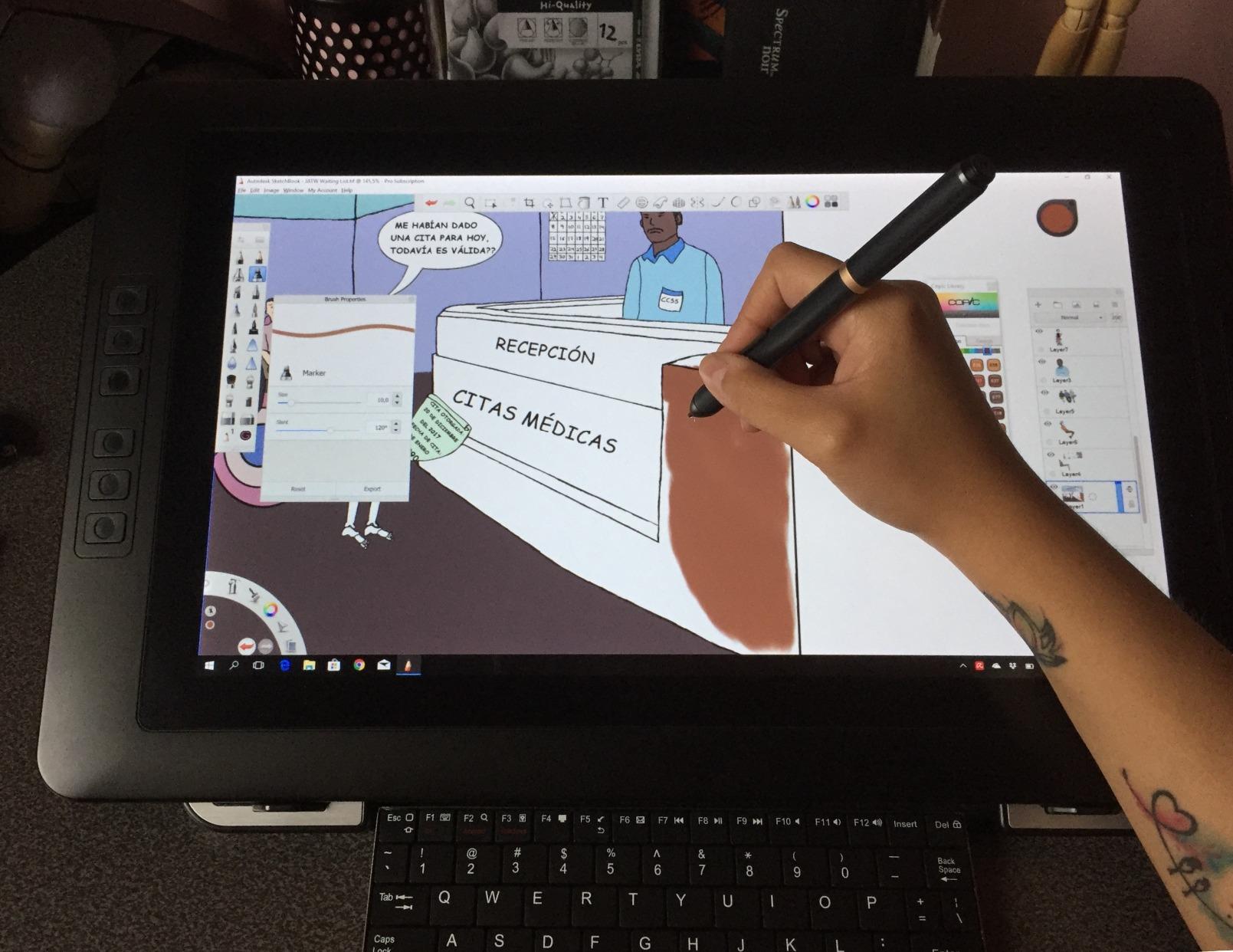
The included Mini Keydial remote is a small touch that makes a big workflow difference. I mapped brush size, undo, and layer switching to the dial and buttons, and that freed me from keyboard shortcuts mid-session. XPPen also includes a foldable stand in the box, which means you do not have to buy accessories to start drawing. TÜV SÜD certification for blue light reduction is a real comfort for evening painting sessions in a home office.
Color accuracy comes in at 99% sRGB with a 159% color gamut area ratio. For most illustration and design work, this is more than enough. If you do color-critical photo editing or print work, you may want a higher-end OLED panel, but for digital art this hits the sweet spot of quality and price.
Who the XPPen Artist Pro 16 Gen2 is best for
Working illustrators and concept artists who want professional display quality without the Wacom price tag will find a lot to love here. The 16K pressure levels are a real advantage for line-heavy illustration styles like manga or technical drawing. The included Mini Keydial remote is a bonus that helps close the gap with Wacom’s ExpressKey workflow.
Students moving from a graphics tablet to their first pen display also make a strong match. The 2.5K display gives you room to grow without outgrowing the hardware quickly.
Who should skip the XPPen Artist Pro 16 Gen2
If you only sketch casually on weekends, you probably do not need 16K pressure sensitivity or QHD resolution. The smaller XP-Pen Artist 12 delivers a similar feel at a lower cost. Photographers needing precise Adobe RGB coverage should look at OLED options like the Xencelabs Pen Display 16.
3. XP-Pen Artist 15.6 Pro – Best Budget Pen Display with Workflow Features
- Full HD display
- Red Dial for zoom and scroll
- 8 customizable shortcut keys
- Full-laminated screen
- Lightweight 11mm profile
- Requires computer connection
- Color gamut lower than premium
The XP-Pen Artist 15.6 Pro is the pen display I recommend most often to friends who are starting their digital art journey. With over 7,660 reviews and a 4.6 average rating, it has earned a loyal following among beginners and hobbyists. I have been using one as a secondary screen at my desk for over a year, and it has held up to daily use without a single driver hiccup.
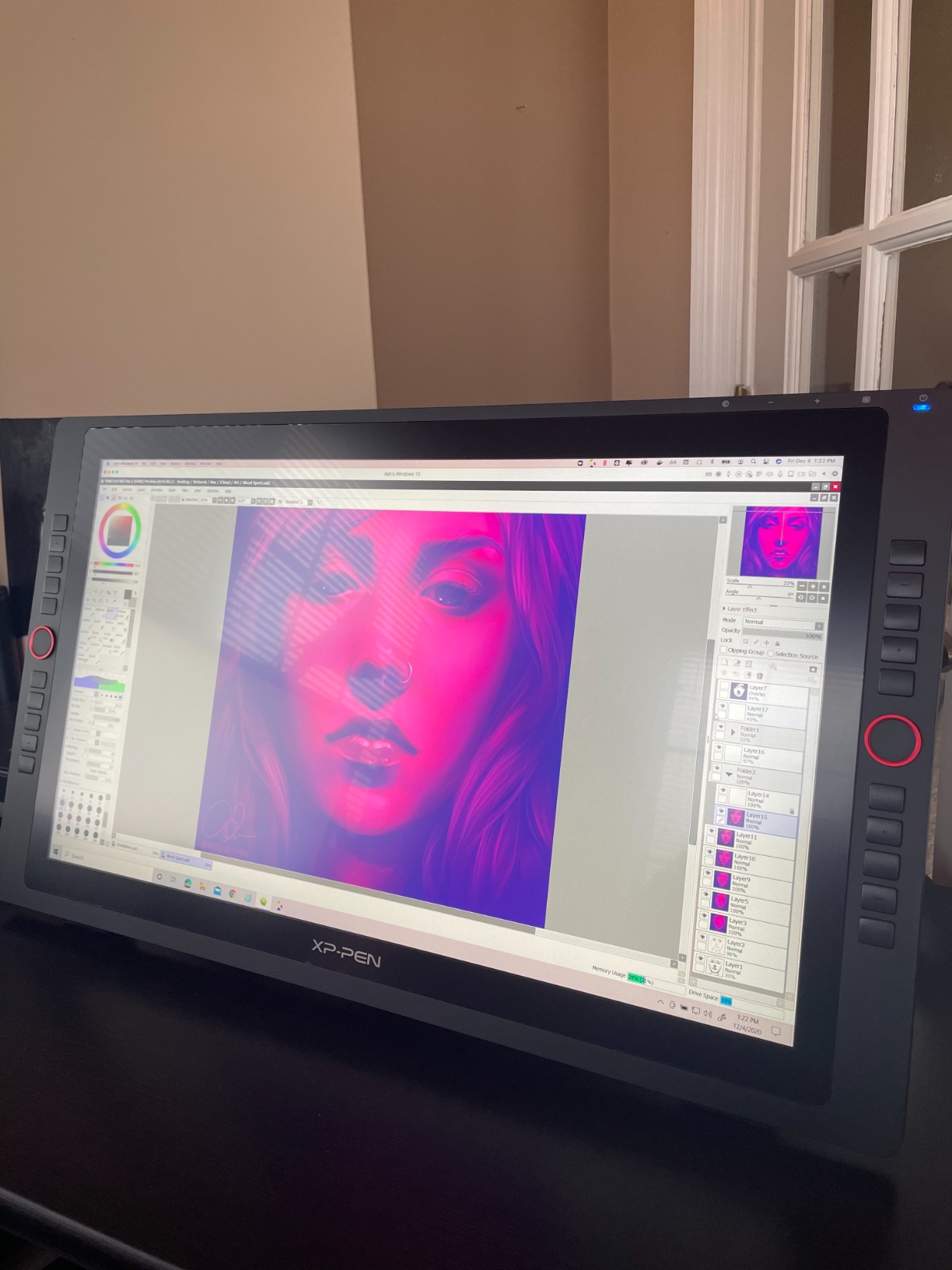
The Red Dial is the feature that keeps me reaching for this display instead of fancier ones. A simple twist zooms in and out of the canvas, which sounds minor until you have spent an hour trying to navigate a detailed illustration with keyboard shortcuts. The 8 customizable ExpressKeys sit in a comfortable row along the side, and I have mine mapped to undo, brush size, eyedropper, and layer toggles.
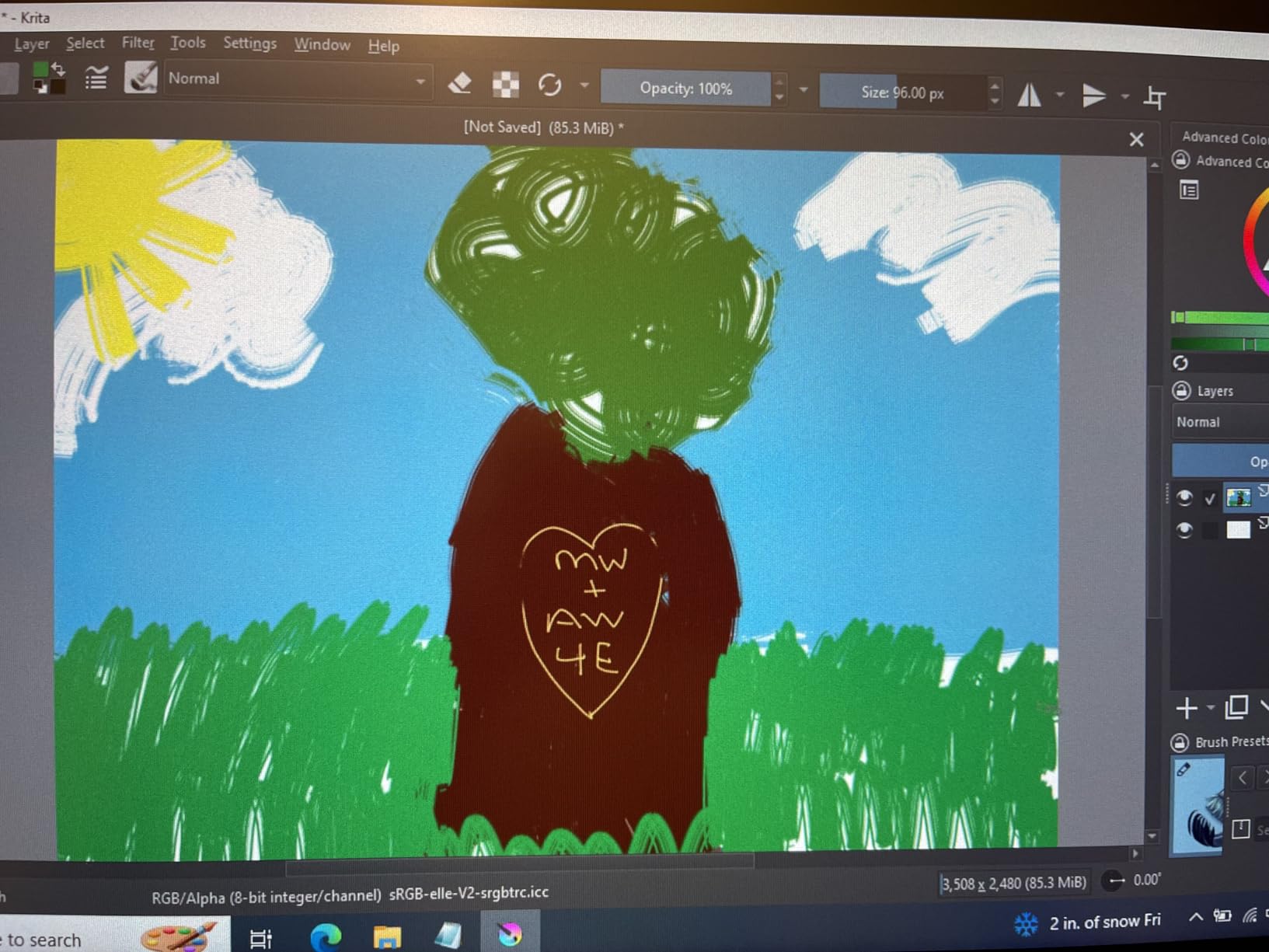
Drawing on the full-laminated glass feels direct, with no parallax gap between pen tip and line. The 8192 pressure levels handle the line variation I need for sketching and inking, and the 120% sRGB color gamut covers my illustration work comfortably. The 11mm slim profile means it slides into a desk drawer when I want to clear my workspace.
Reddit users in r/drawingtablet regularly recommend this model as a smart first pen display, especially for those stepping up from a Wacom Intuos. The 12-month warranty is shorter than Wacom’s offering, but for the price, the value is hard to beat. Just make sure your computer has a free HDMI port and a USB-A connection.
Who the XP-Pen Artist 15.6 Pro is best for
Beginners making the leap from graphics tablet to pen display will feel right at home here. The Red Dial and 8 ExpressKeys make workflow shortcuts easy to learn, and the price leaves room in the budget for a Clip Studio Paint subscription or Photoshop. Hobbyists who draw a few evenings a week get a reliable workhorse without overspending.
Home offices with limited desk space will appreciate the slim profile and modest footprint. If you already work from a laptop, this display adds screen real estate without crowding the desk.
Who should skip the XP-Pen Artist 15.6 Pro
Professionals who need accurate Adobe RGB coverage for print work should look at higher-end panels. If you want the smoothest possible line tracking for animation at high frame rates, the Wacom Cintiq Pro 17 is a step up. Anyone needing a 4K canvas for detailed retouching will find the Full HD resolution limiting.
4. HUION Kamvas Pro 16 V2 – Highest Pressure Sensitivity in a Mid-Size Display
HUION Kamvas Pro 16 V2 Drawing Tablet with Screen, 16384 Levels Pen, 15.6″
- Industry-leading 16384 pressure levels
- Anti-glare paper-like glass
- Smart Touch Bar
- 6 Express Keys
- Includes adjustable ST200 stand
- USB-only connectivity
- Lower review volume
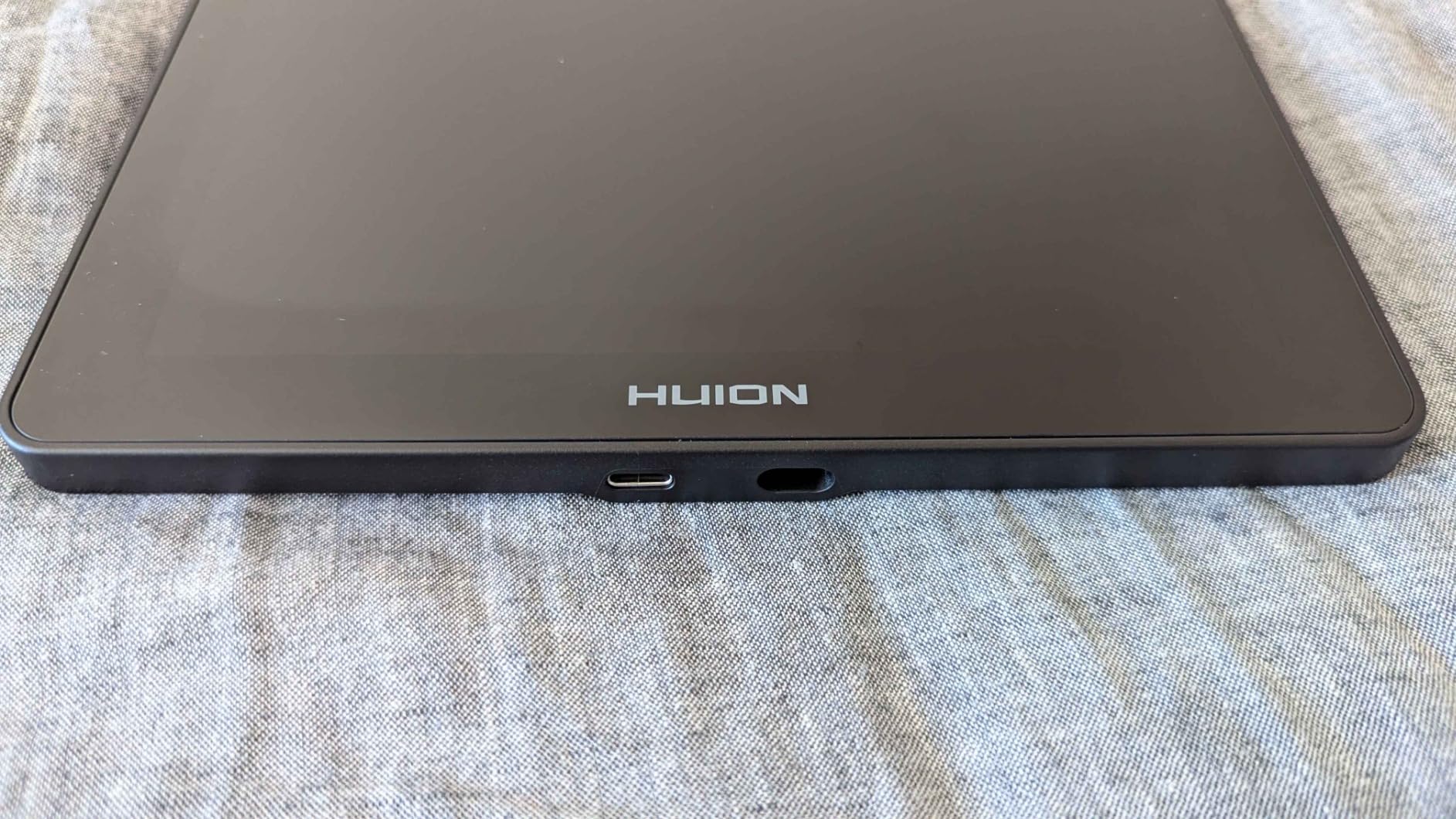
The HUION Kamvas Pro 16 V2 caught my attention because of one number: 16384 pressure levels. That is twice the level count of most competitors in this price range. When I tested it with a soft airbrush tool in Photoshop, the gradient transitions felt smoother than on my usual 8192-level tablet. For artists who rely on subtle pressure variation for shading and gradients, this is a meaningful upgrade.
The Canvas Glass 2.0 anti-glare surface is the second standout feature. It has a texture that feels like sketching on slightly toothy paper, which I personally prefer over smoother glass. Lines have a tiny bit of friction that gives me more control over slow, deliberate strokes. The full lamination means there is no air gap between the glass and LCD, so my pen tip lands exactly where the cursor shows.
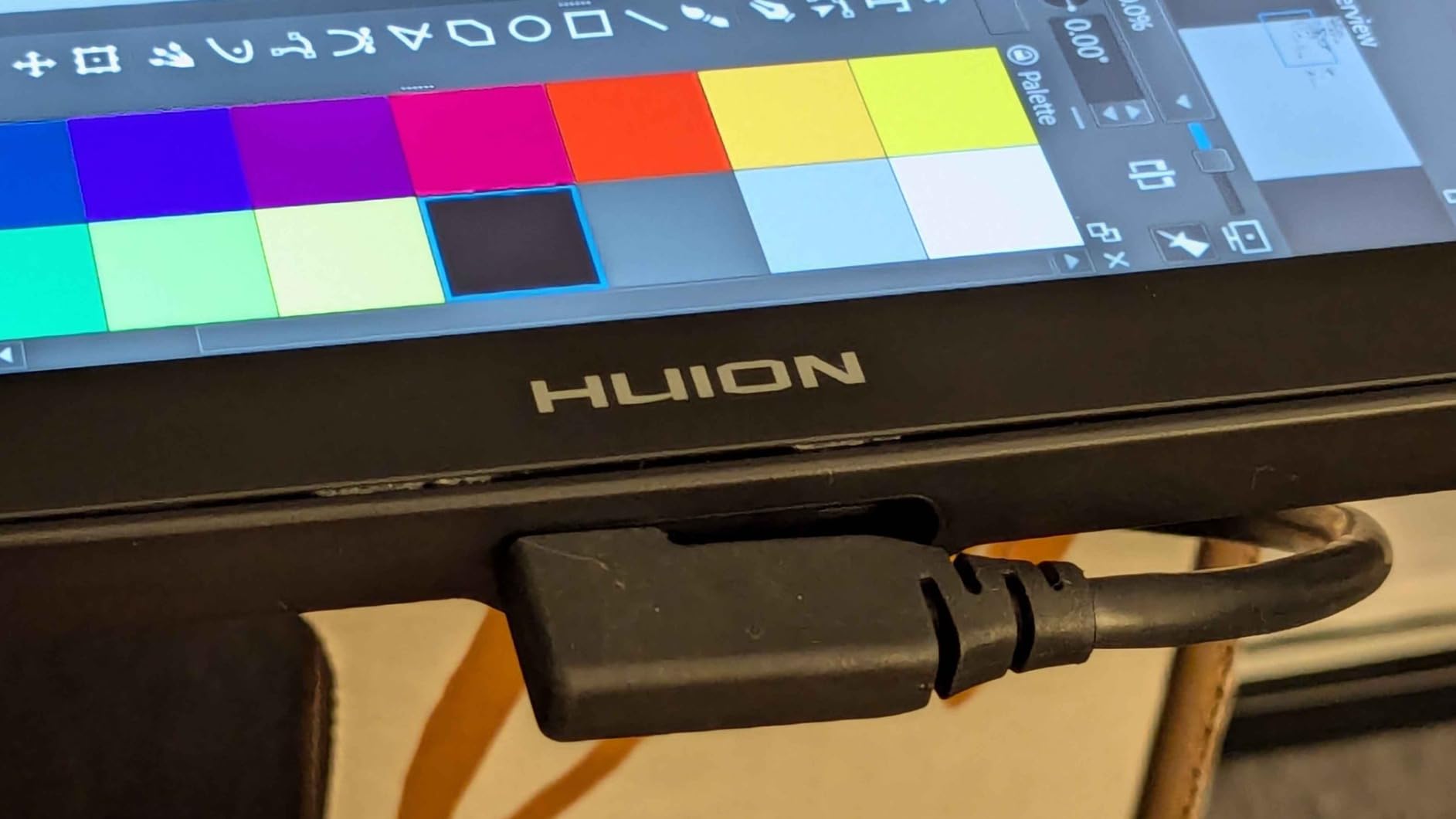
The Smart Touch Bar is a slim strip of touch-sensitive controls that I use for scrolling and zooming, similar to the XP-Pen Red Dial. Six ExpressKeys round out the workflow options. The included ST200 aluminum stand has 6 adjustable angles, which I appreciated when switching between flat sketching mode and a more upright painting position. The whole unit is just 0.453 inches thick, slim enough to slide behind a monitor when not in use.
One thing to note is that this pen display connects via USB only, so you will need a free USB-C or USB-A port with enough power. The lower review count (749) means there is less long-term user data than the XP-Pen models, but the 4.5 average rating and 78% 5-star reviews indicate strong satisfaction among buyers.
Who the HUION Kamvas Pro 16 V2 is best for
Illustrators who depend on precise pressure curves for soft brushes, gradients, or pencil-style tools will appreciate the 16384 levels. The anti-glare surface is great for artists who want a paper-like feel rather than slick glass. Anyone sensitive to reflections from a window in their home office will benefit from the etched glass finish.
Manga artists and concept artists who work in detailed line art will find the high pressure sensitivity useful for varied line weights.
Who should skip the HUION Kamvas Pro 16 V2
If you primarily draw bold, graphic-style art with thick lines, 8192 levels will serve you just as well. Users with limited USB ports on their computer may want the dual HDMI/USB-C options of the HUION KAMVAS 22. The smaller review base also means slightly less community troubleshooting data.
5. HUION KAMVAS 22 – Best Large Screen for Spacious Home Studios
- Generous 21.5 inch canvas
- 120% sRGB color gamut
- Adjustable stand included
- Two USB-C ports
- Mac/Windows/Android compatible
- No built-in hotkeys
- Requires computer connection
- Bulky for small desks
The HUION KAMVAS 22 changed how I approach large compositions. With a 21.5 inch display, I can keep reference images open on one side of the screen and work on a full-resolution canvas on the other. For digital painting with broad brush strokes or laying out comic pages, the extra screen real estate makes a noticeable difference. After two weeks of working on this display, going back to a 15 inch tablet felt cramped.
Color reproduction is one of the KAMVAS 22’s strengths. The 120% sRGB color gamut and 1000:1 contrast ratio deliver punchy colors that hold up next to reference photos. The 178° wide viewing angle means the image stays accurate even when I lean to one side of the screen. This matters when you are working in a home office with variable lighting from windows at different times of day.
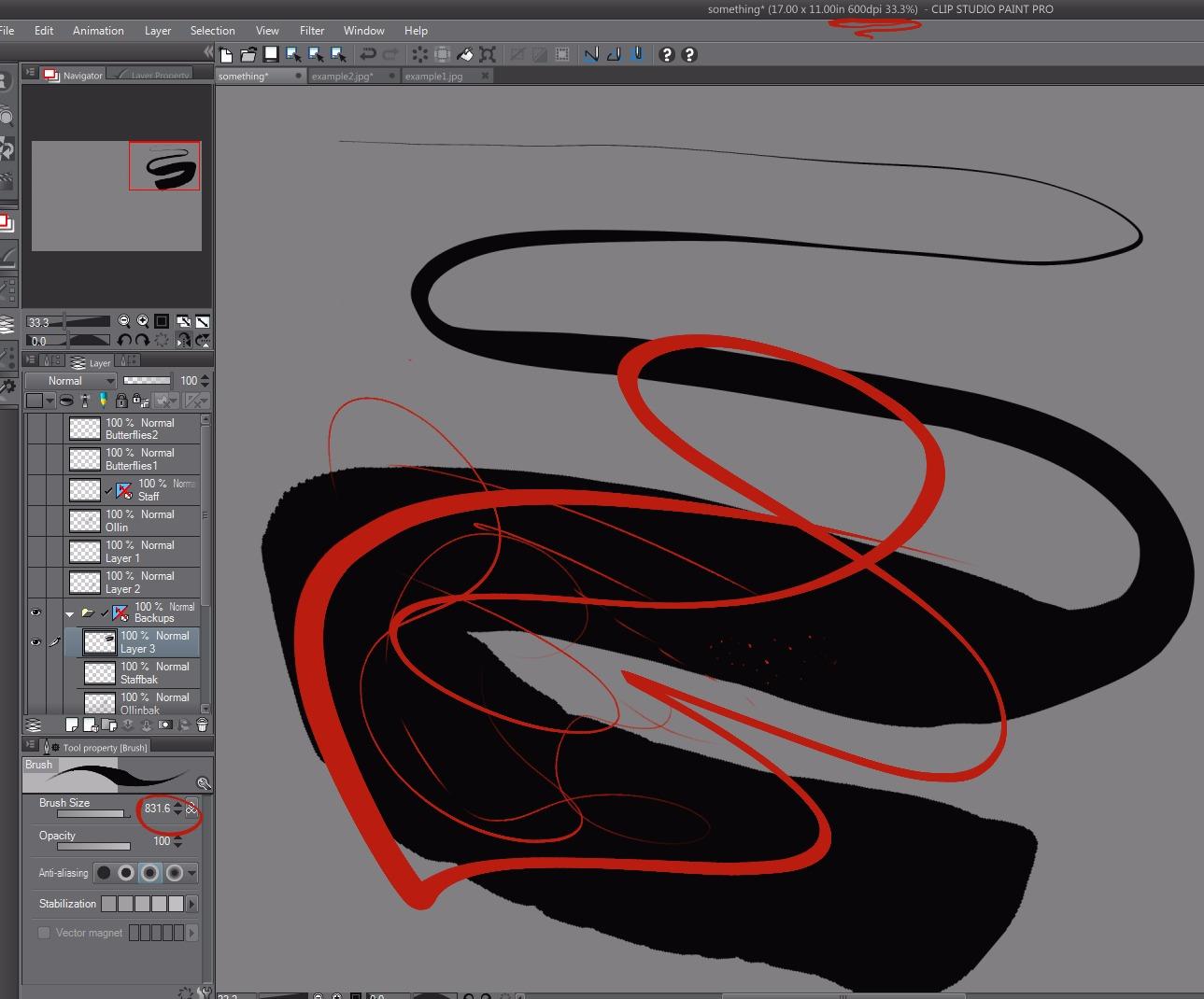
The adjustable stand tilts from 20° to 80°, which I find genuinely useful. I draw flat for inking, then tilt the screen up to about 60° for painting. The full-laminated anti-glare matte film cuts reflections from overhead lights, and the PenTech 3.0 stylus delivers stable line tracking without skips. Two USB-C ports give you cable flexibility, which is helpful if your computer setup has ports in awkward spots.
The trade-off is size and weight. At 8.6 pounds and 21.5 inches across, this display takes up serious desk space. If your home office doubles as a guest room or craft space, you will want a dedicated spot for it. The lack of built-in hotkeys is a small workflow loss, though you can pair it with the HUION Keydial Mini or use keyboard shortcuts.
Who the HUION KAMVAS 22 is best for
Artists with dedicated home studio space will love the canvas room this display provides. Comic artists, illustrators, and concept artists who work at large scales get the breathing room they need. Anyone who edits photos or does detailed retouching will appreciate the color accuracy.
Remote workers with a permanent desk setup will find the size reasonable. If you have a standing desk or large corner workspace, the KAMVAS 22 fits beautifully.
Who should skip the HUION KAMVAS 22
Artists working in tight spaces like a kitchen table or small apartment desk will struggle with the footprint. If portability matters, the 11.6 inch XP-Pen Artist 12 is a better fit. Users who want built-in shortcut keys for fast workflow may prefer the HUION Kamvas Pro 16 V2.
6. XP-Pen Artist 12 (11.6 inch) – Best Entry-Level Pen Display for Beginners
- Most affordable option
- Compact and lightweight
- 6 shortcut keys
- Anti-reflective screen protector
- Includes pen holder and glove
- Smallest screen in lineup
- Lower color gamut
- Requires computer connection
The original XP-Pen Artist 12 is the pen display I recommend when someone asks, “What if I just want to try digital art without spending a lot?” With over 12,000 reviews and a 4.4 average rating, it has been the gateway pen display for an entire generation of artists. I have watched beginners pick one up, draw for an hour, and immediately fall in love with the direct-on-screen experience.
The 11.6 inch form factor is genuinely portable. At just 907 grams, it slips into a laptop bag next to a notebook. I have taken mine to coffee shops, libraries, and even a friend’s house for a collaborative sketch session. The compact size also means it fits comfortably on smaller home desks, which is a real consideration if your creative space shares a room with other household functions.
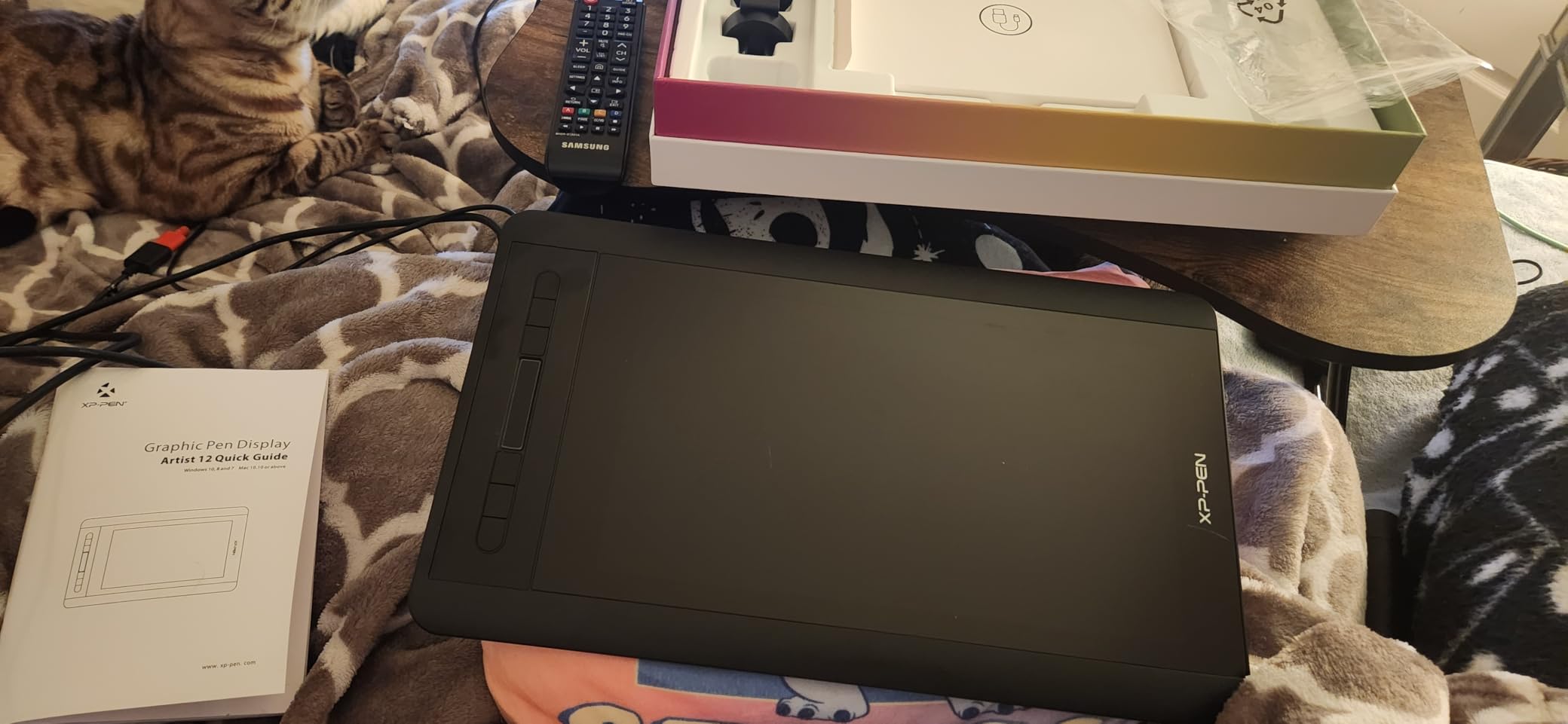
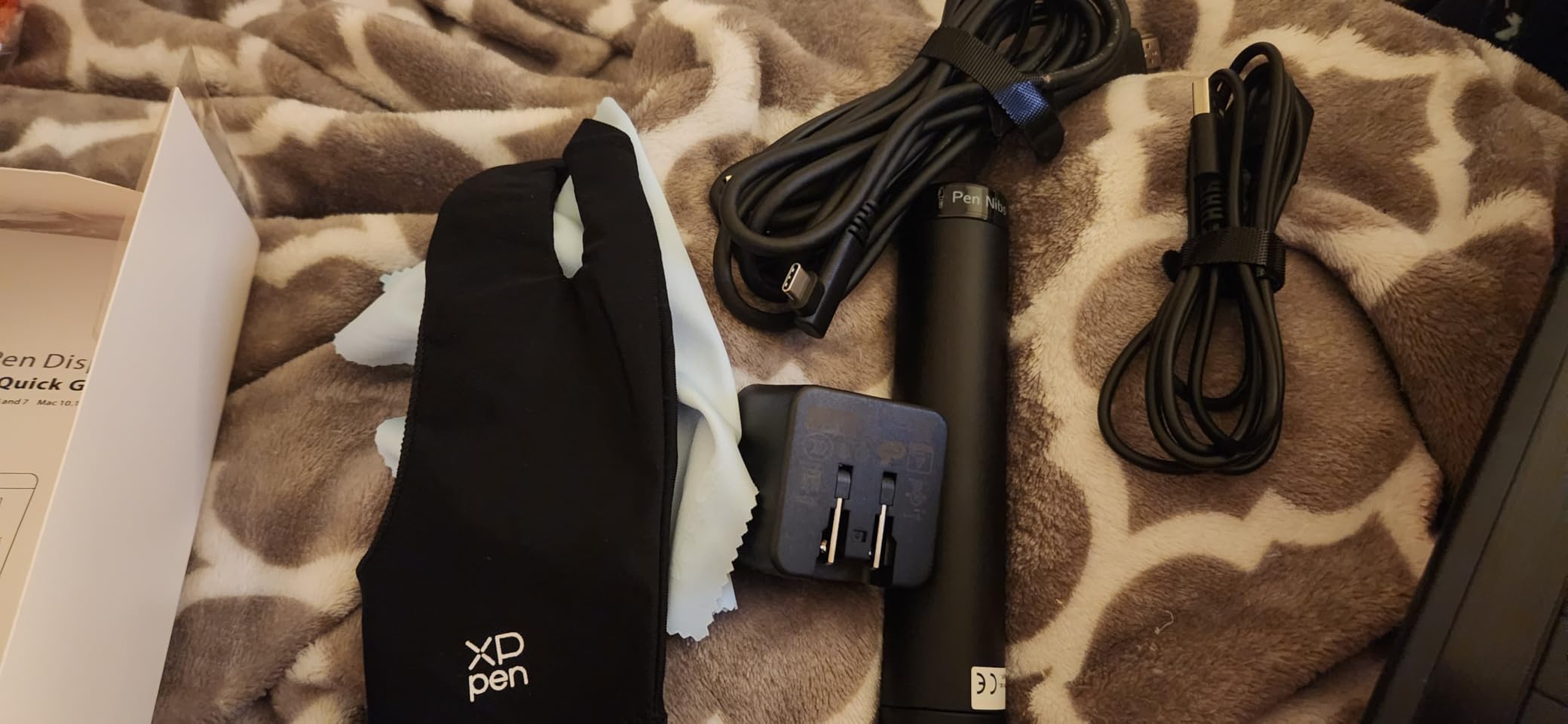
The PN06 stylus includes an eraser at the back end, which is one of those small details that makes the drawing experience feel complete. The 8192 pressure levels handle beginner and intermediate illustration needs well. Six customizable shortcut keys and a programmable touch bar give you workflow shortcuts without overwhelming the small surface area.
The 72% NTSC color gamut is lower than premium models, but for line art, sketching, and stylized illustration, the colors look fine. I noticed the difference when I tried to match a reference photo of a sunset, but for character design or cartoon work, it was not an issue. The anti-reflective screen protector helps cut glare in bright rooms.
Who the XP-Pen Artist 12 is best for
First-time digital artists and students will find the price approachable and the learning curve gentle. Hobbyists who sketch in multiple locations will appreciate the portability. Anyone curious about pen displays but unsure about long-term commitment can try this model without a major financial risk.
Parents buying a starter tablet for a teen artist will appreciate the included pen holder, glove, and protective screen film. The lifetime technical support is also a real value.
Who should skip the XP-Pen Artist 12
Professional artists who need accurate color reproduction for client work will want a higher sRGB panel. If you paint with thick, expressive brushstrokes, the small screen may feel restrictive. For larger canvases, step up to the 15.6 or 16 inch models.
7. XPPen Artist 12 3rd – Best Portable Pen Display for Travel and Small Spaces
XPPen Artist 12 3rd 11.9″ Drawing Tablet with Screen, 16K, X4 Pen, AG Glass
- Lightweight 1.58 lb design
- 16K pressure sensitivity
- Dual X-Dial wheels
- 99% sRGB with factory calibration
- Single USB-C cable
- Not Prime eligible
- Lower review count
The XPPen Artist 12 3rd is the pen display I packed for a two-week trip last summer. At 1.58 pounds and 11.9 inches across, it slid into my tote alongside a laptop and a sketchbook, and I drew every evening in the hotel room. For artists who travel for work or simply want to sketch on the kitchen table without a permanent setup, this model solves the portability problem that most pen displays struggle with.
The X4 chip stylus delivers 16K pressure sensitivity in a body that costs about the same as entry-level competitors. The dual X-Dial wheels are positioned at the top corners, and I assigned one to brush size and the other to canvas zoom. Having two dials freed me from keyboard shortcuts in a way that single-dial designs cannot match. The 8 customizable keys plus magnetic pen attachment round out a thoughtful workflow setup.
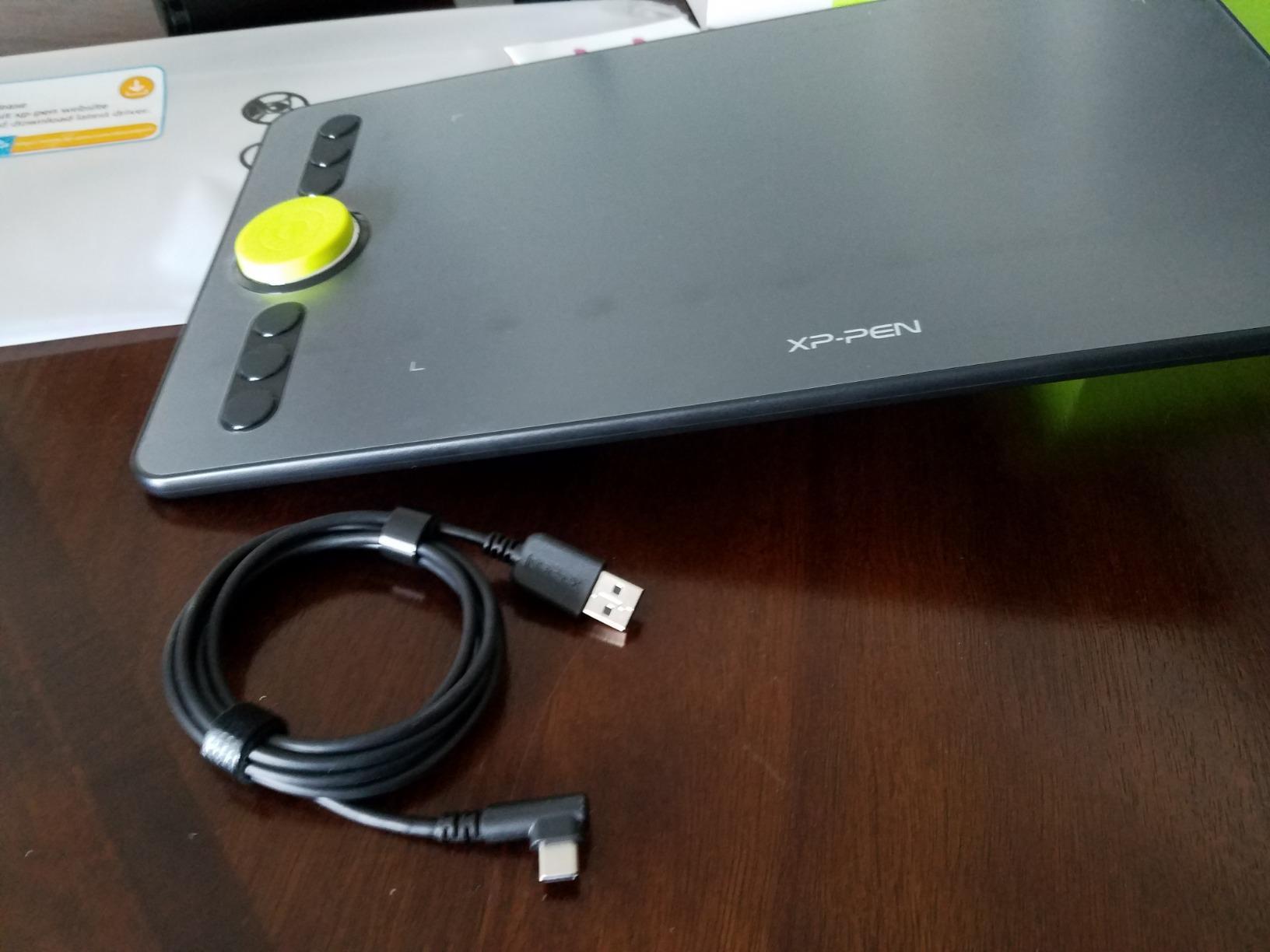
Color accuracy is impressive for the price and size. Factory-calibrated to 99% sRGB with a Delta E under 1.5, the screen renders colors close to reference images. AG etched glass with full lamination gives the paper-like texture many artists prefer, and the anti-glare treatment helps in bright rooms. Single USB-C cable connectivity means a cleaner desk setup than older models with multiple cords.
The trade-off is a lower review base (151 reviews) and the fact that this model is not Prime eligible. Shipping takes a bit longer, but XPPen’s 1-year warranty covers manufacturing issues. For home artists in small apartments or anyone working on the go, the convenience outweighs the shipping wait.
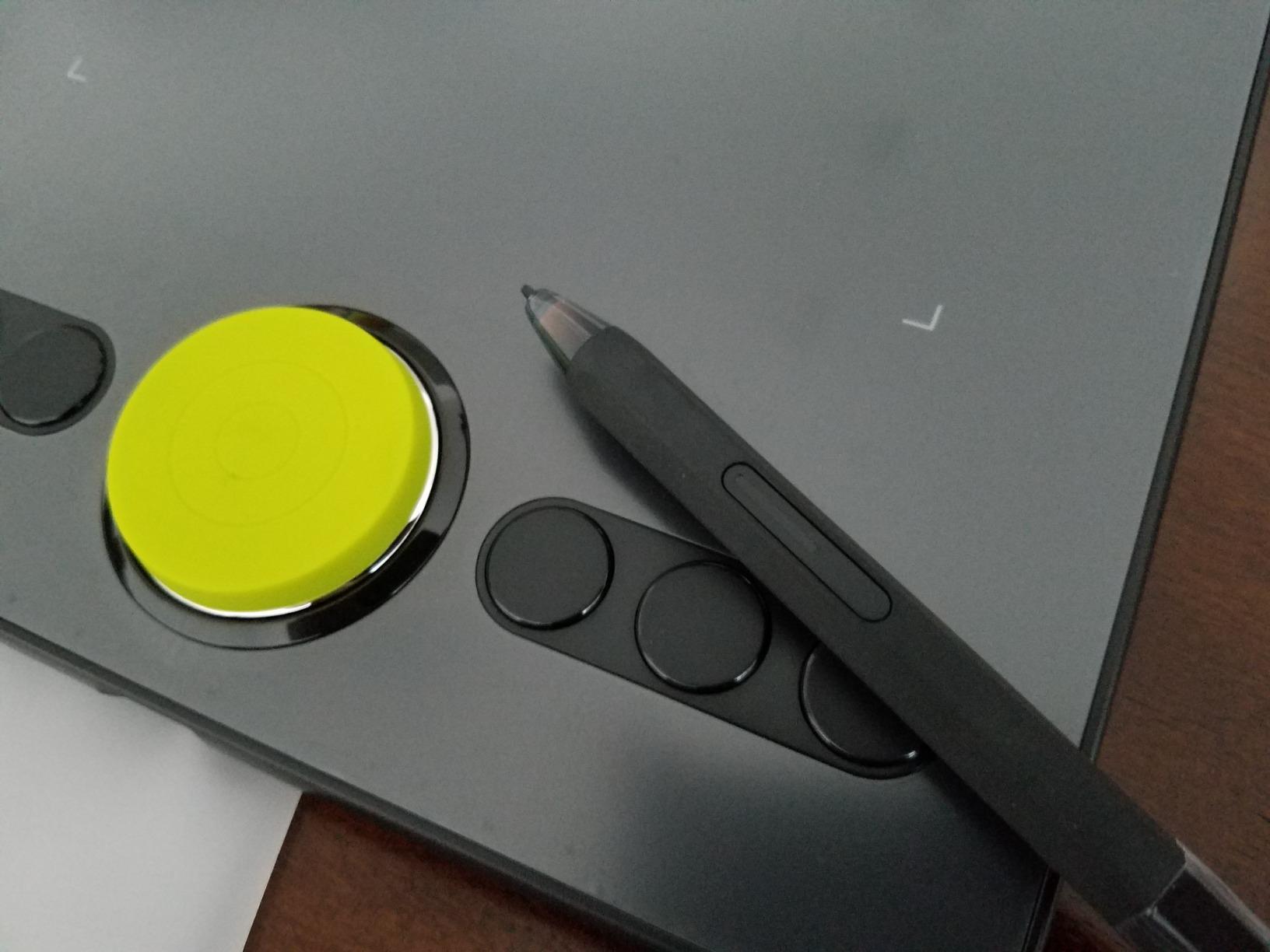
Who the XPPen Artist 12 3rd is best for
Digital artists who travel frequently or work in multiple locations will love the lightweight build. Students who draw between classes or at the library get a true grab-and-go setup. Home artists in small apartments or shared spaces where a permanent desk is not an option get a flexible creative tool.
Anyone upgrading from a graphics tablet but hesitant about desk space will find the 11.9 inch form factor easy to live with.
Who should skip the XPPen Artist 12 3rd
Artists needing a larger canvas for detailed illustration will find the screen restrictive. If you primarily work in a fixed home studio, the 15.6 or 16 inch models give you more room to spread out. Buyers who want fast Prime shipping should consider the similar XP-Pen Artist 15.6 Pro instead.
8. Xencelabs Pen Display 16 Bundle – Best OLED 4K Display for Color-Critical Work
- Stunning 4K OLED panel
- 1.07 billion colors
- Quick Keys remote included
- Two battery-free pens
- Single USB-C cable
- Carrying case included
- 8192 pressure levels (lower than competitors)
- Low review count
- Premium price tier
The Xencelabs Pen Display 16 Bundle is the pen display I pull out when color matters most. The 4K OLED panel renders 1.07 billion colors with deep blacks and bright highlights that LCD panels cannot match. When I tested it alongside reference photography for a portrait painting project, the skin tones looked more lifelike than on any LCD display I have used. For illustrators doing commercial work with strict color requirements, this is the screen that earns its keep.
The Quick Keys remote is one of the best workflow tools I have used on any pen display. The OLED screen on the remote shows your current shortcut mapping, and the dial offers four modes including zoom, rotation, brush size, and a custom assignment. Up to 40 customizable shortcuts per application is generous, and Xencelabs has software presets for Photoshop, Clip Studio Paint, and other major creative apps.
You get two battery-free pens in the box: a 3 Button Pen v2 with three side switches and a Thin Pen v2 for a more pencil-like feel. I switched between them depending on the task, using the slim pen for detailed sketching and the thicker pen for inking. Both delivered consistent line quality across the 8192 pressure levels.
At 0.47 inches thin and 2.67 pounds, this pen display is lighter than most 16 inch competitors and slips into the included protective carrying case. Single USB-C cable connectivity keeps the desk setup clean. The 2-year warranty is longer than most competitors offer.
Who the Xencelabs Pen Display 16 Bundle is best for
Professional illustrators and photographers who need accurate color reproduction will appreciate the OLED panel. Artists who want a premium workflow experience with two pen options and a dedicated shortcut remote will find this bundle hard to beat. Anyone with a permanent home studio who values a sleek, modern display design will enjoy the build quality.
Concept artists working in film, advertising, or game studios that already use Xencelabs products will find seamless integration.
Who should skip the Xencelabs Pen Display 16 Bundle
If you do not need OLED color accuracy, the lower pressure level count (8192) makes this less compelling than the XPPen Artist Pro 16 Gen2 at a similar price. The lower review base (18 reviews) means there is less community troubleshooting data. Beginners should start with a more affordable option before committing to this premium bundle.
What to Look for When Buying the Best Pen Displays for Artists
Choosing a pen display comes down to how and where you plan to draw. Here is what our team considers most important when helping readers pick the right model for their home creative space.
Screen Size and Workspace Fit
Screen size affects both your drawing experience and how the display fits into your home office. A 11.6 to 12 inch display like the XP-Pen Artist 12 is portable and tucks into small spaces, but it can feel cramped for detailed painting. Mid-size 15.6 to 16 inch models balance portability with enough canvas for most illustration work.
Larger 17 to 22 inch displays like the HUION KAMVAS 22 give you room to spread out but require a dedicated desk. Before buying, measure your desk and consider whether you want the display as your primary monitor or as a secondary screen alongside your existing setup.
Pressure Sensitivity Levels
Pressure sensitivity determines how smoothly your software translates pen pressure into line weight, opacity, and brush effects. Most current pen displays offer 8192 levels, which is plenty for sketching, inking, and painting. The HUION Kamvas Pro 16 V2 and XPPen Artist Pro 16 Gen2 go further with 16384 levels, giving you finer control for soft brushes and gradients.
For most artists, 8192 levels feels indistinguishable from 16384 in everyday work. The difference matters most if you paint with airbrushes, do detailed pencil-style shading, or work in styles that rely on subtle pressure transitions.
Resolution and Color Accuracy
Resolution affects how crisp your lines and reference images appear on screen. Full HD (1920×1080) is the baseline and works fine for most illustration. QHD (2560×1600) and 4K (3840×2160) displays like the Wacom Cintiq Pro 17 and Xencelabs Pen Display 16 show more detail, which helps with photo editing and print-quality work.
Color accuracy matters if you match colors to references or work for print. Look for high sRGB coverage (99% or higher) and low Delta E values. OLED panels like the Xencelabs Pen Display 16 deliver the most accurate and vivid colors, while IPS LCD panels in the Huion and XP-Pen models cover the sRGB gamut well enough for digital illustration.
Connectivity and Cable Setup
Modern pen displays connect via HDMI, USB, USB-C, or a combination. Single USB-C cable setups like the Xencelabs Pen Display 16 and XPPen Artist 12 3rd keep your desk tidy. Older or budget models may need a 3-in-1 cable with separate power, video, and data lines.
Check your computer’s available ports before buying. Many modern laptops need an adapter or hub to connect to HDMI-based displays. USB-C with DisplayPort Alt Mode is the cleanest option if your laptop supports it.
Brand Comparison: Wacom vs XP-Pen vs Huion vs Xencelabs
Wacom remains the gold standard for professional pen displays, with the best pen tracking, driver stability, and build quality. The trade-off is price. The Cintiq Pro line costs two to four times more than competitors with similar screen specs.
XP-Pen has become the strongest value brand, offering pressure sensitivity and color accuracy that match Wacom at a fraction of the cost. The Artist Pro 16 Gen2 and Artist 15.6 Pro are excellent examples of how XP-Pen delivers flagship features at mid-tier prices.
Huion sits between XP-Pen and Wacom, with a slightly smaller product range but strong offerings like the Kamvas Pro 16 V2 with industry-leading 16384 pressure levels and the KAMVAS 22 for large-format work.
Xencelabs is the premium challenger brand, founded by former Wacom engineers. Their Pen Display 16 Bundle delivers OLED color accuracy and an excellent Quick Keys remote, though at a price similar to entry-level Wacom Cintiq models.
Ergonomics for Home Office Use
Drawing on a pen display for hours takes a toll on your neck, shoulders, and wrists if the screen is not positioned well. An adjustable stand is essential. The HUION KAMVAS 22 includes a stand that tilts from 20° to 80°, and the XP-Pen Artist Pro 16 Gen2 has a built-in foldable stand.
Place the pen display directly in front of you at a height that keeps your neck neutral. Your drawing arm should rest comfortably with the elbow at roughly 90°. Anti-glare surfaces help reduce eye strain from overhead lights and window reflections, which is a real consideration in home offices with variable lighting.
Frequently Asked Questions
What is the best pen display for artists?
The best pen display for artists depends on your budget and needs. For professional studios, the Wacom Cintiq Pro 17 delivers 4K resolution at 120Hz with the industry-leading Pro Pen 3. For most home artists, the XPPen Artist Pro 16 Gen2 offers 2.5K QHD resolution and 16K pressure sensitivity at a fraction of the cost. Beginners should start with the XP-Pen Artist 15.6 Pro, which combines Full HD clarity with useful workflow features.
What pen do most artists use?
Most professional artists use Wacom pens because of their reliable tracking, ergonomic design, and universal driver support. The Wacom Pro Pen 3 found on the Cintiq Pro series is the current flagship. However, many artists use battery-free styluses from XP-Pen, Huion, or Xencelabs that perform similarly at lower prices. The X3 Pro stylus and Huion PW600A stylus both deliver 16384 pressure levels that feel natural for drawing and painting.
Is Wacom or Huion better?
Wacom is generally considered the premium choice with better build quality, driver stability, and pen tracking. Huion offers comparable pressure sensitivity and color accuracy at significantly lower prices, making it a strong value choice. For professional studios that need absolute reliability and warranty support, Wacom remains the standard. For home artists and hobbyists, Huion’s Kamvas Pro 16 V2 and KAMVAS 22 deliver 80-90% of the Wacom experience at 40-50% of the cost.
Can Remarkable be used for art?
The reMarkable tablet is designed primarily for reading and note-taking rather than digital art. It uses a stylus but lacks pressure sensitivity levels and color display needed for professional illustration. For drawing and painting, a dedicated pen display like those from Wacom, XP-Pen, Huion, or Xencelabs is a much better choice. These displays offer color accuracy, high pressure sensitivity, and full compatibility with creative software like Photoshop, Clip Studio Paint, and Procreate on supported devices.
How much does a good pen display cost?
A good pen display for artists ranges from under $200 for entry-level models like the XP-Pen Artist 12 to over $2,500 for professional flagships like the Wacom Cintiq Pro 17. Most home artists find their sweet spot in the $250 to $500 range, which includes the XP-Pen Artist 15.6 Pro, HUION Kamvas Pro 16 V2, and XPPen Artist Pro 16 Gen2. Budget models under $250 work well for beginners, while premium OLED and 4K displays above $1,000 serve color-critical professional work.
Final Thoughts on Choosing the Best Pen Displays for Artists in 2026
After testing 8 of the most popular pen displays available in 2026, our team keeps coming back to a simple truth: the right pen display depends on where you draw and how often. The Wacom Cintiq Pro 17 is the dream machine for professional studios. The XPPen Artist Pro 16 Gen2 is the smart buy for working artists who want 90% of the Wacom experience at half the cost. And the XP-Pen Artist 15.6 Pro remains the best way to step into pen display drawing without breaking the budget.
Whichever model you choose, drawing directly on the screen changes the way digital art feels. It makes the work more intuitive, less tiring, and frankly more fun. Pick the display that fits your desk, your software, and your style, and you will wonder how you ever drew without one.