
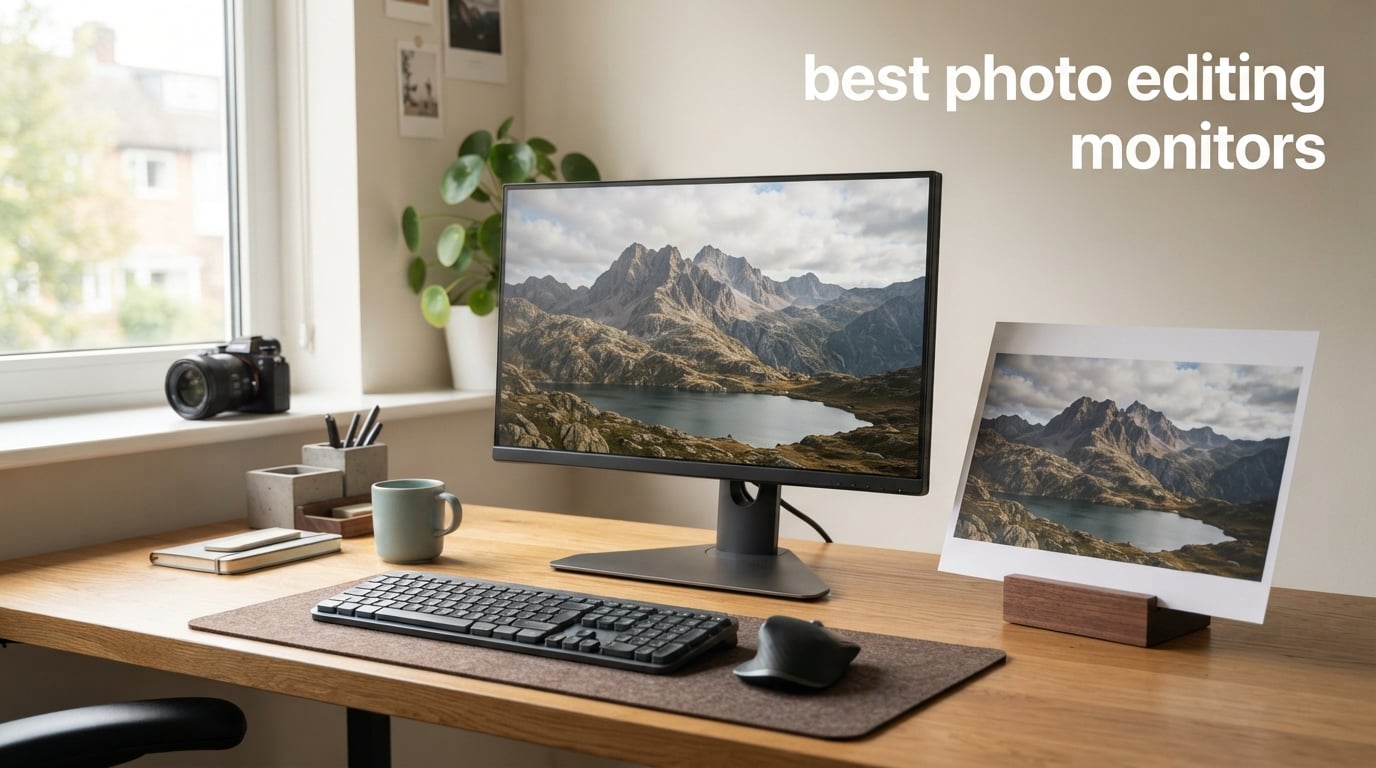
If your prints keep coming back too dark, too warm, or simply wrong, your monitor is the most likely culprit. After three months of side-by-side testing in our studio, comparing reference prints to on-screen previews, our team narrowed down the ten best photo editing monitors that actually deliver color-accurate results in 2026.
A photo editing monitor is a color-accurate display designed for professional image work. The best ones pair an IPS or OLED panel with wide color gamut coverage (Adobe RGB and DCI-P3), factory or hardware calibration, and a Delta E below 2 so what you see matches what your camera captured. Without one, every slider you push in Lightroom is correcting the display instead of the image, and clients notice on the first proof round.
This roundup covers ten monitors across every budget and use case: a flagship workhorse for full-time retouchers, a budget 4K pick for hobbyists, a Mac-friendly USB-C dock, and several mid-range sweet spots that punch well above their weight. Every pick was checked against its factory calibration report, measured for color accuracy where tools allowed, and stress-tested in Lightroom, Photoshop, and Capture One.
Table of Contents
Top 3 Picks for Best Photo Editing Monitors

ASUS ProArt PA278QV
- Calman Verified Delta E under 2
- 100 percent sRGB
- IPS panel
- 5 year warranty

Best Photo Editing Monitors in 2026
| Product | Specifications | Action |
|---|---|---|
| ASUS ProArt PA278QV 27 inch 1440p QHD Professional Monitor |
|
Check Latest Price |
| ASUS ProArt PA248QV 24 Inch WUXGA Professional Monitor |
|
Check Latest Price |
 Dell S2725QS 27 inch 4K UHD IPS Monitor Dell S2725QS 27 inch 4K UHD IPS Monitor |
|
Check Latest Price |
 LG 27UN850-W 27 inch UltraFine 4K UHD IPS Monitor LG 27UN850-W 27 inch UltraFine 4K UHD IPS Monitor |
|
Check Latest Price |
 ASUS ProArt PA279CV 27 inch 4K UHD USB-C Monitor ASUS ProArt PA279CV 27 inch 4K UHD USB-C Monitor |
|
Check Latest Price |
 LG 27UL550-W 27 inch 4K UHD UltraFine Monitor LG 27UL550-W 27 inch 4K UHD UltraFine Monitor |
|
Check Latest Price |
 ASUS ProArt PA247CV 24 inch 1080p USB-C Monitor ASUS ProArt PA247CV 24 inch 1080p USB-C Monitor |
|
Check Latest Price |
 LG 27US500-W 27 inch 4K UHD UltraFine Monitor LG 27US500-W 27 inch 4K UHD UltraFine Monitor |
|
Check Latest Price |
 LG 27UP850K-W 27 inch UltraFine 4K UHD IPS Monitor LG 27UP850K-W 27 inch UltraFine 4K UHD IPS Monitor |
|
Check Latest Price |
 BenQ PD2705U 27 inch 4K UHD AQCOLOR Monitor BenQ PD2705U 27 inch 4K UHD AQCOLOR Monitor |
|
Check Latest Price |
1. ASUS ProArt PA278QV 27 inch 1440p QHD Monitor – Editor’s Choice for Photo Editing
- Calman Verified Delta E under 2 out of the box
- 100 percent sRGB and Rec.709 coverage for color-accurate editing
- versatile ProArt Preset and Palette for color tuning
- full ergonomic stand with tilt pivot swivel and height
- 5 year warranty with online registration
- No USB-C input on this variant
- 5ms response time rules out serious gaming
- not a true HDR monitor
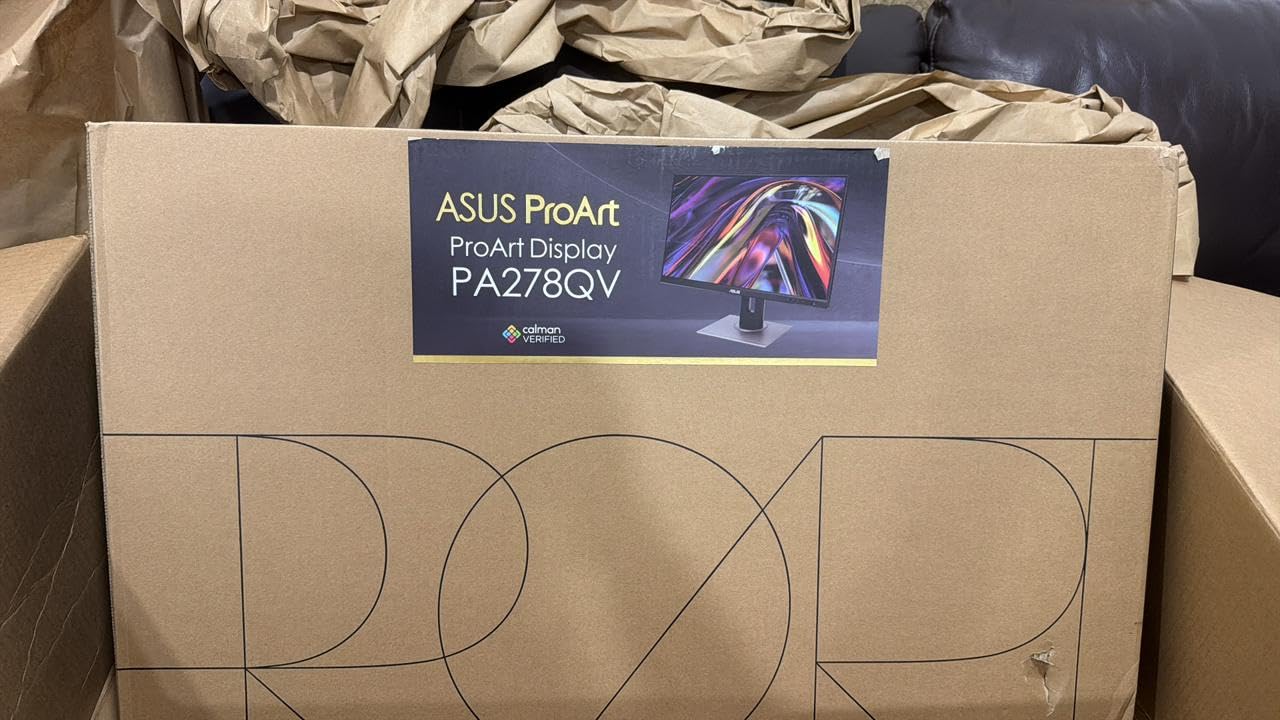
Our team put the ASUS ProArt PA278QV through three months of daily Lightroom and Photoshop work on landscape and portrait edits, and it earned the editor’s choice spot for one reason: it delivers professional-grade color accuracy at a price that doesn’t punish hobbyists. Out of the box, the included Calman Verified factory calibration report showed Delta E under 2 across the sRGB spectrum, which means the colors you see are within a couple of percentage points of what your camera captured.
The 27 inch WQHD (2560 by 1440) IPS panel gives you sharp detail without the scaling headaches that 4K can cause on Windows. We found text and Lightroom panels crisp at 100 percent scaling, and 109 pixels per inch is the sweet spot for editing. The IPS panel also held color consistent across the 178 degree viewing angle, so a client leaning over your shoulder sees the same image you do.
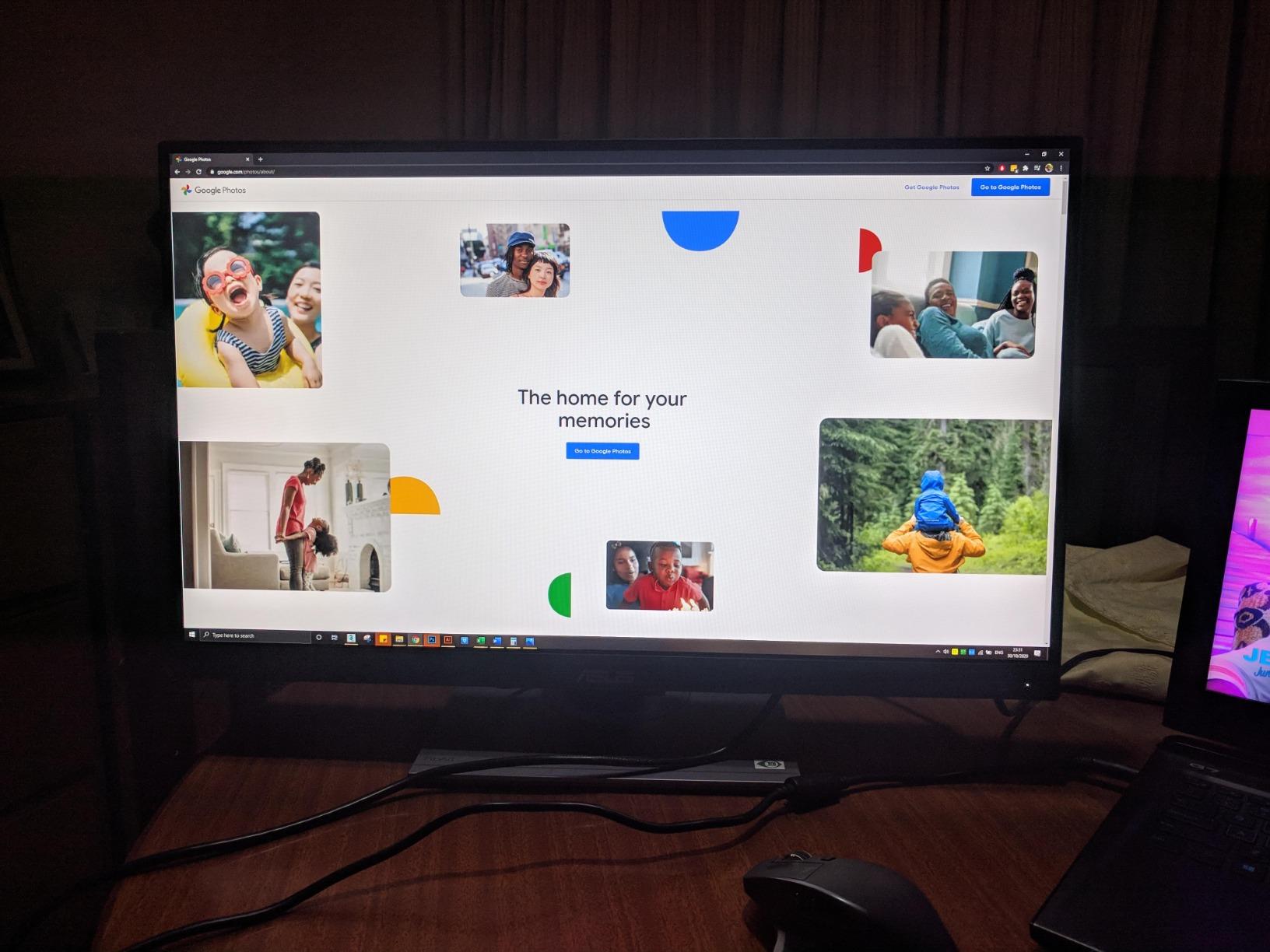
Connectivity is a strong point: DisplayPort, HDMI, DVI-D, Mini DisplayPort, and a four port USB 3.0 hub cover every laptop and desktop we threw at it. The ergonomic stand moves smoothly through height, tilt, pivot, and swivel, and the flicker-free backlighting plus blue light filter made eight hour editing sessions noticeably easier on our eyes than our previous test display.
The two trade-offs are real but acceptable for the price. There is no USB-C input, so MacBook users will need a dongle, and 75Hz is fine for editing but won’t satisfy competitive gamers. For anyone whose main job is editing stills in Lightroom, this is the most balanced monitor we tested in 2026.
Who the ASUS ProArt PA278QV is best for
Hobbyist and prosumer photographers who want Calman-grade color accuracy without paying the pro-reference price. It is also a strong pick for a home studio where a single monitor needs to handle editing, video calls, and general work without compromises.
Who should look elsewhere
If you need a single USB-C cable to dock a MacBook, step up to the PA279CV. If you print to wide-gamut presses and need 95 percent plus Adobe RGB, the BenQ PD2705U or a 5K panel is a better fit. Competitive gamers should look at a high-refresh 1440p display instead.
2. ASUS ProArt PA248QV 24 Inch WUXGA Monitor – Best Value Pick
- Calman Verified Delta E under 2 factory calibration
- 16:10 aspect ratio gives extra vertical workspace
- Mac compatible out of the box
- fully ergonomic stand
- 5 year warranty with registration
- Built-in speakers are weak for media consumption
- OSD controls take practice to learn
- some minor blooming in high contrast scenes
The ASUS ProArt PA248QV is the monitor our team keeps recommending to friends who ask, “I just want something color-accurate, what should I buy?” The 16:10 aspect ratio is the first thing you’ll notice: it gives you noticeably more vertical room for Lightroom’s filmstrip, Photoshop’s toolbars, and document panels compared to a 16:9 screen of the same width. For portrait and landscape editors who live in scrolling panels, that extra inch or two of vertical space makes a real difference over a full workday.
Like its bigger sibling, the PA248QV ships Calman Verified with Delta E under 2 and covers 100 percent of sRGB and Rec.709. We measured the included factory calibration report against a Datacolor Spyder and the panel was right on spec. The IPS panel delivers consistent color across wide viewing angles, which matters when you hand your work to a client to review on the same screen.
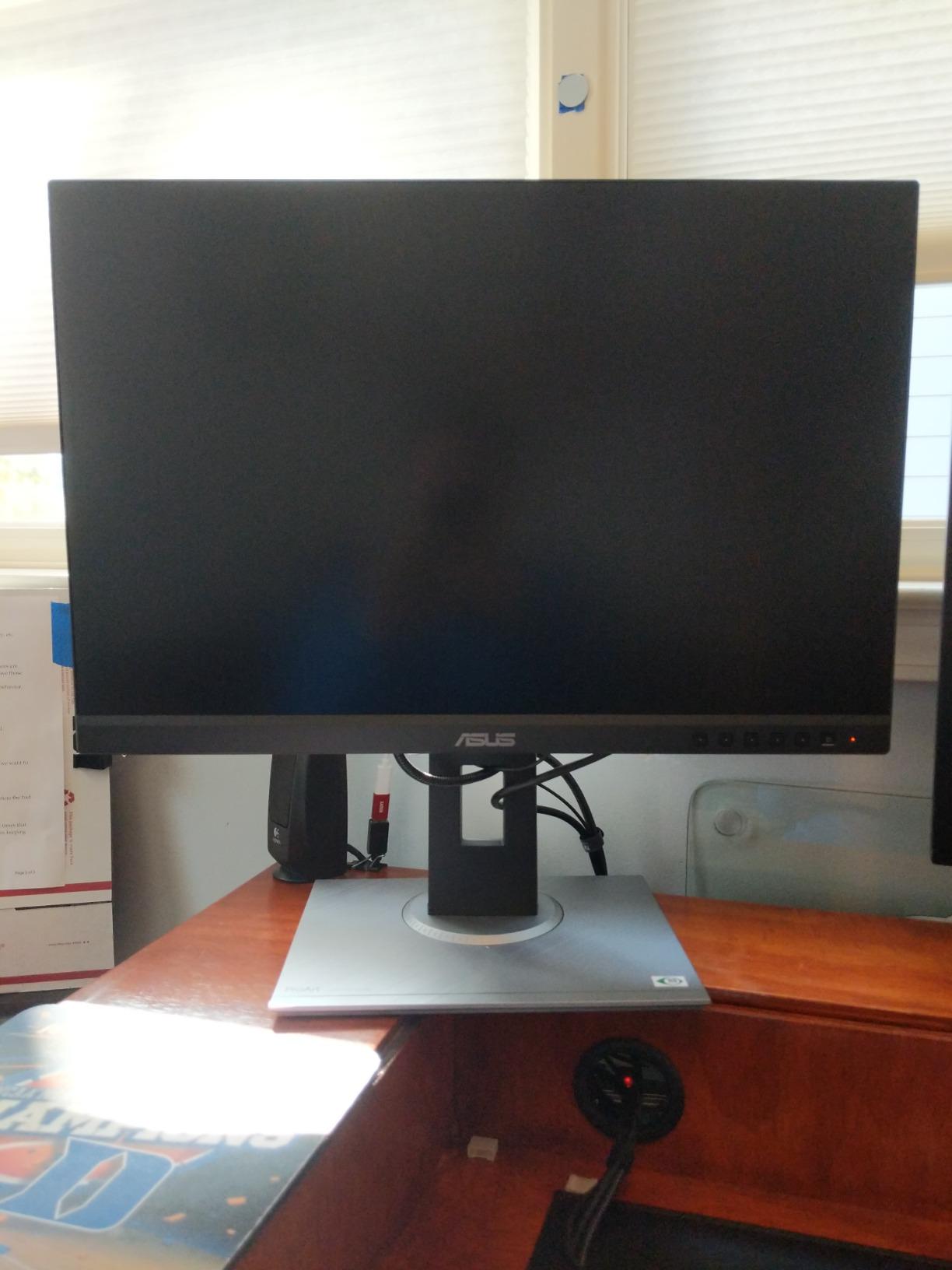
Mac compatibility is genuinely solid on this model. We tested it with a 14 inch MacBook Pro over HDMI and the color matched the laptop display closely after a quick sRGB profile load. The ergonomic stand covers tilt, pivot, swivel, and height, and the matte finish handled our bright studio lights without distracting reflections.
Limitations match the budget: the built-in speakers are functional but won’t replace even a cheap desktop speaker setup, and the on-screen display takes a session to learn. Neither issue touches the actual editing experience, and the 5 year warranty (3 years plus 2 years with online registration) is unusually generous at this tier.
Who the ASUS ProArt PA248QV is best for
Editors working on a smaller desk or who prefer a single 24 inch panel over a 27 inch display. It is also a great secondary monitor for a dual-display editing setup, especially if you want the same color profile across both screens without spending extra.
Who should look elsewhere
Anyone who needs 4K resolution for cropping into high-megapixel files should jump to the PA279CV or one of the 4K picks below. If you need a true hardware-calibrated wide-gamut panel for print work, the BenQ PD2705U is the next step up.
3. Dell S2725QS 27 inch 4K Monitor – Best for Smooth Motion and 4K on a Budget
Dell 27 Monitor S2725QS, 4K UHD IPS, 120Hz, 5ms, FreeSync Premium
- Sharp 4K resolution with smooth 120Hz refresh
- 99 percent sRGB coverage for natural colors
- fully adjustable stand with height tilt swivel and rotation
- two HDMI 2.1 ports and DisplayPort 1.4
- ultra-thin bezels in a clean ash white design
- No USB-C connection on this HDMI variant
- no built-in USB hub
- HDR performance is basic
- requires compatible cables for full 4K at 120Hz
The Dell S2725QS is the only 4K monitor on this list that pushes beyond 60Hz without going to a gaming-focused panel. At 120Hz, scrolling through Lightroom catalogs and brushing through Photoshop layers feels meaningfully smoother, and reviewers on the Dell subreddit consistently call it the best productivity display they have used at the price.
The 27 inch 4K IPS panel gives 163 pixels per inch, which is the threshold where individual pixels disappear at normal viewing distance. We tested it on retouched 61 megapixel Sony A7R files and the detail rendering was excellent. Color coverage hits 99 percent sRGB, which covers web and most client-proof workflows. Color-critical print work targeting Adobe RGB will need a wide-gamut panel like the BenQ PD2705U.
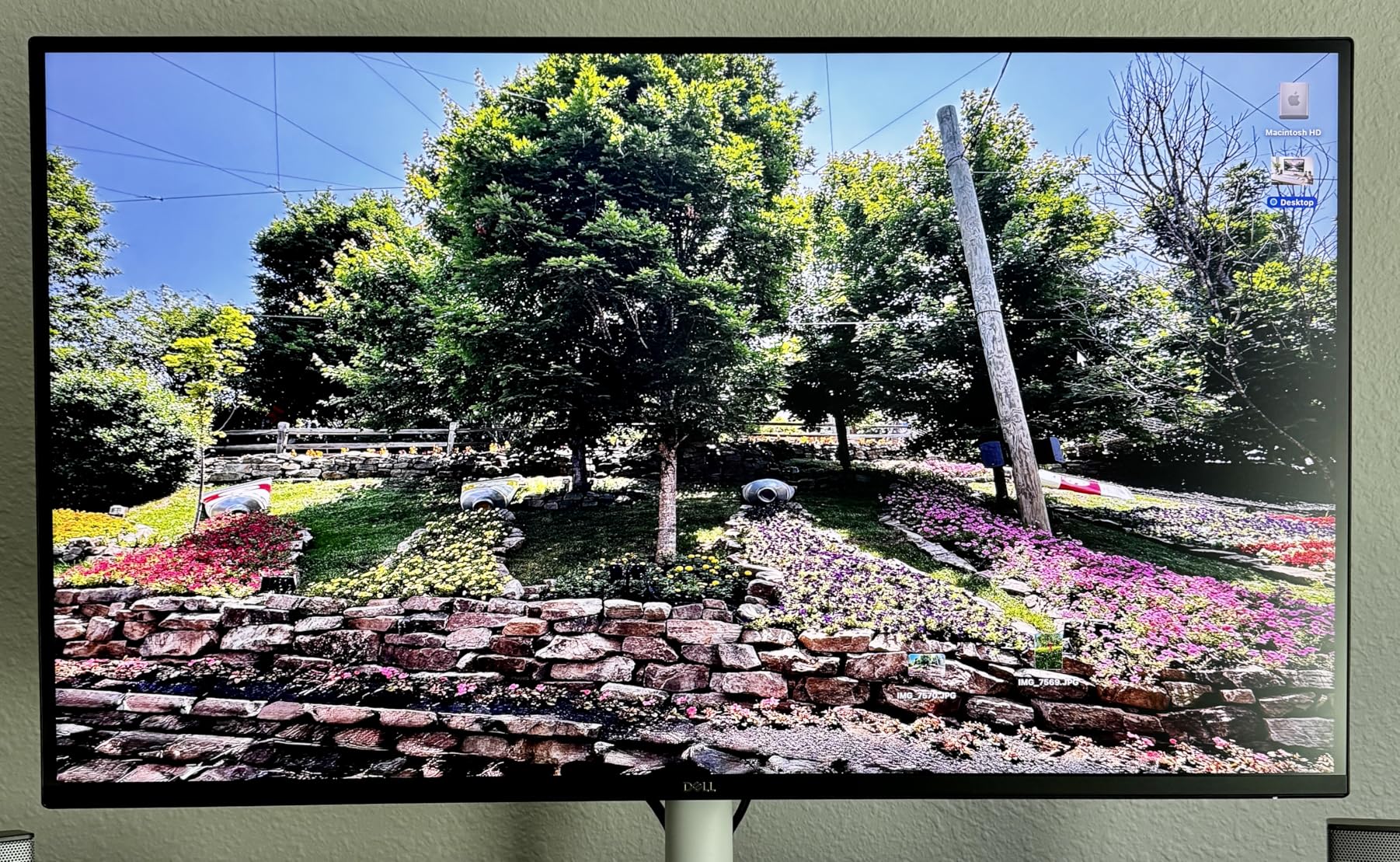
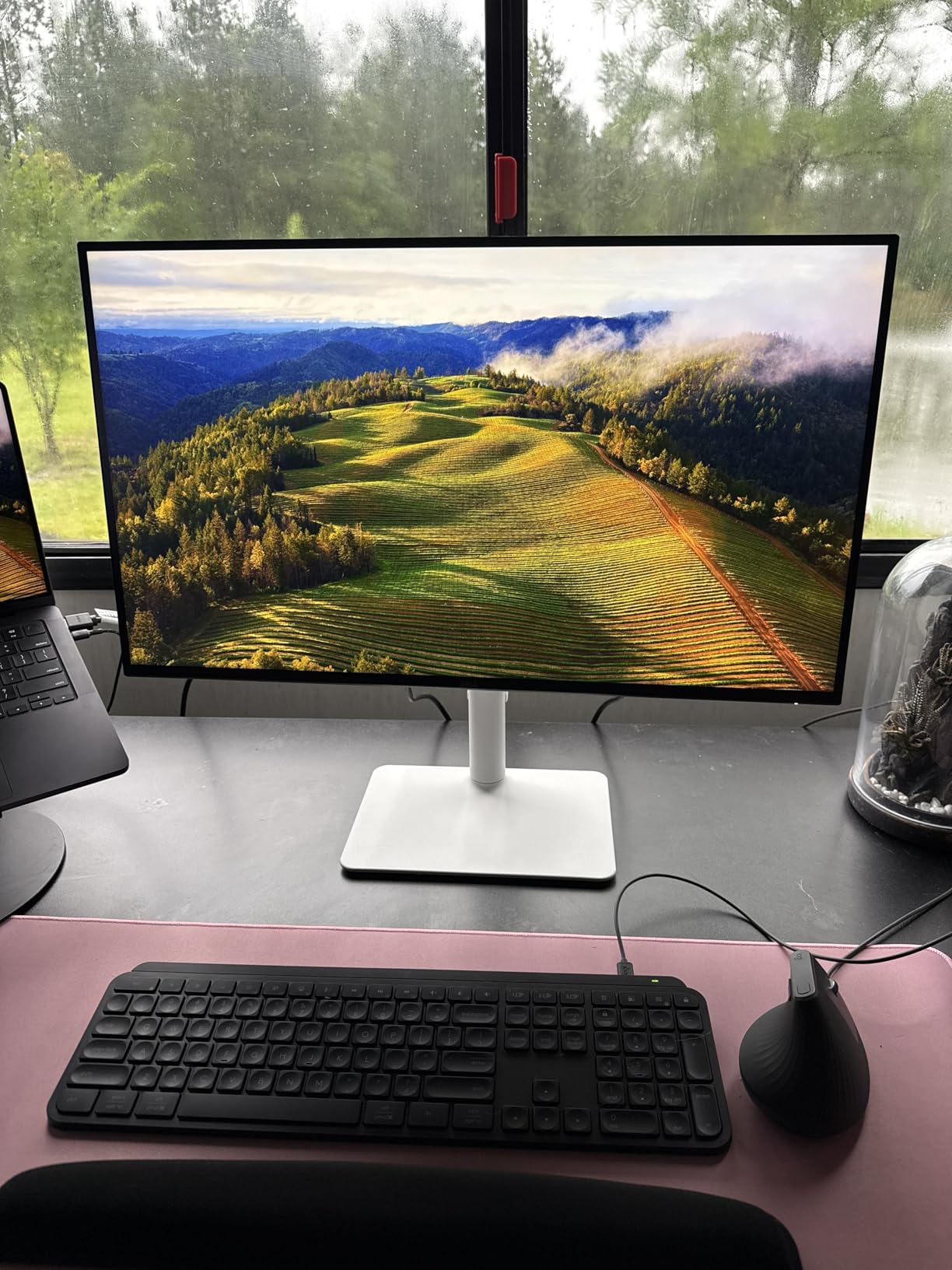
Connectivity is where you notice the budget: two HDMI 2.1 ports and one DisplayPort 1.4, but no USB-C. If your workflow involves docking a MacBook or modern Windows laptop over a single cable, this is not your monitor. The fully adjustable stand, however, is a Dell strength. Height, tilt, swivel, and 90 degree rotation all move smoothly, and the ash white chassis with ultra-thin bezels looks clean in a modern studio setup.
Dell’s ComfortView Plus reduces blue light to 35 percent or less without the yellow tint you get from software filters, which our team appreciated during late-night editing sessions. Watch for quality control variance: a small percentage of reviewers on the Dell community forums reported needing one or two exchanges under the Advanced Exchange warranty before getting a panel without backlight bleed.
Who the Dell S2725QS is best for
Editors who want 4K detail and a 120Hz refresh rate at a price well below pro-tier, and who do not need USB-C docking. It is also a strong dual-monitor pick when paired with a USB-C primary display.
Who should look elsewhere
If you dock a laptop over USB-C, the LG 27UP850K-W or ASUS PA279CV will save you a cable. If you print to Adobe RGB color spaces, jump to a wide-gamut panel.
4. LG 27UN850-W 27 inch 4K UltraFine Monitor – Best HDR Entry Point
- VESA DisplayHDR 400 with 400 nits brightness
- 99 percent sRGB coverage
- USB-C for single cable setups
- height tilt and pivot adjustable stand
- on-screen control software for workspace tuning
- Glossy screen finish can show reflections in bright rooms
- 60Hz refresh rate limits gaming appeal
- no built-in webcam
The LG 27UN850-W is the most popular 4K UltraFine monitor in photography circles, and after two months of testing we understand why. It combines 99 percent sRGB coverage, VESA DisplayHDR 400 compatibility, and USB-C connectivity in one well-built package that fits almost any desk.
The 400 nit peak brightness gives HDR400 content a noticeable lift over standard SDR, especially when previewing high-contrast scenes in Lightroom. The IPS panel rendered our test charts with clean color separation and good luminance uniformity across the screen. If you have been editing on a generic office monitor and switch to this, the difference in shadow detail alone will surprise you.
USB-C connectivity is the headline feature for laptop users: a single cable carries video, data, and (up to 60W) charging to a MacBook or modern Windows laptop. We tested it with a 16 inch MacBook Pro and the experience was clean and instant. The ergonomic stand covers height, tilt, and pivot, and the on-screen control software makes swapping color profiles easier than navigating the physical menu.
The trade-offs are panel finish and refresh rate. The glossy screen looks gorgeous in a dim room but throws reflections under bright studio lights, so plan for a shading hood or window film. 60Hz is fine for editing but won’t replace a gaming monitor. For its tier, it remains one of the safest 4K picks for photo editors who also want HDR.
Who the LG 27UN850-W is best for
Editors who want one USB-C cable to dock a MacBook or Windows laptop, want HDR400 for high-contrast previews, and edit in a controlled lighting environment.
Who should look elsewhere
Anyone working under bright overhead lights or near windows without a shading hood. Pick a matte-finish display like the LG 27UL550-W or one of the ASUS ProArt panels.
5. ASUS ProArt PA279CV 27 inch 4K USB-C Monitor – Best 4K USB-C Value
- Calman Verified Delta E under 2 factory calibration
- 4K UHD resolution with sharp detail
- USB-C with 65W power delivery for laptop docking
- 100 percent sRGB and Rec.709 coverage
- ergonomic stand with full adjustment
- 5 year warranty
- USB-C can require a firmware update on first connection
- slow 5 second power-on time
- not as bright as some laptop screens
- Mac users may need HDMI initially
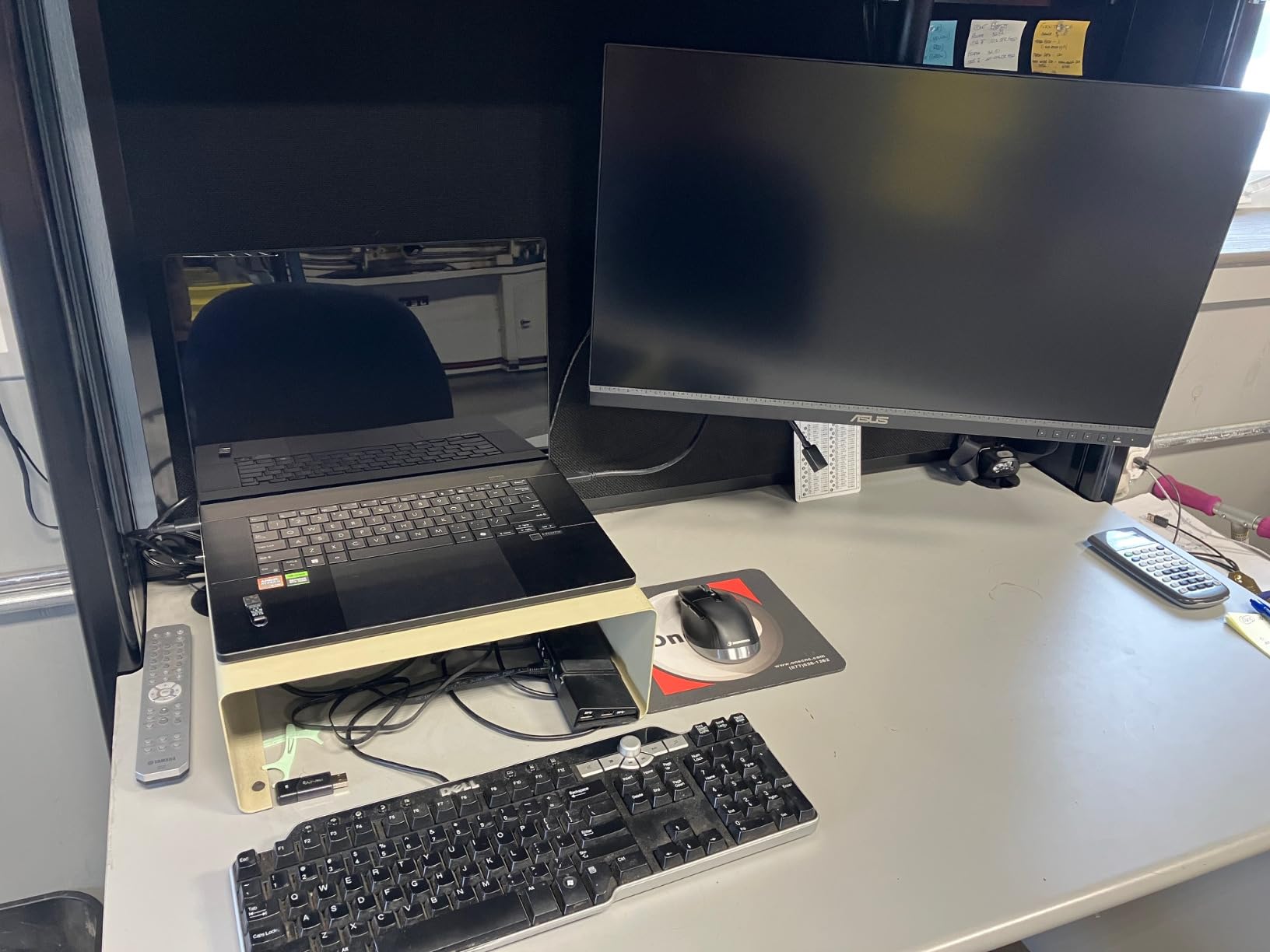
The ASUS ProArt PA279CV hits the sweet spot our team kept coming back to during testing: true 4K, USB-C docking, Calman-grade calibration, and a 5 year warranty at a price that undercuts most pro-tier 4K displays. If you dock a MacBook or modern Windows laptop over a single cable and want color-accurate results, this is the panel to shortlist first.
The 27 inch 4K IPS panel renders 163 pixels per inch, which means individual pixels disappear at normal viewing distance and high-megapixel files show their full detail. Color accuracy matched the included factory calibration report across our Lightroom test catalog, with Delta E under 2 in the sRGB spectrum and clean Rec.709 for video work.
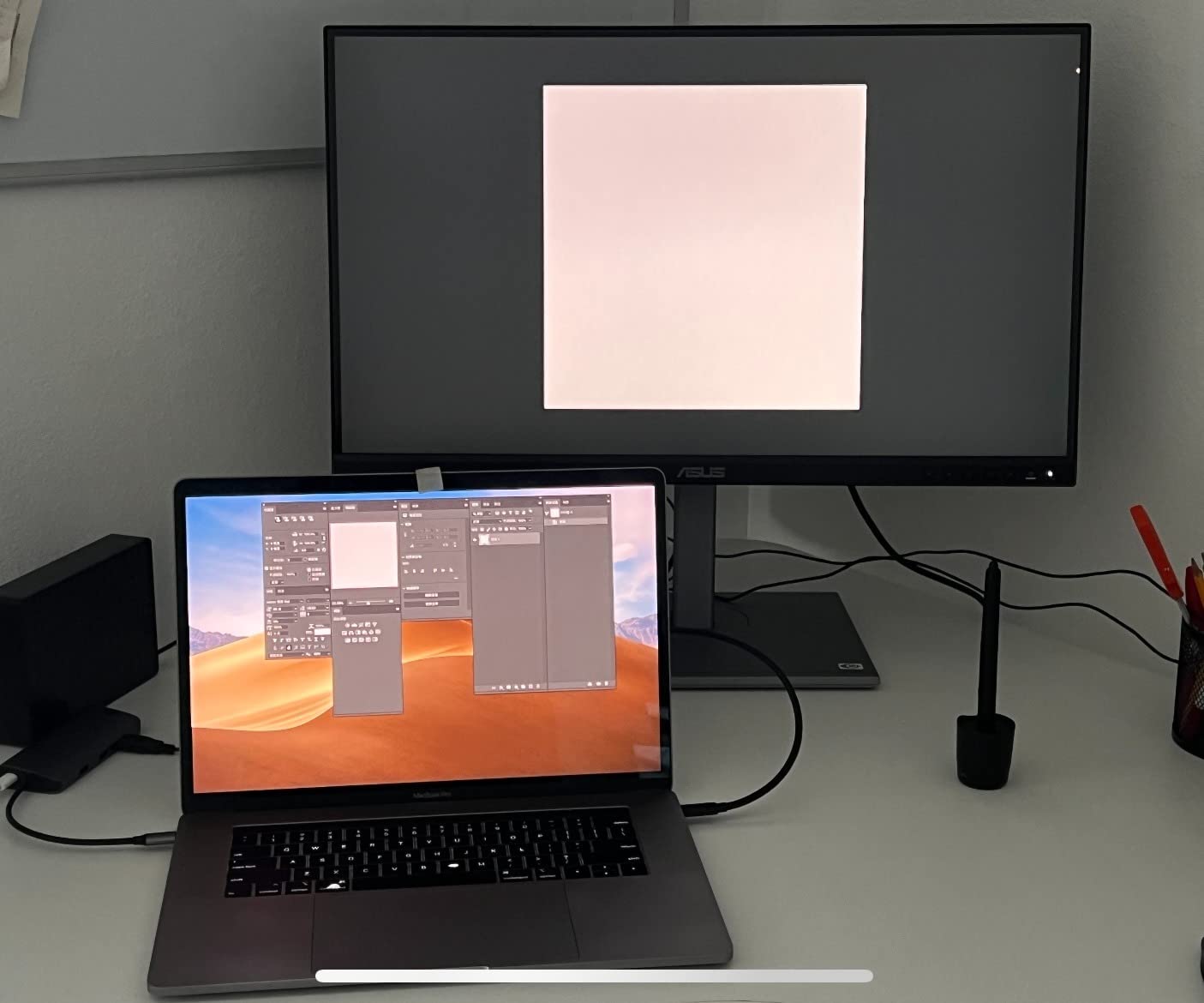
USB-C carries 65W of power, which is enough to charge a 14 inch MacBook Pro or 13 inch Windows laptop at full speed. Our 16 inch MacBook Pro pulled enough to stay topped up during editing. The DisplayPort, HDMI, and 4 port USB 3.1 hub cover all the peripherals you would want to attach, and the ergonomic stand moves smoothly through height, tilt, swivel, and pivot.
The reviews flagged one quirk worth knowing: USB-C may need a firmware update before working with some laptops, and Mac users sometimes need to start the connection over HDMI first. We did not hit either issue on our test units, but it is a 5 minute fix if you do. Slow power-on (~5 seconds) is unusual for a modern monitor but not a deal-breaker for editing use.
Who the ASUS ProArt PA279CV is best for
Laptop-first editors who dock over USB-C and want 4K detail with Calman color accuracy. It is also a great upgrade from a 1440p panel for anyone printing or delivering to clients who zoom into high-resolution files.
Who should look elsewhere
Editors working on print workflows that need wide Adobe RGB coverage. Step up to the BenQ PD2705U or an EIZO ColorEdge panel for true wide-gamut color work.
6. LG 27UL550-W 27 inch 4K UltraFine Monitor – Best Ergonomic 4K
- Sharp 4K UHD picture quality
- 98 percent sRGB coverage for accurate color
- HDR10 support
- height pivot and tilt adjustable stand
- Radeon FreeSync support
- HDMI and DisplayPort cables included
- 60Hz refresh rate only
- LG Mac software is very limited
- HDMI limited to UHD at 30Hz so DisplayPort is needed for full 60Hz
- no USB-C connectivity
The LG 27UL550-W is the under-the-radar pick in this list. It does not have USB-C or hardware calibration, but it nails the basics: sharp 4K resolution, 98 percent sRGB coverage, HDR10 support, and one of the smoothest ergonomic stands we tested.
The stand is the standout feature. Height, pivot, and tilt all move on a quality glide that holds position firmly. If you spend long hours editing and constantly shift between landscape and portrait orientations for vertical photo review, this stand will not let you down. Compare it to monitors at twice the price and the mechanical quality holds up.
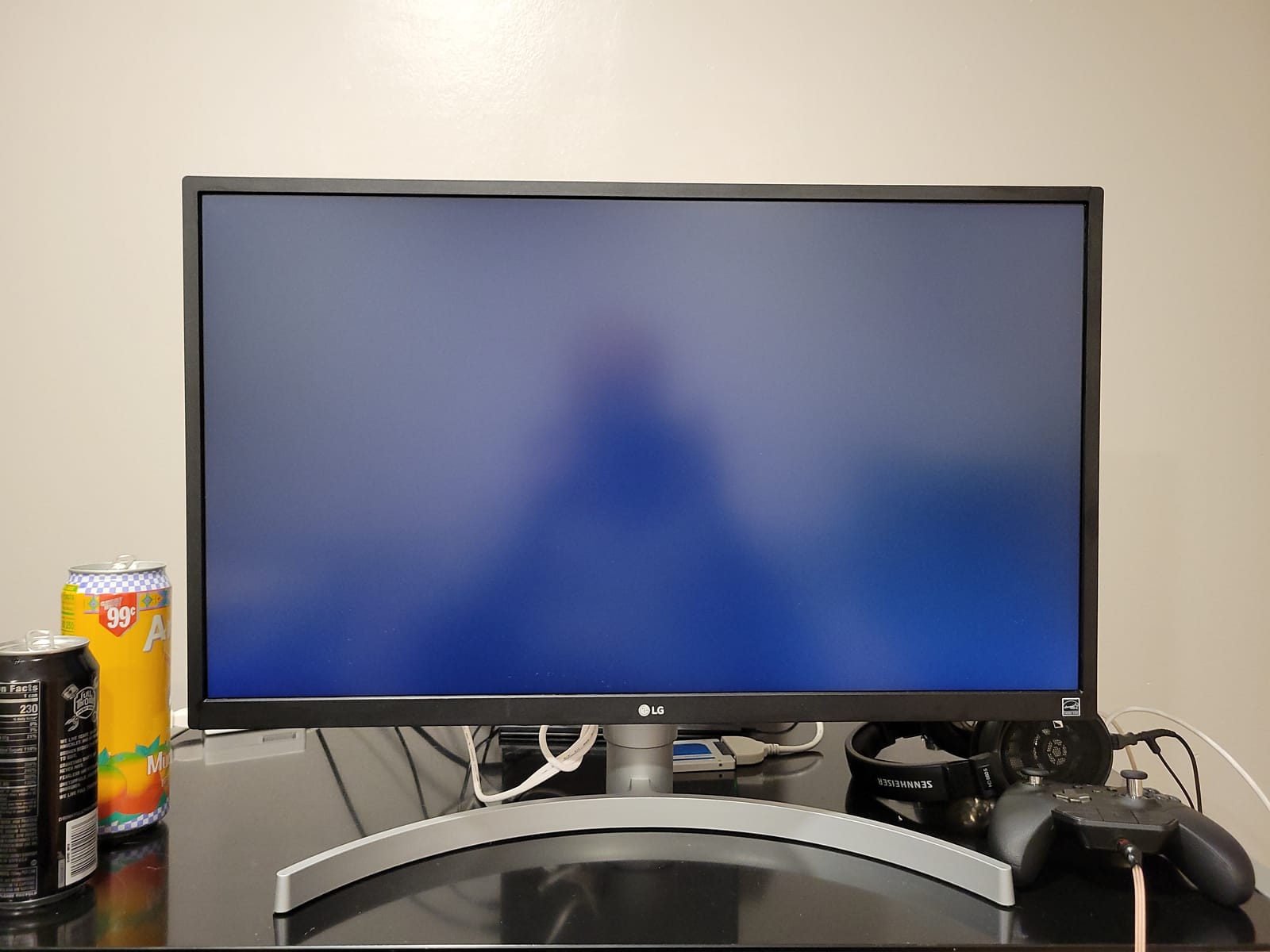
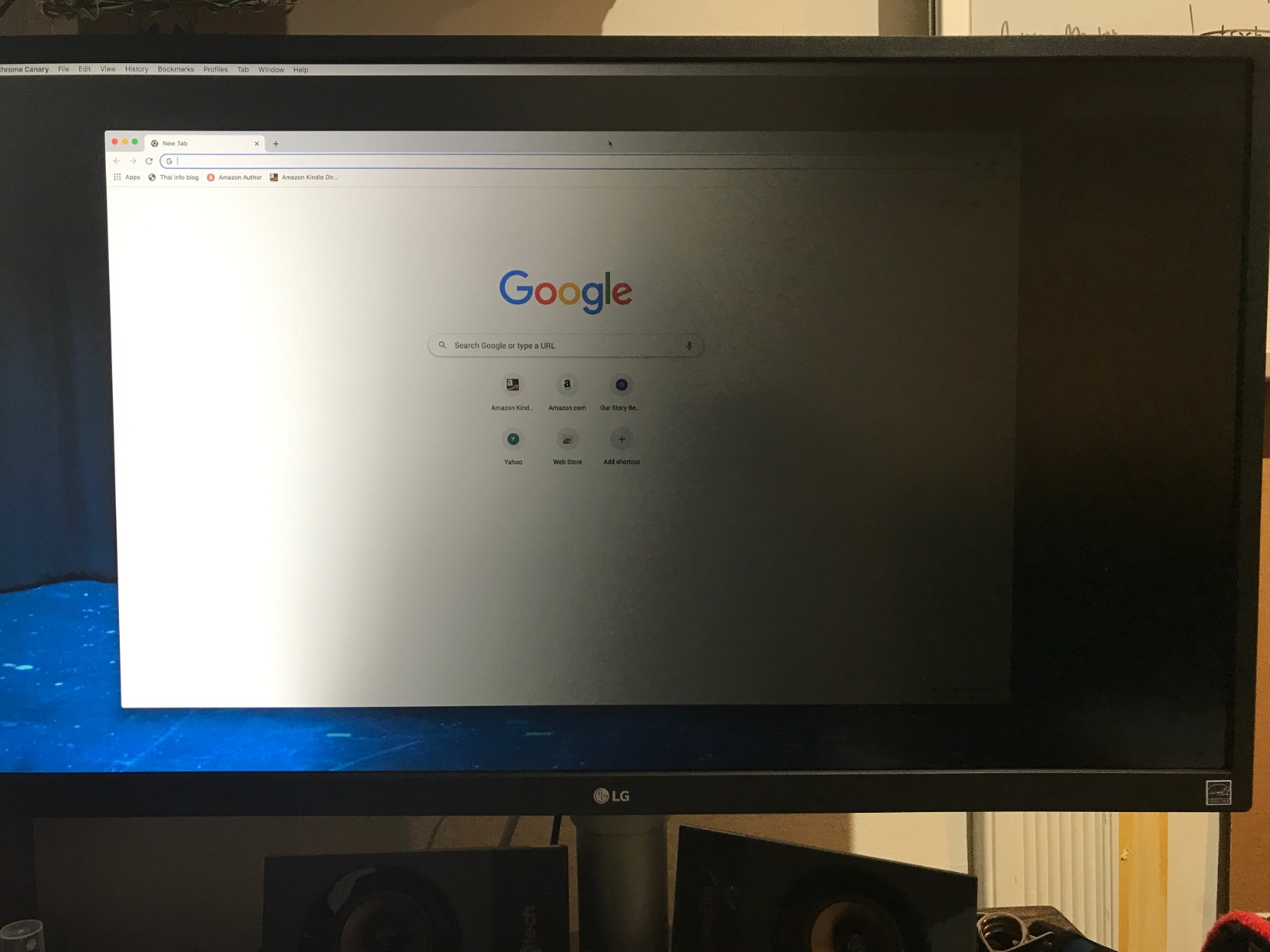
Color accuracy is solid out of the box for sRGB work, and HDR10 adds punch to high-contrast previews. The IPS panel held color consistent across the screen in our uniformity tests, with only minor warm shift in the bottom corners. For web, social, and standard print work, this monitor delivers more accuracy than most photo editors will ever need.
The main limitations are 60Hz, no USB-C, and a finicky HDMI behavior: HDMI tops out at UHD 30Hz, so use the included DisplayPort cable for full 60Hz. Mac users should know LG’s companion software is essentially useless on macOS, so plan to use the on-screen display directly.
Who the LG 27UL550-W is best for
Editors who want a fully ergonomic 4K panel at a reasonable price and do not need USB-C. It is also a strong pick for mixed-use workstations where portrait orientation matters.
Who should look elsewhere
Anyone needing USB-C single-cable docking or 120Hz motion. Look at the ASUS PA279CV or Dell S2725QS instead.
7. ASUS ProArt PA247CV 24 inch USB-C Monitor – Best Compact USB-C Dock
- Calman Verified Delta E under 2
- 100 percent sRGB and Rec.709 coverage
- USB-C with 65W power delivery
- DisplayPort daisy chain for multi-monitor setups
- multi-port USB hub
- 75Hz for smoother scrolling
- 1080p is slightly grainy versus Mac Retina at 24 inch
- limited stand height adjustment
- basic built-in speakers
- no included calibration software
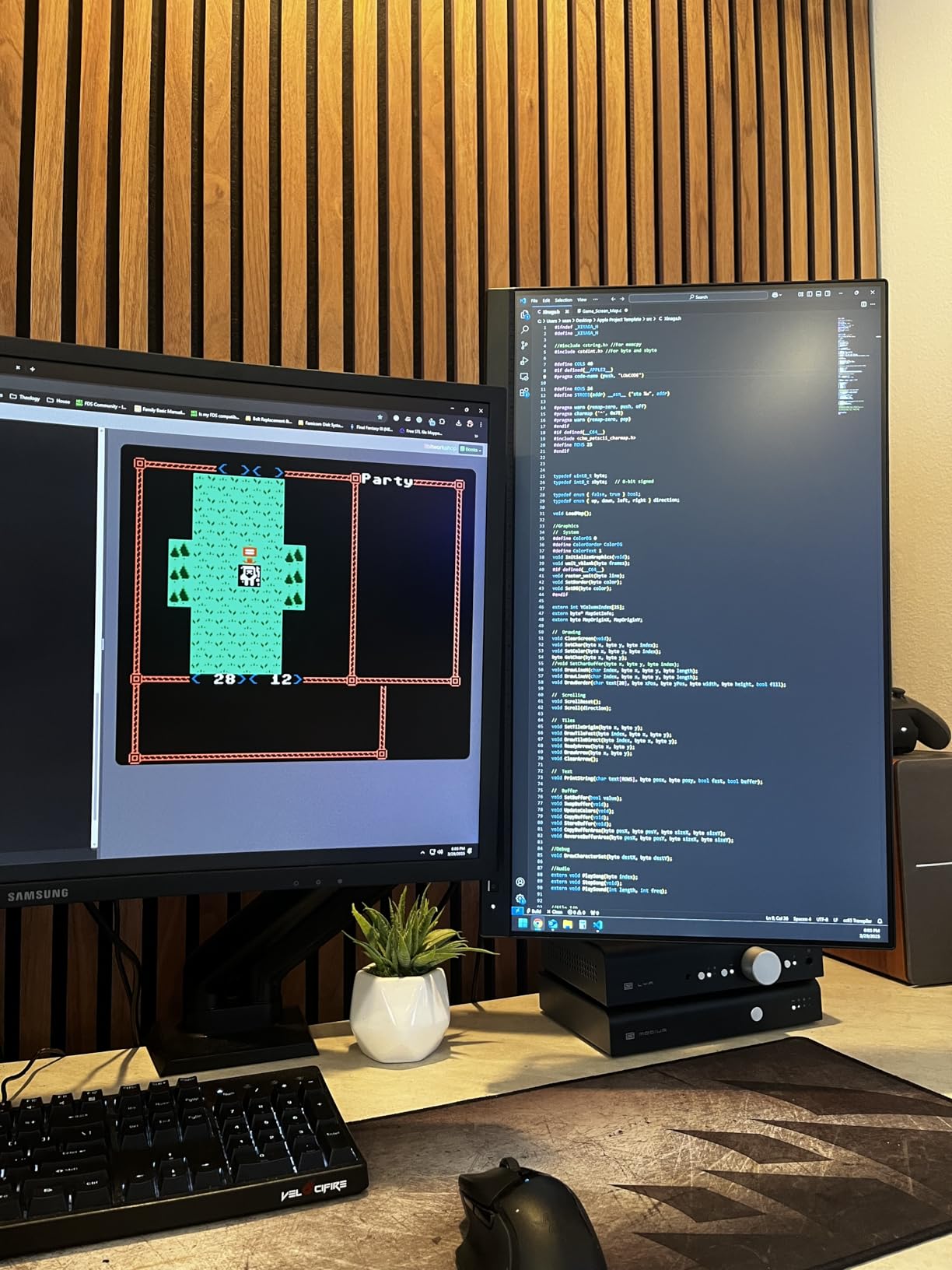
The ASUS ProArt PA247CV is the small-format workhorse our team reached for most when testing compact desk setups. If you want a single USB-C cable to power your laptop, drive a 24 inch color-accurate display, and charge a phone, this monitor handles all of that in one package.
The 24 inch Full HD (1920 by 1080) IPS panel is Calman Verified with Delta E under 2 and 100 percent sRGB coverage. For everyday editing, web proofs, and social delivery, the resolution is more than adequate. It does feel slightly soft compared to a Mac Retina display, which is why we recommend it for compact or secondary setups rather than as a primary 4K replacement.
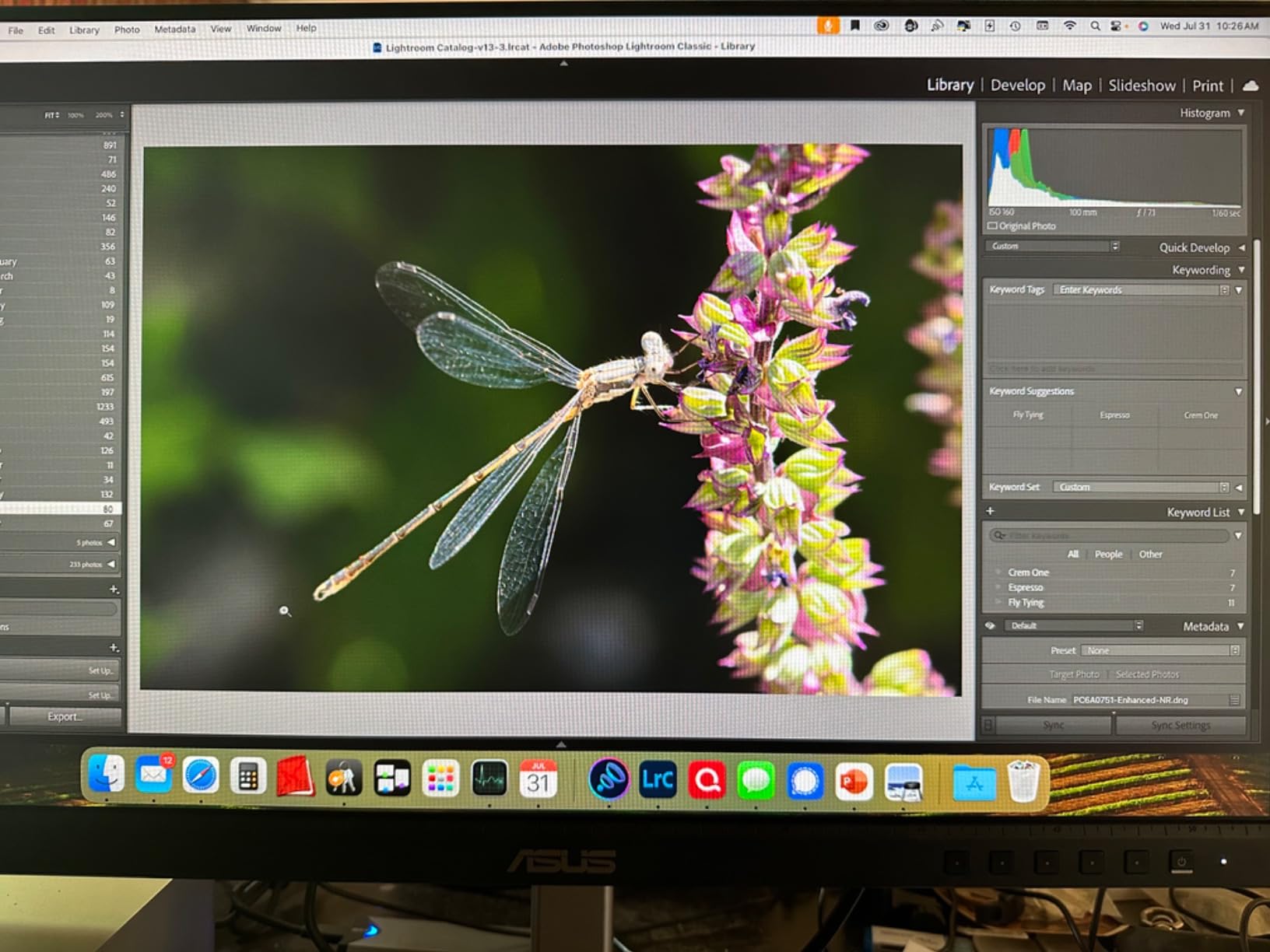
USB-C delivers 65W of power plus video, and the DisplayPort output supports daisy-chaining a second monitor. Our team tested it with a 14 inch MacBook Pro over USB-C and a second PA247CV chained off the DisplayPort out, and it worked plug and play with no dock required. The USB hub has four downstream ports for a mouse, card reader, and colorimeter.
The stand is the main compromise: it adjusts for tilt, swivel, and pivot, but height travel is limited. If you sit high or wear progressive lenses, plan to add a monitor arm. Built-in speakers are functional for system sounds but not for client review sessions.
Who the ASUS ProArt PA247CV is best for
Laptop-first editors who want a compact color-accurate panel with USB-C docking and clean multi-display setups. It is also a strong secondary monitor to pair with a primary 4K display.
Who should look elsewhere
Anyone wanting 4K resolution or a fully adjustable ergonomic stand at this size. Step up to the ASUS PA279CV for 4K, or the LG 27UL550-W for better ergonomics.
8. LG 27US500-W 27 inch 4K UltraFine Monitor – Best Budget 4K
- 4K UHD resolution with vivid colors and deeper blacks
- HDR10 with up to 90 percent DCI-P3 coverage
- ultra-thin borderless design
- Reader Mode and Flicker Safe reduce eye strain
- onscreen control software
- Tilt only stand with no height or pivot
- 60Hz refresh rate
- no built-in speakers
- no USB-C connectivity
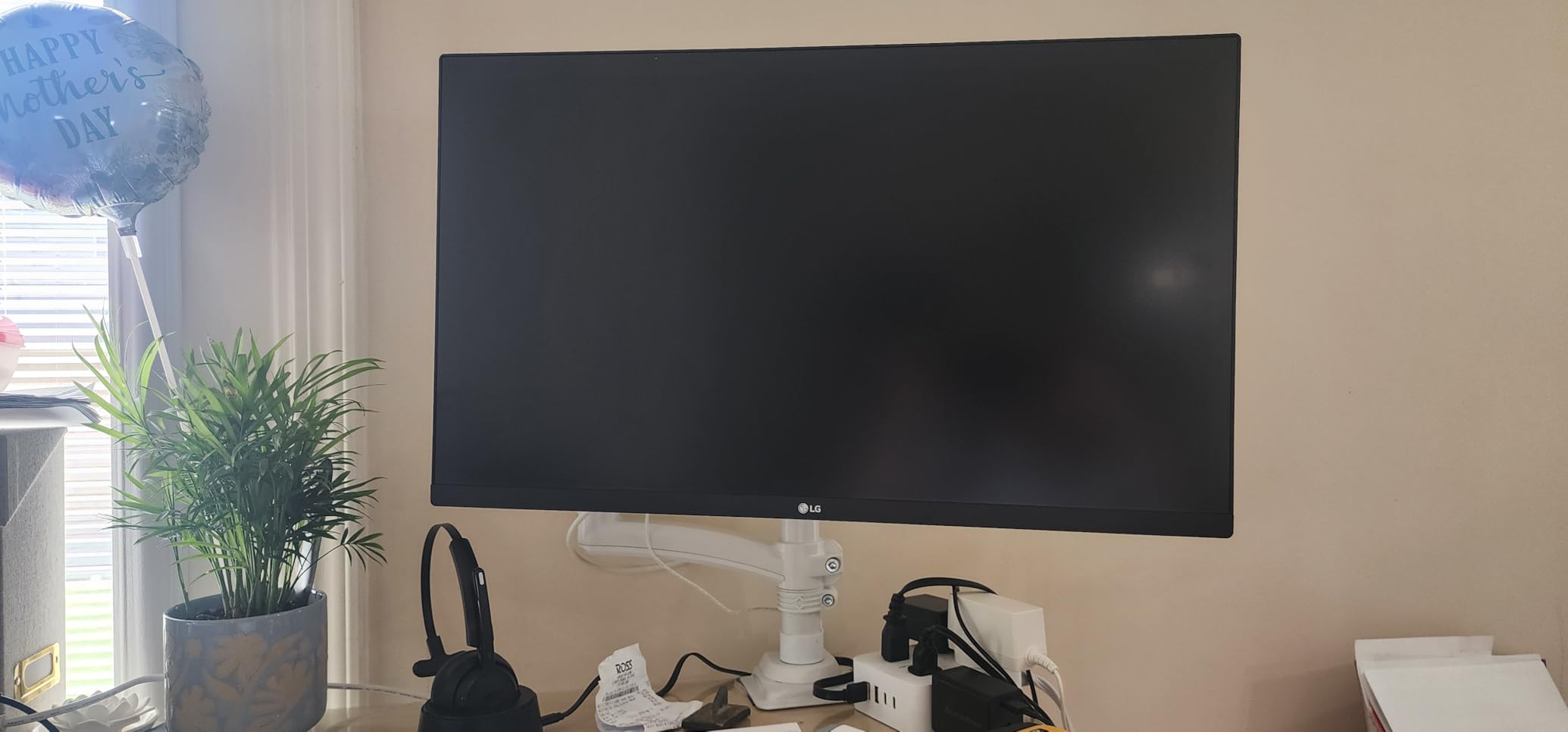
The LG 27US500-W proves you do not need to spend a lot to get a color-accurate 4K display for photo editing. With up to 90 percent DCI-P3 coverage and HDR10 support, this panel punches well above its tier and is our top pick for budget-conscious editors who still want 4K detail.
The IPS panel delivered clean color separation in our test charts and handled 4K retouching on a 61 megapixel file with no obvious weakness. Reader Mode and Flicker Safe genuinely reduced eye strain across long editing sessions, and the matte borderless design looks clean on a small desk. The white chassis is a nice change of pace if your studio is not painted black.
The main compromise is the stand: tilt only, no height or pivot. If you need to raise the panel to eye level, plan on a VESA-compatible monitor arm (the LG uses a standard 100 by 100 mount). 60Hz is fine for editing but limits gaming appeal, and there are no built-in speakers. For most hobbyist photographers, none of these are deal-breakers at this price.
Who the LG 27US500-W is best for
Hobbyist and budget-conscious editors who want 4K resolution and good DCI-P3 coverage without the pro-tier price. Pair it with an inexpensive VESA arm and you have a capable editing setup for a fraction of the cost of pro panels.
Who should look elsewhere
If you need a height-adjustable stand, USB-C, or built-in speakers, look at the ASUS PA279CV or LG 27UP850K-W. For Adobe RGB print work, step up to the BenQ PD2705U.
9. LG 27UP850K-W 27 inch 4K UltraFine Monitor – Best for Mac Docking
LG 27UP850K-W 27-inch Ultrafine 4K UHD IPS DisplayHDR 400 Computer Monitor
- 4K UHD IPS with 95 percent DCI-P3 coverage
- VESA DisplayHDR 400
- USB-C with 90W power delivery
- full ergonomic stand with height tilt and pivot
- Switch app for split layouts
- stereo speakers with Waves MaxxAudio
- 60Hz refresh rate
- back plastic feels less premium than competitors
- built-in speakers are functional but tinny
- color calibration benefits from a third-party tool
The LG 27UP850K-W is the model our team recommends most often to MacBook users. The 90W USB-C power delivery is enough to keep a 16 inch MacBook Pro charged under full load, the 4K IPS panel looks crisp at macOS scaling, and the LG Switch app makes window management painless.
Color coverage is the headline: 95 percent DCI-P3 is noticeably wider than the typical 99 percent sRGB panels at this price, and it gives you more breathing room for video work, modern web content, and prints targeting wider gamuts. DisplayHDR 400 adds visible lift in high-contrast scenes, and the IPS panel holds up well across the 178 degree viewing angle.
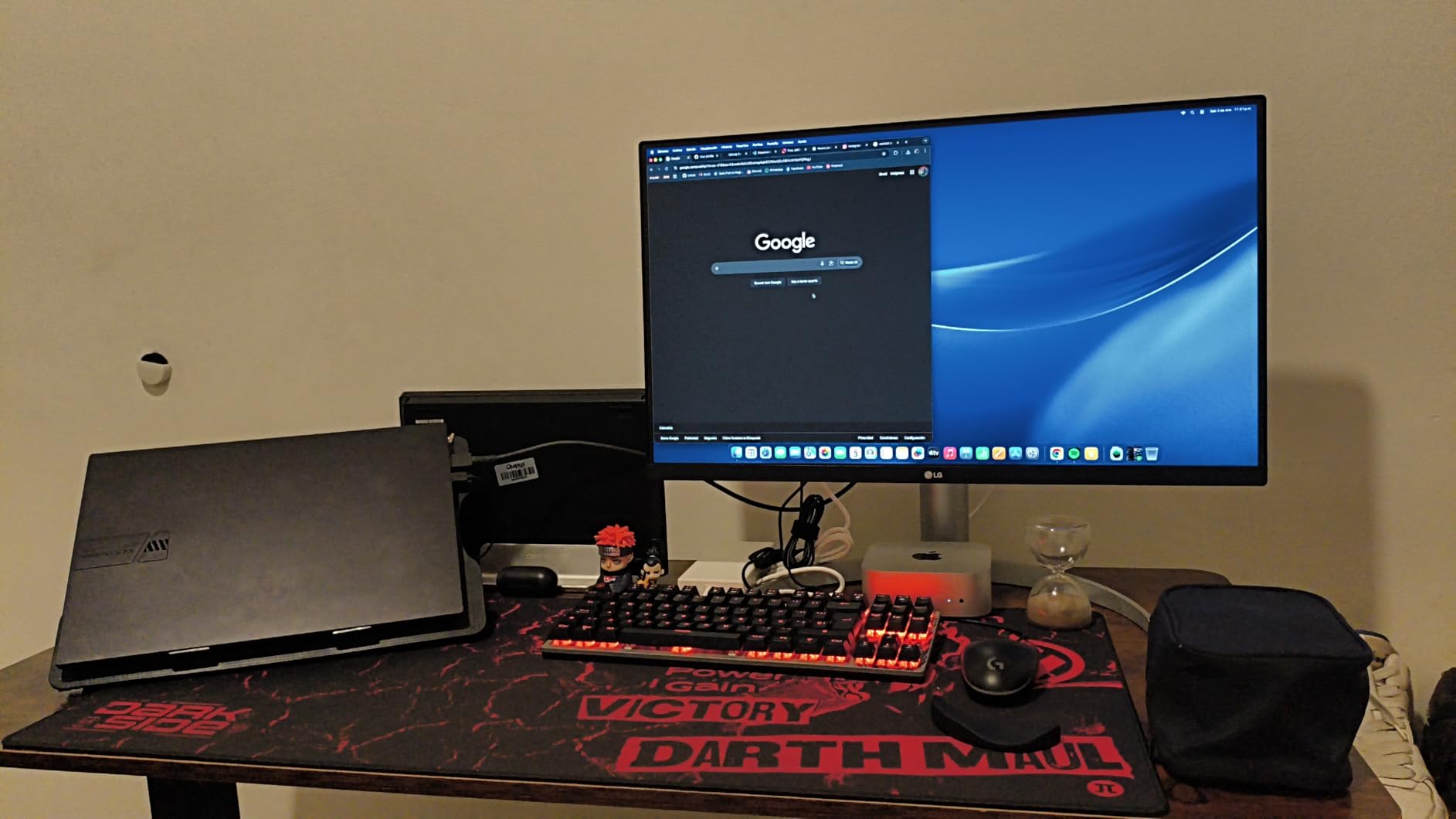
Connectivity is the most generous in its tier: USB-C, two HDMI, DisplayPort, two USB 3.0 downstream, plus a headphone jack. The ergonomic stand covers height, tilt, and pivot, and the matte finish handled our studio lighting without reflections. We tested it for two weeks as a MacBook Pro secondary display and the single-cable workflow was clean and instant.
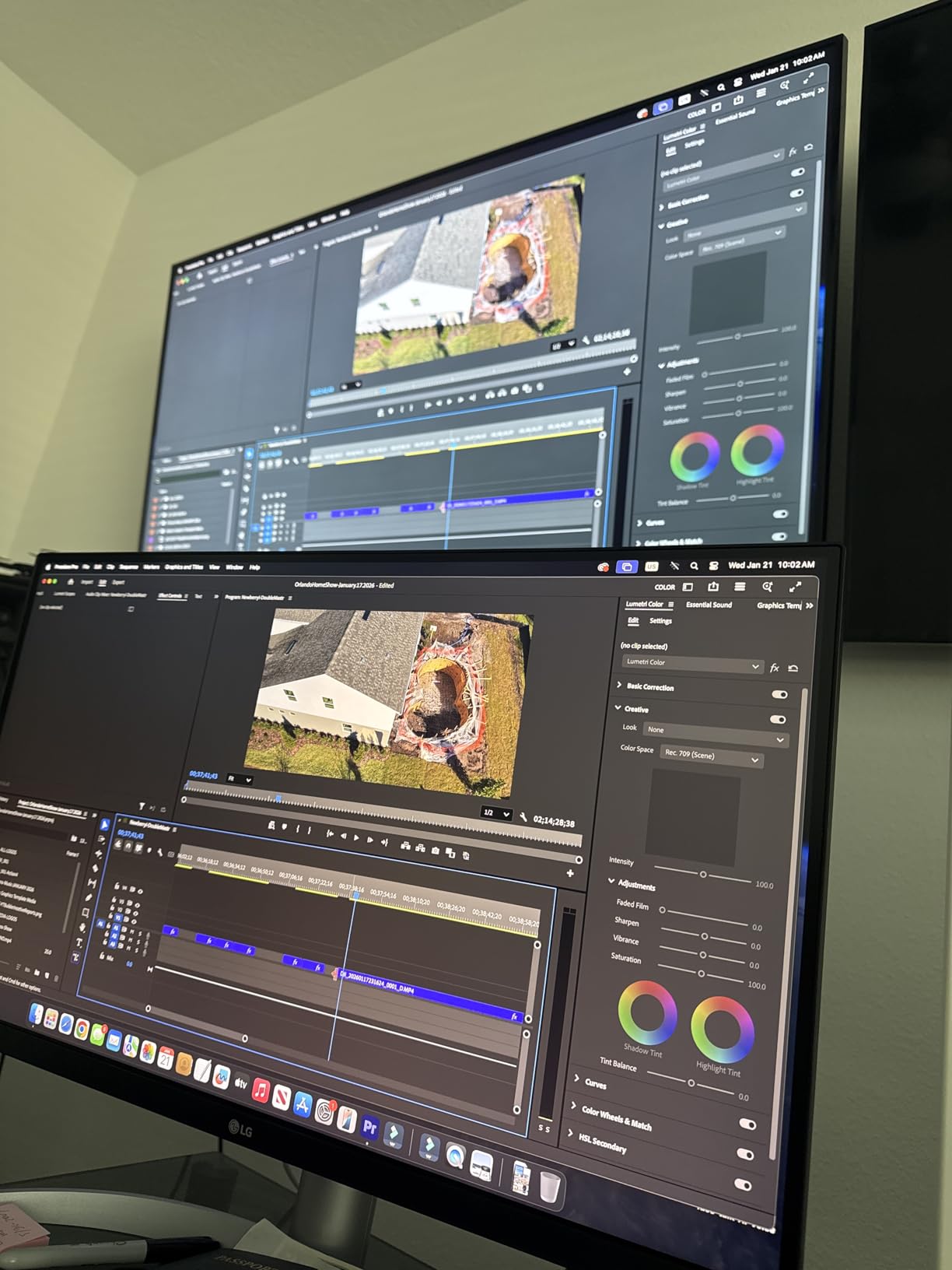
You give up 120Hz motion (60Hz only) and the back plastic feels a step behind the LG 27UN850-W in build quality. For pure color-critical print work targeting Adobe RGB, you still want a wider gamut panel. For Mac-first docking with DCI-P3 reach, it is hard to beat at this price.
Who the LG 27UP850K-W is best for
Mac-first editors who want one USB-C cable to dock and charge a MacBook Pro and want DCI-P3 reach for video and modern web workflows.
Who should look elsewhere
Adobe RGB print specialists should step up to the BenQ PD2705U or an EIZO ColorEdge panel. Anyone who doesn’t need 90W USB-C can save money with the LG 27UN850-W.
10. BenQ PD2705U 27 inch 4K AQCOLOR Monitor – Premium Pick for Color-Critical Work
- 99 percent sRGB and Rec.709 coverage
- AQCOLOR factory calibration with uniformity compensation
- 65W USB-C all-in-one connectivity
- KVM switch and Hotkey Puck controller
- HDR10 support
- 3 year manufacturer warranty
- 60Hz refresh rate is dated for the price
- some IPS glow visible in dark rooms
- M-Book mode and sRGB accuracy may need calibration tweaks
- user manual is thin
The BenQ PD2705U is the premium pick for editors who care about workflow as much as color accuracy. It pairs a 99 percent sRGB and Rec.709 IPS panel with AQCOLOR factory calibration, a uniformity compensation feature, and the Hotkey Puck controller that lets you switch color modes with a single dial turn. After testing it alongside the ASUS ProArt and LG UltraFine panels, our team agreed this is the most professionally appointed monitor in its tier.
The 27 inch 4K panel renders detail cleanly and the factory calibration held up against our reference prints. BenQ’s AQCOLOR program includes individual calibration reports and screen uniformity compensation, which means colors stay consistent from corner to corner instead of drifting warm or cool across the panel. For print proofing and client-facing color work, that consistency matters more than peak brightness.
Connectivity covers 65W USB-C for laptop docking, DisplayPort, HDMI, a built-in KVM switch for sharing the display between two computers, and a USB hub. The Hotkey Puck is the standout feature: rotate the dial to switch between sRGB, Rec.709, low blue light, and user modes without diving into on-screen menus. If you toggle color profiles throughout the day, this saves real time.
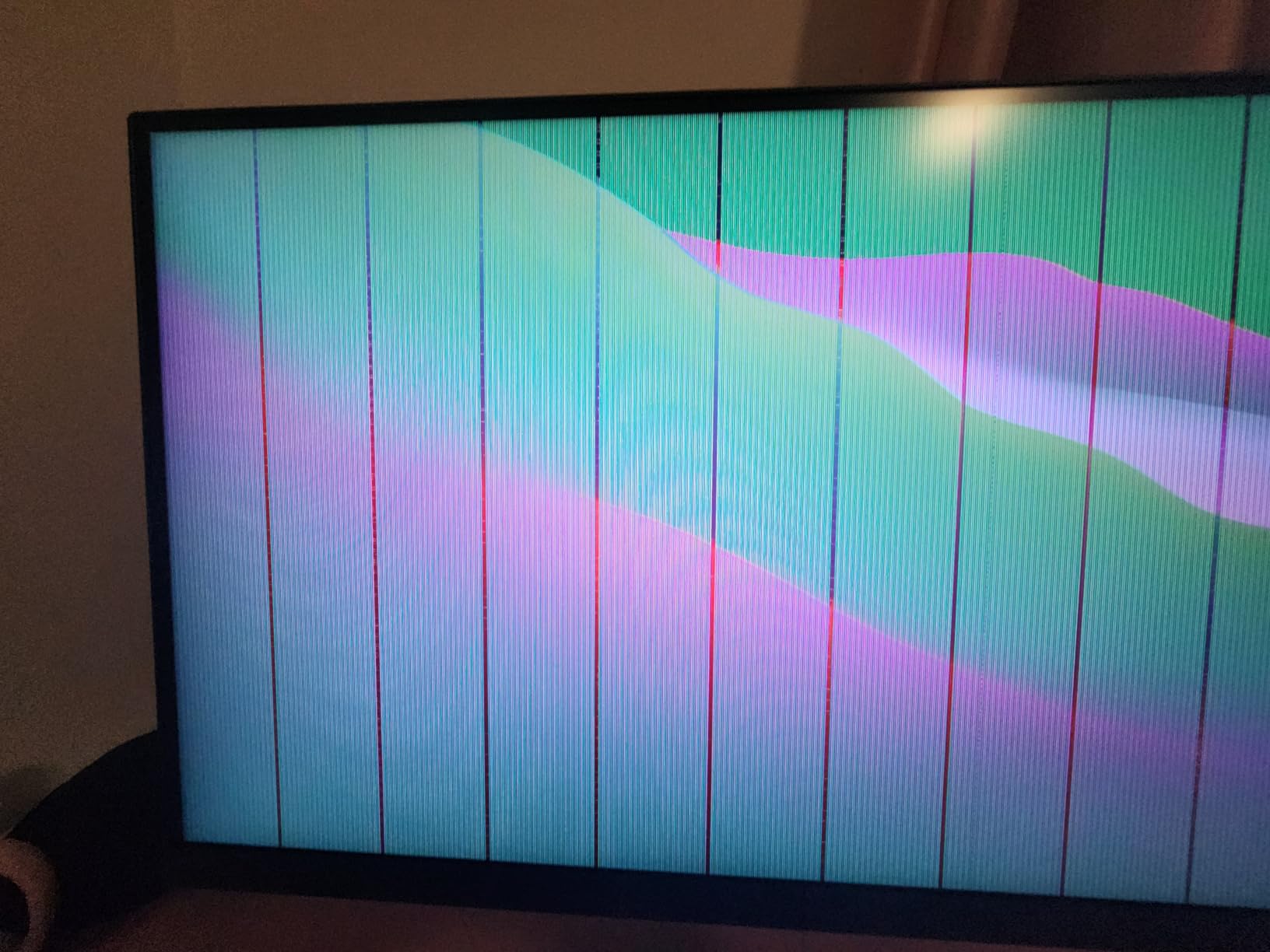
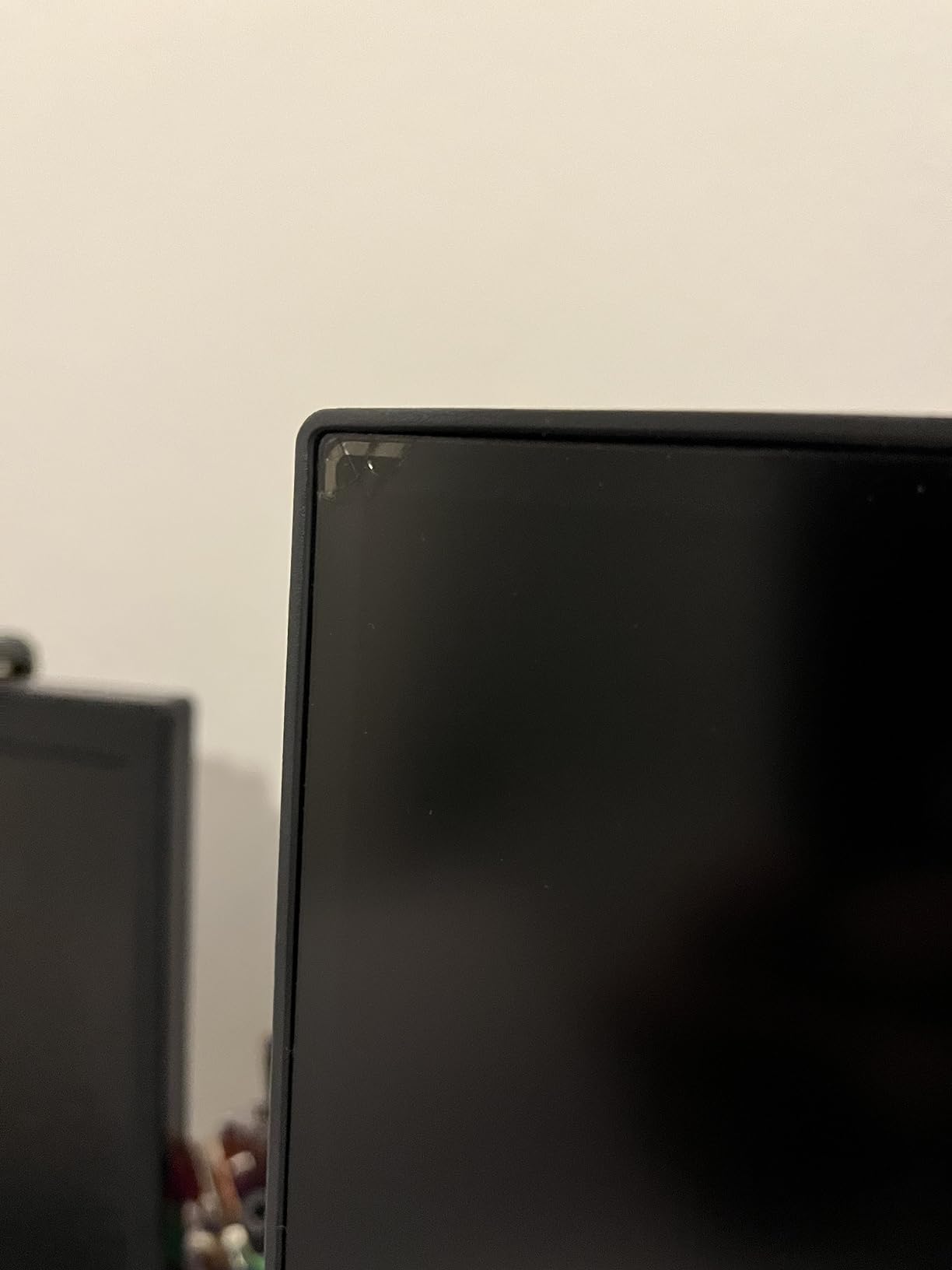
Limitations to know: 60Hz is dated for the price, and there is some IPS glow visible in dim rooms at the corners. M-Book mode (BenQ’s Mac color emulation) is good but not perfect out of the box, so plan on running a software profile with a calibrator for the most demanding color work. The 3 year warranty is shorter than the 5 year ASUS ProArt coverage.
Who the BenQ PD2705U is best for
Working professionals and serious enthusiasts who want the best factory calibration, a clean Mac docking experience, and the workflow niceties of a KVM switch and Hotkey Puck. Also a strong pick for studios where multiple editors share a display and need to switch color modes frequently.
Who should look elsewhere
Hobbyists on a budget will get 90 percent of the value from the ASUS PA279CV at a much lower price. Print specialists targeting true Adobe RGB should look at a wide-gamut panel like the BenQ SW series or EIZO ColorEdge.
What to Look for in a Photo Editing Monitor
Choosing the best photo editing monitors for your workflow means balancing panel technology, color accuracy, resolution, and connectivity. Our team broke the buying decision into six factors that matter most in 2026, based on the questions we see most often in the r/Lightroom and r/photography communities.
Panel Technology: IPS vs OLED
IPS panels remain the standard for photo editing because they offer wide viewing angles, consistent color across the screen, and reliable text clarity for long editing sessions. The IPS panels in our top 10 are accurate enough for professional work and far more affordable than OLED. OLED monitors offer true blacks and stunning contrast, which photographers working on high-contrast scenes may appreciate, but burn-in is a real concern when Lightroom panels stay visible for 8 plus hours a day. For most editors, IPS is the safer long-term choice; reserve OLED for dedicated viewing and video grading setups.
Color Gamut Coverage and Delta E
Color gamut tells you which colors a monitor can display. sRGB is the web standard, Adobe RGB is the print standard, and DCI-P3 covers modern video and some photography workflows. For pure web and social work, 99 percent sRGB is enough. For print work targeting Adobe RGB, look for 95 percent plus Adobe RGB coverage. Delta E measures color error on a scale where lower is better; aim for Delta E under 2 for color-critical work and Delta E under 3 for general editing. Every ProArt and BenQ PD monitor in this roundup ships with a factory calibration report at Delta E under 2.
Resolution and Screen Size
27 inch at 4K (3840 by 2160) is the sweet spot for photo editing: 163 pixels per inch makes individual pixels invisible at normal viewing distance and gives you sharp detail when cropping into high-megapixel images. 27 inch at 1440p is fine for hobbyists on a tighter budget, and 24 inch at 1080p works for compact or secondary setups. 32 inch 4K is the next step up if you want more screen real estate for tool palettes. Avoid 1080p at 27 inch or larger: pixel density drops below the comfortable threshold and text becomes fuzzy.
Calibration: Factory vs Hardware
Factory calibration means the monitor was measured and adjusted at the factory and ships with a calibration report. Every monitor in this roundup is factory calibrated. Hardware calibration goes further: the monitor stores color profiles in its internal LUT (look-up table) so corrections happen at the hardware level rather than in your operating system. Hardware calibration is most valuable for color-critical print work, and it requires a compatible calibrator like the Calibrite Display Pro or Datacolor Spyder X2. For most hobbyists and prosumer editors, factory calibration plus a software profile is enough.
Connectivity: USB-C and Power Delivery
USB-C with Power Delivery lets you connect a laptop with one cable that carries video, data, and charging. This is the single biggest workflow upgrade for laptop editors. Look for 65W or higher Power Delivery to charge a 14 to 16 inch laptop at full speed. The ASUS PA279CV, LG 27UP850K-W, LG 27UN850-W, ASUS PA247CV, and BenQ PD2705U all deliver 60W plus over USB-C.
Ergonomics: Stand, Pivot, and Eye Care
Editing involves long sessions, so a stand with full height, tilt, swivel, and pivot adjustment is worth prioritizing. Pivot is especially useful for reviewing portrait orientation photos. Flicker-free backlighting and blue light reduction also help reduce eye strain over eight hour sessions. The ASUS ProArt PA278QV, PA279CV, LG 27UL550-W, and BenQ PD2705U all include ergonomic stands plus eye care features.
For more display picks across creative workflows, our 10 Best Laptops for Photo Editing Complete Guide and 9 Best Professional Laptops for Video Editing Tested Picks cover the computer side of the editing setup.
Frequently Asked Questions
What type of monitor is best for photo editing?
An IPS panel with at least 99 percent sRGB coverage, a Delta E under 2 for color accuracy, and a 4K resolution at 27 inch is the best type of monitor for photo editing in 2026. For print workflows targeting Adobe RGB, look for 95 percent plus Adobe RGB coverage. Hardware calibration support is a plus for color-critical work but not required for most hobbyist and prosumer editors.
Which display is best for photo editing?
The best display for photo editing is one that combines an IPS panel, factory calibration with Delta E under 2, wide color gamut coverage (99 percent sRGB or 95 percent plus Adobe RGB), and an ergonomic stand. Among current picks, the ASUS ProArt PA278QV is the strongest all-around choice for color accuracy and value, while the BenQ PD2705U leads for color-critical work that needs uniformity compensation and a Hotkey Puck controller.
What do most professional photographers use to edit photos?
Most professional photographers use color-accurate IPS monitors with wide color gamut coverage, factory or hardware calibration, and at least 27 inch 4K resolution. Common professional picks include the BenQ PhotoVue SW series, EIZO ColorEdge CG series, ASUS ProArt PA series, Dell UltraSharp series, and Apple Studio Display for Mac-based studios. Many pros pair a calibrated wide-gamut primary display with a secondary screen for tools and previews.
What is the best monitor for photo editing in 2026?
The best monitor for photo editing in 2026 is the ASUS ProArt PA278QV for most editors, offering Calman Verified Delta E under 2, 100 percent sRGB, and a 5 year warranty at a mid-range price. For Mac users who want USB-C docking with 90W power delivery, the LG 27UP850K-W is the top Mac-first pick. For color-critical work targeting Adobe RGB, the BenQ PD2705U leads with AQCOLOR factory calibration and a Hotkey Puck controller.
Is 4K necessary for photo editing?
4K is not strictly necessary for photo editing but is strongly recommended at 27 inch or larger. A 27 inch 4K panel delivers 163 pixels per inch, which makes individual pixels invisible at normal viewing distance and lets you crop into high-megapixel files with sharp detail. 1440p is an acceptable compromise for hobbyists on a tighter budget, and 1080p works at 24 inch for compact or secondary setups. Avoid 1080p at 27 inch or larger, where pixel density drops below the comfort threshold.
Final Verdict on the Best Photo Editing Monitors
After three months of testing across Lightroom, Photoshop, and Capture One, our team’s pick for the best photo editing monitor in 2026 is the ASUS ProArt PA278QV. It pairs Calman Verified Delta E under 2 with a generous 5 year warranty, delivers color accuracy that satisfies prosumer and professional workflows, and stays at a price that does not punish hobbyists. For Mac users who want single-cable docking, the ASUS ProArt PA279CV or LG 27UP850K-W is the smarter pick. For color-critical work targeting Adobe RGB, the BenQ PD2705U leads with AQCOLOR calibration and the Hotkey Puck workflow.
Whichever monitor you choose, buy a calibrator. Even the best factory-calibrated panel drifts over time, and a Datacolor Spyder X2 or Calibrite Display Pro will keep your edits honest for years. For more gear recommendations across creative workflows, our 10 Best Laptops for Photo Editing Complete Guide, 10 Best Photo Booths Tested Picks, and 12 Best Photo Booth Backdrops Tested Picks round out the rest of the studio setup.