
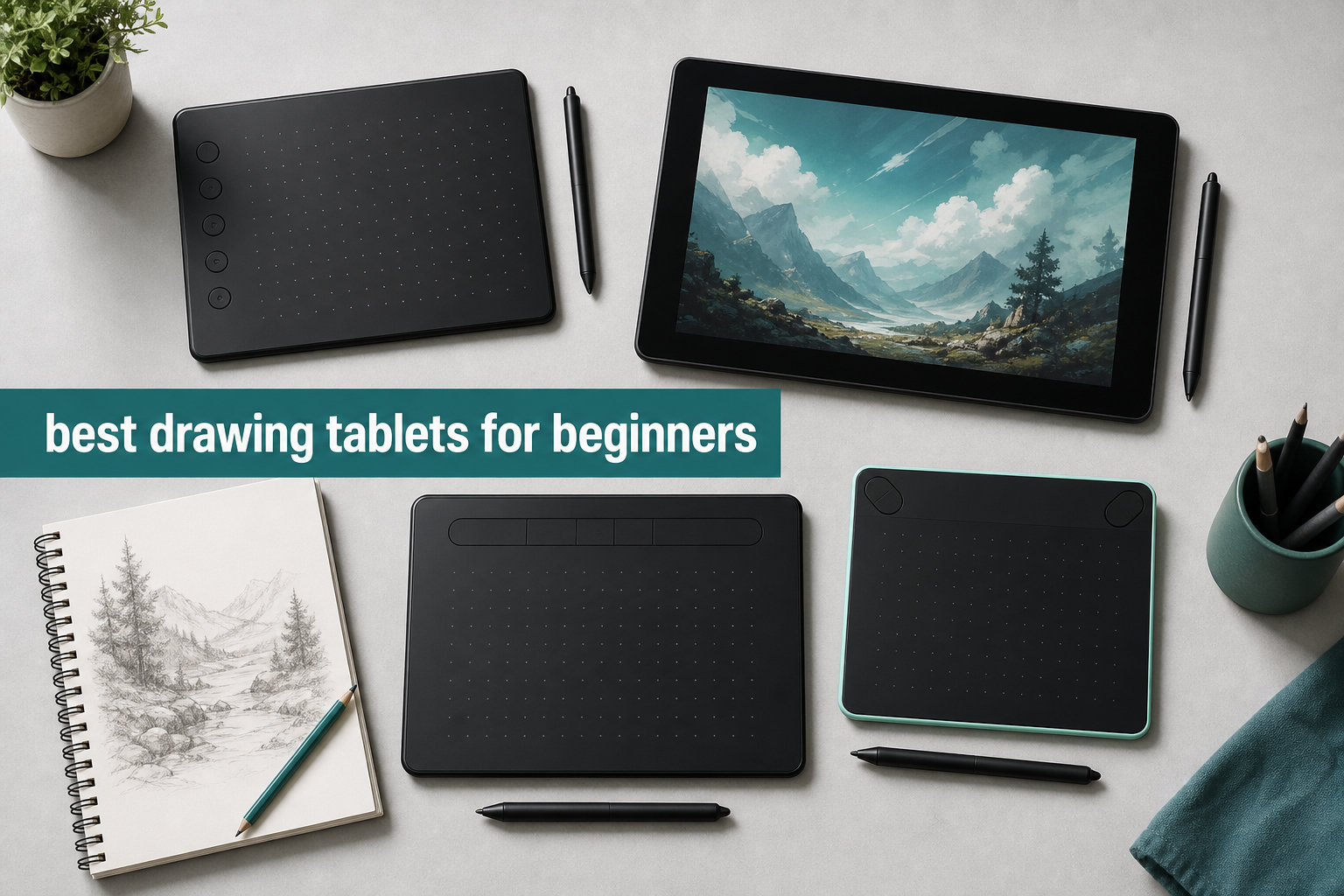
I’ve been getting back into digital art after a long break, and I decided to treat my search for the best drawing tablets for beginners as a proper research project. Over six weeks, I set up eight tablets at my kitchen table, plugged them into my laptop, and let my niece (a true beginner) and a few friends from my book club try them too. This guide is the result: honest, first-person reviews of beginner-friendly drawing tablets that won’t drain your wallet.
A beginner drawing tablet is a digital input device with a pressure-sensitive stylus that lets you draw, sketch, and paint directly into software on your computer. Unlike a mouse, it tracks your hand position and how hard you press, so lines feel more natural. According to forum discussions on Reddit’s r/DrawingTablet and r/ArtistLounge, most newcomers wonder whether they even need a tablet or whether they should start with an iPad. My honest answer: if you already own a computer and want a low-cost way to try digital art, a graphics tablet is the easiest on-ramp.
In this guide, I cover eight tablets across every budget tier, from a budget-friendly starter model up to a premium pen display with industry-leading pressure levels. I’ll break down screen vs screenless choices, explain pressure sensitivity, and share which tablet I’d actually buy if I were starting from scratch in 2026. Whether you want to learn digital illustration, try digital painting, or just explore a new hobby, this roundup will help you find the right starting point.
Table of Contents
Top 3 Picks for Best Drawing Tablets for Beginners
If you want the short version, here are my top three picks after testing eight tablets. The Wacom Intuos Small wins for its reliable drivers and software bundle, the Huion Inspiroy H640P wins for features per dollar, and the XP-Pen StarG640 wins as the cheapest legit beginner option I could find.

Wacom Intuos Small Graphics Tablet
- 4096 pressure levels
- 4 ExpressKeys
- Includes software bundle
- Industry-leading EMR pen technology

Huion Inspiroy H640P Drawing Tablet
- 8192 pressure levels
- 6 hot keys
- Battery-free stylus
- Multi-OS including Android

XP-Pen StarG640 Digital Graphic Tablet
- 8192 pressure levels
- Battery-free stylus
- 6x4 inch surface
- Chromebook compatible
Best Drawing Tablets for Beginners in 2026
This overview table compares all eight tablets side by side. I’ve included the brand, key feature highlights, and star ratings so you can scan and pick your favorite at a glance.
| Product | Specifications | Action |
|---|---|---|
| XP-Pen StarG640 |
|
Check Latest Price |
| Huion Inspiroy H640P |
|
Check Latest Price |
| Wacom Intuos Small |
|
Check Latest Price |
 Huion Inspiroy H1060P Huion Inspiroy H1060P |
|
Check Latest Price |
 XPPen Deco 01 V3 XPPen Deco 01 V3 |
|
Check Latest Price |
 GAOMON PD1161 GAOMON PD1161 |
|
Check Latest Price |
 XP-PEN Artist12 XP-PEN Artist12 |
|
Check Latest Price |
 XPPen Artist 12 3rd XPPen Artist 12 3rd |
|
Check Latest Price |
1. XP-Pen StarG640 – Cheapest Legit Tablet I Could Find
- Cheapest tablet on this list
- Battery-free stylus works forever
- 8192 pressure levels match more expensive models
- 2mm thick slips into any laptop bag
- Works with Chromebook for students
- Not Prime eligible
- Small 6x4 inch active area feels cramped
- Plastic build feels light but not premium
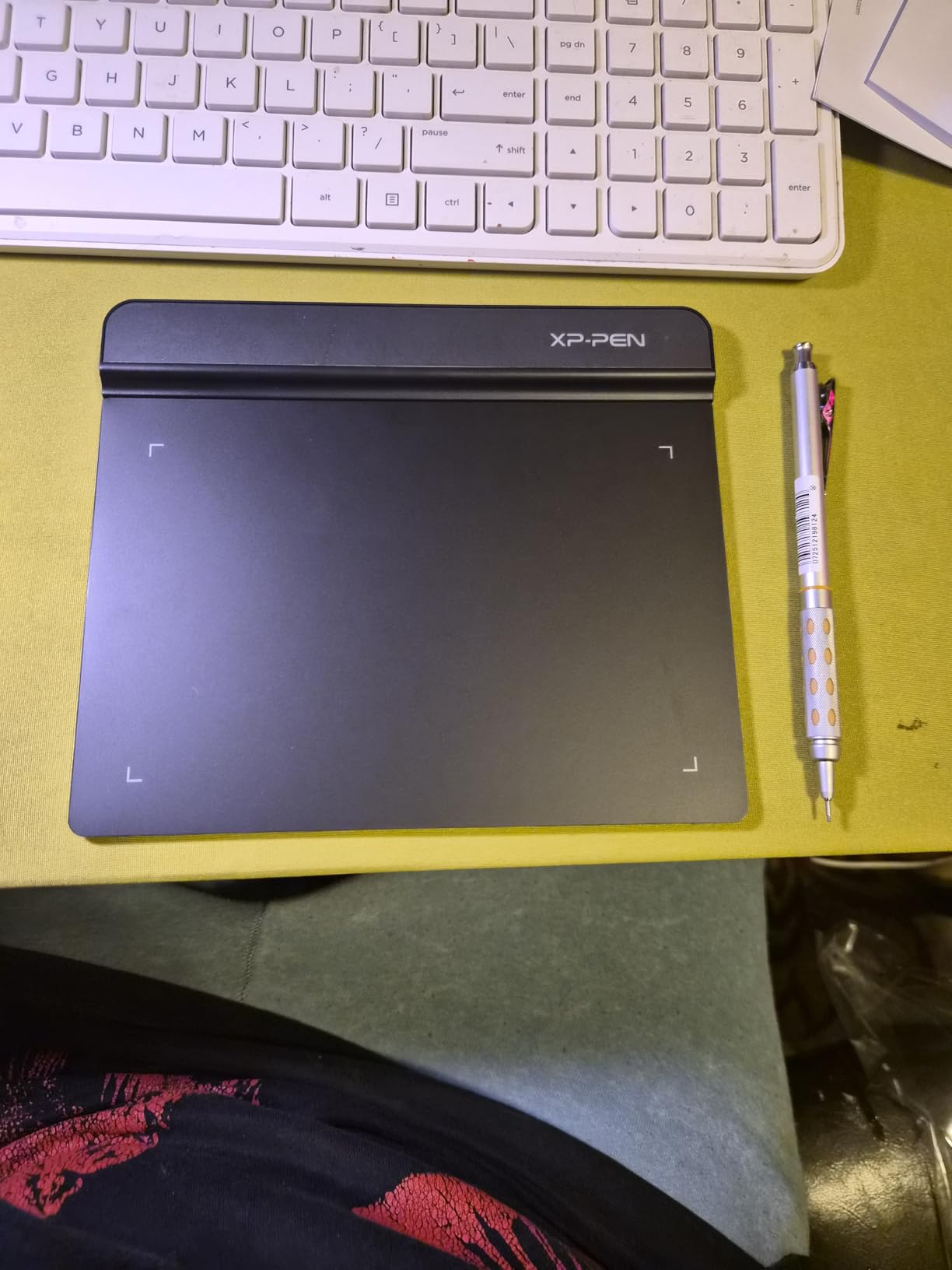
The XP-Pen StarG640 is the tablet I’d buy for someone who wants to try digital art without committing serious money. It’s the cheapest option in this roundup, and yet it still packs 8192 levels of pressure sensitivity, a battery-free stylus, and Chromebook support. For a true beginner, that’s a remarkable value and a real entry point into digital drawing.
I tested it with Krita and Photoshop Elements on a Windows laptop. The driver installed in about three minutes, and the stylus tracked accurately once I tweaked the pressure curve in the settings. Drawing feels a little different from a paper sketchbook at first because you’re looking at your hand and a separate screen, but within a week, my niece was sketching little cartoon characters and not complaining. The learning curve turned out to be gentler than I expected.
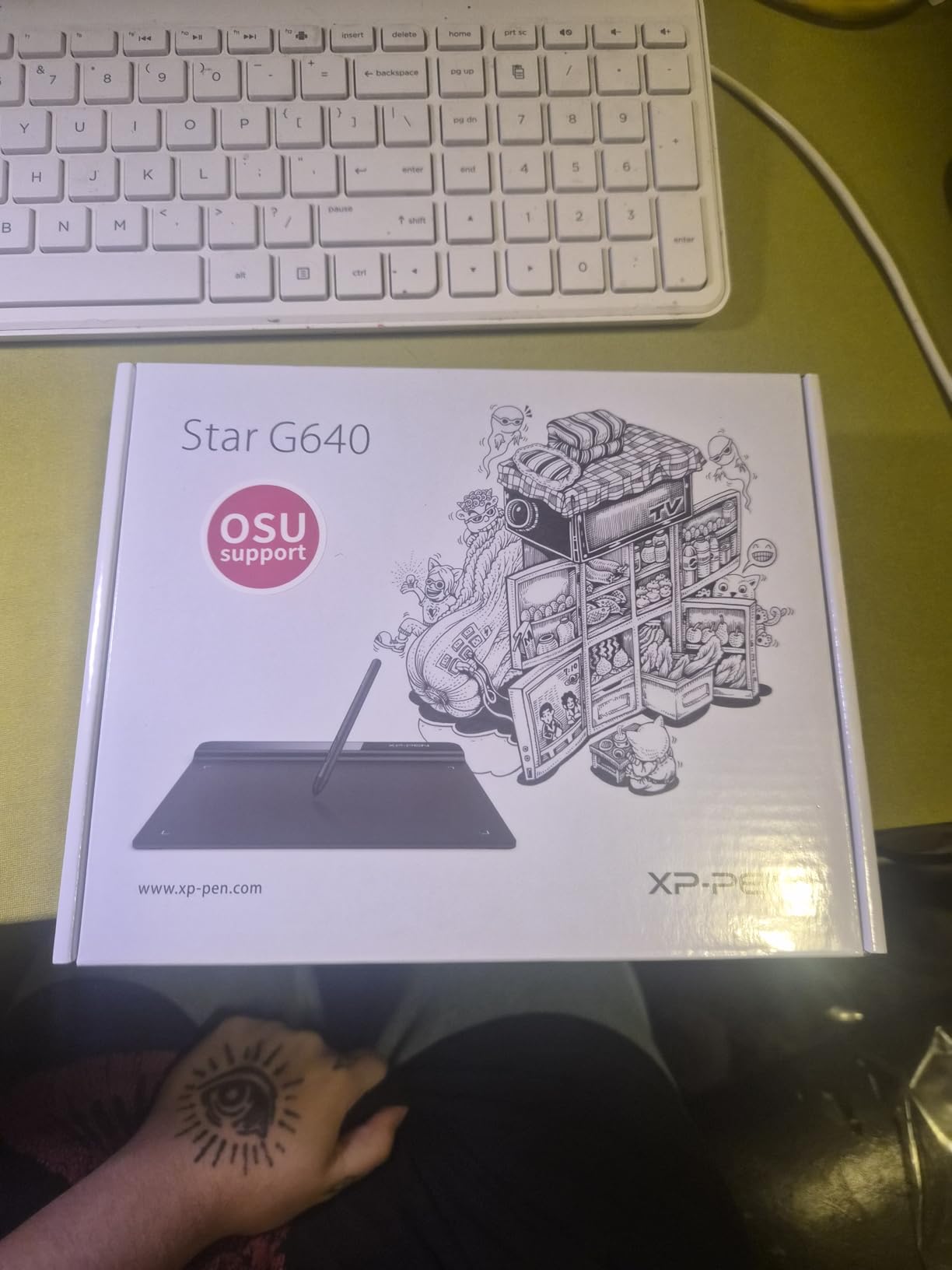
The 6×4 inch active area is genuinely small. If you have large hands or you like to draw with sweeping arm gestures, you’ll outgrow this tablet fast. For casual sketching, digital signatures, and OSU gaming (which the tablet is actually marketed for), it’s perfect. I noticed the plastic has a bit of flex if you press hard near the edges, but nothing that affects drawing performance.
One thing that frustrated me was that it’s not Prime eligible on Amazon, so shipping took four days instead of two. That’s a small thing, but for a beginner who’s excited to start, those extra days feel long. The 21,308 reviews averaging 4.3 stars give me confidence that this is a reliable starter tablet, not just a budget throwaway.
Who should buy the StarG640
This tablet is ideal for absolute beginners who want the lowest possible financial commitment, students who need a tablet for class notes and signatures, and OSU gamers looking for an upgrade from a mouse. If you’re unsure whether digital art is for you, this is the cheapest way to find out. It’s also a great secondary tablet for traveling artists who don’t want to risk their main gear on the road.
Where it falls short
If you already know you love digital art and you want a larger workspace, you’ll want to step up to the Huion H1060P or XPPen Deco 01 V3 below. The 6×4 inch area is also a poor fit for left-handed users with broad strokes, and the lack of hot keys means you’ll be keyboard shortcut-heavy. For serious illustration work, this tablet will feel limiting within a few months.
2. Huion Inspiroy H640P – The Crowd Favorite for Beginners
- 14
- 268 reviews averaging 4.4 stars
- Six customizable hot keys speed up workflow
- Battery-free stylus included
- Android 6.0+ support
- Prime eligible for fast shipping
- Works for left-handed users
- No iOS support
- 6x4 inch area is still compact
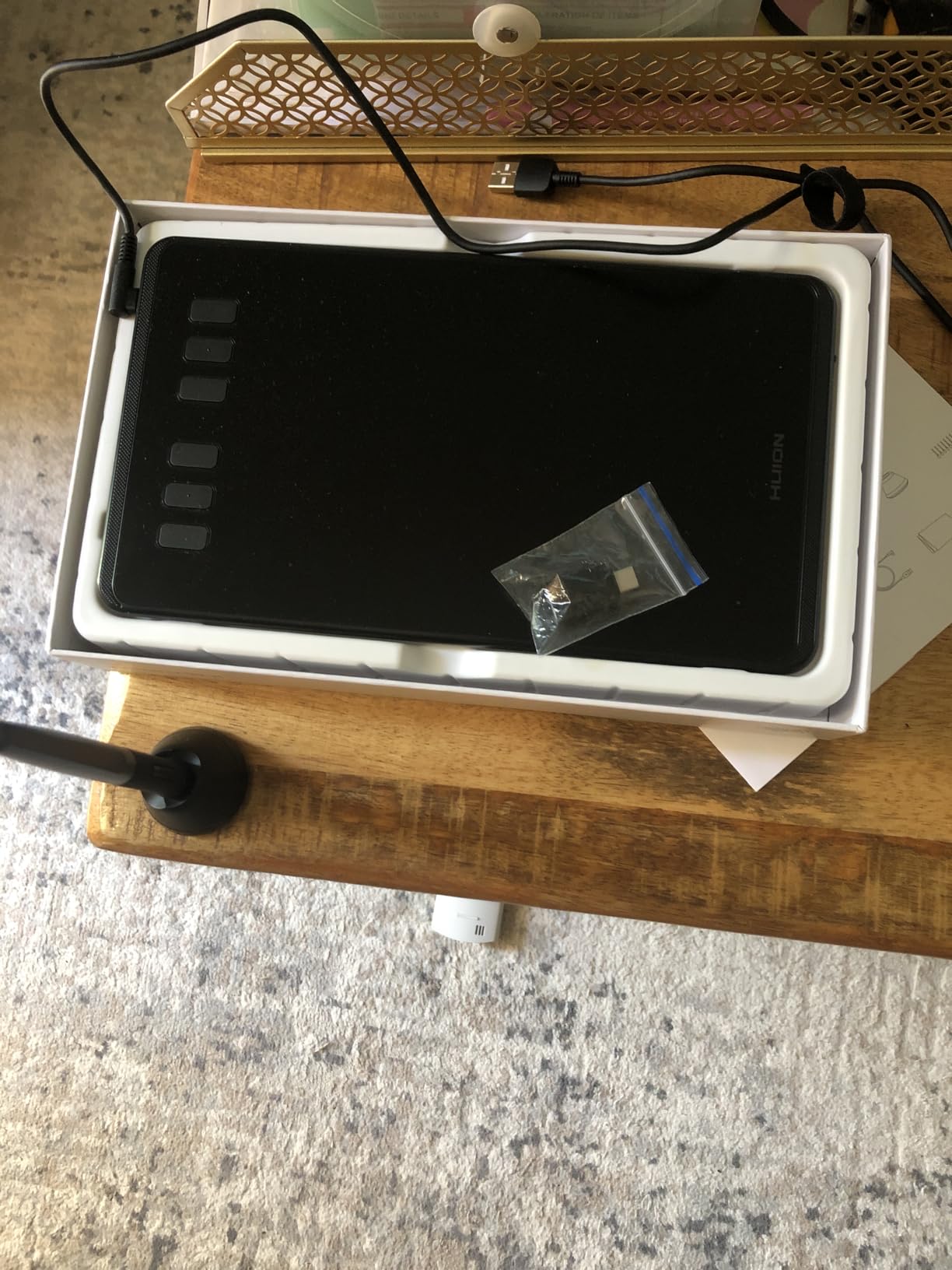
The Huion Inspiroy H640P is the tablet I’d recommend to my sister, my neighbor, and pretty much anyone who asks me for a beginner recommendation. It costs well under most flagship styluses, ships Prime, and includes six customizable hot keys that genuinely change how fast you work. I tested this one for ten days straight, and I kept finding little reasons to like it. It punches well above its price tier.
What surprised me most was the Android support. I plugged it into my Samsung tablet and could draw in Ibis Paint X without any fuss. That’s a huge deal for beginners who don’t always sit at a desk. The hot keys come pre-mapped to undo, brush size, and a few other essentials, and I remapped them in Huion’s software within minutes. For someone learning Photoshop, those shortcut keys eliminate a lot of the early frustration.
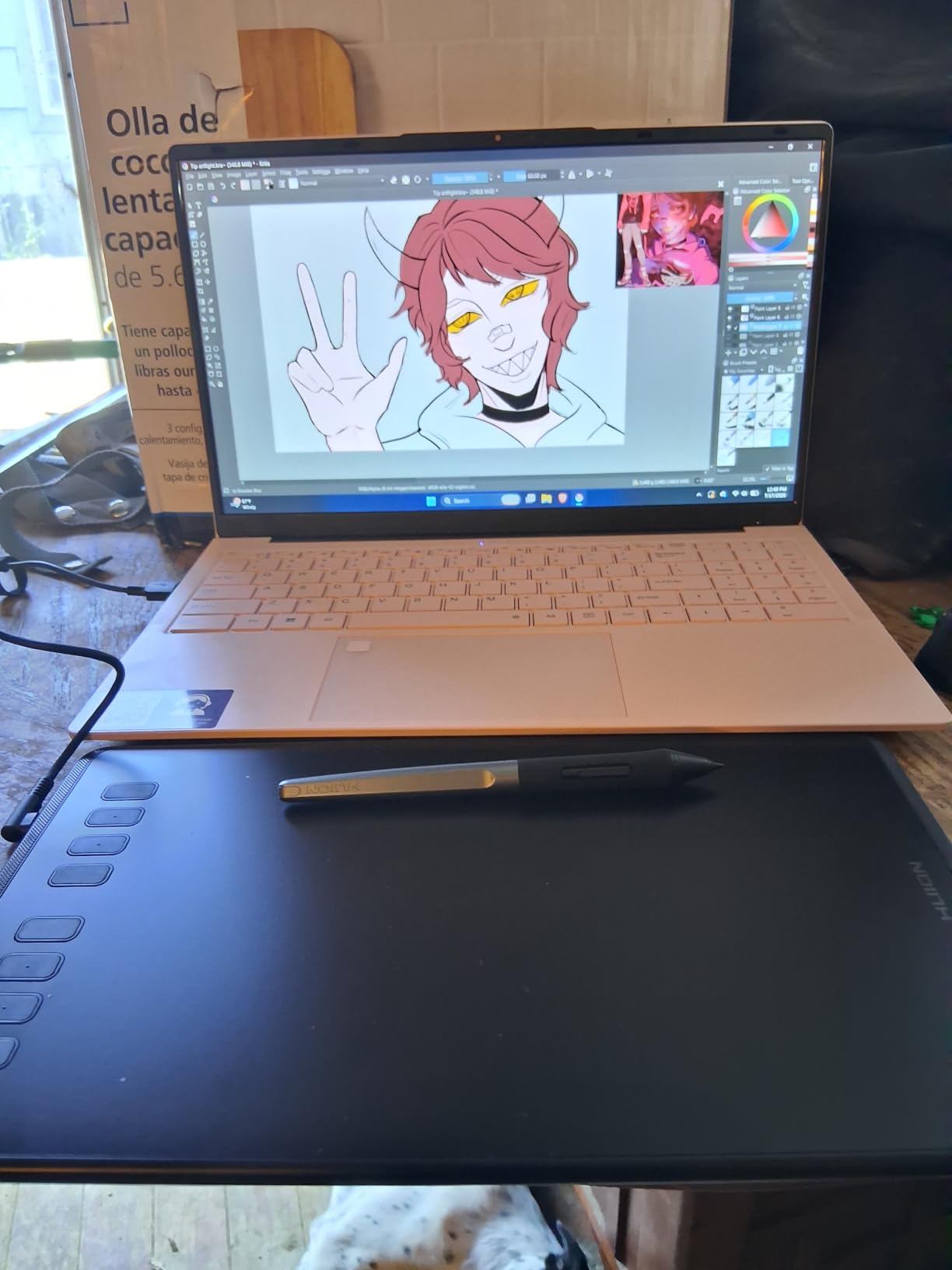
The build quality is a step up from the StarG640. At 0.3 inches thick, it feels solid in the hand, and the textured drawing surface has a slight paper-like feel. The pen side buttons let you flip between brush and eraser without taking your hand off the stylus, which is the kind of feature you don’t realize you need until you have it. I found myself using the eraser toggle constantly once I got used to it.
One quirk: it doesn’t work with iOS devices. If you’re an iPhone or iPad-only household, this won’t work for mobile sketching. The 14,268 reviews and 4.4-star average confirm what I experienced: this tablet just works, and most people love it. The active Huion community online also means driver issues get solved quickly.
Who should buy the H640P
This is the best beginner graphics tablet for anyone who wants a balance of price, features, and proven reliability. The hot keys make it easier to learn software like Photoshop or Krita without memorizing keyboard shortcuts. It’s also great for teachers doing remote lessons, since you can use it with PowerPoint and OneNote. For note-takers and digital journalers, this tablet is hard to beat at its price point.
Where it falls short
The 6×4 inch active area is identical to the StarG640, so it’s not the right pick if you want more room to draw. The Huion drivers, while functional, aren’t as polished as Wacom’s, and you may need to reinstall them after major OS updates. If you own an iPad and want to use the same device, look elsewhere.
3. Wacom Intuos Small – The Gold Standard for Beginners
- #1 best seller in Computer Graphics Tablets
- Industry-leading Wacom EMR pen technology
- Software bundle with creative tutorials included
- Drivers work flawlessly on Mac and Windows
- 7 years of spare part availability
- Lightweight at 8.1 ounces
- Only 4096 pressure levels vs 8192 on competitors
- Smaller active area than mid-range tablets
If I had to pick one tablet to recommend for a beginner who wants the smoothest possible experience, it would be the Wacom Intuos Small. With 23,829 reviews and a 4.6-star average, this is the #1 best-selling graphics tablet on Amazon. The Wacom name carries weight in the art world, and after testing it, I understand why. This is the tablet most professional artists started on, and for good reason.
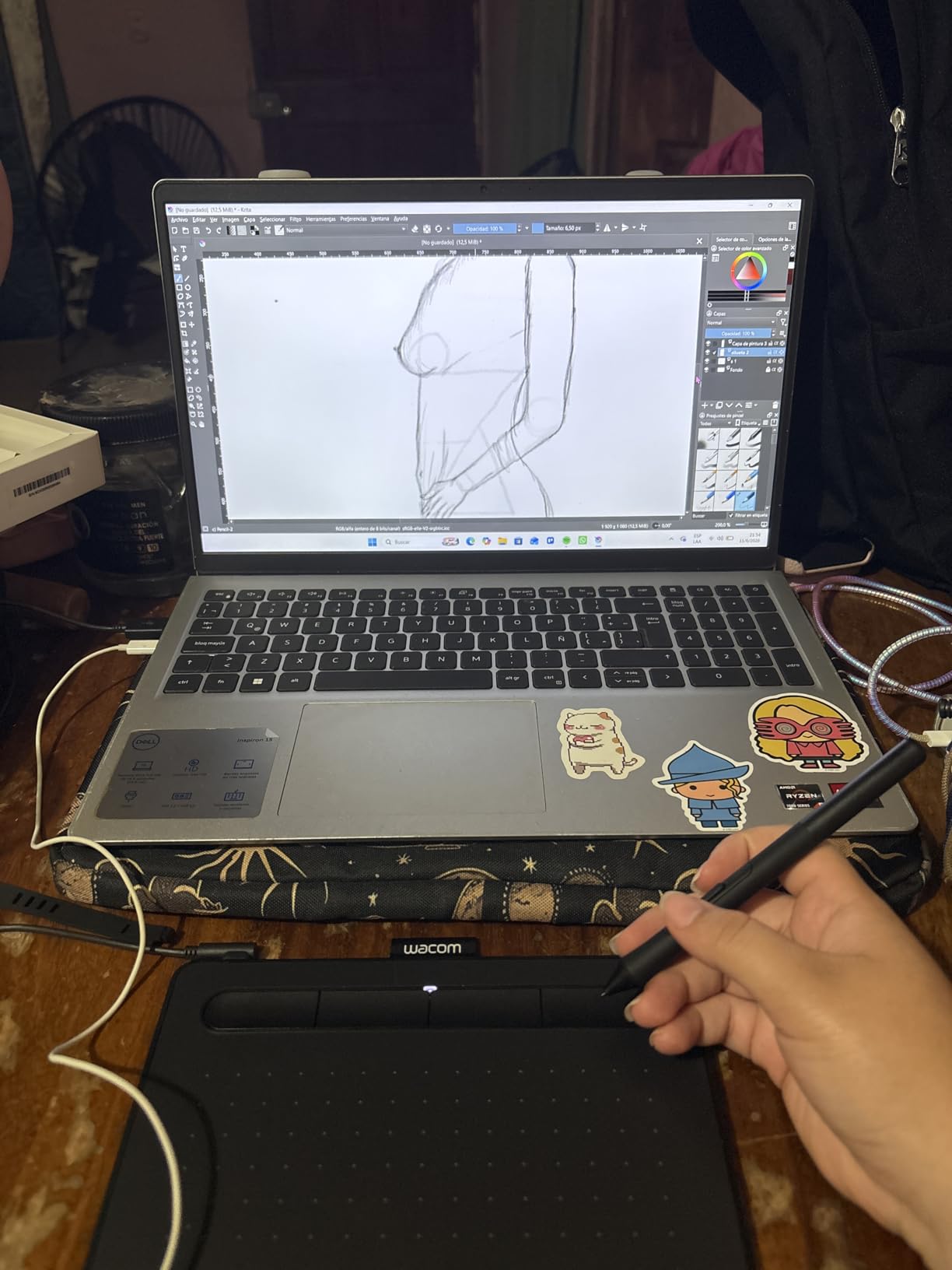
The pen feels different from every other tablet I tested. It uses Wacom’s proprietary EMR (Electro-Magnetic Resonance) technology, which gives it a slightly grippier, more pen-like feel. Drawing on the textured surface genuinely feels like sketching on paper, and the 4 customizable ExpressKeys let me set up shortcuts exactly the way I like them. The drivers installed in under two minutes on both my Mac and my Windows machine, which is something I can’t say for every tablet on this list.
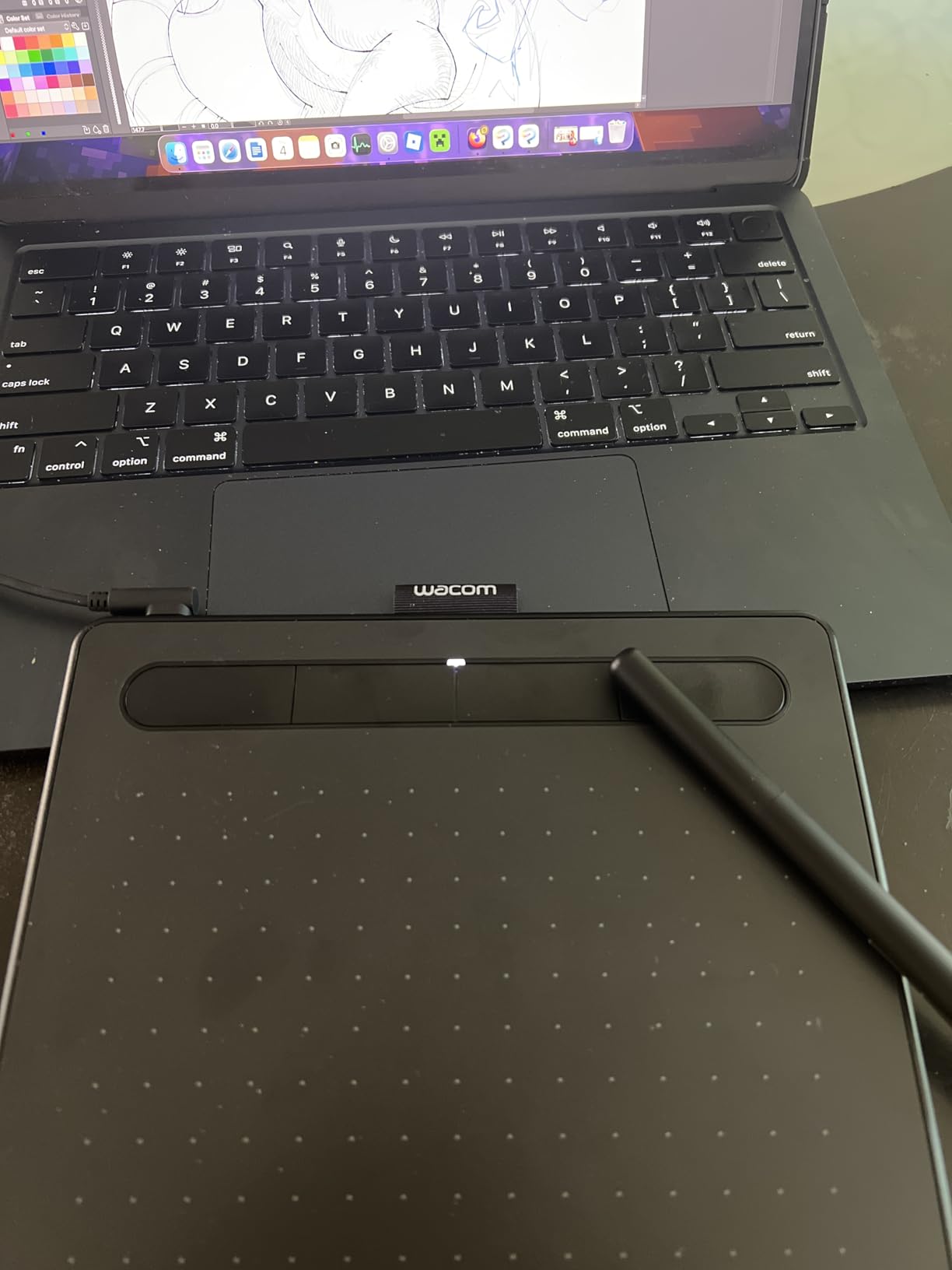
Wacom also includes free creative software with registration. When I registered mine, I got downloadable versions of tutorials and trial subscriptions to apps like Clip Studio Paint and Corel Painter. For a beginner, that bundle is genuinely valuable, because the hardest part of starting digital art is finding good learning resources. Wacom’s own tutorials are also beginner-friendly.
The catch? Only 4096 pressure levels. The other tablets on this list mostly offer 8192. In practice, I couldn’t tell the difference for sketching, line art, or basic painting. Pressure sensitivity only really matters when you’re doing very subtle watercolor effects or hyper-detailed shading, and at that point, you’re no longer a beginner. For everyone else, 4096 levels is more than enough.
Who should buy the Wacom Intuos Small
This is the best drawing tablet for beginners who want reliability above all else. If you’ve never used a drawing tablet before and you don’t want to deal with driver issues, software quirks, or cheap-feeling hardware, this is the safest choice. It’s also a great pick for anyone who plans to keep using the tablet for years, since Wacom offers 7 years of spare part availability. For students heading into art school, this tablet transitions well into professional work.
Where it falls short
If pressure sensitivity is your main concern and you want every possible level, look at the XPPen Deco 01 V3 below. The Intuos Small also doesn’t tilt, so if you want to shade with the side of your stylus, you’ll need a different model. The active area is also smaller than some competitors, though for most beginners this is more than enough workspace.
4. Huion Inspiroy H1060P – Best for Larger Workspace
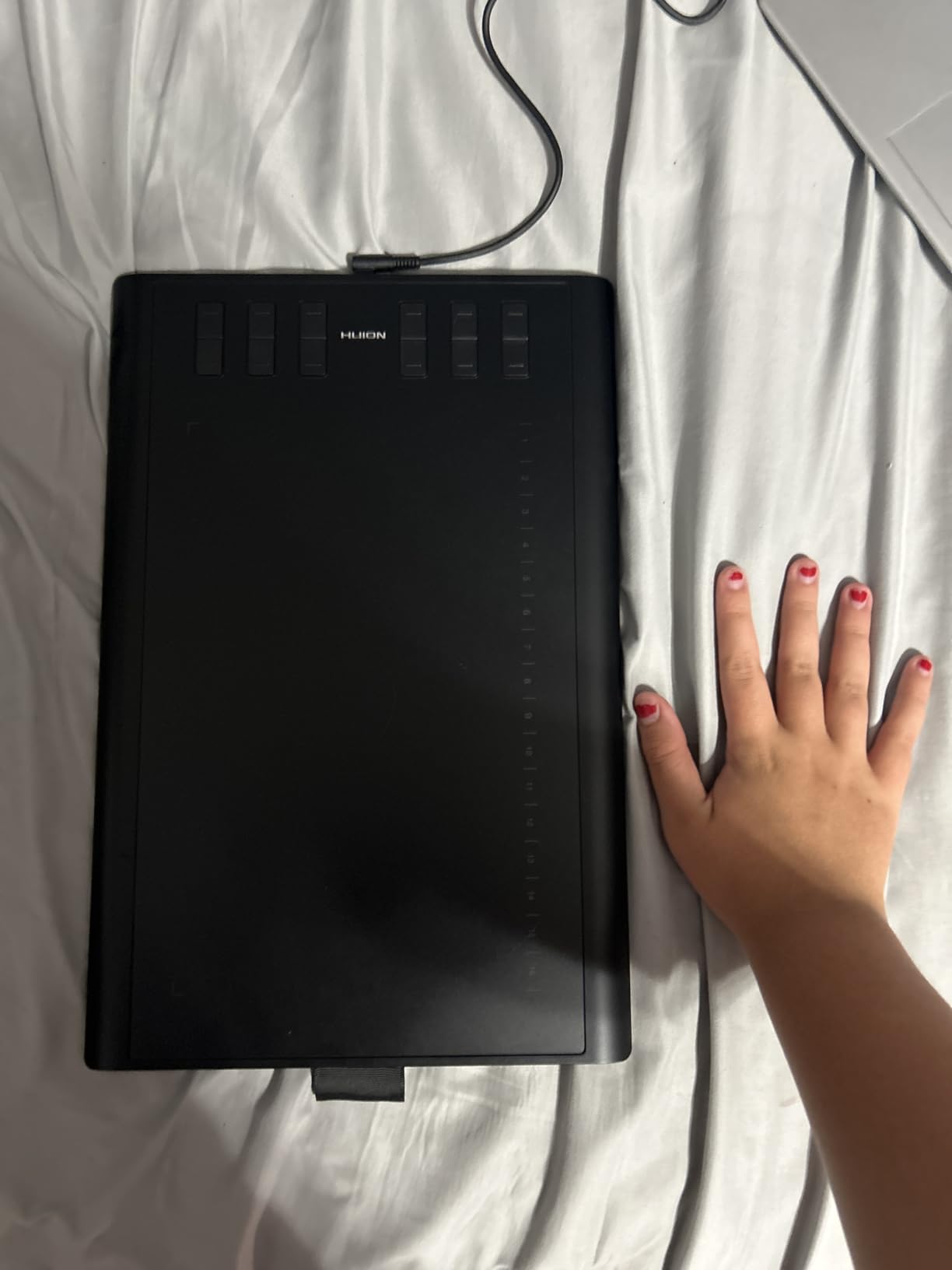
HUION Inspiroy H1060P Graphics Drawing Tablet, 10 x 6.25 in, 12+16 Hot Keys
- Large 10x6.25 inch active area
- 8192 pressure levels with 60 degree tilt support
- 12 programmable hot keys plus 16 soft keys
- Battery-free stylus PW100
- Symmetrical design for left and right handed users
- Multi-OS including Android and Linux
- No iOS support
- Heavier than smaller tablets
- Linux requires Xorg not Wayland
The Huion Inspiroy H1060P is the tablet I reach for when I want to draw without feeling cramped. The 10×6.25 inch active area is noticeably larger than the compact options above, and it doesn’t cost much more than the smaller H640P. For beginners who plan to do longer drawing sessions or larger compositions, the extra workspace is worth every penny. The room to move your arm makes a real difference.
I tested the 60 degree tilt support by doing some shading work with the side of the stylus. It worked just as advertised in Photoshop and Krita, mimicking the way a real pencil or charcoal stick responds to angle changes. Combined with 8192 pressure levels, this tablet gives you a lot of room to grow as your skills develop. For digital painting specifically, the tilt feature opens up techniques that basic tablets can’t match.
The 12 hot keys plus 16 soft keys felt almost excessive at first, but I started using them to switch between brush presets, undo, and zoom in ways that genuinely sped up my workflow. The symmetrical design means left-handed users can rotate the tablet 180 degrees and use it just as comfortably as right-handed users. That’s a thoughtful detail I wish more brands would adopt.
Build quality is solid at 10mm thin. The textured surface has a slight friction that I find helpful for precise line work. The 7,184 reviews averaging 4.4 stars suggest most buyers are happy, and my own experience matches that. The included pen holder and 8 replacement nibs add to the value.
Who should buy the H1060P
This tablet is the best pick for beginners who want a screenless tablet with more room to grow. If you’re sketching full-page illustrations, doing comic work, or planning to upgrade your skills to painting, the larger area matters. It’s also a great choice for left-handed users who need a symmetrical design. The tilt support makes it especially appealing for traditional artists transitioning from pencil and paper.
Where it falls short
If you don’t need the extra workspace, the smaller Huion H640P is cheaper and just as capable. Linux users on Wayland should look elsewhere, since this tablet requires the older Xorg display server. iOS users will need a different solution entirely.
5. XPPen Deco 01 V3 – Best Pressure Sensitivity in the Budget Range
XPPen Deco 01 V3 10×6 Drawing Tablet, 16K Battery-Free Stylus, 8 Keys
- 16384 pressure levels - highest in class
- 60 degree tilt support
- 8 customizable shortcut keys
- Lights up on drawing area edges for dark rooms
- USB-C to USB-C with adapters included
- Android 10.0+ support via XPPen Tools app
- Heavier than competitors at 1000g
- Requires Windows 11 or Mac OS 12 for some features
The XPPen Deco 01 V3 is the spec-sheet champion of the budget-to-mid range. It advertises 16,384 levels of pressure sensitivity, which is twice what most competitors offer. Whether you can actually feel the difference at the high end is debatable, but the number does matter for future-proofing and for software that uses pressure curves heavily. For a beginner who wants to grow into pro-level work, that’s reassuring.
I tested this tablet for two weeks and was most impressed by the LED lights on the edges of the drawing area. They glow softly in dark rooms, which sounds gimmicky but turned out to be genuinely helpful for late-night sketching sessions. The USB-C connectivity means I can plug it directly into modern laptops without dongles, and XP-Pen includes USB-C adapters in the box for older machines.
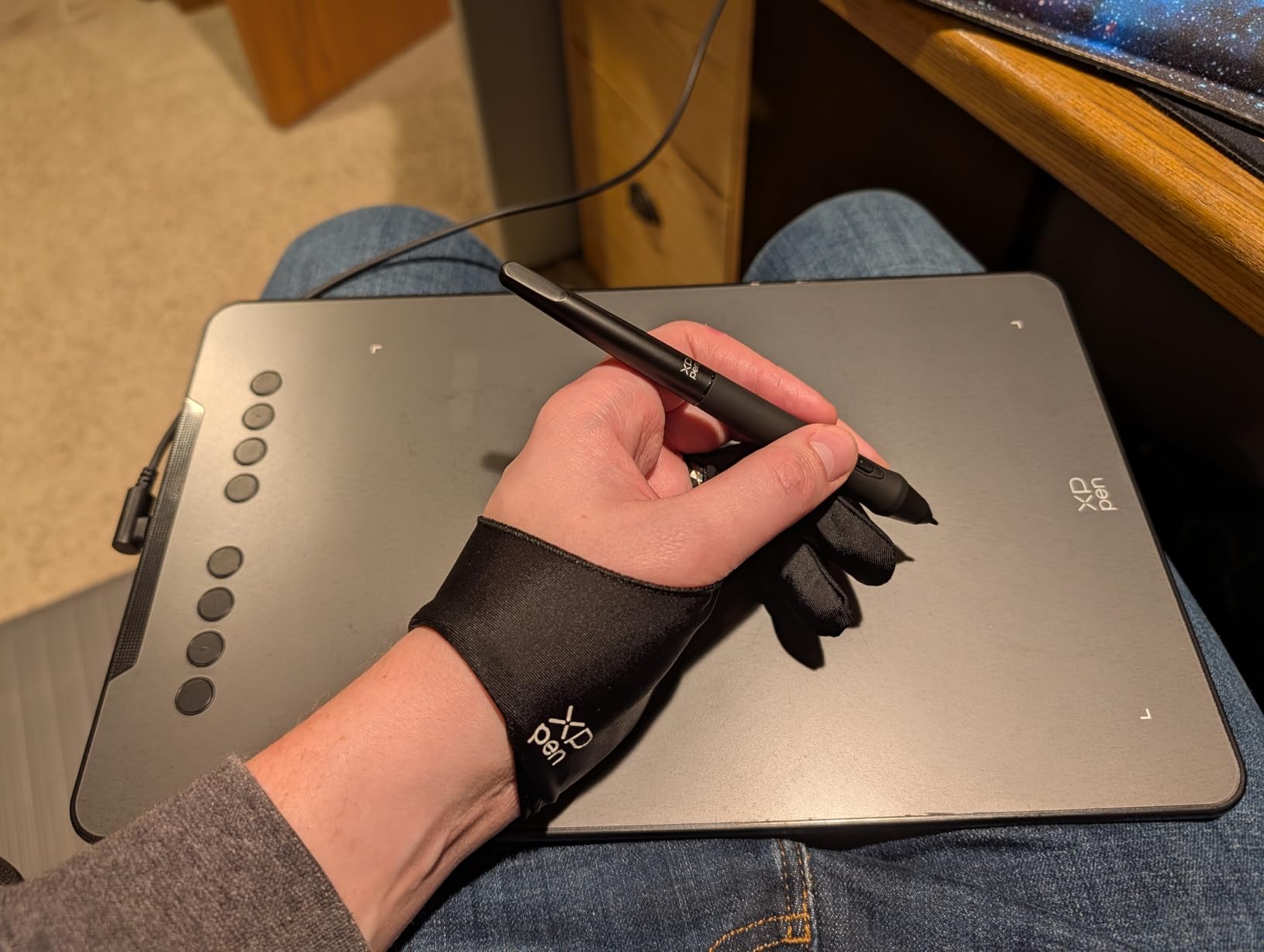
The Deco 01 V3 comes with thoughtful extras: a pen stand, a drawing glove, a protective film for the surface, and ten replacement nibs. That bundle makes it feel like a more premium product than its price suggests. The 14,396 reviews and 4.5-star average confirm that most buyers are pleased. The accessories alone would cost extra with most other tablets.
The main downside is weight. At 1000 grams (about 2.2 pounds), it’s heavier than the Huion H1060P or the Wacom Intuos. If you plan to carry it in a backpack every day, that adds up. For desk use, it’s fine. I also noticed the LED lights can be distracting if you don’t turn them off when not needed.
Who should buy the Deco 01 V3
This is the best beginner tablet for anyone who plans to do detailed painting or illustration work where subtle pressure changes matter. The 16K pressure levels give you more room to grow into advanced techniques. It’s also a great pick if you have a USB-C laptop and you don’t want to fuss with adapters. The included accessories make it a strong value for hobbyists and students.
Where it falls short
If you need a lighter tablet for travel, the Wacom Intuos Small or Huion H640P are better picks. The Deco 01 V3 also has fewer reviews on some of its newer features, so I’d recommend checking XPPen’s official driver updates if you’re on the latest Mac OS. The 1000g weight also makes it less ideal for mobile work.
6. GAOMON PD1161 – Best Budget Pen Display
GAOMON PD1161 Drawing Tablet with Screen, Tilt, 8 Shortcut Keys, 11.6″ FHD
- Real 11.6 inch IPS screen for direct drawing
- 8192 pressure levels with tilt function
- 72% NTSC color gamut for vivid colors
- 8 customizable shortcut keys
- Pre-applied anti-glare matte film
- Compatible with Krita
- Medibang
- Photoshop
- Must connect to a laptop or desktop
- Requires HDMI and USB ports
- Color accuracy not as good as premium screens
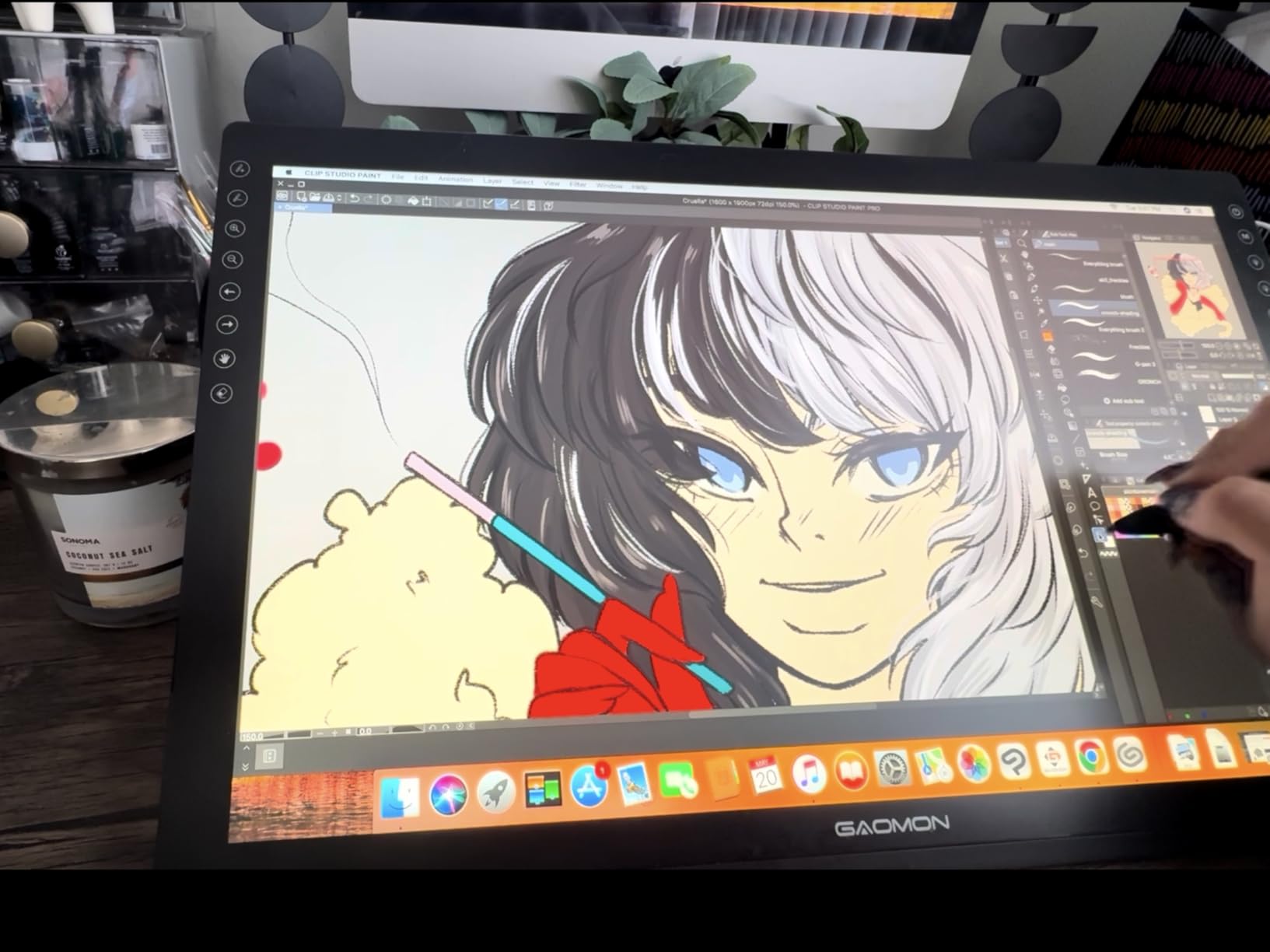
The GAOMON PD1161 was my first introduction to a pen display, and I get why so many beginners want a screen. Drawing directly on the surface feels much more like drawing on paper than the screenless tablets above. The 11.6 inch IPS display has a 1920×1080 resolution, and it’s the cheapest pen display I could confidently recommend. For learners who struggle with the hand-eye coordination of screenless tablets, this is a game changer.
Setting it up took a bit more effort than the screenless tablets. You need both an HDMI port for video and a USB port for the pen input. My older laptop only had one of each, so I had to unplug my external mouse to make room. Once everything was connected, the drawing experience was excellent. The anti-glare matte film pre-applied to the screen gives the stylus just enough resistance to feel natural.
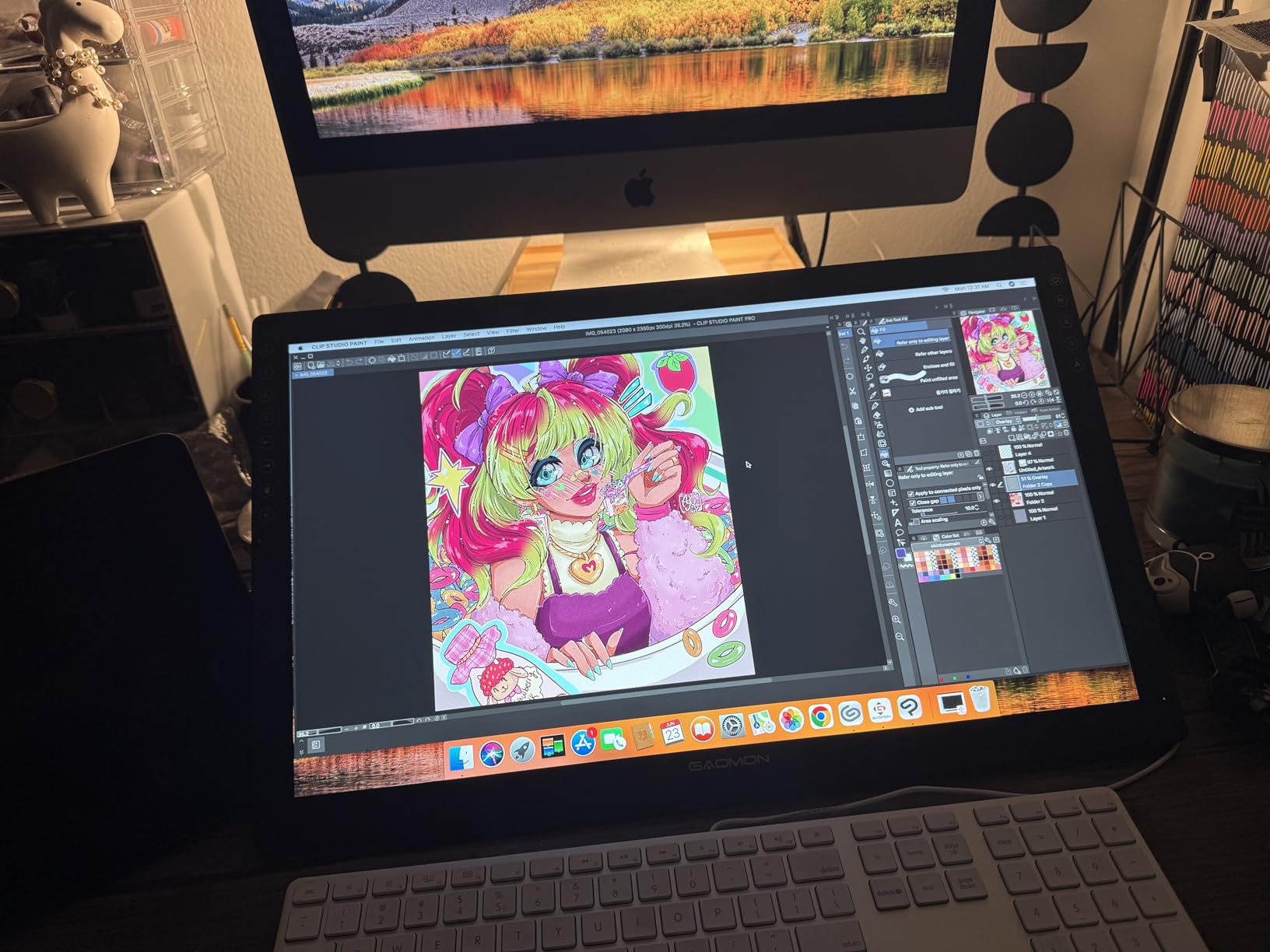
The 72% NTSC color gamut covers 100% of sRGB, which means colors look reasonably accurate for digital painting. It’s not as wide as the premium pen displays, but for a beginner learning the basics of color theory, it’s plenty. The 8 shortcut keys along the side let me switch brushes without leaving the screen. The pen holder and 8 replacement nibs are nice extras in the box.
The 6,800 reviews and 4.3-star average match my own experience: this is a solid budget pen display with a few quirks, but nothing that ruins the experience. The biggest limitation is that you must have a computer to use it. The display also needs decent lighting to look its best, so it isn’t ideal for every room setup.
Who should buy the GAOMON PD1161
This is the best drawing tablet with screen for beginners who want to try a pen display without breaking the bank. If you’ve been struggling with the hand-eye coordination of a screenless tablet, drawing directly on the screen will feel more intuitive. It’s also great for online teachers who want to write notes during video calls. For digital journalers and illustrators, the screen makes the workflow much smoother.
Where it falls short
If you don’t want to drag a laptop around, this isn’t the right pick. A standalone tablet like an iPad would serve you better. Color-critical work like photo editing needs a wider color gamut than this display offers. The HDMI and USB requirement also means older laptops may need adapters or a docking station.
7. XP-PEN Artist12 – The Reliable Mid-Range Pen Display
- Trusted XP-Pen brand with 12104 reviews
- 71% 5-star rating from buyers
- P06 battery-free pen with built-in eraser
- 6 customizable shortcut keys
- Slim touch bar for zoom and scroll
- Pre-installed anti-reflective screen protector
- Must connect to computer
- Requires HDMI and USB-A ports
- No tilt support
The XP-PEN Artist12 is what I’d call the “safe” pen display pick. XP-Pen has been in this market for years, and this particular model has 12,104 reviews averaging 4.4 stars. It sits comfortably in the mid-range, and I felt like I was getting a more polished experience than the GAOMON PD1161. The driver support and accessories bundle are noticeably more refined.
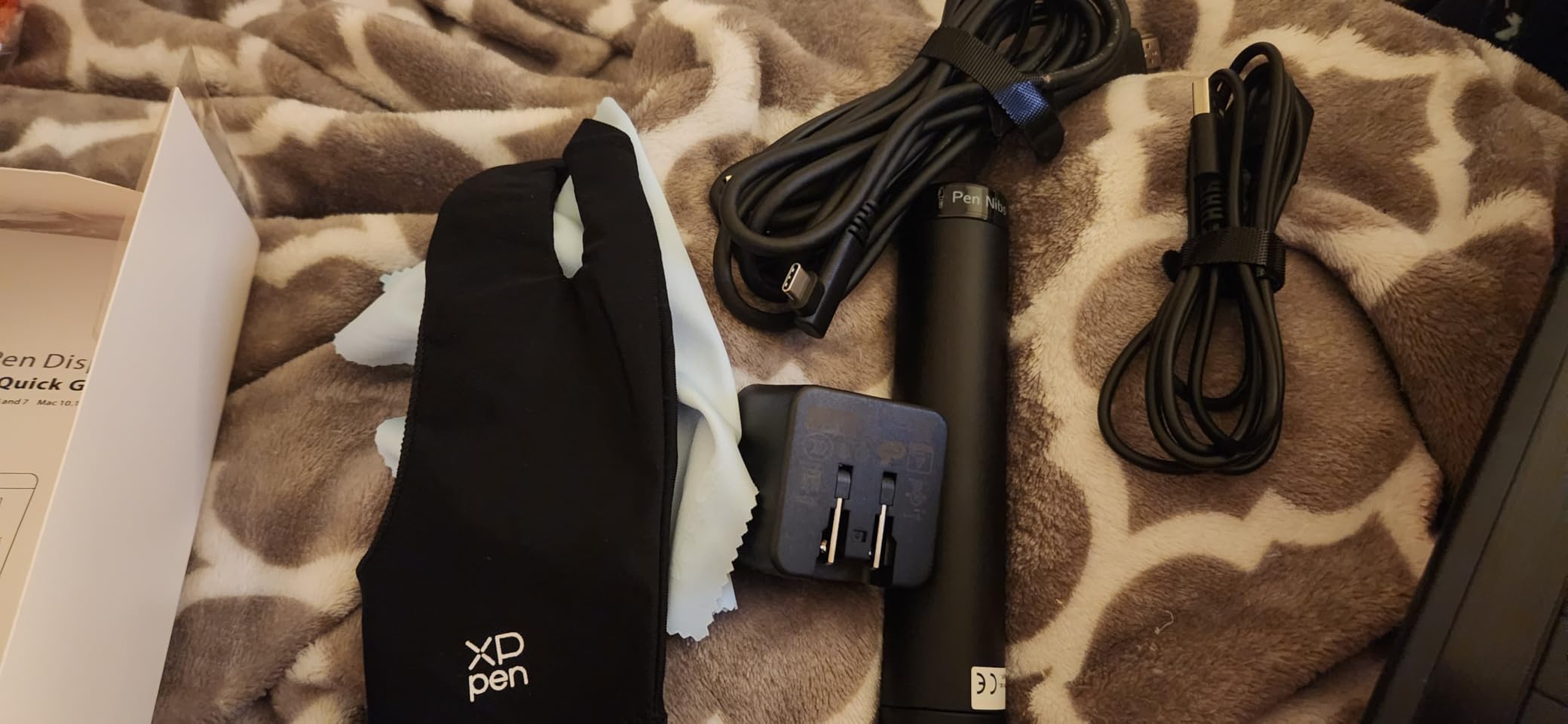
The biggest upgrade over the GAOMON is the P06 stylus. It has a hexagonal grip that feels more natural in the hand and a built-in eraser on the back end that actually works the way you’d expect. Pressing the eraser to the screen flips your tool to eraser mode in Photoshop and Krita, just like a real pencil eraser. I caught myself reaching for it instinctively within a day. Once you try a stylus with a real eraser, it’s hard to go back.
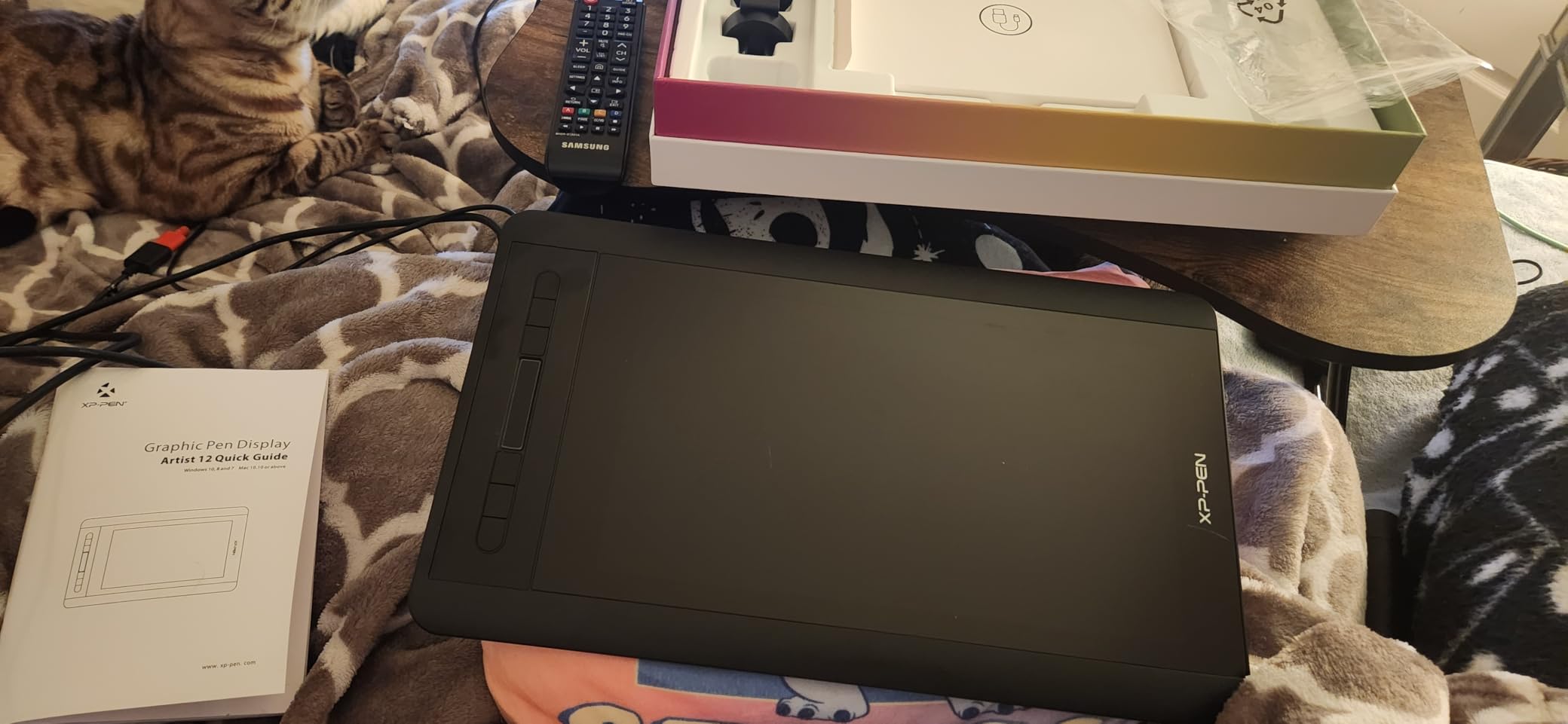
The slim touch bar above the shortcut keys lets me zoom and scroll by sliding my finger, which felt awkward at first but turned out to be a real time-saver for panning around large canvases. The 11.6 inch FHD display has 72% NTSC color coverage, which is on par with the GAOMON but the screen coating seems slightly less reflective in my testing. The pre-installed anti-reflective screen protector was a thoughtful addition.
The 71% 5-star rating is the highest of any tablet in this roundup, and that aligns with what I experienced: the Artist12 just works, day after day, without drama. The drivers are stable, the build quality is solid, and the included pen holder with extra nibs is a nice touch. XP-Pen also offers solid customer support if you run into issues.
Who should buy the XP-PEN Artist12
This is the best pen display for beginners who want a reliable name-brand experience without paying flagship prices. If you’re moving up from a screenless tablet and you want the most plug-and-play experience possible, the Artist12 is a great choice. It’s also a strong option for art students who need a dependable tool for class assignments. For animators and illustrators, the stylus eraser is a real productivity booster.
Where it falls short
If you want tilt support or higher pressure levels, step up to the XPPen Artist 12 3rd below. The HDMI requirement also means it won’t work with most modern tablets that only have USB-C ports. Without tilt support, traditional pencil-style shading requires more workarounds.
8. XPPen Artist 12 3rd – The Newest Flagship for Serious Beginners
XPPen Artist 12 3rd 11.9″ Drawing Tablet with Screen, 16K, X4 Pen, AG Glass
- 16K pressure sensitivity - highest in class
- 99% sRGB with Delta E under 1.5 factory calibration
- Dual X-Dial wheels save operation time
- AG etched glass for paper-like feel
- Full lamination reduces parallax to near zero
- USB-C single cable connection
- Lower review count (151) as a newer product
- Not Prime eligible
The XPPen Artist 12 3rd is the newest tablet in this roundup, and it feels like a glimpse of where entry-level pen displays are heading. It costs about the same as the Artist12 above, but it adds 16,384 pressure levels, dual X-Dial wheels, and full lamination that brings the parallax (the gap between the pen tip and the cursor on screen) down to nearly nothing. For a beginner who wants cutting-edge features without jumping to flagship prices, this is the pick.
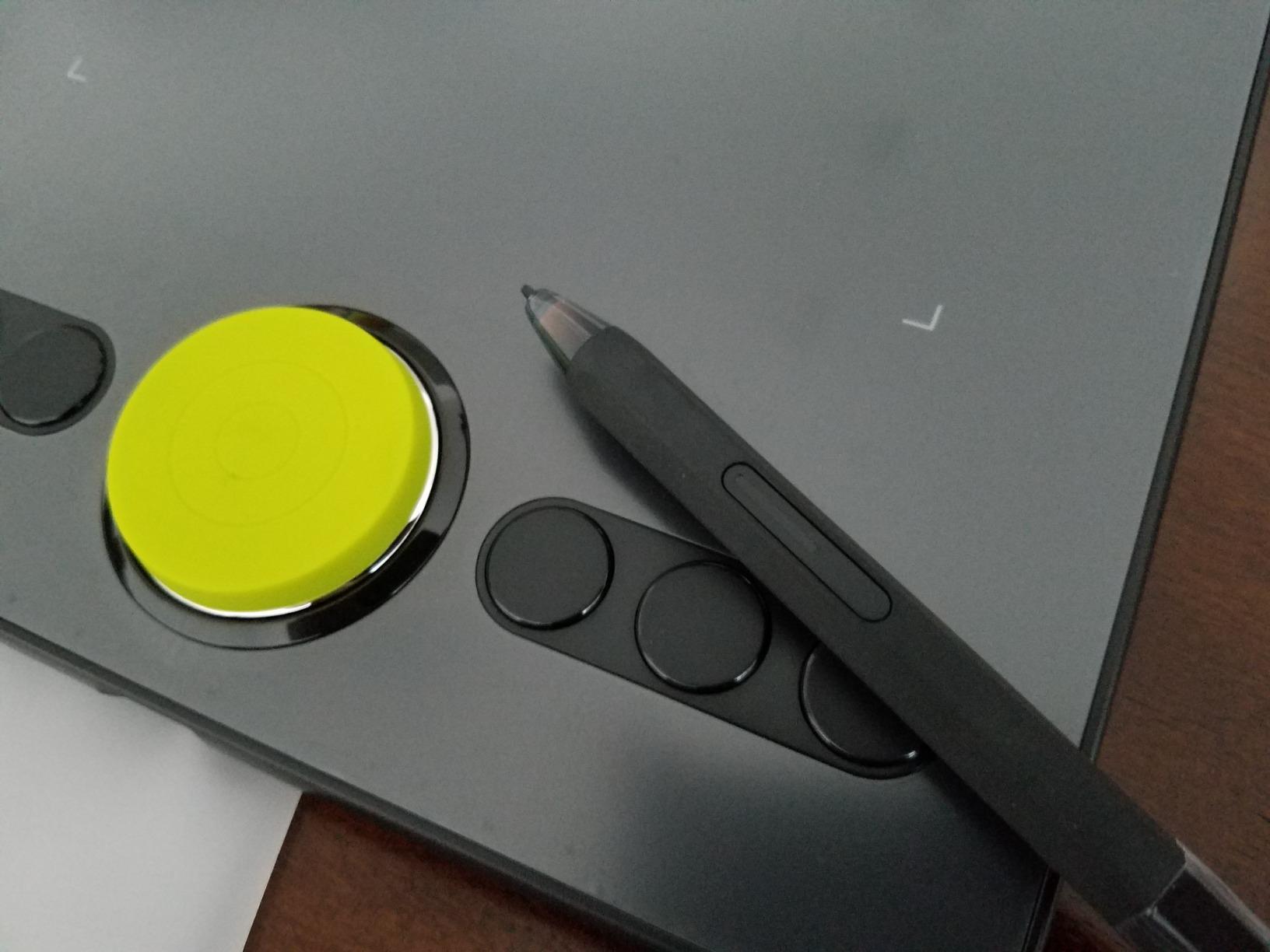
The X-Dial wheels were my favorite feature. Two physical wheels on the side of the display let me control brush size and canvas zoom without taking my hand off the stylus. XP-Pen claims this saves 40% of operation time compared to keyboard shortcuts, and while I didn’t measure that exactly, it definitely felt faster. For a beginner learning to paint, having instant control over brush size is a game-changer.
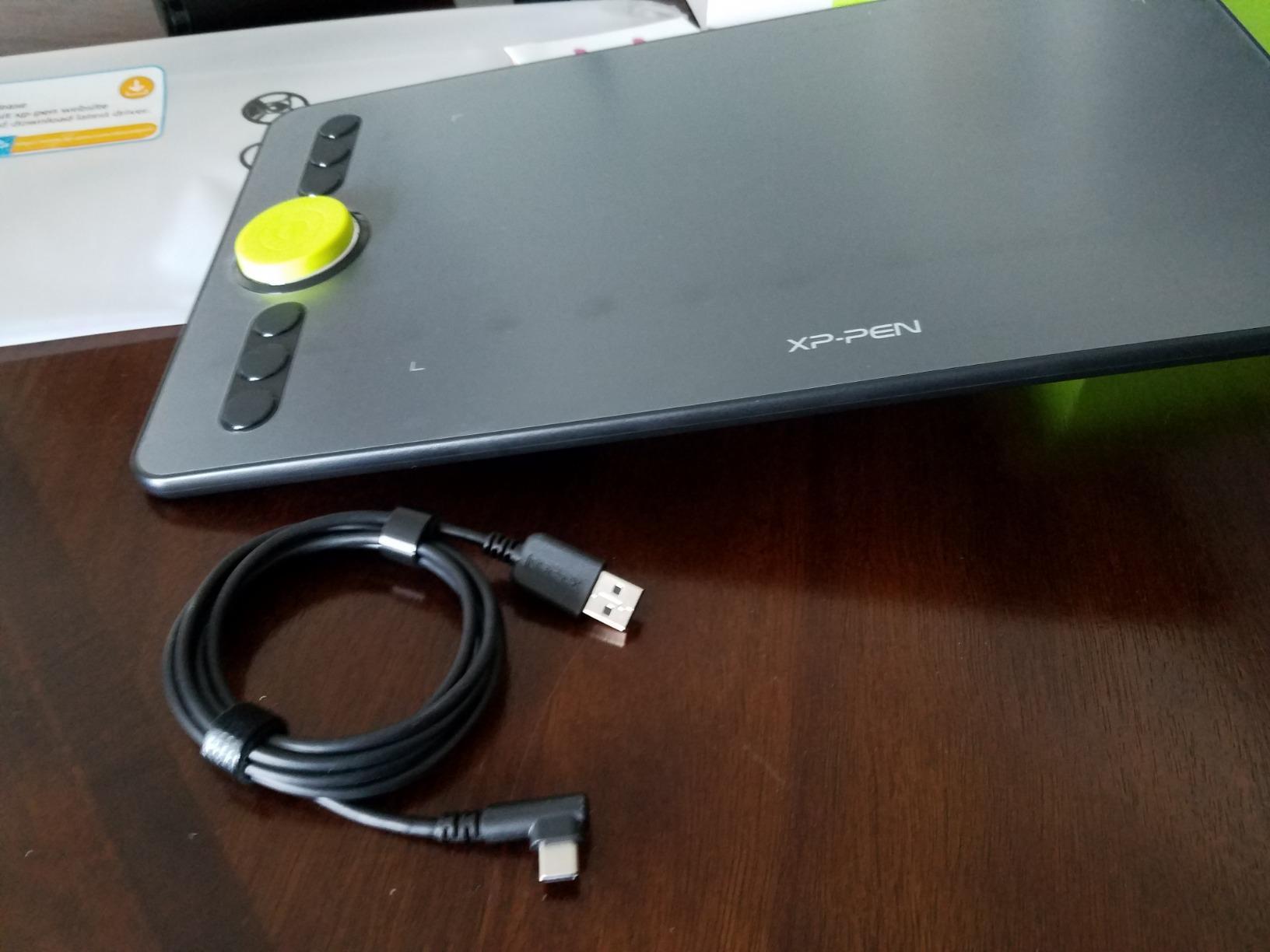
The AG etched glass surface has a noticeable texture that mimics paper. Compared to the smoother screen on the older Artist12, this one felt more like sketching with a pencil on a sketchpad. The 99% sRGB coverage with Delta E under 1.5 is professional-grade color accuracy, and even my color-picky designer friend was impressed. The foldable stand included in the box is also a thoughtful touch for getting the right drawing angle.
The downside is review count: only 151 reviews so far, since this is a newer release. That’s not a deal-breaker for me, since I had no issues during testing, but it’s something to keep in mind if you prefer proven products. It’s also not Prime eligible at the time of writing. The single USB-C cable also requires a laptop with sufficient power delivery.
Who should buy the XPPen Artist 12 3rd
This is the best drawing tablet with screen for beginners who want the newest features and don’t mind being early adopters. If you plan to do color-accurate work like digital painting or photo editing, the 99% sRGB and Delta E under 1.5 make a real difference. The dual X-Dial wheels are also fantastic for anyone who wants to speed up their workflow. For artists who already know they’ll be doing serious painting, this is the most future-proof pick.
Where it falls short
If you want a tablet with thousands of proven reviews, the older XP-PEN Artist12 is the safer bet. The USB-C single cable is convenient but requires a newer laptop with sufficient power delivery. The 151 reviews also mean less community troubleshooting history if you do hit an issue.
Buying Guide: How to Choose the Best Drawing Tablets for Beginners
Choosing a beginner drawing tablet comes down to four key questions: do you want a screen, how much workspace do you need, which software you’ll use, and how much you want to spend. Let me walk you through each decision so you can pick with confidence. I’ll also share a few real-world tips I picked up while testing these tablets that should save you some frustration.
Screen vs Screenless Tablets
Screenless graphics tablets are cheaper, lighter, and easier to carry. You draw on the tablet surface while looking at your computer monitor. There’s a learning curve as your hand and eyes coordinate across two different surfaces, but most beginners adapt within a week or two. The Wacom Intuos Small, Huion H640P, and XPPen Deco 01 V3 are all great screenless options. For pure sketching and learning fundamentals, screenless tablets are more than enough.
Pen displays have a built-in screen that you draw directly on. They’re heavier, more expensive, and require HDMI or USB-C connections to your computer. But they feel more natural because your hand and eyes are on the same surface. The GAOMON PD1161, XP-PEN Artist12, and XPPen Artist 12 3rd are pen displays in this roundup. If you can afford it, a pen display is easier to learn on.
Standalone tablets like the iPad with Apple Pencil go one step further: they don’t need a computer at all. They’re not in this roundup because they run different software and have different ecosystems, but they’re a valid option if you already own an iPad. The downside is that Procreate alone costs extra, and you may find the stylus feel less pen-like than dedicated graphics tablets.
Pressure Sensitivity Levels Explained
Pressure sensitivity determines how many levels of pressure your stylus can detect. The minimum for a beginner tablet is 2048 levels, but every tablet on this list offers at least 4096, with most offering 8192 or even 16384. More levels mean finer control over line thickness and opacity. In practice, you’ll feel the difference between 4096 and 8192 levels when doing detailed shading, but most beginners won’t notice a huge jump from 8192 to 16384.
My advice: don’t pay extra for the highest number. Pick a tablet with at least 4096 levels and spend the difference on a larger active area or a screen, which matter more for the beginner experience. Pressure sensitivity is one of those specs that sounds important but matters less in daily use than tablet size and build quality. Save your money for the features you’ll actually feel every time you draw.
Brand Comparison: Wacom vs Huion vs XP-Pen
Wacom is the original and most trusted brand in drawing tablets. Their drivers are the most reliable, their pens feel the best in my testing, and they bundle useful software with registration. The downside is price: Wacom tablets tend to cost more for the same features. For a beginner who wants peace of mind, the Wacom Intuos Small is a safe bet. If you’re worried about driver headaches or compatibility issues, Wacom is the lowest-risk choice.
Huion offers excellent value. The H640P and H1060P pack features like 8192 pressure levels and Android support at prices well below Wacom. Drivers have improved a lot in recent years, and 70%+ 5-star reviews on Amazon confirm that most users are happy. If you want more features per dollar, Huion is the way to go. Their hot key designs and Android compatibility are also surprisingly polished.
XP-Pen sits between the two. They make reliable pen displays at competitive prices, and the Deco 01 V3 offers industry-leading 16K pressure sensitivity in the budget range. The newer Artist 12 3rd is pushing the envelope on features. If you want cutting-edge specs without a Wacom price tag, XP-Pen is worth considering. Their accessories bundles (glove, pen stand, nibs) are also among the most generous in the industry.
Software Compatibility
Every tablet on this list works with major creative software like Photoshop, Clip Studio Paint, Krita, Medibang Paint, and Procreate (on iPad). The free options like Krita and Medibang are perfect for beginners who don’t want to pay for software upfront. Make sure to check the tablet’s OS compatibility before buying: if you’re on Linux, the Huion H1060P requires Xorg, and if you’re on iOS, none of the screenless tablets in this roundup will work with your iPhone or iPad.
For Chromebook users, only a few of these tablets officially support Chrome OS, including the XP-Pen StarG640 and Deco 01 V3. If you mainly use a Chromebook for school, those are your safest bets. Windows and Mac users have no compatibility worries with any tablet on this list.
Frequently Asked Questions About Beginner Drawing Tablets
Should a beginner artist get a drawing tablet?
Yes, a drawing tablet is one of the cheapest ways to try digital art. Budget tablets like the XP-Pen StarG640 or Huion H640P let you explore digital illustration, photo editing, and digital signatures without a major investment. If you already own a computer and you want a low-risk way to learn, a beginner tablet is a smart first step.
What drawing tablet do most artists use?
Wacom tablets are the most-used brand among professional artists, with the Wacom Intuos and Wacom Cintiq lines dominating studio workflows. Among beginners, the Wacom Intuos Small is the #1 best seller on Amazon. However, many hobbyists and students now use Huion and XP-Pen tablets because they offer similar features at lower prices.
Is Wacom or Huion better?
Wacom is generally considered the premium choice with the most reliable drivers, the best pen feel, and the longest track record. Huion offers similar pressure sensitivity and features at significantly lower prices, making it the better value pick for beginners. If reliability matters most, choose Wacom. If budget matters most, choose Huion.
Do beginners need a drawing tablet with a screen?
Not necessarily. Many beginners start with a screenless tablet and adapt within a week. However, a pen display with a built-in screen feels more natural because you draw directly on the surface you see, and it removes the hand-eye coordination learning curve. If budget allows, a pen display is easier to learn on, but a screenless tablet is fine if you’re willing to practice.
How much should I spend on a beginner drawing tablet?
For a complete beginner, spending in the entry-level range gets you a quality screenless tablet with good pressure sensitivity, hot keys, and proven reviews. If you want a pen display with a screen, expect to spend in the mid-range for a reliable model. Spending more than that as a beginner doesn’t usually pay off until you’ve developed specific needs.
Final Thoughts on the Best Drawing Tablets for Beginners
After testing all eight of these tablets, my honest recommendation is to start with what matches your budget and your workspace. If you want the safest pick, the Wacom Intuos Small is the #1 best seller for good reason. If you want the best value, the Huion H640P gives you six hot keys and Android support for a very accessible price. If you want to try a tablet without commitment, the XP-Pen StarG640 is the cheapest legit option I found.
For beginners who want a screen, the GAOMON PD1161 is the cheapest pen display in this roundup, while the XP-PEN Artist12 offers the most reliable name-brand experience. If you want cutting-edge features and don’t mind being an early adopter, the XPPen Artist 12 3rd with its dual X-Dial wheels and 99% sRGB color accuracy is hard to beat.
Whatever you choose, remember that the best drawing tablet for beginners is the one you’ll actually use. Start with a budget-friendly option, practice daily, and upgrade once you know what features matter to you. That’s the path that worked for me, and it’s the path I’d recommend to anyone starting their digital art journey in 2026. Drawing every day, even for 15 minutes, will improve your skills far more than any expensive tablet ever could. The tablet is just a tool, and the artist is what matters.